Merging and Conflicts
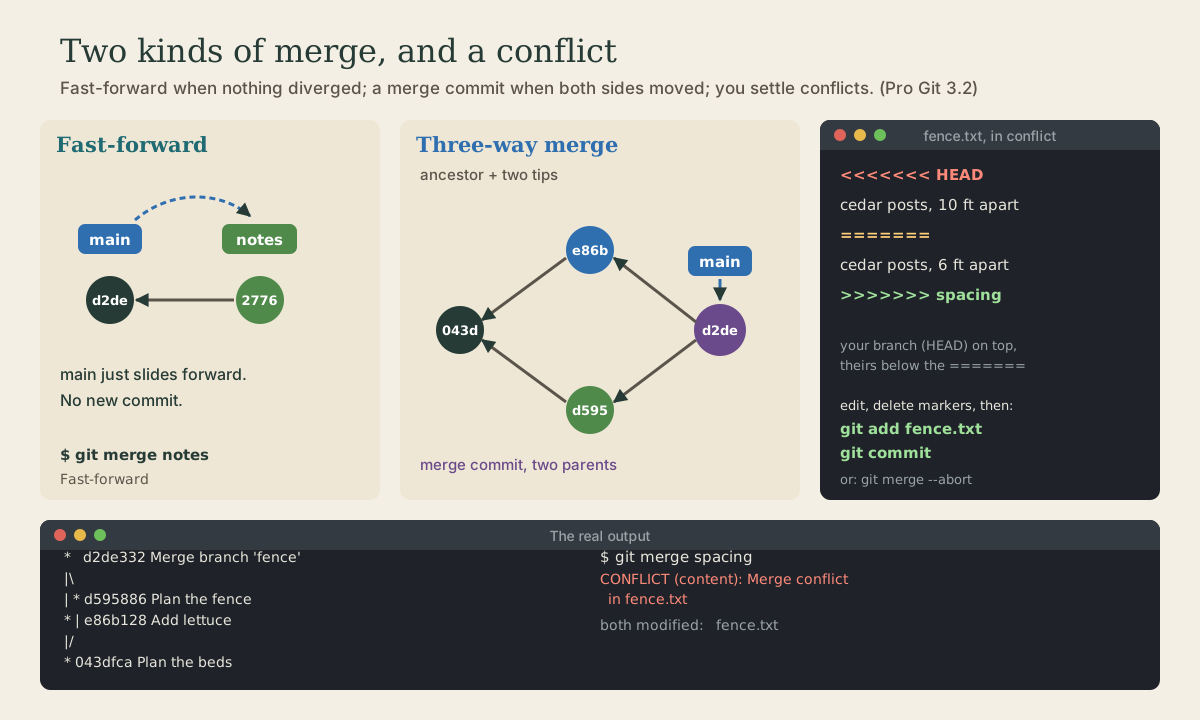
git merge brings another branch's work into the one you're on. If your branch hasn't moved, it's a fast-forward: the pointer just slides ahead. If both have moved, git makes a three-way merge commit from the two tips and their common ancestor. When both changed the same lines, you get a conflict: read the markers, decide what the file should say, add, and commit, or back out with git merge --abort.
- 5 min
- 7 steps
- 2 questions
- Lesson 32 of 80
In this lesson
- Merging
- Fast-forward
- Three-way merge
- Conflicts
- Keeping conflicts small
- Your turn
- So
Picking up where you left off.
Merging
When work on a branch is done, you merge it into another branch, usually main. Switch to the branch that should receive the work, then name the branch to bring in 1:
me@linuxbox:~/garden$ git switch main
me@linuxbox:~/garden$ git merge fence
What git does next depends on whether both branches have moved.
Fast-forward
If main hasn’t changed since notes split off from it, main is simply behind. Git doesn’t need to combine anything; it moves main forward to where notes is. That’s a fast-forward 1:
me@linuxbox:~/garden$ git merge notes
Updating d2de332..2776660
Fast-forward
 notes.txt | 1 +
 1 file changed, 1 insertion(+)
No new commit is made.
Quick check
git merge make a fast-forward instead of a merge commit?If both branches have new commits, git needs a merge commit with two parents.
Three-way merge
If both branches have new commits, git combines them. It finds their common ancestor, the last commit they share, and compares each branch’s tip with it: changes made on only one side are kept, changes on both sides are combined. The result is a new merge commit with two parents 1:
me@linuxbox:~/garden$ git merge --no-edit fence
Merge made by the 'ort' strategy.
 fence.txt | 1 +
 1 file changed, 1 insertion(+)
 create mode 100644 fence.txt
me@linuxbox:~/garden$ git log --oneline --graph
*   d2de332 Merge branch 'fence'
|\
| * d595886 Plan the fence
* | e86b128 Add lettuce
|/
* 043dfca Plan the beds
Without --no-edit, git opens your editor with the message “Merge branch ‘fence’” for you to accept or expand. (‘ort’ is the name of git’s current merge algorithm.)
Most merges are like this: changes in different files, or different parts of the same file, combine on their own.
Conflicts
If both branches changed the same lines differently, git can’t know which you want. It stops with a conflict 1:
me@linuxbox:~/garden$ git merge spacing
Auto-merging fence.txt
CONFLICT (content): Merge conflict in fence.txt
Automatic merge failed; fix conflicts and then commit the result.
me@linuxbox:~/garden$ git status
On branch main
You have unmerged paths.
  (fix conflicts and run "git commit")
  (use "git merge --abort" to abort the merge)

Unmerged paths:
  (use "git add <file>..." to mark resolution)
    both modified:   fence.txt
Git has written both versions into the file, between conflict markers 1:
<<<<<<< HEAD
cedar posts, 10 ft apart
=======
cedar posts, 6 ft apart
>>>>>>> spacing
- Between
<<<<<<< HEADand=======: your version, from the branch you’re on. - Between
=======and>>>>>>> spacing: the other branch’s version.
To resolve it 1:
- Edit the file to say what it should: one version, the other, or a mix. Delete all three marker lines.
git add fence.txtto mark it resolved.git committo finish the merge (the message is filled in for you).
me@linuxbox:~/garden$ nano fence.txt                 # leave: cedar posts, 8 ft apart
me@linuxbox:~/garden$ git add fence.txt
me@linuxbox:~/garden$ git commit --no-edit
Changed your mind partway through? git merge --abort puts everything back as it was before the merge 1.
Editors like VS Code show conflicts with buttons for “accept current,” “accept incoming,” or both, which does the same edit for you. However you resolve it, search the file for <<<<<<< before committing: a leftover marker is an easy mistake to commit.
Quick check
<<<<<<< HEAD and =======?The other branch’s version is between ======= and >>>>>>>.
Keeping conflicts small
- Merge often, so branches don’t drift far apart.
- Keep branches focused on one thing.
- Pull in
main’s changes partway through a long branch (git merge mainwhile on the branch), so conflicts come in small pieces.
Your turn
Exercises
- Make a branch, commit a new file on it, switch back, and merge it. Was it a fast-forward? Why?
- Make two branches from the same commit that each add a different new file. Merge both into
main. Look atgit log --oneline --graph. - Create a conflict on purpose: two branches each change the same line of
beds.txt. Merge, read the markers, resolve it by keeping both lines, and commit. - Start another conflicting merge and back out of it with
git merge --abort. Checkgit status.
Answers
- Yes, if
mainhad no new commits since the branch split off; git just movedmainforward. - The first merge is a fast-forward; the second makes a merge commit, because
mainmoved (it now has the first branch’s file) since the second branch split off. - Edit the file so both lines remain and no marker lines are left, then
git add beds.txtandgit commit.git log --oneline --graphshows the merge commit with two parents. git statusreports a clean working tree onmain, as if the merge never started.
So
Switch to the receiving branch and git merge the other. If yours hasn’t moved, it’s a fast-forward; if both have, git makes a merge commit with two parents from their common ancestor. Conflicts show both versions between <<<<<<<, =======, and >>>>>>>: edit to what it should be, git add, git commit, or git merge --abort.
Lesson complete
Nice work.
Sources for this lesson
- 1Scott Chacon, Ben Straub. Pro Git, 2nd edition. Apress; free online at git-scm.com. 2014. verifiedFree CC BY-NC-SA 3.0 book, maintained online. Ch. 1: version control; Git's 2005 origin when the Linux kernel lost free use of BitKeeper; snapshots, not differences (unchanged files stored once); nearly every operation local; integrity through 40-character SHA-1 checksums; the three states (modified, staged, committed) and three areas (working tree, staging area or index, .git directory); first-time setup with system/global/local config levels, user.name and user.email baked into commits, core.editor, git config --list --show-origin. Ch. 2: git init, status (and -s), add, diff and diff --staged, commit (-m, -a), .gitignore, log options, amending, undoing, remotes, tags, aliases. Ch. 3: branches as movable pointers, HEAD, merging and conflicts, remote branches, rebasing and its rule. Ch. 7: reset demystified, stashing, revision selection. Ch. 8: core.autocrlf true on Windows, input on Linux and macOS. Ch. 10: objects (blob, tree, commit) and references.