Rebasing
Rebasing takes your branch's commits and replays them on top of another branch, giving a straight history instead of a merge commit. The new commits get new IDs, which is why the golden rule says never to rebase commits other people already have. Rebasing conflicts and --continue/--abort, tidying your own commits with interactive rebase (reword, squash, fixup, drop), and when to merge instead.
- 5 min
- 7 steps
- 2 questions
- Lesson 33 of 80
In this lesson
- What rebase does
- The golden rule
- Rebase conflicts
- Tidying commits: interactive rebase
- Merge or rebase?
- Your turn
- So
Picking up where you left off.
What rebase does
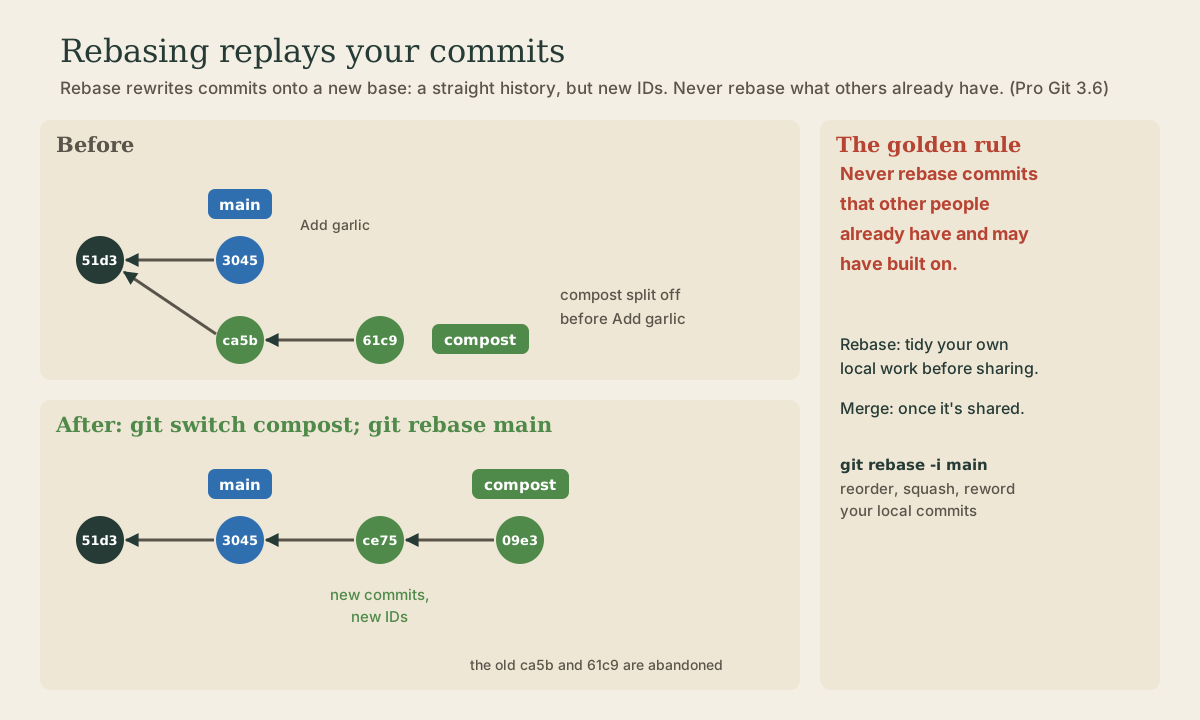
Merging combines two branches with a merge commit. Rebasing does something different: it takes the commits on your branch and replays them, one by one, on top of another branch, as if you’d started your work from there 1.
me@linuxbox:~/garden$ git log --oneline --graph --all
* 304505a (main) Add garlic
| * 61c9ab4 (HEAD -> compost) Add compost schedule
| * ca5bca4 Plan the compost bin
|/
*   51d3821 Merge branch 'spacing'
me@linuxbox:~/garden$ git rebase main
Successfully rebased and updated refs/heads/compost.
me@linuxbox:~/garden$ git log --oneline --graph --all
* 09e3458 (HEAD -> compost) Add compost schedule
* ce75ff3 Plan the compost bin
* 304505a (main) Add garlic
*   51d3821 Merge branch 'spacing'
The history is now a straight line, and merging compost into main is a simple fast-forward. The end result, the files, is the same as a merge; the history is cleaner 1.
Look at the IDs: ca5bca4 became ce75ff3, and 61c9ab4 became 09e3458. A commit’s ID is a checksum of everything in it, including its parent. Rebasing gives each commit a new parent, so rebasing doesn’t move commits; it makes new ones and abandons the old ones 1.
Quick check
So rebasing creates new commits. Anyone who had the old ones now has commits that no longer match yours.
The golden rule
That’s why rebasing comes with one rule, Pro Git’s single-line warning 1: never rebase commits that other people already have and may have built on.
If you rebase commits someone else already has, their copies and yours now hold different commits for the same work, and sorting that out is painful 1. So:
- Rebase your own local work, before you share it, to tidy it up or bring it up to date with
main. - Merge once work is shared.
For this course’s projects, which are yours alone, rebase freely. On shared branches, don’t.
Quick check
The golden rule: never rebase commits other people already have and may have built on.
Rebase conflicts
Replaying commits can hit the same conflicts a merge can, but one commit at a time. Git stops at the commit that conflicts 2:
- Fix the file, as in the last lesson, and
git addit. git rebase --continueto carry on with the next commit.- Or
git rebase --abortto put everything back as it was before the rebase.
Tidying commits: interactive rebase
git rebase -i opens a list of your recent commits in your editor and lets you rewrite them before sharing 1 2:
me@linuxbox:~/garden$ git rebase -i main
pick ce75ff3 Plan the compost bin
pick 09e3458 Add compost schedule
pick 7a1b2c3 Fix typo in compost plan
Change the word at the start of a line to say what to do with that commit, then save and close:
| Word | Does |
|---|---|
pick |
keep the commit as is |
reword |
keep it, but edit its message |
squash |
fold it into the commit above, combining messages |
fixup |
fold it into the commit above, dropping its message |
drop |
delete the commit |
Reorder lines to reorder commits. The classic use: three messy commits (“WIP,” “fix,” “fix again”) become one clean one before you share the branch. The same golden rule applies, since every rewritten commit gets a new ID.
Merge or rebase?
Both are fine, and teams choose their own convention 1:
- Merge keeps the true history: when things happened, in parallel.
- Rebase gives a tidy, linear history that’s easier to read.
A common habit: rebase your private branch on main to bring it up to date and clean it up, then merge it into main.
Your turn
Exercises
- Make a branch with two commits; meanwhile, make a commit on
main. Draw the graph, then rebase your branch ontomainand draw it again. Which IDs changed? - Merge the rebased branch into
main. Was it a fast-forward? - Make three small commits on a new branch, then use
git rebase -i mainto squash them into one, with a good message. - Cause a conflict during a rebase, resolve it, and finish with
git rebase --continue.
Answers
- Your branch’s two commits get new IDs;
main’s commit keeps its ID. The graph becomes a straight line. - Yes: after the rebase,
mainis directly behind your branch. - Mark the second and third lines
squash(orfixup), save, and write one combined message.git log --onelinethen shows a single commit. - Fix the file,
git add,git rebase --continue. If several commits conflict, you may do this more than once.
So
Rebasing replays your commits on top of another branch, giving a straight history; each replayed commit is new, with a new ID. So rebase only work nobody else has: tidy and update your own branches, squash messy commits with git rebase -i, and merge once work is shared. In a conflict, fix, git add, git rebase --continue, or --abort.
Lesson complete
Nice work.
Sources for this lesson
- 1Scott Chacon, Ben Straub. Pro Git, 2nd edition. Apress; free online at git-scm.com. 2014. verifiedFree CC BY-NC-SA 3.0 book, maintained online. Ch. 1: version control; Git's 2005 origin when the Linux kernel lost free use of BitKeeper; snapshots, not differences (unchanged files stored once); nearly every operation local; integrity through 40-character SHA-1 checksums; the three states (modified, staged, committed) and three areas (working tree, staging area or index, .git directory); first-time setup with system/global/local config levels, user.name and user.email baked into commits, core.editor, git config --list --show-origin. Ch. 2: git init, status (and -s), add, diff and diff --staged, commit (-m, -a), .gitignore, log options, amending, undoing, remotes, tags, aliases. Ch. 3: branches as movable pointers, HEAD, merging and conflicts, remote branches, rebasing and its rule. Ch. 7: reset demystified, stashing, revision selection. Ch. 8: core.autocrlf true on Windows, input on Linux and macOS. Ch. 10: objects (blob, tree, commit) and references.
- 2git-rebase documentation. Git project (git-scm.com). verifiedReapply commits on top of another base tip. On a conflict, resolve it, git add, and git rebase --continue, or --abort to return to the original branch, or --skip. -i/--interactive opens a todo list where each commit can be pick, reword, edit, squash, fixup, or drop, and lines can be reordered.