The Memory Hierarchy
No storage is both fast and big, so computers stack several: registers, caches, main memory, SSDs and hard disks, the network, each step bigger, cheaper, and slower, from under a nanosecond to hundreds of milliseconds. Why distance and technology set those speeds; how caches keep recently used and nearby data close by exploiting temporal and spatial locality; a measured experiment where reading the same ten million numbers in a random order takes nearly six times as long; and what it means in practice, from file reads to Linux using spare memory as a disk cache.
- 6 min
- 7 steps
- 2 questions
- Lesson 71 of 80
In this lesson
- No perfect memory
- The hierarchy
- Locality
- An experiment
- What it means in practice
- Your turn
- So
Picking up where you left off.
No perfect memory
You’d want storage that’s huge, fast, and cheap. No device is all three: the fast ones are small and expensive, the big ones slow 1. So every computer combines several kinds, arranged as the memory hierarchy, and moves data between them so that what’s needed now is usually somewhere fast 1.
The hierarchy
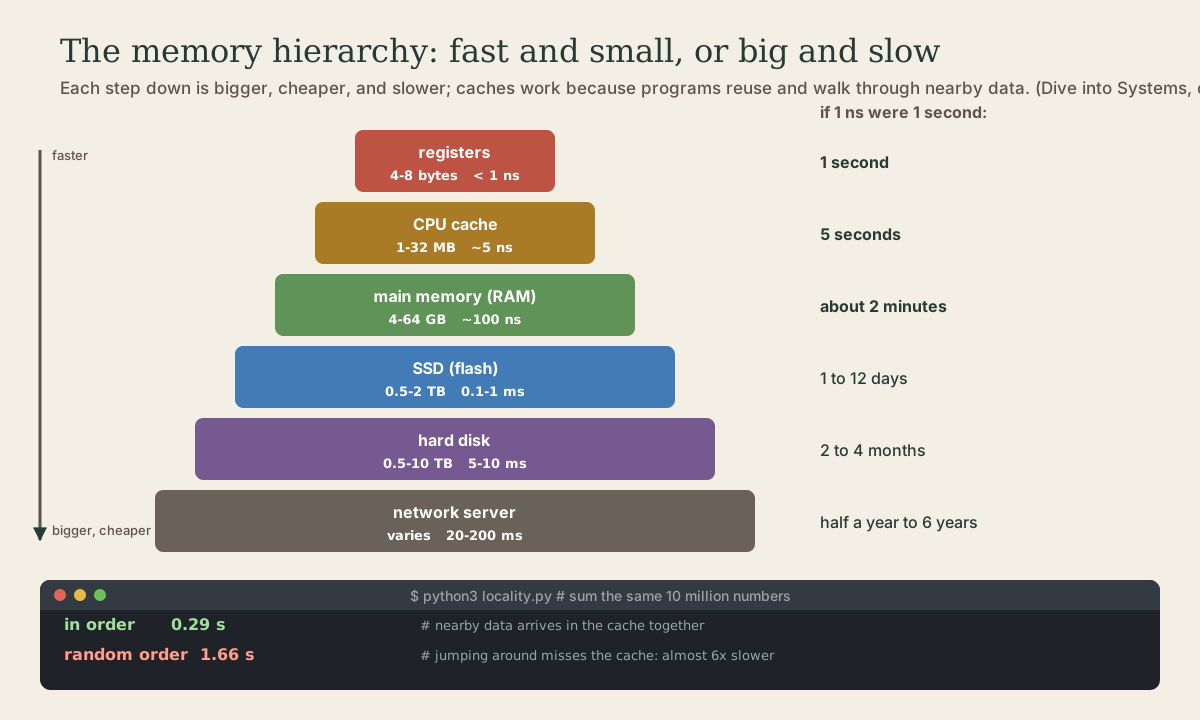
Typical figures for a 2020 workstation 1:
| Level | Size | Time to reach |
|---|---|---|
| Registers | 4 to 8 bytes each | under 1 ns |
| CPU cache | 1 to 32 MB | about 5 ns |
| Main memory (DRAM) | 4 to 64 GB | about 100 ns |
| Flash SSD | 0.5 to 2 TB | 0.1 to 1 ms |
| Hard disk | 0.5 to 10 TB | 5 to 10 ms |
| Server over the network | varies | 20 to 200 ms |
The numbers are too small to feel, so scale them up: if a register took one second to read, the cache would take 5 seconds, main memory nearly 2 minutes, an SSD a day or more, a hard disk months, and a round trip to a server across the internet years.
Two things set the speeds 1:
- Distance. Registers sit right beside the ALU; data from a disk travels through several controllers and much longer wires. At these speeds, centimeters matter.
- Technology. Registers and caches are SRAM, a few gates per bit; main memory is DRAM, capacitors that need refreshing; SSDs are flash; hard disks have a spinning platter and a moving arm, which is why they’re slowest.
The cache itself is layered: a small, very fast L1 cache next to each core, a bigger L2, and often a large L3 shared by all the cores 1. lscpu shows their sizes (last lesson).
Quick check
And an SSD is about a thousand times slower again, a hard disk tens of thousands.
Locality
Caches only help if the data a program needs next is already in them. Luckily, programs are predictable in two ways 1:
- Temporal locality: data used recently tends to be used again soon. A loop’s counter, the current line of a document.
- Spatial locality: data near something just used tends to be used next. The next item in a list, the next bytes of a file.
So when the CPU needs a byte from memory, the cache fetches a whole block around it, typically 16 to 64 bytes, and keeps recently used blocks close 1. Programs that walk through data in order get the next several values for free; programs that jump around keep waiting for main memory.
An experiment
This program adds up the same ten million numbers twice: once in order, once in a shuffled order. The work is identical; only the order of reading changes. Save it as locality.py:
# locality.py: read the same numbers in order, then in a random order.
import array
import random
import time

N = 10_000_000
data = array.array("q", range(N))       # 10 million 8-byte integers, side by side
in_order = list(range(N))
shuffled = in_order[:]
random.shuffle(shuffled)

def total(indexes):
    s = 0
    for i in indexes:
        s += data[i]
    return s

for name, order in [("in order", in_order), ("random order", shuffled)]:
    start = time.perf_counter()
    total(order)
    print(f"{name:<13} {time.perf_counter() - start:.2f} s")
array.array("q", ...) stores the numbers as plain 8-byte integers packed side by side in memory, like a C array, so neighbors really are neighbors. On a desktop PC:
me@linuxbox:~$ python3 locality.py
in order      0.29 s
random order  1.66 s
Almost six times slower, for exactly the same additions. Reading in order, each cache block brings in the next few numbers; in a random order, nearly every read lands somewhere not yet in the cache, and the processor waits for main memory. Your numbers will differ by machine; the gap won’t go away.
Quick check
In order, each cache block brings in the next several values too: spatial locality.
What it means in practice
- Reading files in order is fast, and the system helps: Linux keeps recently used file data in otherwise unused memory as a cache. That’s why
free -hshows a largebuff/cachefigure; that memory is handed back to programs whenever they need it 2 3. - SSDs changed everything for random access: a hard disk has to swing its arm to each new spot, milliseconds each time, so an SSD makes a laptop feel faster than any processor upgrade 1.
- The network is the slowest layer of all. A program that makes hundreds of small requests to a server spends almost all its time waiting.
- When something is unexpectedly slow, ask which layer it’s waiting on.
Your turn
Exercises
- Using the table, how many times slower is a hard disk than main memory? An SSD than main memory?
- Run
locality.py. Then changeNto 1,000,000 and run it again. Does the ratio change? lscpu | grep -i cacheon your Linux machine. How big are L1, L2, and L3?free -h. How much memory is used forbuff/cache? Read a big file (cata large.isoto/dev/null) and check again.- Which locality does each show: a loop counter; reading a photo file from start to end; a web browser keeping recently visited pages?
Answers
- A hard disk (5 to 10 ms) is 50,000 to 100,000 times slower than memory (100 ns); an SSD (0.1 to 1 ms) 1,000 to 10,000 times.
- With smaller data more of it fits in the caches, so the gap usually shrinks, though it rarely disappears.
buff/cachegrows by about the file’s size: Linux kept it in memory in case it’s read again.- Temporal; spatial; temporal.
So
Storage comes in layers, each bigger, cheaper, and slower than the one above: registers (under a nanosecond), caches (nanoseconds), main memory (about 100 ns), SSDs (a tenth of a millisecond and up), hard disks (milliseconds), and the network (tens to hundreds of milliseconds). Caches keep recently used data (temporal locality) and blocks of nearby data (spatial locality) close to the CPU, so programs that read in order run far faster than ones that jump around: the same sum took 0.29 s in order and 1.66 s shuffled. Linux uses spare memory the same way, as a cache for files.
Lesson complete
Nice work.
Sources for this lesson
- 1Suzanne J. Matthews, Tia Newhall, Kevin C. Webb. Dive into Systems. No Starch Press (free online edition). 2022. verifiedCh. 4 Binary and Data Representation: bits as two voltage states, bytes (8 bits, 256 values, smallest addressable unit), words of 32 or 64 bits, n bits give 2^n values; decimal and binary place value with 0b and 0x prefixes; hexadecimal as four bits per digit; fixed storage sizes and unsigned ranges; two's complement with a negative-weighted top bit, one zero, range -2^(n-1) to 2^(n-1)-1, all ones is -1, negation by flipping bits and adding one; subtraction as adding the negation, reusing negation and addition circuits; overflow and the odometer analogy.
- 2free(1) manual page. man7.org (Linux man-pages). verifiedDisplays free and used memory; buff/cache is the sum of buffers and page cache; available estimates memory available for starting new applications without swapping, taking page cache into account.
- 3William Shotts. The Linux Command Line, Seventh Internet Edition (25.12A). LinuxCommand.org (print edition by No Starch Press). 2026. verifiedFree CC BY-NC-ND 3.0 book, release 25.12A of July 18, 2026. Part 1, Learning the Shell: the shell and terminal emulators, prompts ($ vs. # for the superuser), command history (most distributions keep the last 1,000 commands), Shift-Ctrl-C/V for copy and paste; navigation and the directory tree; exploring the system (ls options and the long listing, file, less, the guided tour of /, symbolic links); manipulating files (wildcards and character classes, mkdir, cp, mv, rm, ln; no undelete, test wildcards with ls first); working with commands (four kinds of commands, type, which, help, --help, man and its sections, apropos, whatis, info, alias); redirection; expansion and quoting; Readline keyboard tricks, completion, history search; permissions; processes. Later parts cover the environment, vi, packages, storage, networking, find, archiving, regular expressions, text processing, and shell scripting.