systemd and systemctl
systemd is process 1: it boots the system and starts and supervises everything else as units, such as services, timers, mounts, and targets. Reading systemctl status, with its colored dot, Loaded and Active lines, and recent log lines; start, stop, restart, and reload now versus enable and disable at boot, and enable --now; finding failures; unit files in /usr/lib and /etc, systemctl cat, edit, and daemon-reload; the user manager and systemctl --user; rebooting, and what slowed the boot.
- 7 min
- 10 steps
- 2 questions
- Lesson 50 of 80
In this lesson
- What systemd does
- Units
- Checking on a service
- Start, stop, enable, disable
- Finding problems
- Unit files
- System and user
- Power, and a slow boot
- Your turn
- So
Picking up where you left off.
What systemd does
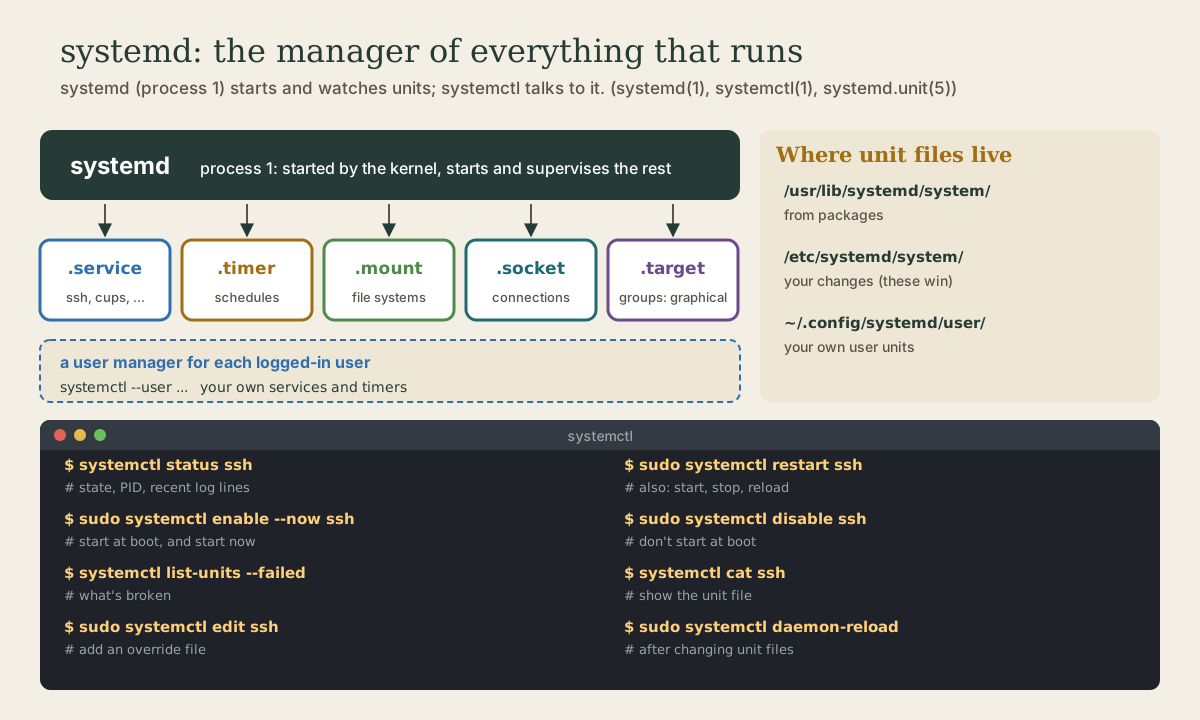
When Linux boots, the kernel starts one program, process 1, and that program starts everything else. On Ubuntu and most distributions, it’s systemd: a “system and service manager” that brings up the system, then starts and watches over the background programs that keep it running, the network, logging, printing, the login screen 1. It also starts a separate user manager for each person logged in, for their own services 1.
me@garden-laptop:~$ ps -p 1
shows it. Most of the time you won’t think about systemd; you’ll use it when something needs starting, stopping, or fixing.
Units
Everything systemd manages is a unit, described by a small text file. The type is the file’s ending 2:
.service: a program to run and supervise, likessh.serviceorcups.service(printing)..timer: a schedule that starts a service (lesson 3)..mount: a file system to mount (next module)..socket: a network or local connection that starts a service on demand..target: a group of units reached together, likegraphical.targetfor a desktop.
You can usually leave off .service: systemctl status ssh means ssh.service.
Checking on a service
systemctl status is the first command for any question about a service. The example in systemctl’s manual 3:
$ systemctl status bluetooth
● bluetooth.service - Bluetooth service
     Loaded: loaded (/usr/lib/systemd/system/bluetooth.service; enabled; preset: enabled)
     Active: active (running) since Wed 2017-01-04 13:54:04 EST; 1 weeks 0 days ago
       Docs: man:bluetoothd(8)
   Main PID: 930 (bluetoothd)
     Status: "Running"
      Tasks: 1
     Memory: 648.0K
        CPU: 435ms
     CGroup: /system.slice/bluetooth.service
             └─930 /usr/lib/bluetooth/bluetoothd

Jan 12 10:46:45 example.com bluetoothd[8900]: Not enough free handles to register service
Jan 12 10:46:45 example.com bluetoothd[8900]: Current Time Service could not be registered
Jan 12 10:46:45 example.com bluetoothd[8900]: gatt-time-server: Input/output error (5)
Reading it 3:
- The dot sums it up: green
●active, white○inactive, red×failed. Loaded:shows the unit file’s path and whether it’s enabled (starts at boot).Active:shows whether it’s running now, and since when.Main PIDandCGroupshow its processes;MemoryandCPUwhat it’s using.- The last lines are its most recent log messages, often the answer to “why isn’t this working?”
status doesn’t need sudo. It opens in a pager if the output is long; q quits.
Start, stop, enable, disable
Two separate questions: is it running now, and does it start at boot? 3
me@garden-laptop:~$ sudo systemctl stop cups
me@garden-laptop:~$ sudo systemctl start cups
me@garden-laptop:~$ sudo systemctl restart cups
me@garden-laptop:~$ sudo systemctl disable cups
me@garden-laptop:~$ sudo systemctl enable --now cups
start,stop,restartact now.reloadasks a running service to reread its own configuration, for services that support it.enablemakes it start at boot, by creating links as the unit file’s[Install]section says;disableremoves them 3.enable --nowenables and starts in one go;disable --nowdisables and stops 3.maskgoes further than disable: it makes the unit impossible to start at all, even by hand, until youunmaskit. Use with care 3.
systemctl is-active cups and systemctl is-enabled cups answer the two questions with one word each, and exit 0 for yes, handy in scripts 3.
Quick check
systemctl start ssh and systemctl enable ssh?enable --now does both at once; disable and stop are the opposites.
Finding problems
me@garden-laptop:~$ systemctl list-units --failed
me@garden-laptop:~$ systemctl list-units --type=service
me@garden-laptop:~$ systemctl list-unit-files --state=enabled
--failed is the quick health check: an empty list is good news. For any unit it lists, systemctl status name and the journal (next lesson) say why.
Unit files
Unit files live in a few places, and the first match wins 2:
/usr/lib/systemd/system/: from installed packages. Don’t edit these; updates overwrite them./etc/systemd/system/: yours. A file here overrides the package’s file of the same name.~/.config/systemd/user/: your own user units.
systemctl cat ssh prints a unit’s file, plus any overrides 3. To change one setting without copying the whole file, sudo systemctl edit ssh opens an empty drop-in file in your editor; what you put there is added on top of the package’s file and survives updates 3. A unit file is a simple INI-style text file:
[Unit]
Description=What it is

[Service]
ExecStart=/usr/bin/the-program --options

[Install]
WantedBy=multi-user.target
After creating or changing unit files yourself, run sudo systemctl daemon-reload so systemd rereads them 3. (systemctl edit does that for you.) Don’t confuse it with reload, which is for a service’s own configuration.
Quick check
daemon-reload rereads unit files. reload asks a running service to reread its own configuration, which is different.
Power, and a slow boot
systemctl also shuts down and restarts:
me@garden-laptop:~$ systemctl reboot
me@garden-laptop:~$ systemctl poweroff
me@garden-laptop:~$ systemctl suspend
If startup feels slow, systemd-analyze prints how long the boot took, and systemd-analyze blame lists units by how long each took to start, slowest first. Treat it as a hint: a unit can look slow just because it was waiting for another 5.
Your turn
Exercises
On your Ubuntu system. (Under WSL, ps -p 1 shows whether systemd is running; if it says init instead, use a real Ubuntu system or a live USB.)
systemctl statusforcron,ssh(if installed), andsystemd-journald. Which are enabled, and how long have they been running?systemctl list-units --failed. Anything there?systemctl cat systemd-journaldand find itsExecStart=line.- Stop and start a harmless service, say
cupson the desktop, checkingstatusbefore and after. Thensystemctl is-enabled cups. systemd-analyzeandsystemd-analyze blame | head. What took longest to start?systemctl --user list-units --type=service: which services run for you alone?
Answers
- Each shows
Loaded:withenabledordisabled, andActive: active (running) since .... Ifsshsayscould not be found, the SSH server isn’t installed (module 5). - Usually
0 loaded units listed. ExecStart=/usr/lib/systemd/systemd-journald.- After
stop,Active: inactive (dead); afterstart,active (running)again.is-enabledprintsenabled. - It varies by machine; the manual’s own example has a network-wait service near the top 5.
- Things like
dbus,pipewire(sound), and your desktop’s own helpers.
So
systemd is process 1: it boots the system and starts and supervises units, .service, .timer, .mount, .socket, and .target. systemctl status shows a unit’s state and recent log lines; start, stop, restart, and reload act now, while enable and disable decide what starts at boot (enable --now does both). list-units --failed finds trouble. Packages’ unit files are in /usr/lib/systemd/system, yours in /etc/systemd/system; systemctl edit adds an override, and daemon-reload makes systemd reread files. --user works with your own user manager.
Lesson complete
Nice work.
Sources for this lesson
- 1systemd(1) manual page. man7.org (Linux man-pages). verifiedsystemd is a system and service manager; run as the first process on boot (PID 1) it acts as the init system that brings up and maintains userspace services; separate instances run for logged-in users via user@.service.
- 2systemd.unit(5) manual page. man7.org (Linux man-pages). verifiedUnit types (.service, .socket, .device, .mount, .automount, .swap, .target, .path, .timer, .slice, .scope); system search path including /etc/systemd/system and /usr/lib/systemd/system, user search path including ~/.config/systemd/user; INI-style files with [Unit] and [Install]; specifiers such as %h (home directory) and %u (user name).
- 3systemctl(1) manual page. man7.org (Linux man-pages). verifiedExample output of systemctl status bluetooth; the dot shows the state (green active, white inactive, red cross failed); Loaded: shows the unit file path and enablement; start, stop, restart, reload; enable creates the symlinks named in [Install], disable removes them; --now also starts or stops; mask links to /dev/null; is-active, is-enabled; list-units --failed; cat shows the unit's files; edit creates a drop-in; daemon-reload rereads unit files (not the same as reload); reboot, poweroff, suspend.
- 4systemd. ArchWiki. verifiedOverview of systemd and systemctl usage: units, status, start/stop/enable/disable, unit files and drop-ins, user units with systemctl --user.
- 5systemd-analyze(1) manual page. man7.org (Linux man-pages). verifiedsystemd-analyze shows boot time; blame lists units by initialization time, with the caveat that one may only be waiting for another (example shows systemd-networkd-wait-online.service near the top); calendar prints the normalized form and next elapse of a calendar expression, with --iterations (example: next leap days).