A Linux Shell on Windows: WSL
The quickest way to practice real Linux before switching: the Windows Subsystem for Linux. WSL 2 runs a genuine Linux kernel in a lightweight virtual machine. Install Ubuntu with one command, create a Linux user, update it with apt, open it in Windows Terminal, and keep your Linux work in /home rather than /mnt/c. Compare WSL with Git Bash, a virtual machine, and a live USB.
- 6 min
- 6 steps
- 3 questions
- Lesson 2 of 80
In this lesson
- Ways to get a Linux shell
- Install it
- First things inside
- Where your files live
- Your turn
- So
Picking up where you left off.
Ways to get a Linux shell
There are four common ways to practice Linux from a Windows PC:
| Option | What it is | Good for |
|---|---|---|
| WSL 2 | A real Linux kernel in a lightweight virtual machine, built into Windows 1 | Daily practice; command line; development |
| Virtual machine (VirtualBox, Hyper-V) | A whole Linux desktop in a window | Trying a Linux desktop without touching your disk |
| Live USB | Boot Linux from a USB stick without installing | Testing whether your hardware works before switching |
| Git Bash | A small port of bash and a few tools for Windows | Running git; not a Linux system |
For learning the command line, WSL 2 wins: it opens in a second, shares your Windows files, and it’s genuine Linux with full system-call compatibility, not an imitation 1. Everything in this course works the same there as on a Linux desktop. When it’s time to switch, a live USB is how you’ll check your laptop’s Wi-Fi and graphics before installing; that’s covered in the Linux course.
Install it
You need Windows 10 version 2004 or later, or Windows 11 2.
-
Right-click the Start button, choose Terminal (Admin) or Windows PowerShell (Admin), and run:
wsl --installThis turns on the Windows features WSL needs and installs Ubuntu 2.
-
Restart the computer.
- Open Ubuntu from the Start menu. The first launch unpacks files for a minute, then asks for a user name and password 2 3.
The Linux account is separate from your Windows login; the names don’t need to match 3. Use something short and lowercase, like alex. When you type the password, nothing appears on screen, not even dots. That’s normal for Linux password prompts 3. Type it and press Enter. This account is the system’s administrator and can use sudo 3.
Want a different distribution? wsl --list --online shows what’s available, and wsl --install -d Debian (for example) installs one. wsl --list --verbose shows what you have and confirms it’s WSL version 2 2.
If you ever forget the Linux password, open PowerShell, run wsl -u root to get a root shell, and reset it with passwd yourname 3.
Quick check
Type it and press Enter. The same is true every time sudo asks for your password.
First things inside
Check that you’re where you think you are:
alex@laptop:~$ echo $SHELL
/bin/bash
alex@laptop:~$ cat /etc/os-release
The first confirms you’re in bash. The second prints the distribution’s name and release, Ubuntu with a version number such as 24.04 LTS; LTS means a long-term-support release, the kind to stay on.
Then bring it up to date. Windows Update doesn’t touch your Linux system; you do it yourself 3:
alex@laptop:~$ sudo apt update && sudo apt upgrade
[sudo] password for alex:
sudo runs one command as the superuser after asking for your password (invisibly again). apt update downloads the current list of packages; apt upgrade installs newer versions; && runs the second only if the first succeeded. Each gets its own lesson later. For now, run this pair every week or two.
Open your distribution in Windows Terminal rather than the plain console window. Microsoft recommends it: tabs, split panes, a profile for each shell, and proper fonts and colors 2 3. It’s preinstalled on Windows 11; Ubuntu shows up in its tab drop-down after you install it.
Quick check
apt update refreshes the list of available packages; apt upgrade installs the newer versions.
Where your files live
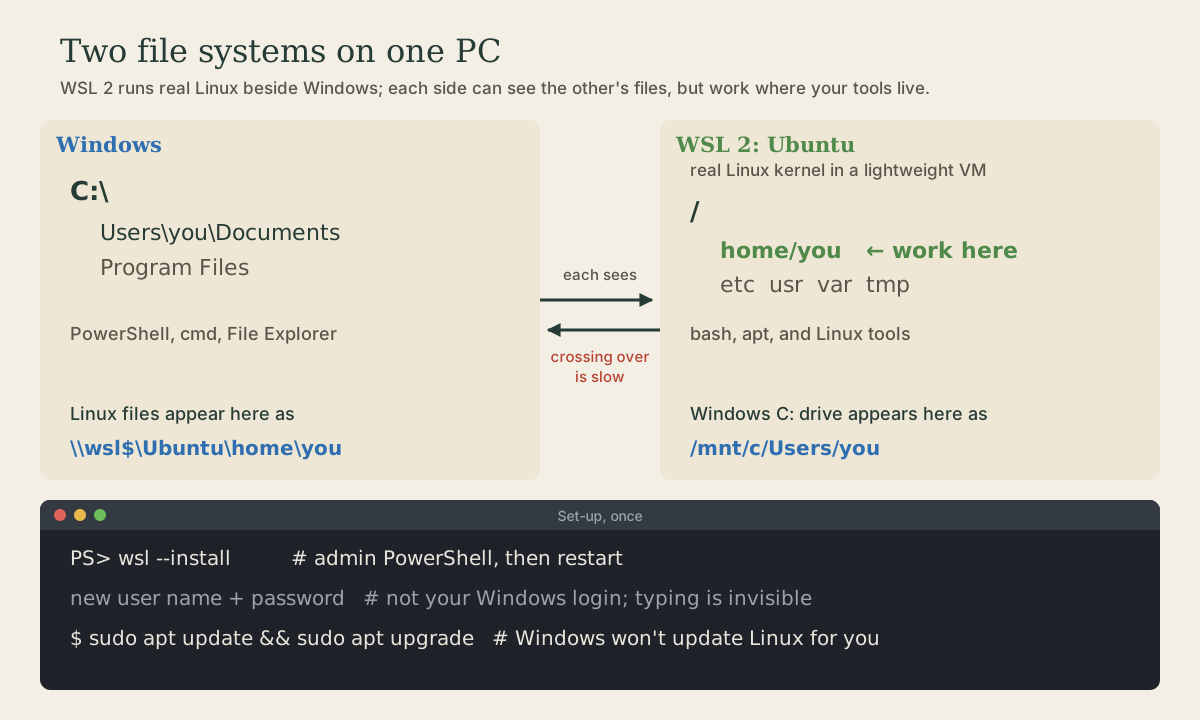
WSL gives you two file systems, and each can see the other 4:
- From Linux, the Windows
C:drive is mounted at/mnt/c. Your Windows Documents folder is/mnt/c/Users/<you>/Documents. - From Windows, the Linux files are at
\\wsl$\Ubuntu\home\<you>in File Explorer. Even easier: in the Linux shell, runexplorer.exe .(note the dot) to open the folder you’re in.
Crossing over is slow and invites trouble with permissions and upper- and lowercase file names 4. Microsoft’s rule: keep files you work on with Linux tools in the Linux file system, under /home/<you>, not under /mnt/c 4 3. Treat /mnt/c as a doorway for occasionally grabbing or dropping off a file.
One habit that pays off
Make a folder for this course in your Linux home, and do every exercise there: mkdir ~/shell-course && cd ~/shell-course. When you switch to Linux for real, you can carry that folder over.
Quick check
Linux tools are much faster on the Linux file system. You can still open those files from Windows at \wsl$.
Your turn
Exercises
- Install WSL and Ubuntu as above, create your user, and run the update.
- Run
wsl --list --verbosein PowerShell. Which distribution is the default, and what version number does it show? - In the Linux shell, run
cd /mnt/c/Usersthenls. What do you see? Then runcd ~andexplorer.exe .. Where does File Explorer open? - Run
uname -rin the Linux shell. What does the output contain that hints you’re under WSL?
Answers
- An asterisk marks the default (Ubuntu), with
VERSION 2. - The Windows user folders: yours,
Public, andDefault.explorer.exe .opens your Linux home in File Explorer, at a path under\\wsl.localhost\Ubuntu\home\...or\\wsl$\Ubuntu\home\.... - The Linux kernel version, with
microsoft-standard-WSL2in it: it really is a Linux kernel, built and shipped by Microsoft.
So
WSL 2 puts a real Ubuntu system one click away on Windows. Install it with wsl --install, keep your Linux work under /home, update it yourself with apt, and use Windows Terminal. Everything you learn here works unchanged on a Linux desktop.
Lesson complete
Nice work.
Sources for this lesson
- 1Comparing WSL Versions. Microsoft Learn. verifiedWSL 2, the default, runs an actual Linux kernel inside a lightweight utility virtual machine, with full system-call compatibility; distributions run as isolated containers inside the managed VM. Performance across the Linux and Windows file systems is the main trade-off.
- 2How to install Linux on Windows with WSL. Microsoft Learn. verifiedRequires Windows 10 version 2004 (build 19041) or later, or Windows 11. In an administrator PowerShell, wsl --install enables the needed features and installs Ubuntu; restart. wsl --list --online lists distributions and wsl --install -d <Distro> picks one; wsl --list --verbose shows each distribution's WSL version; new installs default to WSL 2. Windows Terminal is the recommended way to open distributions.
- 3Set up a WSL development environment. Microsoft Learn. verifiedOn first launch you create a Linux user name and password, specific to that distribution and unrelated to your Windows login; nothing appears on screen while typing the password; that account is the distribution's administrator and can use sudo; reset it with passwd, or from PowerShell with wsl -u root. Windows does not update Linux: on Ubuntu run sudo apt update && sudo apt upgrade regularly. Windows Terminal recommended; keep project files in the Linux file system (\\wsl$\<Distro>\home\<user>), not C:\Users or /mnt/c; VS Code supports WSL directly.
- 4Working across Windows and Linux file systems. Microsoft Learn. verifiedAvoid working across operating systems with your files; for speed, store files used by Linux tools in the WSL file system (/home/<user>/Project), not /mnt/c. Windows drives appear in WSL as mounts such as /mnt/c. explorer.exe . opens the current Linux directory in File Explorer, and \\wsl$ shows all distributions' file systems. Case sensitivity differs between the systems. Linux tools can be run from Windows with wsl <command>, and Windows tools from Linux.