Setting Up a New Machine
The payoff: a new Linux machine gets your whole setup in a few commands, git, an SSH key, clone, install.sh, name and email. Keeping machines in step with commit, push, and pull. Settings for one machine only, in ~/.bash_local, ~/.gitconfig, a hostname test, or a git includeIf for work repositories. What never goes in a dotfiles repository. Other ways people manage dotfiles: a bare repository in $HOME, GNU Stow, and tools like chezmoi.
- 7 min
- 7 steps
- 3 questions
- Lesson 43 of 80
In this lesson
- On a new machine
- Keeping machines in step
- Settings for one machine only
- What never goes in
- Other ways to do it
- Your turn
- So
Picking up where you left off.
On a new machine
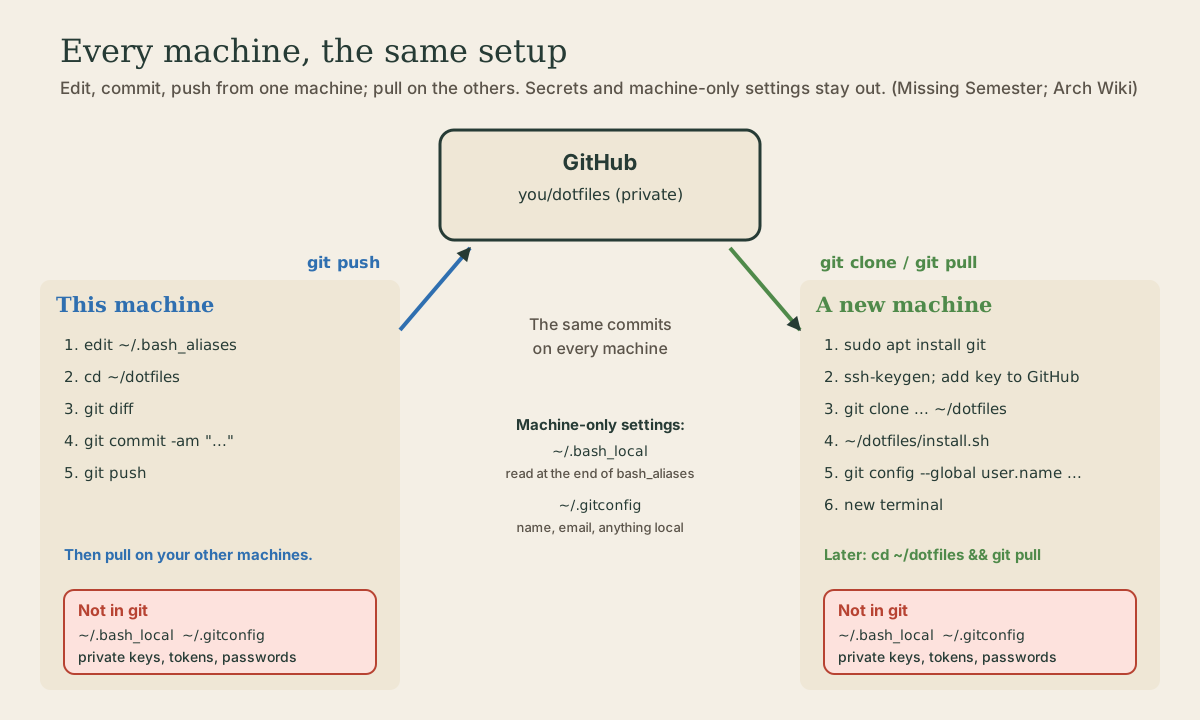
This is what the project was for. On a fresh Ubuntu install (or a new WSL distribution, or a server you log in to), your whole setup is a handful of commands.
1. Install git, which a minimal system may not have:
me@linuxbox:~$ sudo apt install git
2. Give this machine an SSH key and add it to GitHub, as in module 4. One key per machine means you can revoke one without touching the others 1:
me@linuxbox:~$ ssh-keygen -t ed25519 -C "you@example.com"
me@linuxbox:~$ cat ~/.ssh/id_ed25519.pub
3. Clone, install, and set your name and email:
me@linuxbox:~$ git clone git@github.com:you/dotfiles.git ~/dotfiles
Cloning into '/home/me/dotfiles'...
me@linuxbox:~$ ~/dotfiles/install.sh
linked   ~/.bash_aliases
linked   ~/.inputrc
linked   ~/.nanorc
linked   ~/.config/git/ignore
included gitconfig in ~/.gitconfig
me@linuxbox:~$ git config --global user.name "Your Name"
me@linuxbox:~$ git config --global user.email "you@example.com"
me@linuxbox:~$ cat ~/.gitconfig
[include]
    path = /home/me/dotfiles/gitconfig
[user]
    name = Your Name
    email = you@example.com
On a new machine there are no old files in the way, so everything is just linked. The new ~/.gitconfig holds only the include and this machine’s name and email.
4. Load it. Open a new terminal, or reread the startup file in this one (Shell course, module 5):
me@linuxbox:~$ source ~/.bashrc
me@linuxbox:~$ type mkcd
mkcd is a function
mkcd ()
{
    mkdir -p -- "$1" && cd -- "$1"
}
me@linuxbox:~$ alias gl
alias gl='git log --oneline -10'
Your prompt, aliases, history settings, Readline keys, nano settings, and git settings are all in place. Put these steps in the repository’s README.md, so future you doesn’t have to remember them.
Quick check
The script makes the links and the include. Name and email are per machine, so they’re set there.
Keeping machines in step
Change a setting on any machine, commit, and push. On the others, pull:
me@linuxbox:~/dotfiles$ git push
To github.com:you/dotfiles.git
   f83aa0a..d608458  main -> main
and on the second machine:
me@linuxbox:~/dotfiles$ git pull
From github.com:you/dotfiles
   f83aa0a..d608458  main       -> origin/main
Updating f83aa0a..d608458
Fast-forward
 bash_aliases | 1 +
 1 file changed, 1 insertion(+)
Since the home-folder files are links, the pull updates them too; open a new terminal to pick up shell changes. If you’ve added a new file to LINKS, run ./install.sh again after pulling, which is exactly why it’s safe to rerun.
If you forget to pull before changing something, it’s the same as any repository: the push is rejected, and git pull --rebase then git push sorts it out (module 4). Small commits make that painless.
Settings for one machine only
Some settings shouldn’t be shared: a work email, a folder that only exists on one computer, a server’s prompt color. Missing Semester suggests a few tricks 2:
A local file that’s sourced if it exists. That’s the ~/.bash_local block at the end of bash_aliases. On a machine that needs something extra, create ~/.bash_local there; it’s not in the repository, so it stays on that machine:
# ~/.bash_local on the backup server only
PS1='\[\e[1;31m\]\u@\h\[\e[0m\]:\w\$ '    # red prompt: careful, this is the server
export BACKUP_DEST=/mnt/backup
Because bash_aliases reads it last, anything in it overrides the shared settings.
Git’s includes. ~/.gitconfig is already per-machine. For a different email only in work repositories, git’s conditional include applies a file only when the repository is in a given folder 3:
# in ~/.gitconfig on the work laptop
[includeIf "gitdir:~/work/"]
    path = ~/.gitconfig-work
with ~/.gitconfig-work holding [user] and email = you@work.example. A pattern ending in / matches that folder and everything inside it 3.
A test in the shared file, when the difference is small and you’d rather keep it in git 2 4:
if [[ "$(hostname)" == "garden-server" ]]; then
    alias logs='journalctl -f'
fi
Quick check
Settings for one machine stay out of the shared files, so they never leak onto the others.
What never goes in
A dotfiles repository is easy to treat as “my settings folder” and push without a second look. Keep these out, even of a private repository:
- Private keys:
~/.ssh/id_ed25519and friends. Each machine makes its own (module 4).~/.ssh/config, which lists hosts and usernames, is safe if you’re comfortable with what’s in it. - Tokens and passwords: API tokens, personal access tokens,
.netrc, anything with “secret” in it. If a program’s config file mixes settings and a token, put the token in~/.bash_localor a separate file that’s not in the repository. - History and caches:
~/.bash_historyholds every command you’ve typed, passwords included if you ever typed one.
Before each push, git diff --staged (module 2) is a quick look at exactly what’s going out. And if a secret does get committed, deleting it in the next commit isn’t enough: it’s in the history (module 6), so change the secret (module 2).
Quick check
Private keys and tokens are secrets, and shell history can contain anything you’ve typed.
Other ways to do it
The folder-plus-links approach is the one Missing Semester recommends, but it isn’t the only one. Three you’ll see:
- A bare repository in your home folder. Popularized on Hacker News and described in the Arch Wiki:
git init --bare ~/.dotfiles, an alias likealias dotfiles='/usr/bin/git --git-dir="$HOME/.dotfiles/" --work-tree="$HOME"', anddotfiles config status.showUntrackedFiles no. The files stay at their real paths with no links, and you usedotfiles add,dotfiles commit, and so on 4. The cost is that git’s view of your home folder is easy to confuse. - GNU Stow, a “symlink farm manager”: arrange the repository in folders that mirror your home folder (
bash/.bash_aliases,nano/.nanorc), thenstow bashmakes the links 5. It replacesinstall.shwith a convention. - Dotfile managers like chezmoi, which add templates for per-machine differences. The Arch Wiki keeps a comparison table 4.
Your script is small, tested, and does exactly what you understand, and you can switch later; your files and their history come with you.
Your turn
Project, part 2
- Write the new-machine steps into your
README.mdand commit. - Simulate a new machine without one:
export TESTHOME="$(mktemp -d)", thengit clone ~/dotfiles "$TESTHOME/dotfiles"andHOME="$TESTHOME" "$TESTHOME/dotfiles/install.sh". Copy in Ubuntu’s default.bashrc, which new accounts get from/etc/skel:cp /etc/skel/.bashrc "$TESTHOME/". ThenHOME="$TESTHOME" bash -istarts a shell using that home; check your prompt and aliases there, andexit. - Create a
~/.bash_localwith one setting, open a new terminal, and confirm it’s applied but not ingit status. - Add an
includeIffor a~/work/folder with a different email. Make a repository inside~/work/and checkgit config user.emailthere and elsewhere. - Run
git log -pin~/dotfilesand read your settings’ history. - When you install Linux, do it for real: a few commands to a familiar shell.
Hints
- The clone and install should give five
linked/includedlines. In thebash -ishell, your prompt should appear;exitreturns to your normal one.rm -r "$TESTHOME"afterward. git statusin~/dotfilesstays clean:~/.bash_localisn’t in the repository.- Inside
~/work/<repo>,git config user.emailprints the work address; elsewhere, your usual one.git config --show-origin user.emailshows which file it came from.
So
On a new machine: install git, make an SSH key, clone ~/dotfiles, run install.sh, set your name and email, and open a new terminal. After that, commit and push changes from wherever you make them, and pull everywhere else. Machine-only settings go in ~/.bash_local, ~/.gitconfig (with includeIf for folders), or a hostname test; keys, tokens, and history never go in the repository. That finishes the Git course: you can now version, branch, share, repair, and understand your work, and carry your whole command-line setup to any Linux machine.
Lesson complete
Nice work.
Sources for this lesson
- 1Generating a new SSH key and adding it to the ssh-agent. GitHub Docs. verifiedGenerate a key with ssh-keygen -t ed25519 -C "your_email@example.com" (RSA 4096 for legacy systems), accept the default file, and set a secure passphrase; with a passphrase, add the key to ssh-agent (eval "$(ssh-agent -s)", ssh-add) so the agent remembers it.
- 2Anish Athalye, Jon Gjengset, Jose Javier Gonzalez Ortiz. Command-line Environment (The Missing Semester of Your CS Education, 2020). MIT CSAIL. verifiedDotfiles section, Portability: if-statements on uname, $SHELL, or hostname for machine-specific settings; git's [include] path = ~/.gitconfig_local; sourcing a shared ~/.aliases file if it exists.
- 3git-config documentation. Git project (git-scm.com). verifiedReference for reading and writing git settings at the --system, --global, --local, and --worktree levels, with --list and --show-origin, and for every configuration variable, including user.name, user.email, init.defaultBranch, core.editor, core.autocrlf, and alias.*.
- 4Dotfiles. ArchWiki. verifiedTracking dotfiles directly with git: the bare repository and alias method (git init --bare ~/.dotfiles; alias with --git-dir and --work-tree=$HOME; status.showUntrackedFiles no), host-specific configuration by branches or hostname conditionals, and a comparison table of dotfile tools including GNU Stow and chezmoi.
- 5GNU Stow manual. Free Software Foundation. verifiedStow is a symlink farm manager: each package lives in its own directory tree and Stow makes symbolic links so it appears installed in a common tree; also used for managing configuration files in a home directory alongside version control.