Installing Alongside Windows or Instead
Three ways to install: on a drive or computer of its own, alongside Windows on one drive, or replacing Windows. Preparing a Windows 11 computer for sharing a drive: back up, save the BitLocker recovery key, turn off Device encryption, turn off Fast Startup, and shut down fully. The installer step by step, including third-party drivers, disk setup, and a disk-encryption passphrase you must not lose; then the first hour on the new system: updates, NVIDIA drivers, your dotfiles, and a clock that's off by hours.
- 7 min
- 6 steps
- 3 questions
- Lesson 46 of 80
In this lesson
- Three ways
- Before you start
- Running the installer
- Your first hour
- Your turn
- So
Picking up where you left off.
Three ways
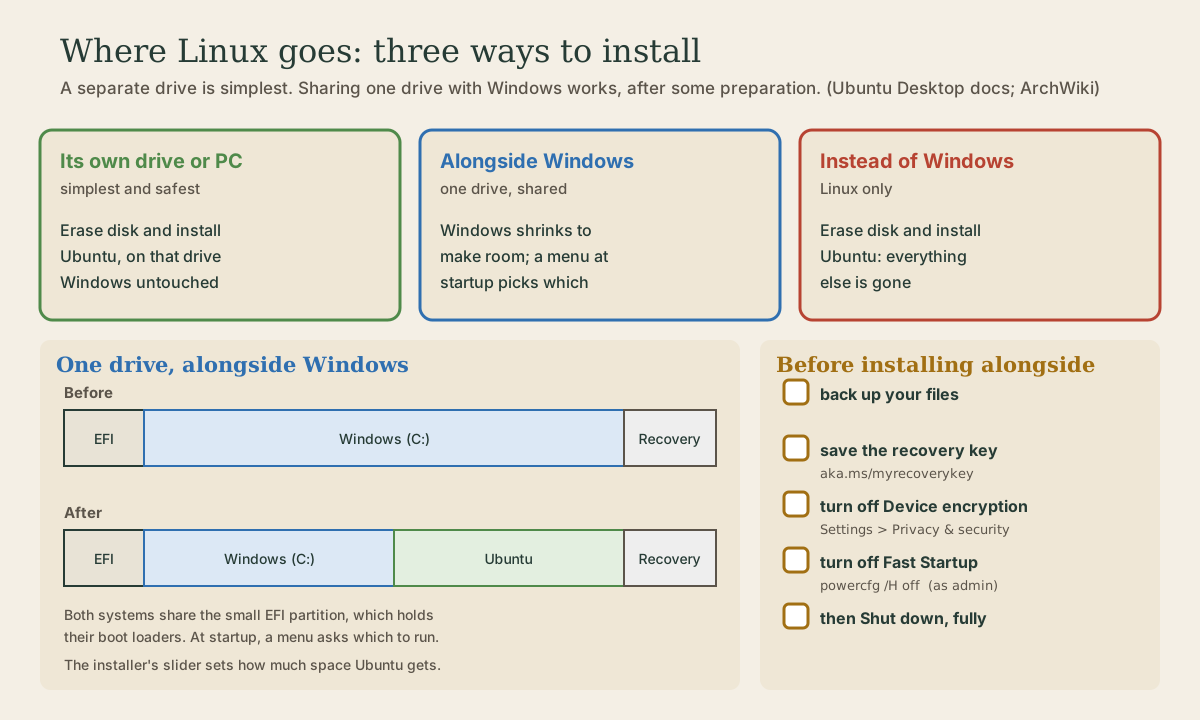
There are three places Ubuntu can go 1:
- A drive or computer of its own. Choose Erase disk and install Ubuntu for that drive only. Windows, on its own drive or computer, is untouched. This is the simplest and safest, and a spare laptop is ideal.
- Alongside Windows on one drive. The installer shrinks Windows’ partition and puts Ubuntu in the freed space, with a slider to choose the split. It keeps your Windows files, and a menu at startup lets you pick a system 1. It needs the preparation below.
- Instead of Windows. Erase disk and install Ubuntu on the only drive. Everything on it, Windows included, is gone for good.
Before you start
Whichever way you go, back up anything you care about first. Any change to a drive’s layout can lose data 2, and “erase disk” means exactly that.
If you’re going alongside Windows, a Windows 11 computer needs three more things.
1. Save your BitLocker recovery key. Windows 11 Home has Device encryption, which turns on BitLocker automatically when you sign in with a Microsoft account, and attaches the recovery key to that account 3. The key is a 48-digit number, and Microsoft can’t recreate a lost one 4. Find it at aka.ms/myrecoverykey, signed in with your Microsoft account, and write it down or print it 4. You’ll want it if Windows ever asks for it after the drive changes.
2. Turn off encryption. The Ubuntu installer can’t see inside a BitLocker-encrypted Windows partition (it looks like random noise), so it can’t safely shrink it to make room 5. On Windows 11, open Settings, Privacy & security, Device encryption and turn it off. On Windows Pro it’s in Control Panel, System and Security, BitLocker Drive Encryption 2. Decrypting takes a while; when it’s done, restart and check that Windows and your files are fine. Ubuntu’s docs warn that some versions of Windows won’t let you turn encryption back on afterward 2. You don’t need to do this when Ubuntu goes on a separate drive or replaces Windows 1.
3. Turn off Fast Startup, then shut down fully. Windows’ Fast Startup hibernates the system instead of truly shutting down, and if another system changes the files of a hibernated Windows, data can be lost or corrupted 6. The ArchWiki’s safest option is to turn off hibernation, and Fast Startup with it, from an administrator command prompt 6:
PS C:\WINDOWS\system32> powercfg /H off
Then choose Shut down, not Restart: the setting only counts once Windows has shut down fully 6.
Finally, make sure Windows has free space to give: Ubuntu needs at least 25 GB, and more is better 1.
Quick check
An encrypted Windows partition looks like random noise to the installer, so it can’t safely shrink it.
Quick check
Then Shut down Windows fully; a restart isn’t enough for the setting to take effect.
Running the installer
Start from the USB stick as in the last lesson, and choose Install Ubuntu. If it warns about Intel RST (Rapid Storage Technology), the disk is in a mode Ubuntu doesn’t support; Ubuntu’s docs explain how to switch Windows to AHCI first 1. Then, screen by screen 1:
- Interactive installation (the automated option is for setting up many machines at once).
- Default selection gives the essentials, with more from the App Center later; Extended selection adds office tools and utilities.
- Install third-party software for graphics and Wi-Fi hardware, and support for additional media formats. Ubuntu recommends ticking both.
- Disk setup: Install Ubuntu alongside Windows (with the slider), or Erase disk and install Ubuntu, choosing the right drive carefully if there’s more than one. Manual partitioning is for experts.
- Encryption, offered with Erase disk: Encrypt with a passphrase is the recommended method. You’ll type the passphrase at every startup. Write it down and keep it somewhere other than the computer: without it, your data can’t be recovered 1.
- Your name, the computer’s name (how it appears on the network; something like
garden-laptop), a username, and a strong password. Keep “Require my password to log in” on for a laptop. - Timezone: America/Chicago, for Wisconsin.
- Review and Install. Installing takes a while; then Restart Now, remove the stick when asked, and press Enter.
When a computer has both systems, a boot menu at startup lists them, so you choose each time; Ubuntu’s boot menu is called GRUB.
Quick check
That’s the point of encryption. Write it down and keep it somewhere other than the computer.
Your first hour
Update everything. A fresh install is already behind. Use the Software Updater app, or the terminal you know 1:
me@garden-laptop:~$ sudo apt update
me@garden-laptop:~$ sudo apt upgrade
Next module covers apt properly.
NVIDIA graphics? Ubuntu recommends its own packaged NVIDIA drivers, installed with the Additional Drivers app or ubuntu-drivers, rather than downloading them from NVIDIA, since Ubuntu’s are built for your release and work with Secure Boot 7:
me@garden-laptop:~$ sudo ubuntu-drivers list
me@garden-laptop:~$ sudo ubuntu-drivers install
Restart afterward.
Your dotfiles. This is what the Git course’s project was for. Make an SSH key for this machine, add it to GitHub, then clone and install (Git course, module 7):
me@garden-laptop:~$ git clone git@github.com:you/dotfiles.git ~/dotfiles
me@garden-laptop:~$ ~/dotfiles/install.sh
Clock wrong in Windows after using Ubuntu (or the other way around)? The computer’s hardware clock can hold either UTC or local time. Linux normally uses UTC; Windows uses local time 8. Many installers set Linux to local time when they see Windows, to avoid this 8, but if your clocks still disagree by your time-zone offset (five or six hours in Wisconsin), the ArchWiki recommends setting Windows to UTC with a registry value, from an administrator prompt 8:
PS C:\WINDOWS\system32> reg add "HKEY_LOCAL_MACHINE\System\CurrentControlSet\Control\TimeZoneInformation" /v RealTimeIsUniversal /d 1 /t REG_DWORD /f
Your turn
Exercises
- Decide where Ubuntu goes: its own drive or computer, alongside Windows, or instead. Write down why.
- Back up your files from the computer, and check the backup opens on another computer.
- If it has Windows 11, find its BitLocker recovery key at aka.ms/myrecoverykey and record it somewhere safe. Check whether Device encryption is on.
- If you’re going alongside Windows: turn off Device encryption, wait for it to finish, run
powercfg /H offas administrator, and shut down fully. - Install Ubuntu. Then update it, add NVIDIA drivers if you need them, and clone and install your dotfiles.
- Start Windows and Ubuntu in turn from the startup menu. Is the clock right in both?
Answers
- Settings, Privacy & security, Device encryption shows whether it’s on. If it’s off, or the page isn’t there, you can skip turning it off.
- Decrypting can take a long time on a big drive. If the Ubuntu installer still says BitLocker is enabled, check that the decryption finished, and that you shut down rather than restarting.
- After
~/dotfiles/install.shand a new terminal, your prompt, aliases, and git settings are in place on the new system. - If one is off by your time-zone offset, apply the
RealTimeIsUniversalsetting in Windows, then let both systems set their clocks from the internet.
So
Ubuntu can go on its own drive or computer (simplest), alongside Windows on one drive, or instead of Windows. Before sharing a drive with Windows 11: back up, save the BitLocker recovery key from aka.ms/myrecoverykey, turn off Device encryption, run powercfg /H off, and shut down fully. In the installer, tick third-party software, pick the disk option carefully, and if you encrypt, keep the passphrase safe. Then update, add NVIDIA drivers with ubuntu-drivers if needed, clone your dotfiles, and fix the clock with RealTimeIsUniversal if Windows and Ubuntu disagree.
Lesson complete
Nice work.
Sources for this lesson
- 1Install Ubuntu Desktop (Ubuntu Desktop documentation). Canonical. verified26.04 LTS tutorial: back up, download the image, write it with Rufus on Windows (SELECT the image, START, ISO Image mode; GPT and UEFI (non CSM) if it won't boot), boot menu key F12 or Esc/F2/F10, Try or Install; Intel RST must be switched to AHCI; default vs extended selection; tick third-party software and media formats; disk setup: erase disk, alongside, or manual; encrypt with a passphrase (keep it safe); BitLocker blocks installing alongside; update with sudo apt update and upgrade afterward. Ubuntu works on a wide range of devices; certified hardware list; Apple Silicon only via the community Asahi project.
- 2Turn off BitLocker in Windows (Ubuntu Desktop documentation). Canonical. verifiedBack up first, since drive structure changes can lose data. Windows 11: Settings > Privacy & Security > Device Encryption, toggle off; earlier: Control Panel > System and Security > BitLocker Drive Encryption > Turn off BitLocker. Wait for decryption, reboot, check Windows. Some Windows versions won't allow re-enabling BitLocker afterward.
- 3Device Encryption in Windows. Microsoft Support. verifiedDevice Encryption enables BitLocker automatically for the operating system drive; it's turned on when you first sign in with a Microsoft or work/school account, with the recovery key attached to that account; available on Windows Home, unlike BitLocker Drive Encryption (Pro, Enterprise, Education). Settings > Privacy & security > Device encryption.
- 4Find your BitLocker recovery key. Microsoft Support. verifiedA 48-digit number needed when BitLocker can't unlock the drive automatically, for example after a hardware change. Keys backed up to a Microsoft account are at https://aka.ms/myrecoverykey. Microsoft Support can't retrieve or recreate a lost key.
- 5BitLocker during Ubuntu installation (Ubuntu Desktop documentation). Canonical. verifiedWith BitLocker on, the Windows drive's content looks like random noise to the installer, which can't map it or install alongside Windows without data loss; options: keep Windows only, erase it, or turn BitLocker off. Some systems ship with BitLocker enabled but not yet encrypted.
- 6Dual boot with Windows. ArchWiki. verifiedIf either system hibernates rather than shutting down, data loss or filesystem corruption can occur when the other changes shared files; Windows Fast Startup is a hibernation. Safest: disable Fast Startup and hibernation with powercfg /H off in an administrator shell, then shut down (rebooting isn't enough). Time standard: set Windows to UTC.
- 7Install NVIDIA drivers (Ubuntu Desktop documentation). Canonical. verifiedUse Ubuntu's packaged drivers via the Additional Drivers app or ubuntu-drivers (sudo ubuntu-drivers list; sudo ubuntu-drivers install), which install pre-built signed drivers that work with Secure Boot; drivers from other sources may overwrite Ubuntu's and break Secure Boot. Update the system first; restart afterward.
- 8System time. ArchWiki. verifiedWindows uses localtime for the hardware clock by default; for dual boot, set Windows to UTC with the RealTimeIsUniversal DWORD (reg add ...TimeZoneInformation /v RealTimeIsUniversal /d 1 /t REG_DWORD /f). Many distributions set the hardware clock to localtime if Windows was detected during installation.