Snaps and Flatpaks
Two newer package formats that ship apps straight from their publishers, bundled with what they need and usually sandboxed. Snaps are built into Ubuntu: snap list, find, info, install, channels, refresh, revert, and connections. Flatpaks come from Flathub, which you add yourself: flatpak search, install, run, update, and cleaning up unused runtimes. How they compare with debs on versions, updates, permissions, and disk space, and which to choose.
- 7 min
- 7 steps
- 3 questions
- Lesson 48 of 80
In this lesson
- Why other formats exist
- Snaps vs debs
- Everyday snap commands
- Flatpaks and Flathub
- Which to choose
- Your turn
- So
Picking up where you left off.
Why other formats exist
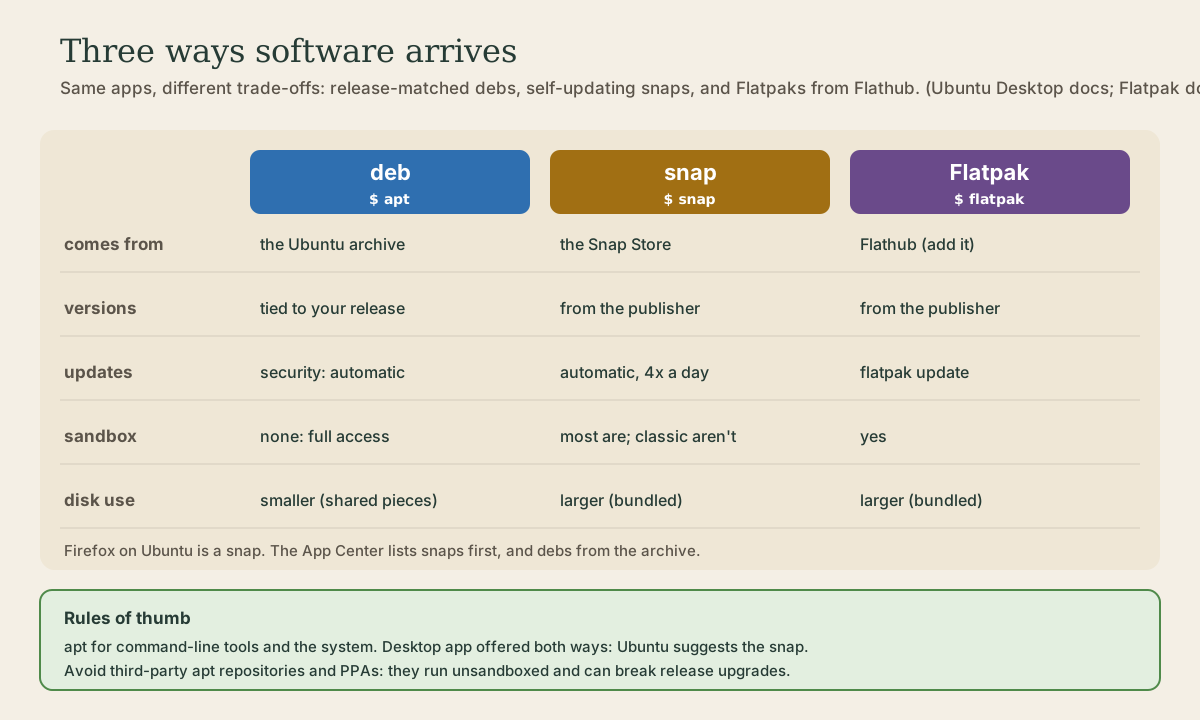
Debs from the Ubuntu archive are tied to your Ubuntu release: on an LTS, an app keeps roughly the version it shipped with, plus fixes, for years. That’s ideal for system tools, less so for a desktop app that improves every month. And a deb has full access to everything on your system 1.
Snaps and Flatpaks solve both. Each app comes straight from its publisher, bundled with most of what it needs, so it can be updated independently of your release, and each runs in a sandbox that limits what it can reach 1 2. The cost is disk space: bundled libraries mean each app is bigger than its deb 1.
Snaps vs debs
Snaps are Canonical’s format, built into Ubuntu; the App Center shows snaps by default 1. Firefox on Ubuntu is one. Ubuntu’s own comparison 1:
| Snaps | Debs | |
|---|---|---|
| App versions | usually up to date | tied to your Ubuntu release |
| Updates | fully automatic | security updates automatic |
| Permissions | sandboxed, configurable | full access to your system |
| Dependencies | a shared base snap plus bundled libraries | many small shared packages |
| Disk use | usually larger | usually smaller |
When an app comes both ways, Ubuntu generally recommends the snap, especially from a third-party publisher: it’s usually newer and better contained 1. Some snaps, mostly developer tools, use classic confinement, which means no sandbox; the Snap Store team reviews those by hand 1.
Quick check
Especially for third-party apps. The deb is fine too, but it may be older on an LTS and has full access to your system.
Everyday snap commands
snap list shows what’s installed. The format, from the snap documentation 3:
Name     Version    Rev    Tracking       Publisher    Notes
core22   20231123   1033   latest/stable  canonical✓   base
firefox  120.0.1-1  3504   latest/stable  mozilla✓     -
snapd    2.60.4     20290  latest/stable  canonical✓   snapd
Version is the app’s own version; Rev is the store’s revision number; Tracking is the channel it follows; a ✓ marks a verified publisher; base marks a base snap, the shared runtime other snaps build on 3. On 26.04 you’ll see newer numbers, and bases like core24 and core26 1.
me@garden-laptop:~$ snap find "media player"
me@garden-laptop:~$ snap info vlc
me@garden-laptop:~$ sudo snap install vlc
me@garden-laptop:~$ sudo snap remove vlc
snap find searches the Snap Store; snap info describes a snap and lists its channels 3. A channel is a release track: latest/stable by default, with candidate, beta, and edge for less-tested versions. sudo snap install --channel=beta name picks another, and sudo snap switch --channel=stable name moves back 3.
Updates are automatic. snapd checks four times a day and applies new revisions on its own 4. snap refresh --time shows the schedule; sudo snap refresh updates everything now; and snap refresh --hold=24h firefox postpones one snap’s updates, for a set time or forever 4.
If an update breaks something, go back:
me@garden-laptop:~$ sudo snap revert vlc
vlc reverted to 3.0.5-1
That’s the snap tutorial’s own example. The previous revision is kept, and the snap won’t update to the revision you reverted from; it updates again when a newer one is published 3.
Permissions are interfaces: snap connections vlc lists what the snap can reach (audio, camera, your home folder), and snap connect vlc:camera grants one that isn’t connected 3. In the desktop, Settings, Apps does the same 1. A snap’s own data lives under ~/snap/<name>/ 3.
Quick check
Snaps keep the previous revision, and won’t update to the one you reverted from until a newer one is published.
Flatpaks and Flathub
Flatpak is another sandboxed format, used across many distributions, and Flathub is its main app store. Ubuntu doesn’t set it up by default, and the App Center doesn’t install Flatpaks 5. To add it 5:
me@garden-laptop:~$ sudo apt install flatpak
me@garden-laptop:~$ flatpak remote-add --if-not-exists flathub https://dl.flathub.org/repo/flathub.flatpakrepo
then restart. To install Flatpaks from a graphical store too, Flathub suggests sudo apt install gnome-software-plugin-flatpak, which adds a separate “Software” app alongside the App Center 5.
Flatpak names apps with reverse-domain IDs, like org.gimp.GIMP 2:
me@garden-laptop:~$ flatpak search gimp
me@garden-laptop:~$ flatpak install flathub org.gimp.GIMP
me@garden-laptop:~$ flatpak run org.gimp.GIMP
me@garden-laptop:~$ flatpak list --app
me@garden-laptop:~$ flatpak update
me@garden-laptop:~$ flatpak uninstall org.gimp.GIMP
me@garden-laptop:~$ flatpak uninstall --unused
Apps need a runtime, a shared base like a snap’s base snap, which is installed alongside the first app that needs it. uninstall --unused removes runtimes nothing uses any more 2. Installs are system-wide by default; --user installs just for you 2. Run flatpak update now and then to update Flatpak apps and runtimes 2; a Software app with the Flatpak plugin can do it too.
Quick check
flatpak install flathub org.gimp.GIMP works?sudo apt install flatpak, then flatpak remote-add --if-not-exists flathub with Flathub’s repository URL, then restart.
Which to choose
A workable set of rules:
- Command-line tools and system software: apt.
htop,tree,rsync,git, servers. They fit the system and update with it. - Desktop apps: whatever gives you a current, sandboxed version. On Ubuntu that’s usually the snap, which the App Center shows first 1; Flathub is the alternative when an app isn’t a snap, or its Flatpak is the one the developers maintain.
- Third-party debs and PPAs: last. They run unsandboxed and can break release upgrades 6.
Don’t install the same app two ways at once; you’ll get two icons, two sets of settings, and confusion about which one is running.
Your turn
Exercises
On your Ubuntu desktop, or in a live USB session:
snap list. Which bases are installed, and what is Firefox tracking?snap info firefox: which channels exist?snap refresh --time. When did snaps last update, and when will they next?- Install a small snap, check
snap connectionsfor it, then remove it. - Set up Flatpak and Flathub, install one app, run it, then
flatpak uninstallit andflatpak uninstall --unused. - For an app you use, look it up with
apt show,snap info, andflatpak search. Which versions does each offer?
Answers
- Bases such as
core24orcore26; Firefox usually trackslatest/stable. - At least
latest/stable,latest/candidate,latest/beta, andlatest/edge, each with a version and date; some snaps have more tracks. timer:shows the schedule (four times a day by default), thenlast:andnext:.- The deb is often older on an LTS; the snap and Flatpak usually match the publisher’s latest release.
So
Snaps and Flatpaks deliver apps straight from their publishers, bundled and usually sandboxed, at the cost of disk space. Snaps are built into Ubuntu: snap list, find, info, install, channels, automatic refreshes four times a day, snap revert when an update misbehaves, and snap connections for permissions. Flatpaks need sudo apt install flatpak and the Flathub remote, then flatpak install, run, update, and uninstall --unused. Use apt for the system and command-line tools, a snap or Flatpak for desktop apps, and third-party debs only as a last resort.
Lesson complete
Nice work.
Sources for this lesson
- 1Snap and deb packages (Ubuntu Desktop documentation). Canonical. verifiedThe App Center shows snaps by default. Snaps: sandboxed (classic snaps aren't, reviewed manually), versions independent of the Ubuntu release, updated automatically, permissions in Settings > Apps, a base snap such as core26 plus bundled libraries, so larger. Debs: tied to the release, security updates installed automatically, other updates via Software Updater, full access, many small dependencies, smaller. If an app is available both ways, Ubuntu generally recommends the snap, especially from third-party developers. Ubuntu Pro can be enabled in the Security Center, free on up to 5 machines.
- 2Using Flatpak (Flatpak documentation). Flatpak. verifiedThree-part IDs like org.gimp.GIMP; system-wide by default, --user per user; flatpak remotes, remote-add, search, install flathub ID, run, update (apps and runtimes), list --app, uninstall, uninstall --unused for runtimes no longer used, repair, permission-reset, history. Apps may need a runtime, installed first.
- 3Get started (snap documentation). Canonical. verifiedsnap list columns (Name, Version, Rev, Tracking, Publisher, Notes; verified publishers marked with a check), snap find, snap info and channels (latest/stable, candidate, beta, edge), snap install --channel, snap switch, snap refresh, refresh --hold, snap revert (sudo snap revert vlc: vlc reverted to 3.0.5-1; no automatic update to a reverted-from revision), snap connections and snap connect for interfaces, data under $HOME/snap.
- 4Manage updates (snap documentation). Canonical. verifiedSnaps update automatically; snapd checks for updates four times a day by default (snap refresh --time shows timer, last, next). snap refresh --hold[=duration] postpones updates for some or all snaps; --unhold removes it; system options refresh.timer, refresh.hold (up to 90 days), refresh.metered, refresh.retain.
- 5Ubuntu Flathub setup. Flathub. verifiedsudo apt install flatpak; optionally sudo apt install gnome-software-plugin-flatpak (Ubuntu's App Center doesn't install Flatpaks; the plugin adds a separate Software app); flatpak remote-add --if-not-exists flathub https://dl.flathub.org/repo/flathub.flatpakrepo; restart.
- 6Third party repository usage (Ubuntu Server documentation). Canonical. verifiedUbuntu doesn't recommend third-party software: APT repositories run code that isn't sandboxed and give no security boundary between publishers, so the system is only as secure as the weakest publisher; third-party packages can conflict with official ones, and are the most common cause of release-upgrade failures.