Disk Space and Disk Health
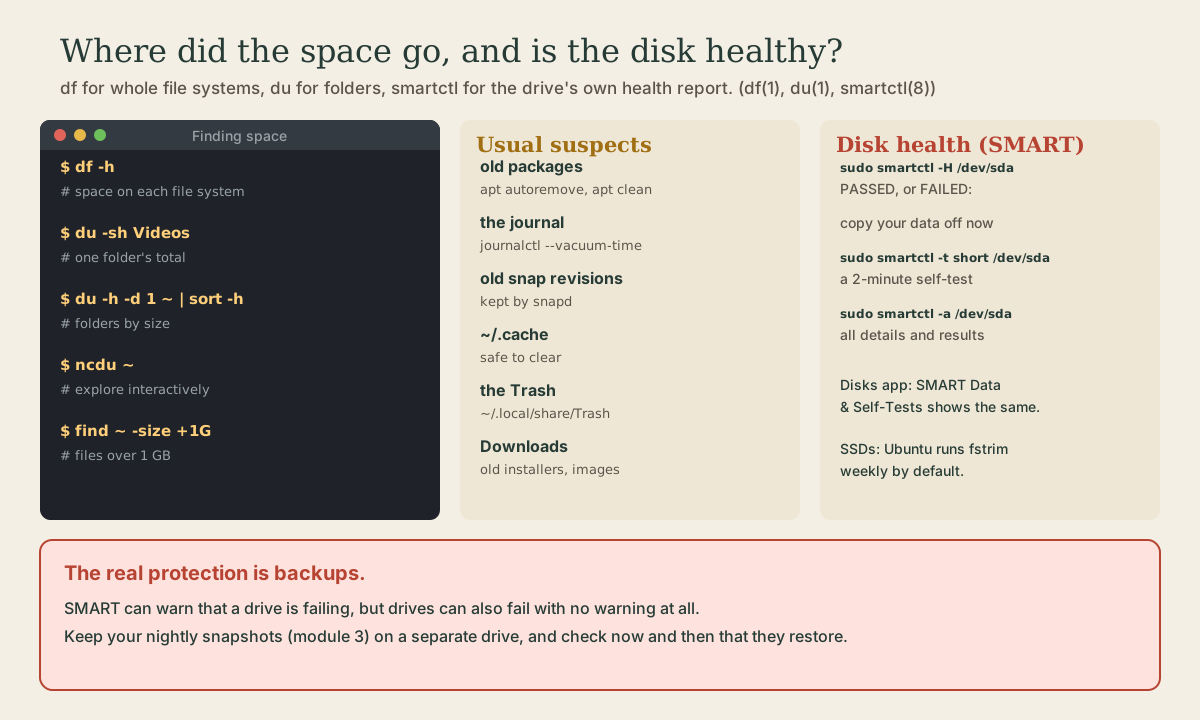
Finding where the space went: df for whole file systems, du for folders, sorted with sort -h, ncdu to explore, and find -size for big files. The usual space users and how to clear them safely: apt's cache and unneeded packages, the journal, old snap revisions, ~/.cache, the Trash. Then the drive's own health reports: SMART with smartctl -H, self-tests, and the Disks app; periodic TRIM for SSDs; and why backups, not health checks, are the real protection.
- 6 min
- 7 steps
- 2 questions
- Lesson 55 of 80
In this lesson
- How full is it?
- Which folders?
- The usual suspects
- Is the drive healthy?
- The real protection
- Your turn
- So
Picking up where you left off.
How full is it?
me@garden-laptop:~$ df -h
df reports each mounted file system’s size, used and available space, and use percentage; -h prints sizes like 48G instead of counting kilobytes 1 2. df -h ~ shows just the file system your home folder is on. On Ubuntu you’ll see many small tmpfs file systems, which live in memory, and snap loop devices at 100%; the line that matters is usually /.
Which folders?
df says how full; du says what’s using it, by adding up folders 3:
me@garden-laptop:~$ du -sh ~/Videos
me@garden-laptop:~$ du -h -d 1 ~ | sort -h
me@garden-laptop:~$ sudo du -h -d 1 / 2>/dev/null | sort -h
-sgives one total per argument;-hhuman sizes 3.-d 1(--max-depth=1) lists each folder one level down 3.sort -hsorts human sizes properly, so the biggest come last (Shell course, module 2).
The last line surveys the whole system, with 2>/dev/null hiding the “permission denied” noise. Then drill down into whatever’s biggest. ncdu does the same interactively, with arrow keys to move into folders; install it with sudo apt install ncdu.
To find big single files:
me@garden-laptop:~$ find ~ -size +1G -exec ls -lh {} +
Quick check
df reports whole file systems; du adds up folders. sort -h understands sizes like 2.1G and 340M.
The usual suspects
Before deleting anything, know what it is. These are safe to clear:
- apt’s download cache. Every package apt downloads stays in
/var/cache/apt/archives/4.sudo apt cleanempties it;sudo apt autoremoveremoves dependencies nothing needs any more 5. - The journal.
journalctl --disk-usage, thensudo journalctl --vacuum-time=4weeksif it’s large (module 3) 6. - Old snap revisions. snapd keeps previous revisions of each snap so you can revert;
snap list --allshows them markeddisabled, and the system optionrefresh.retainsets how many are kept 7. ~/.cache. By the freedesktop standard, programs keep “non-essential” cached data there 8. Deleting a program’s folder in it just makes the program rebuild it; close the program first.- The Trash. Files deleted in the file manager go to
~/.local/share/Trashuntil you empty it. - Your own files: old downloads, disk images (like that 6 GB Ubuntu
.iso), videos.
Don’t delete things under /usr, /var/lib, or /boot by hand; let apt and the system manage those.
Is the drive healthy?
Drives watch themselves. SMART (Self-Monitoring, Analysis and Reporting Technology) is built into most hard disks and SSDs, and smartctl, from the smartmontools package, reads it 9:
me@garden-laptop:~$ sudo apt install smartmontools
me@garden-laptop:~$ sudo smartctl -H /dev/sda
-H prints the drive’s overall health. If it reports failing, the drive has either already failed or predicts its own failure within 24 hours: get your data off it as soon as you can 10. Use the disk name from lsblk, such as /dev/nvme0n1 on most laptops.
Drives can also test themselves. All the tests are safe for your data 9:
me@garden-laptop:~$ sudo smartctl -t short /dev/sda
me@garden-laptop:~$ sudo smartctl -l selftest /dev/sda
me@garden-laptop:~$ sudo smartctl -a /dev/sda
A short test takes a minute or two; a long test reads the whole surface and can take hours; -c shows how long each takes on your drive 9. -l selftest shows the results, and -a everything the drive reports 9 10.
The Disks app shows the same thing without the terminal: select the drive, then the menu’s SMART Data & Self-Tests.
SSDs stay fast with TRIM, which tells the drive which blocks are free. Ubuntu enables periodic TRIM by default, through fstrim.timer, which runs weekly 11; systemctl status fstrim.timer shows when it last ran.
Quick check
A failing health status means the drive has failed or predicts its own failure within 24 hours.
The real protection
Health checks catch some failing drives early, but a drive can fail with no warning at all, and a SMART report can’t help with a deleted file, a stolen laptop, or a fire. Backups can. You have the pieces now: the snapshot script (Shell course), a timer that runs it nightly and catches up (module 3), and an ext4 drive mounted at the same place every time (this module). Every few months, restore a file from a snapshot to prove they work. A backup you’ve never restored from is a hope, not a backup.
Your turn
Exercises
df -h. Which line is your root file system, and how full is it?du -h -d 1 ~ | sort -h | tail: your five biggest folders. Drill into the biggest withduorncdu.find ~ -size +500M -exec ls -lh {} +. Anything you’d forgotten?du -sh /var/cache/apt/archives ~/.cache ~/.local/share/Trashandjournalctl --disk-usage. Which is worth clearing?snap list --all | grep disabled: old snap revisions.- Install smartmontools and run
sudo smartctl -Hand a short self-test on your disk. Read the result with-l selftest.
Answers
- The line mounted on
/, from a device such as/dev/nvme0n1p2;Use%is how full. - Often
.cache,Downloads,Videos, orsnap. - apt’s cache can be hundreds of megabytes after a few months;
sudo apt cleanfrees it. -HsaysPASSEDon a healthy drive (NVMe drives may phrase it differently). The self-test log listsShort offlinewithCompleted without error.
So
df -h shows how full each file system is; du -h -d 1 | sort -h, ncdu, and find -size show what’s using it. apt’s cache (apt clean), unneeded packages (apt autoremove), the journal (--vacuum-time), old snap revisions, ~/.cache, and the Trash are safe places to reclaim space. smartctl -H asks the drive about its own health, and a failing result means copy your data off now; short and long self-tests check further, and the Disks app shows the same. Ubuntu TRIMs SSDs weekly. None of it replaces backups you’ve tested.
Lesson complete
Nice work.
Sources for this lesson
- 1df(1) manual page. man7.org (Linux man-pages). verifiedReports file system disk space usage; -h prints sizes in powers of 1024 (e.g. 1023M), -H in powers of 1000.
- 2William Shotts. The Linux Command Line, Seventh Internet Edition (25.12A). LinuxCommand.org (print edition by No Starch Press). 2026. verifiedFree CC BY-NC-ND 3.0 book, release 25.12A of July 18, 2026. Part 1, Learning the Shell: the shell and terminal emulators, prompts ($ vs. # for the superuser), command history (most distributions keep the last 1,000 commands), Shift-Ctrl-C/V for copy and paste; navigation and the directory tree; exploring the system (ls options and the long listing, file, less, the guided tour of /, symbolic links); manipulating files (wildcards and character classes, mkdir, cp, mv, rm, ln; no undelete, test wildcards with ls first); working with commands (four kinds of commands, type, which, help, --help, man and its sections, apropos, whatis, info, alias); redirection; expansion and quoting; Readline keyboard tricks, completion, history search; permissions; processes. Later parts cover the environment, vi, packages, storage, networking, find, archiving, regular expressions, text processing, and shell scripting.
- 3du(1) manual page. man7.org (Linux man-pages). verifiedEstimates file space usage; -h human-readable sizes; -s a total per argument; -d/--max-depth=N totals only down to N levels.
- 4apt-get(8) manual page, Ubuntu 26.04. Ubuntu Manpages. verifiedclean clears the local repository of retrieved package files in /var/cache/apt/archives/ and its partial/ folder; autoclean removes only package files that can no longer be downloaded.
- 5apt(8) manual page, Ubuntu 26.04 (apt 3.2.0). Ubuntu Manpages. verifiedupdate downloads package information; upgrade never removes packages (an upgrade needing a removal isn't done); full-upgrade will remove packages if needed; remove leaves configuration files, purge removes them, neither touches the home directory; autoremove removes automatically installed dependencies no longer needed (apt-mark to keep one); why and why-not; search, show, list --installed/--upgradeable; apt's interface may change between versions, so scripts should use apt-get and apt-cache; exit status 0, or 100 on error.
- 6journalctl(1) manual page. man7.org (Linux man-pages). verifiedWith no arguments shows all logs; -b [ID][±offset] a given boot, --list-boots; -u unit; -p priority, syslog levels emerg (0) to debug (7), a single level shows that and more important; -S/--since and -U/--until with dates, yesterday/today/now, or relative times; -f follow; -k kernel messages; -e jump to end; -n lines; -r reverse; -x catalog explanations; --disk-usage; --vacuum-size/time/files. Members of systemd-journal, adm, and wheel can read all journal files. Examples: journalctl -k -b -1; journalctl -f -u apache.
- 7Manage updates (snap documentation). Canonical. verifiedSnaps update automatically; snapd checks for updates four times a day by default (snap refresh --time shows timer, last, next). snap refresh --hold[=duration] postpones updates for some or all snaps; --unhold removes it; system options refresh.timer, refresh.hold (up to 90 days), refresh.metered, refresh.retain.
- 8XDG Base Directory Specification. freedesktop.org. verified$XDG_CACHE_HOME, default $HOME/.cache, is where user-specific non-essential (cached) data should be stored.
- 9S.M.A.R.T.. ArchWiki. verifiedsmartctl from smartmontools; --info shows whether SMART is supported and enabled; self-tests short, long (extended), and conveyance are safe to user data; -c shows recommended test durations; smartctl -t short/long, -l selftest, -H, -x.
- 10smartctl(8) manual page, Ubuntu 26.04. Ubuntu Manpages. verifiedControls and monitors SMART on ATA/SATA, SCSI/SAS, and NVMe drives. -H prints health status: a failing status means the device has already failed or predicts its own failure within 24 hours, so get the data off as soon as possible; -t runs self-tests; -l selftest and -a show results and details.
- 11Solid state drive. ArchWiki. verifiedPeriodic TRIM via util-linux's fstrim.timer, which runs fstrim weekly on supported file systems, is preferred over continuous TRIM; Ubuntu enables periodic TRIM by default.