When Something Breaks
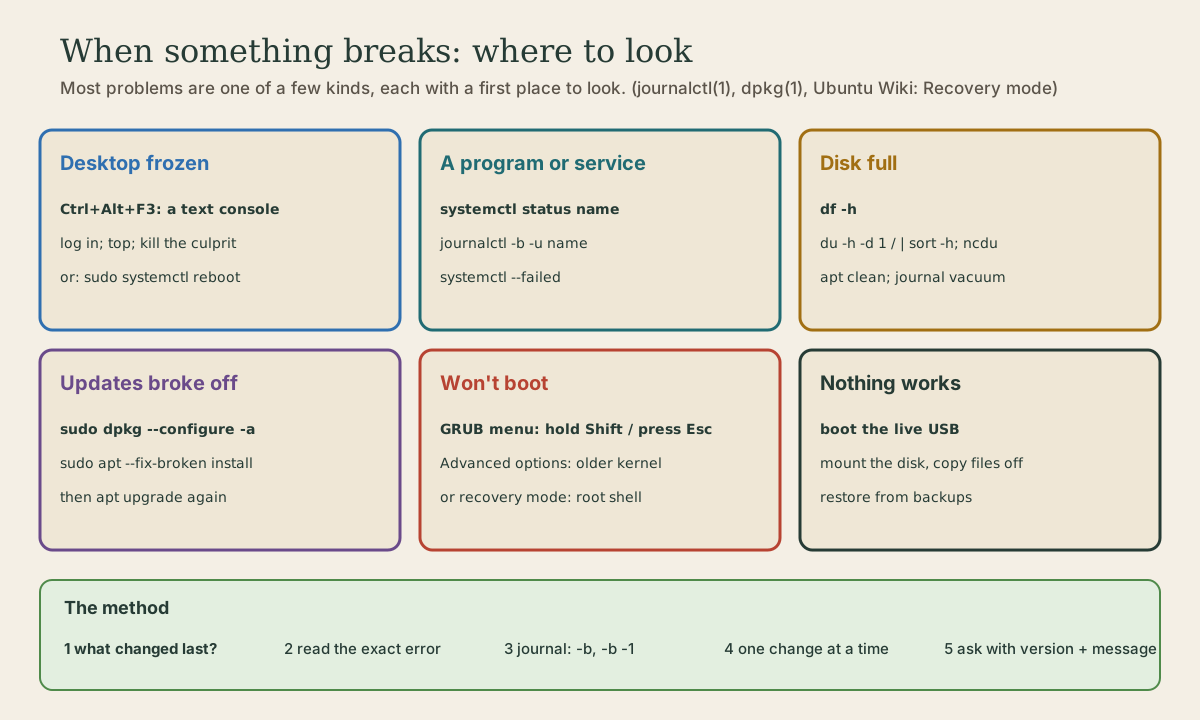
A method for any problem (what changed, the exact error, the journal, one change at a time) and first steps for the common kinds: a frozen desktop, fixed from a text console; a misbehaving program or service; a full disk; updates interrupted, repaired with dpkg --configure -a and apt --fix-broken install; and a system that won't boot, through the GRUB menu, an older kernel, or recovery mode's root shell. The live USB as the last resort, and how to ask for help well.
- 6 min
- 10 steps
- 2 questions
- Lesson 60 of 80
In this lesson
- A method
- A frozen desktop
- A program or service misbehaving
- A full disk
- Updates interrupted
- It won’t boot
- The last resort
- Asking for help
- Your turn
- So
Picking up where you left off.
A method
Most problems give way to the same few steps:
- What changed last? An update, a new program, an edited file, new hardware. Problems usually start right after something changed, and undoing it is often the fix.
- Read the exact error. Not “it didn’t work”: the actual message, word for word.
- Check the journal:
journalctl -b -p errfor this boot,-b -1for the last one (module 3) 1. - Change one thing at a time, and check after each. Two changes at once means you won’t know which helped, or which made it worse.
- Keep notes of what you tried. You’ll need them if you ask for help, and next time it happens.
A frozen desktop
If the screen stops responding, the rest of the system is often fine. Linux has text consoles behind the desktop: Ctrl+Alt+F3 switches to one (on some laptops, Ctrl+Alt+Fn+F3), and Ctrl+Alt+F1 or F2 switches back 2. Log in there with your user name and password, and you have a shell:
me@garden-laptop:~$ top
me@garden-laptop:~$ kill 4321
me@garden-laptop:~$ sudo systemctl reboot
top shows what’s using the processor and memory; press M to sort by memory, and note the PID of anything running away (Shell course, module 6). kill asks it to stop, and kill -9 forces it. If it’s hopeless, reboot from here, which is far kinder to your files than holding the power button.
A program or service misbehaving
me@garden-laptop:~$ systemctl --failed
me@garden-laptop:~$ systemctl status cups
me@garden-laptop:~$ journalctl -b -u cups
Start with systemctl status, which shows the state and the last log lines, then the full journal for the unit (module 3) 3 1. For a desktop app, start it from a terminal: error messages it would normally hide appear there.
A full disk
Odd failures, such as programs failing to save, the desktop failing to log in, or updates failing, are often a full disk. df -h shows it; module 4’s du and ncdu find what filled it, and sudo apt clean and a journal vacuum free space quickly.
Updates interrupted
If an update is cut off by a power cut or a crash, packages can be left half-installed, and apt refuses to continue until they’re sorted out. Two commands fix most cases:
me@garden-laptop:~$ sudo dpkg --configure -a
me@garden-laptop:~$ sudo apt --fix-broken install
dpkg --configure -a finishes configuring every package that was unpacked but not yet set up 4. apt --fix-broken install (-f) then tries to correct broken dependencies 5. After that, sudo apt update && sudo apt upgrade to finish the job.
Quick check
dpkg --configure -a finishes setting up every package that was unpacked but not configured.
It won’t boot
The GRUB menu. Ubuntu’s boot loader, GRUB, has a menu that’s usually hidden. To show it, press Escape (on UEFI computers, perhaps several times) or hold Shift (on older BIOS computers) just after the maker’s logo 6. If you see the Ubuntu logo, you’ve missed it; restart and try again.
An older kernel. In the menu, Advanced options for Ubuntu lists each installed kernel 6. If problems began after an update, try the previous kernel. If it boots, the new kernel is the problem; wait for its next update or report it.
Recovery mode. Each kernel also has a (recovery mode) entry, which starts only basic services and offers a menu; Drop to root shell prompt gives you a root shell with no desktop and no password 6. The root file system starts read-only, so before changing anything 6:
root@garden-laptop:~# mount -o remount,rw /
root@garden-laptop:~# mount --all
From there you can undo whatever broke it. Common fixes:
- A bad
/etc/fstabline, from module 4:nano /etc/fstaband put a#at the start of the line to turn it into a comment 7. - Interrupted updates:
dpkg --configure -a, as above. - A full disk: clear space as in module 4.
Then reboot.
Quick check
In recovery mode, / starts read-only; mount -o remount,rw / lets you edit fstab, where a # in front of the bad line disables it.
The last resort
If none of that works, the live USB from module 1 still boots, from the stick, with the computer’s disk untouched 8. Choose Try Ubuntu, open Files, and the internal disk is listed; open it and copy your files to an external drive. Then you can reinstall without fear, restore from your backups, and clone your dotfiles to have your setup back in minutes. This is where all the earlier modules pay off.
Asking for help
Ubuntu’s community answers questions on Ask Ubuntu and the Ubuntu Discourse 8. A question that gets answers includes:
- your release (
lsb_release -a) and, for hardware problems, the model; - the exact error message, and the relevant lines from
journalctl, pasted as text, not a photo; - what you were doing, what you expected, and what happened;
- what you’ve already tried.
And remember last lesson: before pasting a suggested sudo command, understand what it does.
Your turn
Exercises
- On your Ubuntu desktop, press Ctrl+Alt+F3, log in, run
top, and switch back with Ctrl+Alt+F1 (or F2). - Open the GRUB menu on the next boot (Escape or Shift). Look at Advanced options, then boot normally.
- Boot into recovery mode, choose the root shell, run
mount -o remount,rw /, look at/etc/fstabwithcat, andreboot. journalctl -b -1 -p err: anything from the last boot to investigate?- Write a “rescue” note for yourself, in your dotfiles’ README or on paper: the console keys, the GRUB keys,
dpkg --configure -a, and where your backups are.
Answers
- A text login prompt; after logging in,
topruns as usual. The desktop is waiting on F1 or F2. - You’ll see Ubuntu, Advanced options for Ubuntu, and on a dual-boot machine, Windows Boot Manager.
- Recovery mode’s menu has a Drop to root shell prompt option near the bottom; after remounting,
/etc/fstabcan be edited.
So
Ask what changed, read the exact error, check the journal for this boot and the last, and change one thing at a time. A frozen desktop: Ctrl+Alt+F3, top, kill, or systemctl reboot. A broken service: systemctl status, journalctl -u. A full disk: df, then du. Interrupted updates: dpkg --configure -a and apt --fix-broken install. Won’t boot: the GRUB menu (Escape or Shift), an older kernel under Advanced options, or recovery mode’s root shell, after mount -o remount,rw /. Last resort: the live USB, your files, and your backups. Ask for help with your release, the exact message, and what you tried.
Lesson complete
Nice work.
Sources for this lesson
- 1journalctl(1) manual page. man7.org (Linux man-pages). verifiedWith no arguments shows all logs; -b [ID][±offset] a given boot, --list-boots; -u unit; -p priority, syslog levels emerg (0) to debug (7), a single level shows that and more important; -S/--since and -U/--until with dates, yesterday/today/now, or relative times; -f follow; -k kernel messages; -e jump to end; -n lines; -r reverse; -x catalog explanations; --disk-usage; --vacuum-size/time/files. Members of systemd-journal, adm, and wheel can read all journal files. Examples: journalctl -k -b -1; journalctl -f -u apache.
- 2Keyboard shortcuts. ArchWiki. verifiedCtrl+Alt+F1, F2, F3 ... switch to the nth virtual console (try Ctrl+Alt+Fn+F... if that doesn't work).
- 3systemctl(1) manual page. man7.org (Linux man-pages). verifiedExample output of systemctl status bluetooth; the dot shows the state (green active, white inactive, red cross failed); Loaded: shows the unit file path and enablement; start, stop, restart, reload; enable creates the symlinks named in [Install], disable removes them; --now also starts or stops; mask links to /dev/null; is-active, is-enabled; list-units --failed; cat shows the unit's files; edit creates a drop-in; daemon-reload rereads unit files (not the same as reload); reboot, poweroff, suspend.
- 4dpkg(1) manual page. man7.org (Linux man-pages). verified--configure package or -a/--pending configures packages that have been unpacked but not yet configured; dpkg-reconfigure for already configured ones.
- 5apt-get(8) manual page, Ubuntu 26.04. Ubuntu Manpages. verifiedclean clears the local repository of retrieved package files in /var/cache/apt/archives/ and its partial/ folder; autoclean removes only package files that can no longer be downloaded.
- 6Recovery mode (Ubuntu Wiki). Ubuntu Wiki. verifiedTo reach the GRUB menu, hold Shift on BIOS or press Escape (perhaps several times) on UEFI after the firmware logo; Advanced options lists entries ending in (recovery mode); its menu includes Drop to root shell prompt, logged in as root; the root partition is mounted read-only, remount with mount -o remount,rw /, then mount --all for other partitions.
- 7fstab(5) manual page. man7.org (Linux man-pages). verifiedSix fields: device (LABEL= or UUID= recommended, since device names are often a coincidence of hardware detection order and can change), mount point, type, options (defaults, noauto, user, ro/rw; comma-separated), dump, fsck pass (1 for root, 2 for others, 0 for no check); spaces escaped as \040; on systemd systems run systemctl daemon-reload after modifying fstab.
- 8Install Ubuntu Desktop (Ubuntu Desktop documentation). Canonical. verified26.04 LTS tutorial: back up, download the image, write it with Rufus on Windows (SELECT the image, START, ISO Image mode; GPT and UEFI (non CSM) if it won't boot), boot menu key F12 or Esc/F2/F10, Try or Install; Intel RST must be switched to AHCI; default vs extended selection; tick third-party software and media formats; disk setup: erase disk, alongside, or manual; encrypt with a passphrase (keep it safe); BitLocker blocks installing alongside; update with sudo apt update and upgrade afterward. Ubuntu works on a wide range of devices; certified hardware list; Apple Silicon only via the community Asahi project.