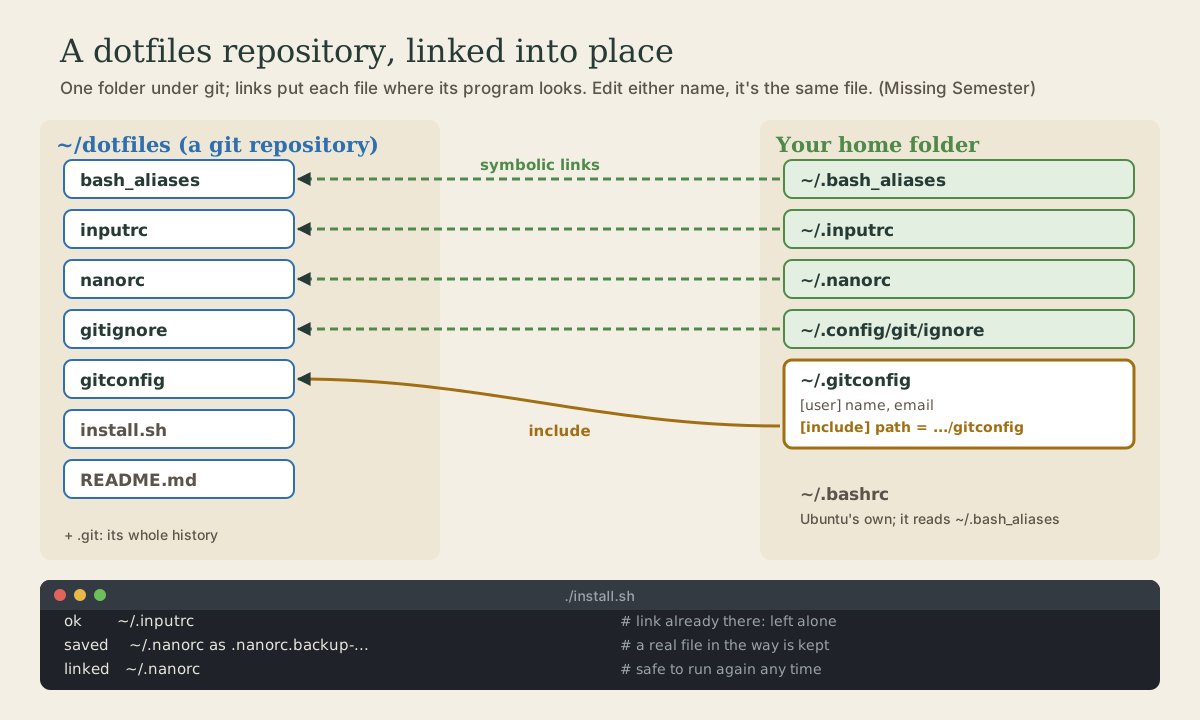
Your Dotfiles in Git
Dotfiles are the hidden settings files in your home folder. This project puts yours in a git repository: ~/.bash_aliases, ~/.inputrc, ~/.nanorc, a global gitignore, and shared git settings, plus a tested install script that symlinks each file into place, backs up anything in the way, includes the git settings from ~/.gitconfig, and is safe to run again. Testing it in a throwaway home folder, installing it for real, editing through the links, and pushing the repository to GitHub.
- 12 min
- 10 steps
- 3 questions
- Lesson 42 of 80
In this lesson
- What dotfiles are
- The plan
- The files
- The install script
- Test it somewhere safe
- Install it for real
- Day to day
- Put it on GitHub
- Your turn
- So
Picking up where you left off.
What dotfiles are
Most command-line programs read their settings from plain text files in your home folder whose names start with a dot, which is why ls hides them: dotfiles 1. You’ve already made several in this course and the Shell course: ~/.bash_aliases with aliases and a prompt, ~/.nanorc, ~/.gitconfig, and ~/.config/git/ignore.
Missing Semester’s advice is to keep them in their own folder, under version control, and symlinked into place by a script. That gets you four things 1:
- Easy installation: a new machine is set up in a minute.
- Portability: your tools work the same everywhere.
- Synchronization: change a setting on one machine and pull it on the others.
- Change tracking: a history of every setting, kept for years.
That’s this project. When you move to Linux, it’s the first thing to clone.
The plan
~/dotfiles/            a git repository
├── README.md          what this is, and how to install it
├── install.sh         links everything into place
├── bash_aliases   ->  ~/.bash_aliases
├── inputrc        ->  ~/.inputrc
├── nanorc         ->  ~/.nanorc
├── gitignore      ->  ~/.config/git/ignore
└── gitconfig          included from ~/.gitconfig
The files in the repository don’t start with a dot, so ls shows them. The install script makes each home-folder name a symbolic link (Shell course, module 2) to the file in the repository. A link and its target are the same file, so a program reading ~/.nanorc reads ~/dotfiles/nanorc, and an edit through either name changes the one in git.
Two choices keep it simple:
- Leave
~/.bashrcalone. Ubuntu’s version already reads~/.bash_aliasesif it exists (Shell course, module 5), so your settings go there, and system updates to.bashrcnever clash with yours. - Don’t link
~/.gitconfig. Keep it a real file on each machine, holding that machine’s name and email, and have it include the shared settings from the repository. Git reads an included file as if its contents were written where the include line is 2.
The files
Make the folder and the repository:
me@linuxbox:~$ mkdir ~/dotfiles
me@linuxbox:~$ cd ~/dotfiles
me@linuxbox:~/dotfiles$ git init
Initialized empty Git repository in /home/me/dotfiles/.git/
Copy in what you have (cp ~/.bash_aliases bash_aliases, cp ~/.nanorc nanorc), then fill them out. Here’s a set to start from; change anything you like.
bash_aliases, your shell settings. Ubuntu’s .bashrc reads this file in every interactive shell:
# ~/.bash_aliases: my shell settings. Ubuntu's ~/.bashrc reads this file.

# History: keep more, skip duplicates and lines starting with a space
HISTSIZE=10000
HISTFILESIZE=20000
HISTCONTROL=ignoreboth

# Ask before overwriting
alias cp='cp -i'
alias mv='mv -i'

# Shortcuts
alias ll='ls -alF'
alias up='sudo apt update && sudo apt upgrade'
alias gs='git status -s'

# Make a directory and move into it
mkcd() { mkdir -p -- "$1" && cd -- "$1"; }

# Prompt: green user@host, blue directory
PS1='\[\e[1;32m\]\u@\h\[\e[0m\]:\[\e[1;34m\]\w\[\e[0m\]\$ '

# Settings for this machine only, not kept in git
if [ -f ~/.bash_local ]; then
    . ~/.bash_local
fi
The last block reads ~/.bash_local if it exists, for settings that belong to one machine only (next lesson).
inputrc, for Readline, the line editor that bash uses for typing, history, and Tab completion 3:
# ~/.inputrc: settings for Readline, the line editor bash uses.
# Having this file stops /etc/inputrc being read, so include it first.
$include /etc/inputrc

# Tab completion ignores case, and lists choices on the first Tab
set completion-ignore-case on
set show-all-if-ambiguous on

# Up and Down search history for lines starting with what's typed
"\e[A": history-search-backward
"\e[B": history-search-forward
Readline reads ~/.inputrc, and only falls back to the system’s /etc/inputrc when yours doesn’t exist, which is why the first line includes it 3. completion-ignore-case makes Tab treat doc and Doc alike, and show-all-if-ambiguous lists the choices at once instead of beeping 3. The last two lines bind the Up and Down arrows to history-search-backward and -forward: type git and press Up to step back through only the commands that started with git 3.
nanorc is the one from the nano lesson (Shell course, module 7).
gitconfig, the git settings from this course’s module 1 and module 4, minus your name and email:
# Shared git settings. install.sh includes this file from ~/.gitconfig.
# Name and email go in ~/.gitconfig itself, set on each machine.
[init]
    defaultBranch = main
[core]
    editor = nano
    autocrlf = input
[pull]
    rebase = true
[alias]
    st = status
    lg = log --oneline --graph --all
gitignore, the patterns ignored in every repository (module 2):
# Ignored in every repository (linked to ~/.config/git/ignore)
*~
*.swp
.DS_Store
And a short README.md saying what the repository is and the commands to install it. Next lesson’s new-machine steps are what goes in it.
Quick check
$include /etc/inputrc?Readline reads ~/.inputrc and falls back to /etc/inputrc only if yours doesn’t exist.
The install script
install.sh follows the layout from the Shell course’s backup script: a header comment, set -euo pipefail, constants, small functions, and main 4:
#!/usr/bin/env bash
#
# install.sh: put these dotfiles in place in $HOME.
#
# Links each file below into $HOME and includes gitconfig from ~/.gitconfig.
# Safe to run again: links already in place are left alone, and a real
# file in the way is moved aside to NAME.backup-DATE first.
#
# Usage: ./install.sh

set -euo pipefail

# The folder this script is in, as an absolute path
DOTFILES="$(cd -- "$(dirname -- "${BASH_SOURCE[0]}")" && pwd)"
readonly DOTFILES

# file in this repository : where it goes, relative to $HOME
readonly LINKS=(
  "bash_aliases:.bash_aliases"
  "inputrc:.inputrc"
  "nanorc:.nanorc"
  "gitignore:.config/git/ignore"
)

link() {
  local src="$DOTFILES/$1"
  local dest="$HOME/$2"

  if [[ -L "$dest" && "$(readlink -- "$dest")" == "$src" ]]; then
    echo "ok       ~/$2"
    return
  fi
  mkdir -p -- "$(dirname -- "$dest")"
  if [[ -e "$dest" && ! -L "$dest" ]]; then
    local backup
    backup="$dest.backup-$(date +%Y%m%d-%H%M%S)"
    mv -- "$dest" "$backup"
    echo "saved    ~/$2 as ${backup#"$HOME"/}"
  fi
  ln -sfn -- "$src" "$dest"
  echo "linked   ~/$2"
}

include_gitconfig() {
  local file="$DOTFILES/gitconfig"

  if git config --global --get-all include.path | grep -qxF -- "$file"; then
    echo "ok       ~/.gitconfig includes gitconfig"
  else
    git config --global --add include.path "$file"
    echo "included gitconfig in ~/.gitconfig"
  fi
}

main() {
  local pair
  for pair in "${LINKS[@]}"; do
    link "${pair%%:*}" "${pair#*:}"
  done
  include_gitconfig
}

main "$@"
Make it executable with chmod +x install.sh. It passes ShellCheck with no warnings 5. How it works:
DOTFILESis the absolute path of the folder the script is in, wherever you run it from:dirnameof the script’s own path, thencdthere andpwd. Links need absolute paths, or they’d point somewhere relative to the link itself.LINKSis an array ofrepository-file:home-pathpairs.${pair%%:*}keeps the part before the colon and${pair#*:}the part after (Shell course, module 8). Adding a file later is one more line.linkchecks three cases. Ifdestis already a link (-L) to the right file, it saysokand stops. If it’s a real file or folder (-ebut not-L), it’s renamed with a timestamp, so nothing you had is lost. Thenln -sfnmakes the link, replacing any old link.mkdir -pfirst makes sure folders like~/.config/gitexist.include_gitconfigasks git for theinclude.pathvalues already in~/.gitconfig, and adds this one only if it’s missing (grep -qxFmatches the whole line, literally, quietly). Settings in~/.gitconfigitself stay as they are 2.
Running it twice changes nothing the second time. That property, being safe to rerun, is what makes the script trustworthy.
Commit everything:
me@linuxbox:~/dotfiles$ git add .
me@linuxbox:~/dotfiles$ git commit -m "Add my dotfiles and an install script"
[main (root-commit) 8ffb271] Add my dotfiles and an install script
 7 files changed, 150 insertions(+)
 create mode 100644 README.md
 create mode 100644 bash_aliases
 create mode 100644 gitconfig
 create mode 100644 gitignore
 create mode 100644 inputrc
 create mode 100644 install.sh
 create mode 100644 nanorc
Test it somewhere safe
Before letting the script loose on your real home folder, point it at an empty one. Everything in the script works relative to $HOME, so setting HOME for one command is a complete test (Shell course, module 5):
me@linuxbox:~/dotfiles$ export TESTHOME="$(mktemp -d)"
me@linuxbox:~/dotfiles$ HOME="$TESTHOME" ./install.sh
linked   ~/.bash_aliases
linked   ~/.inputrc
linked   ~/.nanorc
linked   ~/.config/git/ignore
included gitconfig in ~/.gitconfig
me@linuxbox:~/dotfiles$ HOME="$TESTHOME" ./install.sh
ok       ~/.bash_aliases
ok       ~/.inputrc
ok       ~/.nanorc
ok       ~/.config/git/ignore
ok       ~/.gitconfig includes gitconfig
mktemp -d makes a new empty folder under /tmp. The first run links everything; the second finds it all in place. Look around with ls -la "$TESTHOME" and cat "$TESTHOME/.gitconfig", then rm -r "$TESTHOME" when you’re done.
Quick check
A script you can run again safely is easy to rerun whenever you add a file.
Install it for real
On this first machine, ~/.gitconfig still has the shared settings from module 1. Open it with nano ~/.gitconfig and delete everything except the [user] section, since the repository’s gitconfig now provides the rest. Then:
me@linuxbox:~/dotfiles$ ./install.sh
saved    ~/.bash_aliases as .bash_aliases.backup-20261005-150752
linked   ~/.bash_aliases
linked   ~/.inputrc
saved    ~/.nanorc as .nanorc.backup-20261005-150752
linked   ~/.nanorc
linked   ~/.config/git/ignore
included gitconfig in ~/.gitconfig
me@linuxbox:~/dotfiles$ ls -l ~/.bash_aliases
lrwxrwxrwx 1 me me 30 Oct  5 15:07 /home/me/.bash_aliases -> /home/me/dotfiles/bash_aliases
me@linuxbox:~/dotfiles$ cat ~/.gitconfig
[user]
    name = Your Name
    email = you@example.com
[include]
    path = /home/me/dotfiles/gitconfig
me@linuxbox:~/dotfiles$ git config --show-origin --get pull.rebase
file:/home/me/dotfiles/gitconfig    true
Your old .bash_aliases and .nanorc were real files, so they were saved with a date before being replaced. ls -l shows the link, l first and an arrow to its target. --show-origin shows git reading pull.rebase from the included file 2. Open a new terminal to load the new shell settings; once you’re happy, delete the .backup- files.
Day to day
Edit your settings the normal way, through the home-folder names; the links take the changes into the repository:
me@linuxbox:~/dotfiles$ echo "alias gl='git log --oneline -10'" >> ~/.bash_aliases
me@linuxbox:~/dotfiles$ git status -s
 M bash_aliases
me@linuxbox:~/dotfiles$ git diff
diff --git a/bash_aliases b/bash_aliases
index 1a25ea7..ad41b23 100644
--- a/bash_aliases
+++ b/bash_aliases
@@ -24,3 +24,4 @@ PS1='\[\e[1;32m\]\u@\h\[\e[0m\]:\[\e[1;34m\]\w\[\e[0m\]\$ '
 if [ -f ~/.bash_local ]; then
     . ~/.bash_local
 fi
+alias gl='git log --oneline -10'
me@linuxbox:~/dotfiles$ git commit -qam "Add gl alias"
Small, well-described commits (module 2) pay off here: in a year, git log -p bash_aliases tells you when and why each setting arrived. To add a new dotfile later, move it into ~/dotfiles without its dot, add a line to LINKS, rerun ./install.sh, and commit.
Quick check
Both names lead to one file, so git status in ~/dotfiles shows the change, ready to commit.
Put it on GitHub
Create an empty private repository called dotfiles on GitHub and push to it over SSH (module 4):
me@linuxbox:~/dotfiles$ git remote add origin git@github.com:you/dotfiles.git
me@linuxbox:~/dotfiles$ git push -u origin main
To github.com:you/dotfiles.git
 * [new branch]      main -> main
branch 'main' set up to track 'origin/main'.
Plenty of people publish their dotfiles, and reading other people’s is a good way to learn settings, though Missing Semester advises against copying configurations blindly 1. Private is the safer default: it’s easy to commit something personal without noticing.
Your turn
Project, part 1
- Create
~/dotfileswith at leastbash_aliases,inputrc,nanorc,gitconfig,gitignore,install.sh, and aREADME.md. Copy in your existing settings first. - Run
shellcheck install.shand fix anything it reports. - Test the script twice in a
mktemp -dhome folder. Check that the second run prints onlyoklines. - Trim
~/.gitconfigto[user], run the script for real, open a new terminal, and check that your aliases, prompt, andgit lgall work. - Add a setting through
~/.bash_aliases, then see it ingit diffinside~/dotfilesand commit it. - Push the repository to a private GitHub repository.
Hints
- ShellCheck’s most common catch is a missing pair of double quotes around a variable.
- If a second run prints
linkedagain, comparereadlink "$TESTHOME/.nanorc"with the path the script built: they must match exactly. type mkcd,alias gs, andgit lgshould all work in the new terminal.git config --show-origin --get init.defaultBranchshould name the repository’sgitconfig.git status -sin~/dotfilesshowsM bash_aliases.
So
Your dotfiles now live in ~/dotfiles, under git. install.sh links each one into place with ln -sfn, saves any real file in the way, includes the shared git settings from ~/.gitconfig, and is safe to run again; testing it with HOME="$(mktemp -d)" proved that before it touched your home folder. Edits through the home-folder names land in the repository, ready to commit, and the repository is backed up on GitHub. Next: putting it on another machine.
Lesson complete
Nice work.
Sources for this lesson
- 1Anish Athalye, Jon Gjengset, Jose Javier Gonzalez Ortiz. Command-line Environment (The Missing Semester of Your CS Education, 2026). MIT CSAIL. 2026. verifiedCC BY-NC-SA. How shell programs communicate: arguments, streams, environment variables, return codes, and signals; scripts with #!/usr/bin/env bash, $1 and [[ -f $1 ]], exit codes, errors to >&2; trap with a cleanup function to remove temporary files on exit; signals, job control with Ctrl-Z, bg, fg, and nohup; terminal multiplexers and SSH.
- 2git-config documentation. Git project (git-scm.com). verifiedReference for reading and writing git settings at the --system, --global, --local, and --worktree levels, with --list and --show-origin, and for every configuration variable, including user.name, user.email, init.defaultBranch, core.editor, core.autocrlf, and alias.*.
- 3Readline Init File (Bash Reference Manual). Free Software Foundation. verifiedReadline reads the file named by INPUTRC, default ~/.inputrc, and only if that doesn't exist /etc/inputrc. Variables include completion-ignore-case and show-all-if-ambiguous (both default off); $include reads another init file; history-search-backward/-forward search history for lines starting with the text before the cursor.
- 4Shell Style Guide. Google. verifiedBash is the only shell allowed for executables, which start with #!/bin/bash; executables on PATH need no extension, libraries take .sh and aren't executable. Every file starts with a comment describing it; functions get header comments. Error messages go to STDERR. Quote variables and prefer "${var}"; use "$@" for arguments; prefer [[ ]] over [ ] and $( ) over backticks; use local in functions; constants readonly and capitalized; put the program in a main function called last with main "$@". Scripts over about 100 lines, or with non-straightforward control flow, should be rewritten in a more structured language.
- 5Vidar Holen. ShellCheck: finds bugs in your shell scripts. shellcheck.net. verifiedA static analysis tool for sh and bash scripts that flags quoting problems, misused tests, unreachable or wrong logic, and portability issues, each with a numbered explanation (for example SC2086, double-quote to prevent word splitting). Installable with apt, dnf, brew, or pip (shellcheck-py), or usable in the browser. Version 0.11.0 checked the course's backup script clean on 2026-10-05.