Expansion and Quoting
Before any program runs, bash rewrites your line: brace expansion, tilde, parameters, arithmetic, command substitution, word splitting, filename expansion, and quote removal, in that order. What each does and how to use it, and how double quotes, single quotes, and backslashes switch steps off. Preview with echo, trace with set -x, and the habit that prevents most shell bugs: quote your variables.
- 6 min
- 10 steps
- 3 questions
- Lesson 13 of 80
In this lesson
- The shell rewrites your line
- Brace expansion
- Tilde, parameters, and arithmetic
- Command substitution
- Word splitting and filename expansion
- Quoting
- Quote your variables
- Watching the shell work
- Your turn
- So
Picking up where you left off.
The shell rewrites your line
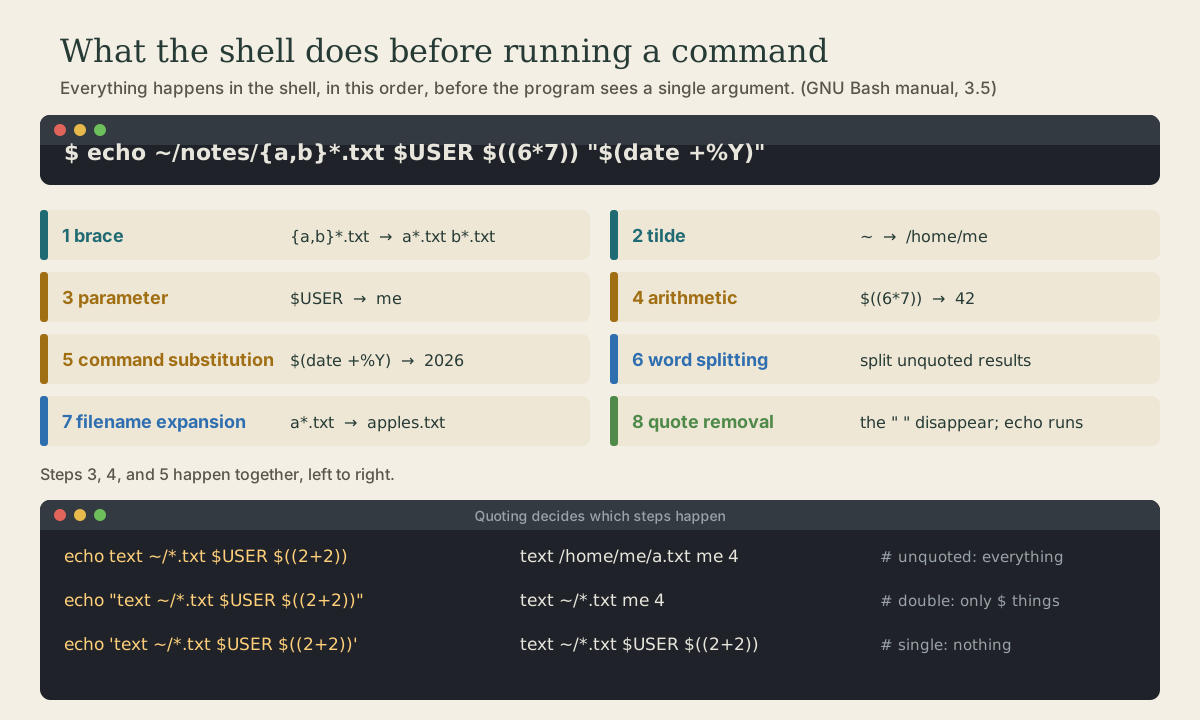
When you press Enter, bash doesn’t hand your text straight to a program. It expands it first, rewriting the line in a fixed order 1 2:
- Brace expansion
- Tilde expansion
- Parameter expansion, arithmetic expansion, and command substitution (together, left to right)
- Word splitting
- Filename expansion (wildcards)
- Quote removal
Only then does the program run, with whatever words are left as its arguments. The program never sees your *, ~, or $; it sees what they turned into. That’s why echo is the best way to preview what the shell will do: echo rm *.log shows exactly which files rm *.log would get 2.
Brace expansion
Braces make several words from one pattern 2 1:
me@linuxbox:~$ echo front-{A,B,C}-back
front-A-back front-B-back front-C-back
me@linuxbox:~$ echo {1..5} {a..e}
1 2 3 4 5 a b c d e
me@linuxbox:~$ echo {01..12}
01 02 03 04 05 06 07 08 09 10 11 12
me@linuxbox:~$ mkdir -p photos/{2025,2026}/{01..12}     # 24 folders in one go
me@linuxbox:~$ cp config.txt{,.bak}                      # cp config.txt config.txt.bak
Unlike wildcards, braces don’t look at what files exist; they just generate text.
Quick check
Brace expansion makes the twelve paths before mkdir runs; -p creates the parent 2026 too.
Tilde, parameters, and arithmetic
Tilde: ~ becomes your home directory, ~bob becomes bob’s 2.
Parameters: $NAME becomes the value of a variable 2:
me@linuxbox:~$ echo $USER $HOME
me /home/me
me@linuxbox:~$ echo $SUER
A misspelled variable doesn’t cause an error; it quietly expands to nothing 2. Use braces when a name runs into other text: echo "${USER}_backup".
Arithmetic: $(( )) does whole-number math 2:
me@linuxbox:~$ echo $((2026 - 1905))
121
me@linuxbox:~$ echo $(( 7 / 2 )) $(( 7 % 2 ))
3 1
Command substitution
$( ) runs a command and puts its output in its place 2:
me@linuxbox:~$ echo "Today is $(date +%A)"
Today is Monday
me@linuxbox:~$ ls -l $(which cp)
-rwxr-xr-x 1 root root 141824 Apr  5  2024 /usr/bin/cp
me@linuxbox:~$ cp report.txt "report-$(date +%F).txt"     # report-2026-10-05.txt
You’ll see the older form with backquotes, `which cp`, in old scripts; $( ) does the same and nests cleanly 2.
Word splitting and filename expansion
After those substitutions, bash splits any unquoted results into separate words at spaces, tabs, and newlines 2 1. Then it expands wildcards (*, ?, [...]) in each word into matching file names, the step you met in module 2. Finally it removes the quote characters themselves 1.
Splitting is why extra spaces vanish:
me@linuxbox:~$ echo this   is   a    test
this is a test
Quoting
Quoting switches expansions off 2:
- Double quotes
"..."stop word splitting, wildcards, tildes, and braces, but keep$expansions: variables,$(...), and$((...)). Inside them, only$,`, and\stay special. - Single quotes
'...'stop everything. What you type is exactly what the program gets. - A backslash
\protects the one character after it.
me@linuxbox:~$ echo text ~/*.txt {a,b} $(echo foo) $((2+2)) $USER
text /home/me/notes.txt a b foo 4 me
me@linuxbox:~$ echo "text ~/*.txt {a,b} $(echo foo) $((2+2)) $USER"
text ~/*.txt {a,b} foo 4 me
me@linuxbox:~$ echo 'text ~/*.txt {a,b} $(echo foo) $((2+2)) $USER'
text ~/*.txt {a,b} $(echo foo) $((2+2)) $USER
me@linuxbox:~$ echo "The balance for $USER is \$5.00"
The balance for me is $5.00
The classic surprise: echo The total is $100.00 prints The total is 00.00, because $1 is an (empty) variable 2. Single quotes fix it.
A rule of thumb: single quotes for fixed text, like grep and find patterns; double quotes for text that should include variables.
Quick check
echo The total is $100.00 print?$1 is an empty variable, so it vanishes. Write ‘$100.00’ in single quotes, or $100.00.
Quote your variables
Double quotes also stop word splitting inside a variable’s value. That’s the source of a whole family of bugs 2:
me@linuxbox:~$ f="tax notes.txt"
me@linuxbox:~$ ls -l $f
ls: cannot access 'tax': No such file or directory
ls: cannot access 'notes.txt': No such file or directory
me@linuxbox:~$ ls -l "$f"
-rw-r--r-- 1 me me 812 Oct  5 09:10 tax notes.txt
The same goes for "$(...)": unquoted, a command’s multi-line output is flattened onto one line; quoted, the lines survive 2. Compare echo $(df -h) with echo "$(df -h)".
Habit: write "$var" and "$(command)", always, unless you specifically want the result split. In scripts this one habit prevents most bugs with odd file names.
Quick check
tax notes.txt. Why does f="tax notes.txt"; ls $f fail but ls "$f" work?Word splitting happens after parameter expansion. Quote every variable unless you want it split.
Watching the shell work
To see exactly what bash runs after expansion, turn on tracing 1:
me@linuxbox:~$ set -x
me@linuxbox:~$ ls ~/*.txt
+ ls --color=auto /home/me/notes.txt /home/me/todo.txt
me@linuxbox:~$ set +x
Every line after + is the fully expanded command. It’s the first thing to reach for when a command doesn’t do what you meant.
Your turn
Exercises
- With one
mkdircommand, creategarden/beds/{1..6}andgarden/notes. - Print “I have been alive N days” with N computed by arithmetic from your age in years (ignore leap years).
- Make a dated backup copy of
~/.bashrcnamed likebashrc-2026-10-05.bakusing command substitution. - Predict, then check:
echo "$HOME" '$HOME' $HOME\$HOME. - Create a file named
my file.txt, store its name in a variable, and show it withls -l, first wrongly, then correctly.
Answers
mkdir -p garden/{beds/{1..6},notes}. Braces nest.echo "I have been alive $(( 34 * 365 )) days", with your own age.cp ~/.bashrc ~/bashrc-$(date +%F).bak.date +%FprintsYYYY-MM-DD./home/me $HOME /home/me$HOME. Double quotes expand, single quotes don’t, and\$makes the second dollar sign literal.touch "my file.txt",f="my file.txt", thenls -l $ffails on two words, andls -l "$f"works.
So
Bash expands every line before running it: braces, tilde, variables, arithmetic, and command substitution, then word splitting, wildcards, and quote removal. Double quotes keep the $ expansions but stop splitting and wildcards; single quotes stop everything. Preview with echo, trace with set -x, and quote your variables.
Lesson complete
Nice work.
Sources for this lesson
- 1Chet Ramey, Brian Fox. Bash Reference Manual, Edition 5.3. GNU Project, Free Software Foundation. 2025. verifiedThe reference for Bash 5.3 (May 18, 2025). Redirections (3.6) are processed left to right and order matters: ls > dirlist 2>&1 sends both streams to dirlist, while ls 2>&1 > dirlist sends only standard output there. With set -o noclobber, > fails on an existing regular file and >| overrides it. &> word is equivalent to > word 2>&1 and &>> word to >> word 2>&1. Here documents (<<word, with <<- stripping leading tabs; quoting word disables expansion) and here strings (<<<). Expansions (3.5) happen in a fixed order: brace; tilde, parameter, arithmetic, and command substitution left to right; word splitting; filename expansion; quote removal last. Startup files (6.2): an interactive login shell reads /etc/profile then the first of ~/.bash_profile, ~/.bash_login, ~/.profile; an interactive non-login shell reads ~/.bashrc. HISTCONTROL (ignorespace, ignoredups, ignoreboth), HISTSIZE, HISTFILESIZE; set -x traces expanded commands; shell functions and variables, export.
- 2William Shotts. The Linux Command Line, Seventh Internet Edition (25.12A). LinuxCommand.org (print edition by No Starch Press). 2026. verifiedFree CC BY-NC-ND 3.0 book, release 25.12A of July 18, 2026. Part 1, Learning the Shell: the shell and terminal emulators, prompts ($ vs. # for the superuser), command history (most distributions keep the last 1,000 commands), Shift-Ctrl-C/V for copy and paste; navigation and the directory tree; exploring the system (ls options and the long listing, file, less, the guided tour of /, symbolic links); manipulating files (wildcards and character classes, mkdir, cp, mv, rm, ln; no undelete, test wildcards with ls first); working with commands (four kinds of commands, type, which, help, --help, man and its sections, apropos, whatis, info, alias); redirection; expansion and quoting; Readline keyboard tricks, completion, history search; permissions; processes. Later parts cover the environment, vi, packages, storage, networking, find, archiving, regular expressions, text processing, and shell scripting.