SSH to Other Machines
SSH gives you a shell on another computer over an encrypted connection. Installing the OpenSSH server, the first connection and its host-key fingerprint, logging in with keys instead of passwords (ssh-copy-id, or ssh-import-id from GitHub), short names in ~/.ssh/config, running single commands and copying files with scp and rsync, then turning off password logins in a sshd_config.d snippet, checked with sshd -t, without locking yourself out.
- 6 min
- 9 steps
- 2 questions
- Lesson 57 of 80
In this lesson
- What SSH does
- The server side
- The first connection
- Keys instead of passwords
- Short names in ~/.ssh/config
- Running commands and copying files
- Turning off passwords
- Your turn
- So
Picking up where you left off.
What SSH does
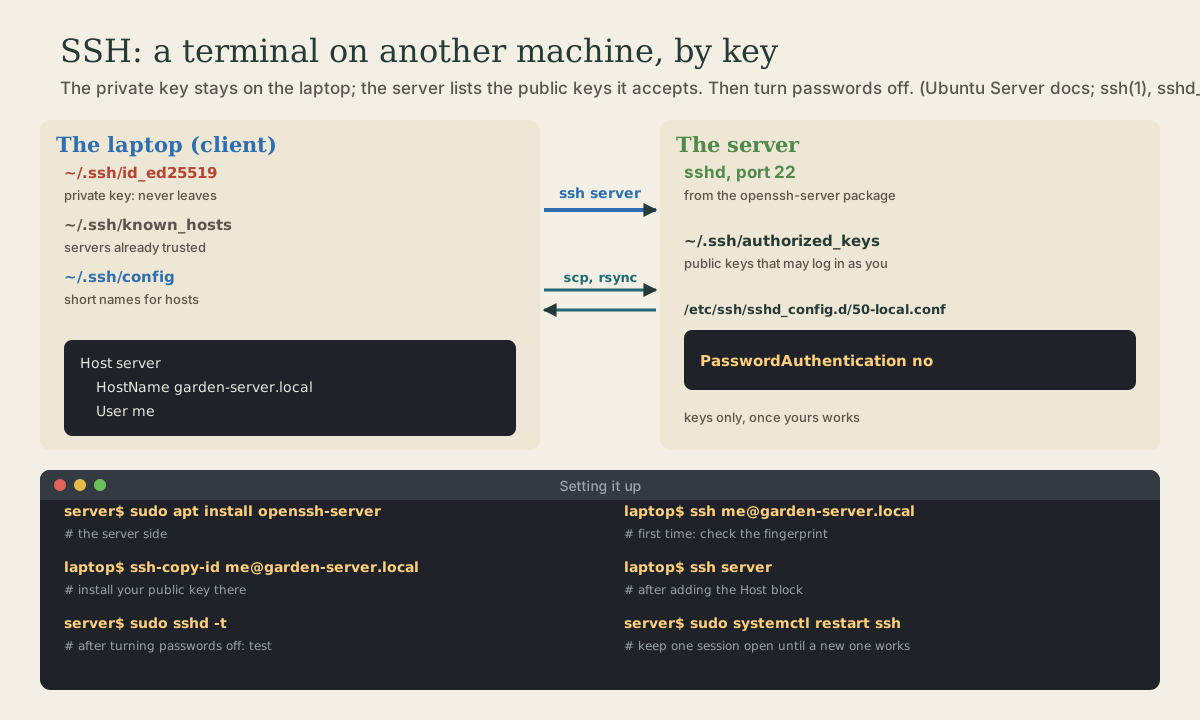
SSH, the Secure Shell, gives you a command line on another computer, encrypted from end to end. You’ve already used it to talk to GitHub (Git course, module 4). On Linux it’s how you run a machine with no screen, like a home server, from your laptop’s terminal: once you’re logged in, it’s an ordinary shell on the other machine.
OpenSSH provides both sides: the client, ssh, and the server, sshd, which listens for connections on port 22 1. It replaced older tools like telnet that sent passwords in plain text 1.
The server side
The client is installed on Ubuntu already. On the machine you want to reach:
me@garden-server:~$ sudo apt install openssh-server
me@garden-server:~$ systemctl status ssh
That’s all it takes to accept logins 1. Its service is called ssh on Ubuntu.
The first connection
From the laptop, give your user name on the server and its name or address:
me@garden-laptop:~$ ssh me@garden-server.local
The first time, ssh shows the server’s host key fingerprint and asks whether to trust it 2. This is the same check as GitHub’s fingerprint in the Git course: it proves you’ve reached the machine you meant to. To check, run this on the server and compare 2:
me@garden-server:~$ ssh-keygen -l -f /etc/ssh/ssh_host_ed25519_key.pub
Answer yes when they match. ssh records the key in ~/.ssh/known_hosts and checks it on every connection after that 2; if it ever changes, ssh refuses with a loud warning, because that’s what someone intercepting the connection would look like. (Reinstalling the server also changes it, legitimately.)
Then type your password for the server, and you’re in. exit or Ctrl-D comes back.
Quick check
It proves you’ve reached the right machine. Afterward ssh remembers it in known_hosts and warns if it ever changes.
Keys instead of passwords
You already have a key pair from the Git course: the private key in ~/.ssh/id_ed25519, the public one in ~/.ssh/id_ed25519.pub. Ubuntu’s docs recommend Ed25519 keys too 1. To let it log you in, its public half goes into ~/.ssh/authorized_keys on the server, the list of keys allowed to log in as you 2. One command does it:
me@garden-laptop:~$ ssh-copy-id me@garden-server.local
ssh-copy-id logs in once with your password and appends your public key 3. Next time, ssh me@garden-server.local uses the key: no password, just the key’s passphrase, which ssh-agent remembers for the session.
If your public keys are already on GitHub, the server can fetch them itself: ssh-import-id gh:your-github-name 1.
If key logins don’t work, authorized_keys must be writable only by you (chmod go-w ~/.ssh/authorized_keys fixes the usual problem), and the server’s log says why: sudo journalctl -fu ssh while you try 1.
Short names in ~/.ssh/config
Typing me@garden-server.local gets old. ~/.ssh/config on the laptop gives hosts short names and default settings 4:
Host server
    HostName garden-server.local
    User me
Now ssh server is enough, and so is scp file server:. Host names the shortcut; HostName is the real name or address; User the login name; Port and IdentityFile set the port and which key to use, if they’re not the defaults 4. This file is a good one for your dotfiles, as long as you’re happy for the host names in it to be in the repository.
Running commands and copying files
Give ssh a command and it runs that instead of a login shell, then returns 2:
me@garden-laptop:~$ ssh server 'df -h /'
me@garden-laptop:~$ ssh server 'systemctl --user list-timers'
scp copies files over the same connection, with the same login 5. A remote path is host:path:
me@garden-laptop:~$ scp notes.txt server:
me@garden-laptop:~$ scp server:/var/log/dpkg.log .
me@garden-laptop:~$ scp -r Photos/2026 server:photos/
rsync, from the Shell course’s backup script, uses SSH whenever a path has a host: in front, and only sends what changed 6:
me@garden-laptop:~$ rsync -av ~/Documents/ server:laptop-documents/
Turning off passwords
Once your key login works, turn password logins off on the server. Then guessing passwords is useless against it, which matters as soon as it’s reachable from anywhere but your own network.
Ubuntu reads extra settings from /etc/ssh/sshd_config.d/*.conf, before the main file, and for most settings the first value wins, so a small file there overrides the defaults and survives updates 1. Create /etc/ssh/sshd_config.d/50-local.conf with:
PasswordAuthentication no
PasswordAuthentication is yes by default 7. (Root can’t log in with a password by default anyway: PermitRootLogin defaults to prohibit-password 7.)
Changing SSH settings on a machine you reach only by SSH is how people lock themselves out 1. So:
- Test the configuration before restarting:
sudo sshd -tchecks it and reports errors 8 1. - Keep your current session open. Restart with
sudo systemctl restart ssh1. - In a second terminal, log in again. Only when that works, close the first.
To confirm passwords are refused, ssh -o PubkeyAuthentication=no server from the laptop should fail with Permission denied (publickey).
Quick check
A mistake can stop sshd starting, locking you out. sshd -t catches errors, and the open session is your way back in.
Your turn
Exercises
You need two Linux machines: two computers, or a laptop and a live USB session on another, or Ubuntu and WSL.
- Install
openssh-serveron one, and checksystemctl status sshandss -tlnp | grep :22. - From the other,
sshin, checking the fingerprint againstssh-keygen -l -fon the server. ssh-copy-id, then log in again. Did it ask for a password?- Add a
Hostblock to~/.ssh/configand use the short name. Runssh server 'uptime'. - Copy a folder each way with
scp -rand withrsync -av. - Turn off password logins with a
sshd_config.dfile, test withsshd -t, restart, and confirm with a second session.
Answers
active (running), and a line inssfor port 22 (*:22or0.0.0.0:22).- No password, though your key’s passphrase may be asked for if ssh-agent hasn’t remembered it yet.
uptimeprints the server’s time, how long it’s been up, and its load.- With
PasswordAuthentication no,ssh -o PubkeyAuthentication=no serverfails withPermission denied (publickey), while your normal login works.
So
sudo apt install openssh-server makes a machine reachable by SSH. On the first connection, compare the host key fingerprint with ssh-keygen -l -f on the server; ssh then remembers it in known_hosts. ssh-copy-id (or ssh-import-id gh:you) installs your public key in the server’s authorized_keys, and ~/.ssh/config gives hosts short names. ssh host 'command' runs one command; scp and rsync copy files with host:path. Then set PasswordAuthentication no in /etc/ssh/sshd_config.d/, check with sshd -t, restart ssh, and keep a session open until a new login works.
Lesson complete
Nice work.
Sources for this lesson
- 1OpenSSH server (Ubuntu Server documentation). Canonical. verifiedOpenSSH replaces insecure tools like telnet; sudo apt install openssh-server; configuration in /etc/ssh/sshd_config or snippets in /etc/ssh/sshd_config.d/, included at the top so they override (first value wins); check with sudo sshd -t before sudo systemctl restart ssh.service; a mistake can lock you out; ed25519 keys recommended; ssh-copy-id to install a key; chmod go-w ~/.ssh/authorized_keys; sudo journalctl -fu ssh.service to troubleshoot; ssh-import-id gh:user imports keys from GitHub; terminal multiplexers keep sessions through disconnects.
- 2ssh(1) manual page. man7.org (Linux man-pages). verifiedOpenSSH remote login client; on first connection the server's host key fingerprint is shown (check with ssh-keygen -l -f on the server's host key) and stored in ~/.ssh/known_hosts; ~/.ssh/authorized_keys lists public keys allowed to log in as the user; a command given after the host runs instead of a login shell.
- 3ssh-copy-id(1) manual page. man7.org (Linux man-pages). verifiedUses ssh to log in to a remote machine (presumably with a password) and installs local public keys in its authorized_keys to authorise key logins.
- 4ssh_config(5) manual page. man7.org (Linux man-pages). verifiedClient configuration in ~/.ssh/config: Host restricts following settings to matching names; Hostname is the real host name (nicknames and abbreviations); User, Port (default 22), IdentityFile.
- 5scp(1) manual page. man7.org (Linux man-pages). verifiedCopies files between hosts using the SFTP protocol over an ssh connection, with the same authentication and security as a login; remote paths as [user@]host:[path]; -r copies directories recursively.
- 6rsync(1) manual page. The rsync project (Samba). verified-a (archive) equals -rlptgoD: recursion plus preserving links, permissions, times, group, owner, and devices (not hard links, ACLs, or xattrs). --delete removes files on the receiving side that don't exist on the sending side, for directories being synchronized. -n/--dry-run performs a trial run that changes nothing, best with -v or -i/--itemize-changes. --link-dest=DIR is like --copy-dest but hard-links unchanged files from DIR; files must match in all preserved attributes to be linked, so mount options or drives with generic ownership can prevent linking; a relative DIR is relative to the destination directory. A trailing slash on a source copies its contents instead of the directory itself.
- 7sshd_config(5) manual page. man7.org (Linux man-pages). verifiedServer configuration: PasswordAuthentication (default yes); PermitRootLogin (default prohibit-password, disabling password logins for root).
- 8sshd(8) manual page. man7.org (Linux man-pages). verifiedOpenSSH daemon; -t test mode checks the validity of the configuration file and sanity of the keys.