GitHub over SSH
GitHub hosts remotes and adds pull requests, issues, and a web view. Connect with an SSH key: generate an Ed25519 key pair with a passphrase, let ssh-agent remember it, add the public key to your GitHub account, and test with ssh -T. Create a repository on GitHub, add it as origin with its SSH URL, and push. HTTPS with a personal access token as the alternative, and keeping private things private.
- 5 min
- 8 steps
- 2 questions
- Lesson 35 of 80
In this lesson
- What GitHub adds
- Two ways to connect
- Making a key
- Adding it to GitHub
- Your first GitHub repository
- Keeping private things private
- Your turn
- So
Picking up where you left off.
What GitHub adds
GitHub hosts git repositories. Your repository on GitHub is an ordinary remote, plus a web view of your code and history, pull requests for proposing and reviewing changes (next lesson), issues for tracking work, and an off-site backup. GitLab, Codeberg, and others do the same job; the git commands don’t change.
Make a free account at github.com. Use the same email you set as user.email (module 1), so your commits are linked to your account.
Two ways to connect
GitHub accepts two kinds of remote URL 1:
- HTTPS, like
https://github.com/you/garden.git. Git asks for your username and a personal access token, which GitHub uses in place of your password 1. - SSH, like
git@github.com:you/garden.git, which uses an SSH key instead of any password.
SSH is set up once per computer and then just works. It’s also the same SSH you’ll use to log in to other Linux machines (Linux course). Here’s how.
Making a key
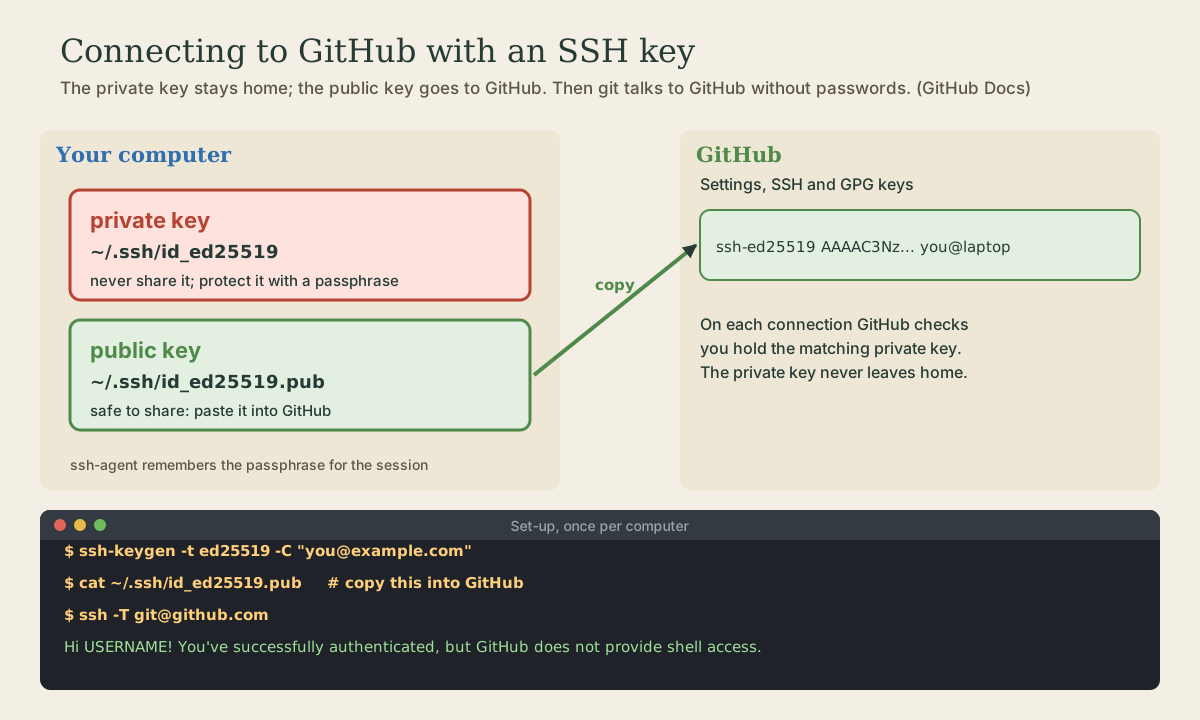
An SSH key is a pair of files. The private key stays on your computer and is never shared; the public key can go anywhere. A server holding your public key can check that you hold the matching private key without the private key ever being sent 2.
Generate an Ed25519 key, GitHub’s recommended type, labeled with your email 2:
me@linuxbox:~$ ssh-keygen -t ed25519 -C "you@example.com"
Generating public/private ed25519 key pair.
Enter file in which to save the key (/home/me/.ssh/id_ed25519):
Enter passphrase (empty for no passphrase):
Enter same passphrase again:
Press Enter to accept the default file. Then type a passphrase: it encrypts the private key on disk, so a stolen laptop or backup doesn’t give someone your GitHub account 2. You end up with two files, ~/.ssh/id_ed25519 (private) and ~/.ssh/id_ed25519.pub (public).
To avoid typing the passphrase on every push, load the key into ssh-agent, which remembers it for your session 2:
me@linuxbox:~$ eval "$(ssh-agent -s)"
me@linuxbox:~$ ssh-add ~/.ssh/id_ed25519
Make one key per computer, so you can revoke one without touching the others.
Quick check
The private key never leaves your computer. Anyone with it could act as you.
Adding it to GitHub
Print the public key and copy it 3:
me@linuxbox:~$ cat ~/.ssh/id_ed25519.pub
ssh-ed25519 AAAAC3NzaC1lZDI1NTE5AAAA... you@example.com
On GitHub: your profile picture, Settings, SSH and GPG keys, New SSH key. Give it a title naming the computer, like “WSL laptop,” paste the key, and save 3.
Test the connection 4:
me@linuxbox:~$ ssh -T git@github.com
The authenticity of host 'github.com (...)' can't be established.
ED25519 key fingerprint is SHA256:+DiY3wvvV6TuJJhbpZisF/zLDA0zPMSvHdkr4UvCOqU.
Are you sure you want to continue connecting (yes/no)? yes
Hi you! You've successfully authenticated, but GitHub does not provide shell access.
The first time, SSH asks whether to trust GitHub’s server. Check that the fingerprint matches the one GitHub publishes before typing yes 4. SSH remembers it from then on.
Your first GitHub repository
On GitHub, click New repository, name it garden, choose Private, and leave it empty (no README) since you already have one locally. GitHub then shows the commands; choose the SSH URL 5:
me@linuxbox:~/garden$ git remote add origin git@github.com:you/garden.git
me@linuxbox:~/garden$ git push -u origin main
Refresh the page: your files and history are there. From now on, git push and git pull work as in the last lesson. If you’d already added an HTTPS remote, switch it with git remote set-url origin git@github.com:you/garden.git.
Quick check
HTTPS URLs ask for your username and a personal access token instead.
Keeping private things private
- Private repositories are visible only to you and people you invite; public ones to everyone. Start private.
- Never commit secrets: passwords, tokens, private keys. Remember module 2: once committed, a secret is in history even after you delete the file, so change it instead.
- Never paste your private key anywhere. If it’s ever exposed, delete the public key from GitHub’s settings and make a new pair.
Your turn
Exercises
- Make a GitHub account (or sign in), then generate an Ed25519 key with a passphrase.
- Add the public key to GitHub and test with
ssh -T git@github.com. - Create a private, empty
gardenrepository on GitHub, add it asoriginwith the SSH URL, and push. - Make a change on GitHub’s web editor (edit
README.mdthere), thengit pullit. - Clone the repository into a second folder, as a “second computer,” and practice push and pull between the two through GitHub.
Answers
Hi <your-username>! You've successfully authenticated, but GitHub does not provide shell access.If you seePermission denied (publickey), the key isn’t loaded (ssh-add -llists loaded keys) or the public key wasn’t saved on GitHub.git pullfast-forwards yourmainto include the web edit, which shows up ingit logas its own commit.git clone git@github.com:you/garden.git ~/garden2; commit and push in one,git pullin the other.
So
GitHub hosts your remote and adds pull requests and a web view. Connect over SSH: ssh-keygen -t ed25519 with a passphrase, ssh-add it to the agent, paste the public key into GitHub, and test with ssh -T git@github.com. Then add the SSH URL as origin and git push -u origin main. Keep repositories private by default and secrets out of them.
Lesson complete
Nice work.
Sources for this lesson
- 1About remote repositories. GitHub Docs. verifiedYou can push to HTTPS URLs (https://github.com/user/repo.git) or SSH URLs (git@github.com:user/repo.git); the default remote is usually named origin. Over HTTPS, when git asks for your password, enter a personal access token.
- 2Generating a new SSH key and adding it to the ssh-agent. GitHub Docs. verifiedGenerate a key with ssh-keygen -t ed25519 -C "your_email@example.com" (RSA 4096 for legacy systems), accept the default file, and set a secure passphrase; with a passphrase, add the key to ssh-agent (eval "$(ssh-agent -s)", ssh-add) so the agent remembers it.
- 3Adding a new SSH key to your GitHub account. GitHub Docs. verifiedCopy the public key (the .pub file), then in GitHub Settings, SSH and GPG keys, choose New SSH key, give it a descriptive title, paste it, and save.
- 4Testing your SSH connection. GitHub Docs. verifiedRun ssh -T git@github.com; on first connection, verify the host key fingerprint (Ed25519: SHA256:+DiY3wvvV6TuJJhbpZisF/zLDA0zPMSvHdkr4UvCOqU) against GitHub's published fingerprints before typing yes; success reads Hi USERNAME! You've successfully authenticated, but GitHub does not provide shell access.
- 5Scott Chacon, Ben Straub. Pro Git, 2nd edition. Apress; free online at git-scm.com. 2014. verifiedFree CC BY-NC-SA 3.0 book, maintained online. Ch. 1: version control; Git's 2005 origin when the Linux kernel lost free use of BitKeeper; snapshots, not differences (unchanged files stored once); nearly every operation local; integrity through 40-character SHA-1 checksums; the three states (modified, staged, committed) and three areas (working tree, staging area or index, .git directory); first-time setup with system/global/local config levels, user.name and user.email baked into commits, core.editor, git config --list --show-origin. Ch. 2: git init, status (and -s), add, diff and diff --staged, commit (-m, -a), .gitignore, log options, amending, undoing, remotes, tags, aliases. Ch. 3: branches as movable pointers, HEAD, merging and conflicts, remote branches, rebasing and its rule. Ch. 7: reset demystified, stashing, revision selection. Ch. 8: core.autocrlf true on Windows, input on Linux and macOS. Ch. 10: objects (blob, tree, commit) and references.