Looking at Files: ls -l, less, and Friends
Read every column of ls -l (type, permissions, links, owner, group, size, date, name) and use the options that matter: -a, -h, -t, -r, -S, -d, -F. Find out what a file really is with file, then look inside text with cat, less, head, and tail (and tail -f for a growing log), count with wc, and measure space with du and df.
- 6 min
- 8 steps
- 3 questions
- Lesson 5 of 80
In this lesson
- Every column of ls -l
- The ls options that matter
- What kind of file is it?
- cat and less
- head and tail
- Counting and measuring
- Your turn
- So
Picking up where you left off.
Every column of ls -l
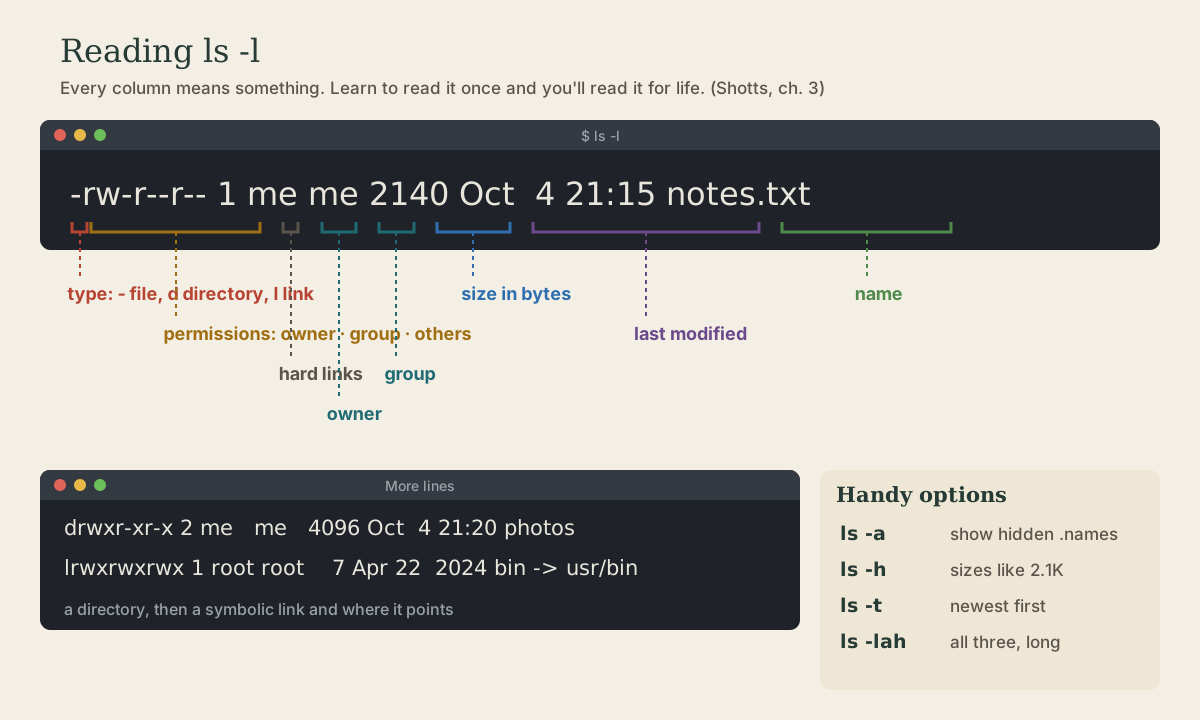
ls alone lists names. ls -l, the long format, tells you nearly everything about each one 1:
me@linuxbox:~$ ls -l
total 12
drwxr-xr-x 2 me me 4096 Oct  4 21:20 photos
-rw-r--r-- 1 me me 2140 Oct  4 21:15 notes.txt
lrwxrwxrwx 1 me me    9 Oct  4 21:30 latest -> notes.txt
Reading -rw-r--r-- 1 me me 2140 Oct 4 21:15 notes.txt left to right 1:
- Type, the first character:
-an ordinary file,da directory,la symbolic link. - Permissions, the next nine: read, write, execute for the owner, then the group, then everyone else. Module 3 is all about these.
- Hard links: how many names this file has (next lesson).
- Owner: the user it belongs to.
- Group: the group it belongs to.
- Size in bytes.
- Last modified, date and time. Files older than about six months show the year instead of the time.
- Name. For a link,
->and where it points.
total 12 at the top is the space the listing uses on disk, in kilobyte blocks.
Quick check
drwxr-x--- 3 me family 4096 Oct 2 09:12 taxes, what is taxes?The leading d marks a directory. The permission letters get a full lesson in module 3.
The ls options that matter
Most of these work with or without -l, and stack 1:
| Option | Does |
|---|---|
-a |
Show hidden names too (-A skips . and ..) |
-h |
Human-readable sizes: 2.1K, 48M |
-t |
Sort by time, newest first |
-S |
Sort by size, largest first |
-r |
Reverse the order |
-d |
Show a directory itself, not its contents: ls -ld ~ |
-F |
Mark types: a trailing / for directories, * for programs |
ls -lhtr is a classic: long listing, readable sizes, oldest first so the newest lands right above your prompt. And you can list several places at once: ls ~ /etc /tmp.
What kind of file is it?
On Linux, a name says nothing reliable about the contents. file looks at the contents and tells you 1:
me@linuxbox:~$ file notes.txt photo.jpg /usr/bin/ls /etc
notes.txt:   ASCII text
photo.jpg:   JPEG image data, JFIF standard 1.01
/usr/bin/ls: ELF 64-bit LSB pie executable, x86-64, ...
/etc:        directory
Run file before opening something unfamiliar. “ASCII text” or “UTF-8 Unicode text” means you can read it with the tools below. Anything else is binary, and dumping it to the terminal just prints gibberish (if your terminal gets scrambled, type reset).
Plain text is just characters stored as numbers, one byte each for ordinary letters, with nothing else: no fonts, no formatting. It isn’t a word processor document 1. Linux runs on text: nearly every setting in /etc and every shell script is a text file you can read 1.
Quick check
On Linux the name doesn’t determine the type. file reads the first bytes and reports what’s really there.
cat and less
cat prints whole files to the terminal, one after another 2. It’s for short files:
me@linuxbox:~$ cat /etc/hostname
linuxbox
For anything longer, use less, a pager you can scroll 1:
me@linuxbox:~$ less /etc/passwd
It uses the same keys you met in man pages: Space and b to page, /word to search and n for the next match, g and G for top and bottom, q to quit 1. Add -N for line numbers and -S to stop long lines from wrapping.
head and tail
head shows the first lines of a file, tail the last, ten by default; -n picks how many 2 1:
me@linuxbox:~$ head -n 3 /etc/passwd
me@linuxbox:~$ tail -n 20 /var/log/dpkg.log
tail -f (“follow”) keeps the file open and prints new lines as they’re added, until you press Ctrl-C 1. It’s how you watch a log while something happens.
Quick check
tail -f (follow) keeps printing new lines until you press Ctrl-C.
Counting and measuring
me@linuxbox:~$ wc /etc/passwd
  34   57 1912 /etc/passwd
me@linuxbox:~$ du -sh ~/photos
3.4G    /home/me/photos
me@linuxbox:~$ df -h /
Filesystem      Size  Used Avail Use% Mounted on
/dev/sdc       1007G   12G  944G   2% /
wc, word count: lines, words, and bytes.wc -lfor just lines 1.du -sh, disk usage: the total size of a folder and everything in it (-ssummarize,-hreadable).du -sh *lists each item in the current folder.df -h, disk free: how full each mounted file system is.stat fileprints everything the system knows about one file: size, owner, permissions, and three timestamps.
Your turn
Exercises
- In
/etc, list everything newest first in long format with readable sizes. Which file changed most recently? - Use
fileon everything in/usr/binwhose name starts withz(tryfile /usr/bin/z*). Which are programs and which are scripts? - How many user accounts are listed in
/etc/passwd? - Open
/etc/servicesinless, search forssh, and note its port number. - Which folder in your home directory is biggest? (Hint:
du -sh ~/*.)
Answers
cd /etc && ls -lht | head, or simplyls -lht /etc | head. It’s often something recently touched by an update, likeld.so.cacheor a file in/etc/apt.- Most are “ELF 64-bit … executable” (compiled programs); some, like
zgreporzless, are “POSIX shell script, ASCII text executable.” Scripts are text you could read withless. wc -l /etc/passwd. One line per account, including dozens of system accounts that aren’t people.less /etc/services, then/sshand Enter: port 22, over TCP.du -sh ~/*lists each one. Add| sort -h(module 4) to sort them by size.
So
ls -l tells you a file’s type, permissions, owner, size, and age at a glance. file tells you what it really is. cat, less, head, and tail let you read text without opening an editor, and wc, du, and df count lines and measure space.
Lesson complete
Nice work.
Sources for this lesson
- 1William Shotts. The Linux Command Line, Seventh Internet Edition (25.12A). LinuxCommand.org (print edition by No Starch Press). 2026. verifiedFree CC BY-NC-ND 3.0 book, release 25.12A of July 18, 2026. Part 1, Learning the Shell: the shell and terminal emulators, prompts ($ vs. # for the superuser), command history (most distributions keep the last 1,000 commands), Shift-Ctrl-C/V for copy and paste; navigation and the directory tree; exploring the system (ls options and the long listing, file, less, the guided tour of /, symbolic links); manipulating files (wildcards and character classes, mkdir, cp, mv, rm, ln; no undelete, test wildcards with ls first); working with commands (four kinds of commands, type, which, help, --help, man and its sections, apropos, whatis, info, alias); redirection; expansion and quoting; Readline keyboard tricks, completion, history search; permissions; processes. Later parts cover the environment, vi, packages, storage, networking, find, archiving, regular expressions, text processing, and shell scripting.
- 2Anish Athalye, Jon Gjengset, Jose Javier Gonzalez Ortiz. Course Overview + Introduction to the Shell (The Missing Semester of Your CS Education, 2026). MIT CSAIL. 2026. verifiedCC BY-NC-SA lecture notes. The shell is a textual interface for running programs and wiring them together; a terminal is the visual interface to it. Bash is the most widely used shell (zsh and fish are popular alternatives); on Windows use WSL or a Linux VM. The shell splits a command at whitespace: first word the program, the rest arguments; quote or backslash-escape spaces. man and --help, plus tldr for examples; cd is a shell builtin; Tab completion; pwd and $PWD; absolute vs. relative paths, . and ..; $PATH lists the directories searched for programs, which shows the one found. Basic tools cat, sort, uniq, head, tail, grep.