Exit Status and Chaining
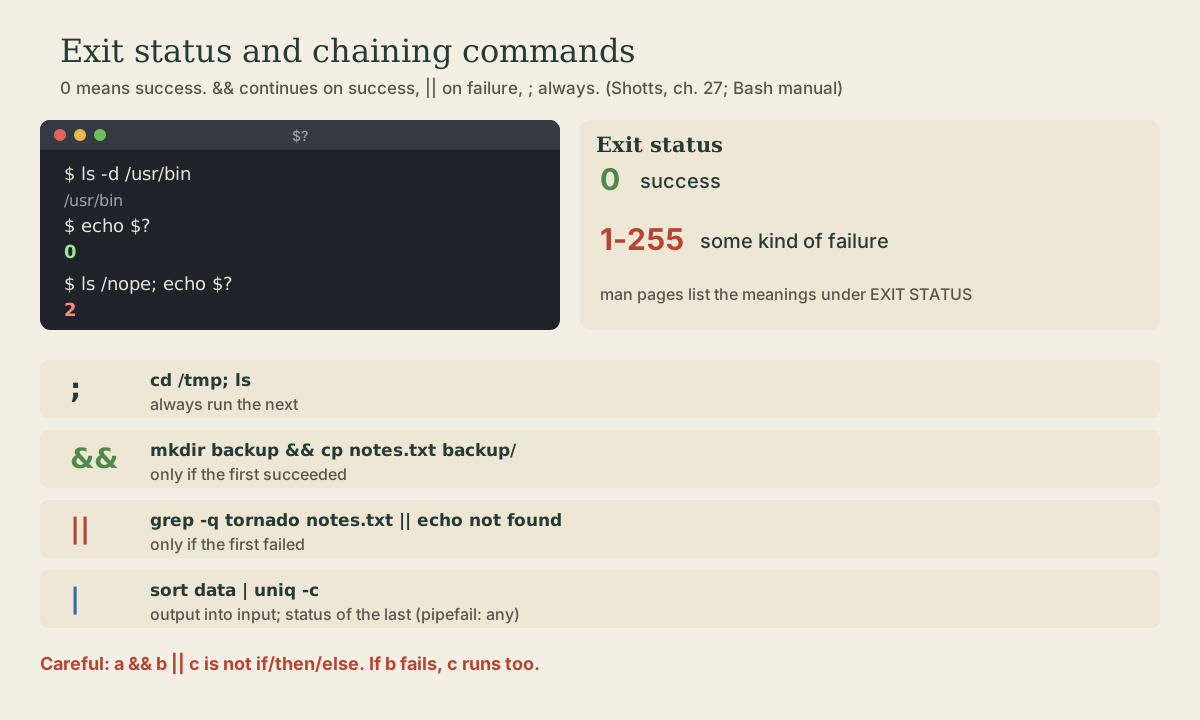
Every command ends with an exit status in $?: 0 for success, 1 to 255 for some kind of failure. Use it to chain commands: ; always continues, && only after success, || only after failure, and why a && b || c isn't if-then-else. Pipelines report their last command's status unless pipefail is set; PIPESTATUS shows every stage. grep -q and test as yes-or-no questions, and if as the way scripts branch on success.
- 5 min
- 7 steps
- 2 questions
- Lesson 18 of 80
In this lesson
- Every command reports back
- Chaining commands
- The a && b || c trap
- Pipelines and pipefail
- Asking yes-or-no questions
- Your turn
- So
Picking up where you left off.
Every command reports back
When a command finishes, it hands the shell a number from 0 to 255: its exit status. By convention 0 means success and anything else means failure. The shell keeps the last one in $? 1:
me@linuxbox:~$ ls -d /usr/bin
/usr/bin
me@linuxbox:~$ echo $?
0
me@linuxbox:~$ ls -d /bin/usr
ls: cannot access '/bin/usr': No such file or directory
me@linuxbox:~$ echo $?
2
Many programs return 1 for any failure; others use different numbers for different problems, listed in the EXIT STATUS section of their man page 1. grep, for instance, returns 0 if it found a match, 1 if it didn’t, and 2 if something went wrong, which makes it useful as a yes-or-no question.
$? is replaced by every command, including echo, so check it immediately. true and false are commands that do nothing but succeed and fail 1.
Chaining commands
Four ways to put commands on one line 1 2:
;runs the next command always:cd /tmp; ls&&runs it only if the previous one succeeded:mkdir backup && cp notes.txt backup/||runs it only if the previous one failed:ping -c1 router || echo "network down"|runs both at the same time, feeding the first one’s output to the second:sort data.txt | uniq -c
&& is the one you’ll use most: “do this, and if it worked, do that.” It stops a sequence the moment something goes wrong, so you don’t copy files into a folder that failed to be created, or install from a list that failed to download:
me@linuxbox:~$ sudo apt update && sudo apt upgrade
me@linuxbox:~$ cd ~/projects/shed && make
|| supplies a fallback or a complaint:
me@linuxbox:~$ grep -q tornado notes.txt || echo "no mention of tornadoes"
me@linuxbox:~$ cd /mnt/backup || echo "backup drive isn't mounted"
Quick check
mkdir backup && cp notes.txt backup/ do if mkdir fails?&& runs the next command only if the previous one returned 0.
The a && b || c trap
It’s tempting to read a && b || c as “if a, then b, else c.” It isn’t: c also runs if b fails 2.
me@linuxbox:~$ test -d backup && cp big.iso backup/ || echo "no backup folder"
cp: error writing 'backup/big.iso': No space left on device
no backup folder
The message is wrong: the folder exists, but the copy failed. When you mean if-then-else, write if (below and in the scripting module).
Pipelines and pipefail
A pipeline’s exit status is the status of its last command 2. Failures earlier in the pipe are hidden:
me@linuxbox:~$ cat /no/such/file | sort
cat: /no/such/file: No such file or directory
me@linuxbox:~$ echo $?
0
sort happily sorted nothing, and succeeded. Two fixes 2:
set -o pipefailmakes the pipeline fail if any stage fails. Scripts should almost always turn it on (module 8).${PIPESTATUS[@]}lists the status of every stage of the last pipeline:
me@linuxbox:~$ cat /no/such/file | sort; echo "${PIPESTATUS[@]}"
1 0
Quick check
false | true; echo $? prints 0. Why?With set -o pipefail, the pipeline would return 1, the status of the failing stage.
Asking yes-or-no questions
Because success is 0, any command can be a question:
me@linuxbox:~$ grep -q "^me:" /etc/passwd && echo "user exists"
me@linuxbox:~$ test -f ~/.bashrc && echo "found it"
me@linuxbox:~$ [ -d ~/photos ] || mkdir ~/photos
grep -qprints nothing, just sets the status 1.test, and its other spelling[ ... ], checks files, strings, and numbers:-f(is a file),-d(is a directory),-e(exists),-z "$s"(string is empty),"$a" = "$b","$n" -gt 101. The spaces inside the brackets are required.
if runs a command and branches on its exit status. That’s all if does 1:
if grep -q tornado notes.txt; then
    echo "found a tornado note"
else
    echo "none yet"
fi
You’ll write plenty of these in module 8.
Your turn
Exercises
- Run
grep root /etc/passwd, thenecho $?. Do the same with a word that isn’t in the file. What are the two statuses? - In one line: make a folder
logsand, only if that worked, write today’s date intologs/start.txt. - In one line: try to
cdinto/mnt/backup, and if that fails, print a warning. - Show that
false | truesucceeds, then runset -o pipefailand try again. Turn it off withset +o pipefail. - Write an
ifthat prints whether~/.bash_aliasesexists.
Answers
- 0 when it finds a match, 1 when it doesn’t.
mkdir logs && date > logs/start.txt.cd /mnt/backup || echo "backup drive not available".false | true; echo $?prints 0; afterset -o pipefail, it prints 1.if [ -f ~/.bash_aliases ]; then echo "yes"; else echo "no"; fi.
So
Every command leaves an exit status in $?, 0 for success. Chain with ; (always), && (on success), and || (on failure), and use if rather than a && b || c for real either-or decisions. Pipelines report only their last stage unless pipefail is on. grep -q and test turn questions into exit statuses.
Lesson complete
Nice work.
Sources for this lesson
- 1William Shotts. The Linux Command Line, Seventh Internet Edition (25.12A). LinuxCommand.org (print edition by No Starch Press). 2026. verifiedFree CC BY-NC-ND 3.0 book, release 25.12A of July 18, 2026. Part 1, Learning the Shell: the shell and terminal emulators, prompts ($ vs. # for the superuser), command history (most distributions keep the last 1,000 commands), Shift-Ctrl-C/V for copy and paste; navigation and the directory tree; exploring the system (ls options and the long listing, file, less, the guided tour of /, symbolic links); manipulating files (wildcards and character classes, mkdir, cp, mv, rm, ln; no undelete, test wildcards with ls first); working with commands (four kinds of commands, type, which, help, --help, man and its sections, apropos, whatis, info, alias); redirection; expansion and quoting; Readline keyboard tricks, completion, history search; permissions; processes. Later parts cover the environment, vi, packages, storage, networking, find, archiving, regular expressions, text processing, and shell scripting.
- 2Chet Ramey, Brian Fox. Bash Reference Manual, Edition 5.3. GNU Project, Free Software Foundation. 2025. verifiedThe reference for Bash 5.3 (May 18, 2025). Redirections (3.6) are processed left to right and order matters: ls > dirlist 2>&1 sends both streams to dirlist, while ls 2>&1 > dirlist sends only standard output there. With set -o noclobber, > fails on an existing regular file and >| overrides it. &> word is equivalent to > word 2>&1 and &>> word to >> word 2>&1. Here documents (<<word, with <<- stripping leading tabs; quoting word disables expansion) and here strings (<<<). Expansions (3.5) happen in a fixed order: brace; tilde, parameter, arithmetic, and command substitution left to right; word splitting; filename expansion; quote removal last. Startup files (6.2): an interactive login shell reads /etc/profile then the first of ~/.bash_profile, ~/.bash_login, ~/.profile; an interactive non-login shell reads ~/.bashrc. HISTCONTROL (ignorespace, ignoredups, ignoreboth), HISTSIZE, HISTFILESIZE; set -x traces expanded commands; shell functions and variables, export.