apt and Debian Packages
Ubuntu's software comes as .deb packages from the Ubuntu archive, organized into pockets (release, security, updates, backports) and components (main, restricted, universe, multiverse). apt update refreshes the package index; apt search, show, and list find things; apt install pulls in dependencies, with recommends installed by default; remove, purge, and autoremove clean up; dpkg answers which package owns a file and what a package installed. Why to prefer apt over downloaded debs and third-party repositories, and apt-get for scripts.
- 8 min
- 10 steps
- 3 questions
- Lesson 47 of 80
In this lesson
- Packages and the archive
- Update, then upgrade
- Finding software
- Installing, and dependencies
- Removing things
- dpkg underneath
- Downloaded debs and other repositories
- apt in scripts
- Your turn
- So
Picking up where you left off.
Packages and the archive
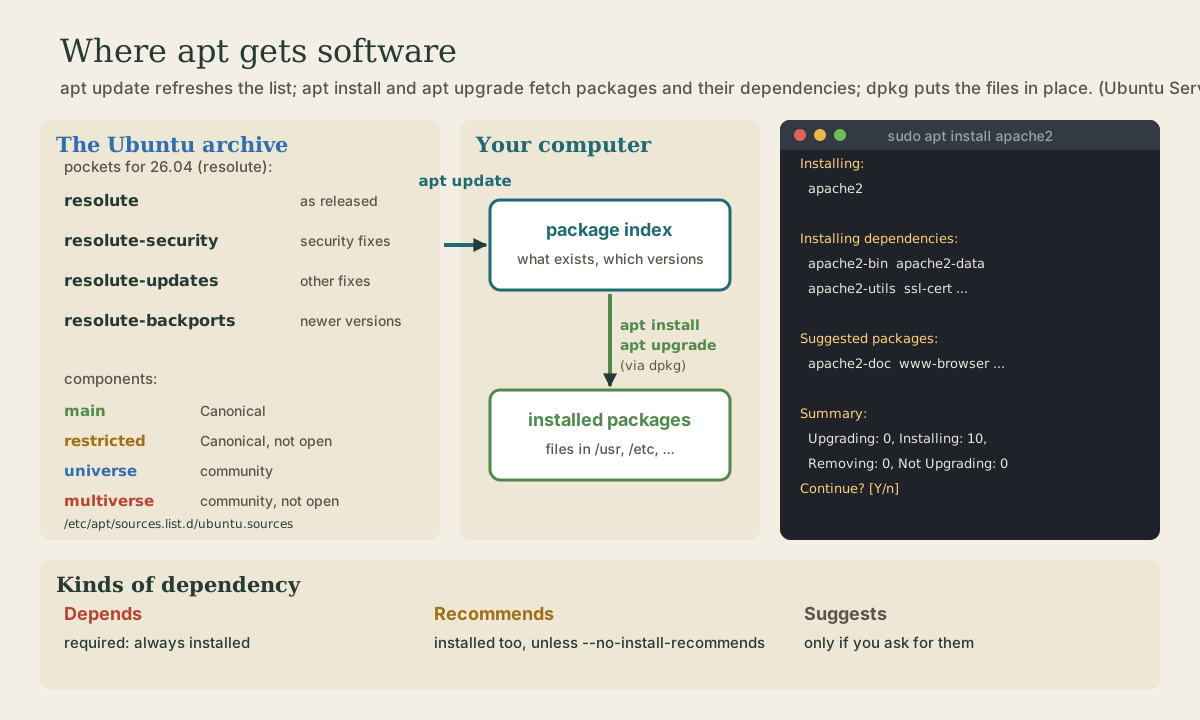
On Windows you download an installer from each program’s website. On Ubuntu, almost everything comes from one place, the Ubuntu archive, as packages: .deb files holding a program’s files, plus scripts that put them in place and set them up 1. APT, used through the apt command, is the tool that finds, downloads, installs, upgrades, and removes them 2. One command updates every program on the system, and every package comes from the same signed source.
The archive is organized two ways 1 2:
- Pockets, by kind of change. For Ubuntu 26.04, codenamed resolute:
resoluteis the release as shipped,resolute-securityholds security fixes,resolute-updatesother fixes, andresolute-backportsnewer versions brought back to this release. - Components, by who looks after it. main and restricted are supported by Canonical; universe and multiverse are maintained by the community. Restricted and multiverse include software that isn’t open source 3 2.
Your system’s list of sources is in /etc/apt/sources.list.d/ubuntu.sources (older releases used /etc/apt/sources.list) 2. Have a look; you’ll see the pockets on the Suites: line and the components on Components:.
Update, then upgrade
Two commands, always in this order 1:
sudo apt update downloads the current package index, the list of what’s available in which versions. It installs nothing:
me@garden-laptop:~$ sudo apt update
Hit:1 http://archive.ubuntu.com/ubuntu resolute InRelease
Hit:2 http://archive.ubuntu.com/ubuntu resolute-updates InRelease
Hit:3 http://archive.ubuntu.com/ubuntu resolute-backports InRelease
Hit:4 http://security.ubuntu.com/ubuntu resolute-security InRelease
19 packages can be upgraded. Run 'apt list --upgradable' to see them.
That’s the output Ubuntu’s own tutorial shows on 26.04: one line per pocket checked, then a count 1. apt list --upgradable lists each one with where the update comes from, the new version, and what you have now:
libgcrypt20/resolute-updates,resolute-security 1.12.0-2ubuntu0.1 amd64 [upgradable from: 1.12.0-2]
sudo apt upgrade then downloads and installs those newer versions, after showing a summary and asking Continue? [Y/n] 1. It never removes a package to do so; if an upgrade would need something removed, it’s held back. sudo apt full-upgrade is the variant that will remove packages when the system as a whole needs it, so read its list before saying yes 4.
Neither moves you to a new Ubuntu release; that’s do-release-upgrade, in the last lesson of this module.
Quick check
sudo apt update do?apt upgrade installs the newer versions; always run update first so it knows about them.
Finding software
me@garden-laptop:~$ apt search webserver
me@garden-laptop:~$ apt show ipcalc
me@garden-laptop:~$ apt list --installed
apt search looks through package names and descriptions; apt show prints one package’s details, including its version, size, which repository it comes from, its dependencies, and a description 4. Searching doesn’t need sudo: it only reads.
From Ubuntu’s tutorial, part of apt show ipcalc:
Package: ipcalc
Version: 0.51-1build1
[...]
APT-Sources: http://archive.ubuntu.com/ubuntu resolute/universe amd64 Packages
Description: parameter calculator for IPv4 addresses
The APT-Sources line says it lives in universe, the community-maintained part 1.
Installing, and dependencies
sudo apt install takes one or more package names. Most programs need others to run, their dependencies, and apt works these out and installs them too. It shows the plan first; Ubuntu’s tutorial, for the Apache web server 1:
me@garden-laptop:~$ sudo apt install apache2
Installing:
  apache2

Installing dependencies:
  apache2-bin  libapr1t64  libaprutil1t64  apache2-data  libaprutil1-dbd-sqlite3
  liblua5.4-0  apache2-utils  libaprutil1-ldap  ssl-cert

Suggested packages:
  apache2-doc  apache2-suexec-pristine | apache2-suexec-custom  www-browser

Summary:
  Upgrading: 0, Installing: 10, Removing: 0, Not Upgrading: 0
  Download size: 2116 kB
  Space needed: 8218 kB / 1328 MB available

Continue? [Y/n]
Read it before typing Y. There are three kinds of dependency, listed by apt show 1:
- Depends: required; the package won’t work without it.
- Recommends: not strictly needed, but Ubuntu installs them by default. Add
--no-install-recommendsto skip them. - Suggests: optional extras, only installed if you ask.
To install a specific program you’ve seen recommended, such as htop or tree, the name is usually just the program’s name.
Removing things
me@garden-laptop:~$ sudo apt remove apache2
me@garden-laptop:~$ sudo apt purge apache2
me@garden-laptop:~$ sudo apt autoremove
removeuninstalls the package but leaves its system-wide configuration files, in case you change your mind 4.purgeremoves those configuration files too. Neither touches files in your home folder 4.autoremoveremoves packages that were installed only as dependencies and aren’t needed by anything any more 4. apt mentions them after a removal: “The following packages were automatically installed and are no longer required” 1.
Careful with removing a dependency: anything that requires it is removed too. In Ubuntu’s tutorial, removing apache2-data takes apache2 with it 1. Read the REMOVING: list every time.
apt remembers whether you asked for a package or it came along as a dependency. If autoremove offers to remove something you’ve come to rely on, sudo apt install that package by name; it’s then marked as manually installed and kept 1 4. On Ubuntu 26.04, apt 3’s apt why explains why an automatically installed package is there 4.
Quick check
They were dependencies of what you removed. Check the list first, and mark anything you want to keep as manually installed.
dpkg underneath
apt fetches packages and works out dependencies; the lower-level dpkg does the unpacking and keeps the record of what’s installed 2. It answers two useful questions:
me@garden-laptop:~$ dpkg -S /etc/host.conf
base-files: /etc/host.conf
me@garden-laptop:~$ dpkg -L ufw
dpkg -S says which package a file came from; dpkg -L lists every file a package installed 2. dpkg -l lists all packages; pipe it through grep to check for one. apt logs each install and removal in /var/log/dpkg.log 2.
Quick check
It answers base-files: /etc/host.conf. dpkg -L does the reverse: lists a package’s files.
Downloaded debs and other repositories
Some programs offer a .deb to download, or a third-party apt repository or Launchpad PPA to add. Ubuntu’s documentation is blunt about the risks 5:
- No sandbox. Software from an apt repository runs unsandboxed, and apt and dpkg put no security boundary between publishers, so your whole system becomes as secure as the least careful publisher you’ve added.
- Conflicts. Third-party packages can clash with Ubuntu’s, now or after a future upgrade. They’re the most common cause of failed release upgrades 5.
So prefer, in order: the Ubuntu archive; a snap or Flatpak from the publisher (next lesson); and only then a third-party deb or repository from a source you trust. If you do install a downloaded deb, sudo dpkg -i file.deb installs it, but it can’t fetch dependencies, and removing with dpkg -r doesn’t handle what depends on it; apt is the safer tool for everything else 2.
apt in scripts
apt is designed for people at a terminal, and its output and defaults can change between versions. In scripts, use apt-get (and apt-cache for searching), which take the same basic commands and keep their behavior stable 2 4. apt returns exit status 0 on success and 100 on error 4, so set -e and && work with it as with anything else.
Your turn
Exercises
In WSL (or your new Ubuntu):
cat /etc/apt/sources.list.d/ubuntu.sources(or/etc/apt/sources.liston an older release). Which pockets and components are enabled?sudo apt update, thenapt list --upgradable. Upgrade withsudo apt upgrade, reading the summary first.apt searchfor a disk-usage viewer, thenapt show ncdu. Which component is it in, and what does it depend on?- Install
ncduand run it in your home folder. Then remove it withsudo apt remove ncdu, and runsudo apt autoremove. - Use
dpkg -Sto find which packages own/etc/bash.bashrcand/etc/nanorc, anddpkg -Lto list whattreeinstalls (install it first if needed). grep " install " /var/log/dpkg.log | tailshows your recent installs.
Answers
- Recent releases list
Suites:such asnoble noble-updates noble-backports(orresolute ...), a separate security entry, andComponents: main restricted universe multiverse. APT-Sourcesshowsuniverse; theDepends:line lists its libraries.ncdushows folder sizes; arrow keys to move,qto quit.autoremovemay find nothing if ncdu had no dependencies of its own.bash: /etc/bash.bashrcandnano: /etc/nanorc.dpkg -L treelists the program, its manual page, and its documentation.
So
Ubuntu installs software as .deb packages from the Ubuntu archive, split into pockets (release, security, updates, backports) and components (main and restricted from Canonical, universe and multiverse from the community). sudo apt update refreshes the package index; sudo apt upgrade installs newer versions; apt search and apt show find and describe packages; sudo apt install brings dependencies along, recommends included; remove, purge, and autoremove clean up. dpkg -S and dpkg -L connect files and packages. Prefer the archive to third-party debs and PPAs, and use apt-get in scripts.
Lesson complete
Nice work.
Sources for this lesson
- 1Managing your software (Ubuntu Server documentation tutorial). Canonical. verified26.04 (resolute) walkthrough with real output: apt update checks the resolute, -updates, -backports, and -security pockets and reports how many packages can be upgraded; apt list --upgradable format; apt upgrade vs dist-upgrade; apt search and apt show ipcalc (universe); apt install apache2 summary with dependencies and suggested packages; Depends, Recommends (installed by default; --no-install-recommends), Suggests; removing a dependency removes what depends on it; autoremove; installing by name marks a package manual; dpkg --listfiles and --search; conffiles.
- 2Install and manage packages (Ubuntu Server documentation). Canonical. verifiedAPT and the apt command; sources in /etc/apt/sources.list.d/ubuntu.sources (deb822) since 24.04, /etc/apt/sources.list before; apt update, install, remove (--purge), upgrade; apt for interactive use and apt-get for scripts; dpkg -l, -L, -S (dpkg -S /etc/host.conf gives base-files), dpkg -i for a local .deb and why dpkg -r is not recommended; universe and multiverse community-maintained, not officially supported; logging in /var/log/dpkg.log.
- 3Ubuntu release cycle. Canonical. verifiedA new Ubuntu every six months, versioned by year and month; interim releases get 9 months of updates; LTS releases every two years get 5 years of standard security maintenance (26.04 LTS: released April 2026, to May 2031; 24.04 LTS to May 2029). Ubuntu Pro, free for personal use on up to five machines, adds Expanded Security Maintenance to 10 years including Universe; a paid Legacy add-on reaches 15.
- 4apt(8) manual page, Ubuntu 26.04 (apt 3.2.0). Ubuntu Manpages. verifiedupdate downloads package information; upgrade never removes packages (an upgrade needing a removal isn't done); full-upgrade will remove packages if needed; remove leaves configuration files, purge removes them, neither touches the home directory; autoremove removes automatically installed dependencies no longer needed (apt-mark to keep one); why and why-not; search, show, list --installed/--upgradeable; apt's interface may change between versions, so scripts should use apt-get and apt-cache; exit status 0, or 100 on error.
- 5Third party repository usage (Ubuntu Server documentation). Canonical. verifiedUbuntu doesn't recommend third-party software: APT repositories run code that isn't sandboxed and give no security boundary between publishers, so the system is only as secure as the weakest publisher; third-party packages can conflict with official ones, and are the most common cause of release-upgrade failures.