Why Version Control, and How Git Thinks
Version control records every saved state of a project so you can see what changed, go back, and work on several things at once. Git, written in 2005 for the Linux kernel, stores history as snapshots of the whole project rather than lists of changes, keeps the full history on your own machine, and names every snapshot by a checksum. The three states a file can be in, and the three areas they live in.
- 5 min
- 7 steps
- 2 questions
- Lesson 25 of 80
In this lesson
- What version control is for
- Snapshots, not differences
- Everything is local
- Integrity
- Three states, three areas
- Your turn
- So
Picking up where you left off.
What version control is for
You already do version control by hand: budget-final.ods, budget-final-2.ods, budget-REALLY-final.ods. A version control system does it properly. It records each saved state of a set of files, with who saved it, when, and why, so you can 1 2:
- see exactly what changed between any two versions,
- go back to any earlier state, of one file or the whole project,
- work on several things at once, then combine them,
- and share work with other people, or with your other computers, without overwriting each other.
It’s essential for software, and just as useful for scripts, configuration files, notes, and anything else made of text.
Git is the version control system nearly everyone uses. Linus Torvalds and the Linux kernel developers wrote it in 2005, after they lost free use of the commercial tool they’d been using 1.
Snapshots, not differences
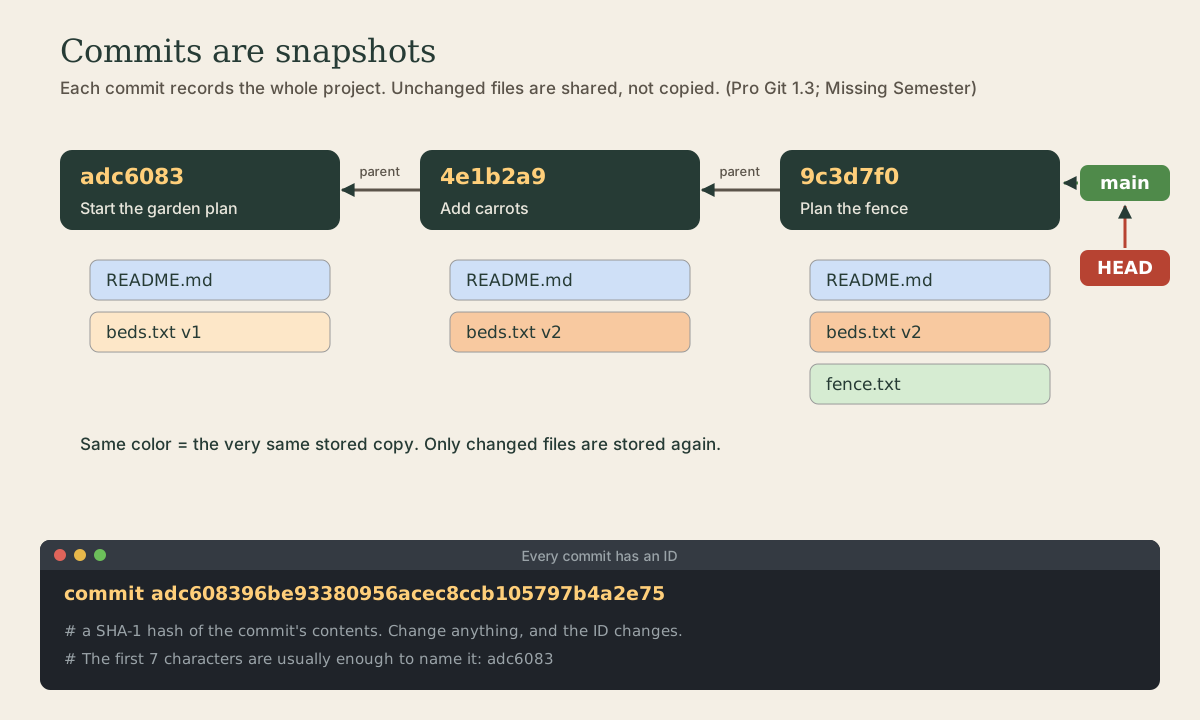
Many older systems stored a file’s history as a list of changes. Git thinks differently: each time you save, a commit, it records a snapshot of what every tracked file looks like at that moment 1. If a file hasn’t changed, git doesn’t store it again; the new snapshot simply points to the copy it already has 1.
Each snapshot also remembers its parent, the snapshot before it, so history is a chain of snapshots, and later a branching graph of them 2.
Quick check
Pro Git’s phrase is ‘snapshots, not differences.’ Unchanged files are stored once and pointed to.
Everything is local
A git repository holds the project’s entire history, and it lives right in your project folder, in a hidden subfolder named .git 1. Looking at old versions, comparing them, making commits, and creating branches all happen on your own disk, so they’re instant and work offline 1.
Services like GitHub host a copy of a repository so you can share it and back it up. But every copy, including yours, is a full repository; GitHub isn’t where git “lives” 1.
Quick check
GitHub is a place to share a repository, not where git keeps it.
Integrity
Everything git stores is checksummed and referred to by that checksum: a SHA-1 hash, 40 hexadecimal characters like 24b9da6552252987aa493b52f8696cd6d3b00373, computed from the contents 1. Change one byte of one file and the hash changes, so git notices corruption, and history can’t be quietly altered. You’ll see these IDs everywhere; the first seven characters are usually enough to name a commit.
Once something is committed, it’s very hard to lose, especially if the repository is also copied somewhere else 1. Uncommitted work is another story, which is a good reason to commit often.
Three states, three areas
The one thing Pro Git asks you to remember above all: a tracked file is always in one of three states 1:
- Modified: you’ve changed it, but haven’t marked it to be saved.
- Staged: you’ve marked this version of it to go into the next commit.
- Committed: it’s safely stored in the repository.
Those states correspond to three areas 1:
- the working directory, the files you see and edit;
- the staging area (also called the index), a list of what will go into the next commit;
- the repository, the
.gitfolder, where commits live.
So the basic rhythm is: edit files, stage the changes you want with git add, and commit them with git commit. The staging area is what lets you commit just part of what you’ve changed, which you’ll use constantly. Lesson 3 does all of this for real.
Your turn
Think it through
- List three things in your own files that would benefit from version control.
- In the diagram, why does the third commit take almost no extra space, even though it shows three files?
- You edited
beds.txtand rangit add beds.txt, then edited it again. What state is the file in now?
Answers
- For example: the scripts and config files from the shell course, your
~/.bashrcand other settings, a house-project notes folder, writing in plain text or Markdown. README.mdandbeds.txtare unchanged, so the snapshot points to copies git already has; onlyfence.txtis new.- Both: the first edit is staged, and the second is a modification in the working directory that isn’t staged yet.
git statusshows the file in both lists.
So
Version control records every saved state of a project. Git stores each commit as a snapshot of the whole project, sharing unchanged files, chained to its parent and named by a SHA-1 checksum. The full history lives in your project’s .git folder, and every file is modified, staged, or committed: working directory, staging area, repository.
Lesson complete
Nice work.
Sources for this lesson
- 1Scott Chacon, Ben Straub. Pro Git, 2nd edition. Apress; free online at git-scm.com. 2014. verifiedFree CC BY-NC-SA 3.0 book, maintained online. Ch. 1: version control; Git's 2005 origin when the Linux kernel lost free use of BitKeeper; snapshots, not differences (unchanged files stored once); nearly every operation local; integrity through 40-character SHA-1 checksums; the three states (modified, staged, committed) and three areas (working tree, staging area or index, .git directory); first-time setup with system/global/local config levels, user.name and user.email baked into commits, core.editor, git config --list --show-origin. Ch. 2: git init, status (and -s), add, diff and diff --staged, commit (-m, -a), .gitignore, log options, amending, undoing, remotes, tags, aliases. Ch. 3: branches as movable pointers, HEAD, merging and conflicts, remote branches, rebasing and its rule. Ch. 7: reset demystified, stashing, revision selection. Ch. 8: core.autocrlf true on Windows, input on Linux and macOS. Ch. 10: objects (blob, tree, commit) and references.
- 2Anish Athalye, Jon Gjengset, Jose Javier Gonzalez Ortiz. Version Control and Git (The Missing Semester of Your CS Education, 2026). MIT CSAIL. 2026. verifiedCC BY-NC-SA. Explains git from its data model up: a version control system tracks snapshots of a top-level directory with metadata; in git, files are blobs, directories are trees, and history is a directed acyclic graph of snapshots, each pointing to its parents; objects are content-addressed by hash and references give them human-readable names; the staging area chooses what goes into the next snapshot.