Your First Repository
Turn a folder into a repository with git init, then go around the basic loop: git status to see where things stand, git add to stage, git commit to save a snapshot, git log to see history, and git diff to see what changed. Short status, committing tracked changes in one step with commit -a, and what's inside the .git folder.
- 5 min
- 8 steps
- 2 questions
- Lesson 27 of 80
In this lesson
- Making a repository
- The basic loop
- Seeing what changed
- History
- Committing in one step
- Inside .git
- Your turn
- So
Picking up where you left off.
Making a repository
Any folder can become a repository. Let’s track a garden plan 1:
me@linuxbox:~$ mkdir garden && cd garden
me@linuxbox:~/garden$ git init
Initialized empty Git repository in /home/me/garden/.git/
git init creates the hidden .git folder, where everything git knows about this project will live. Nothing is tracked yet 1.
Make two files, then ask git what it sees:
me@linuxbox:~/garden$ echo "# Garden plan" > README.md
me@linuxbox:~/garden$ printf 'tomatoes\nbeans\n' > beds.txt
me@linuxbox:~/garden$ git status
On branch main

No commits yet

Untracked files:
  (use "git add <file>..." to include in what will be committed)
    README.md
    beds.txt

nothing added to commit but untracked files present (use "git add" to track)
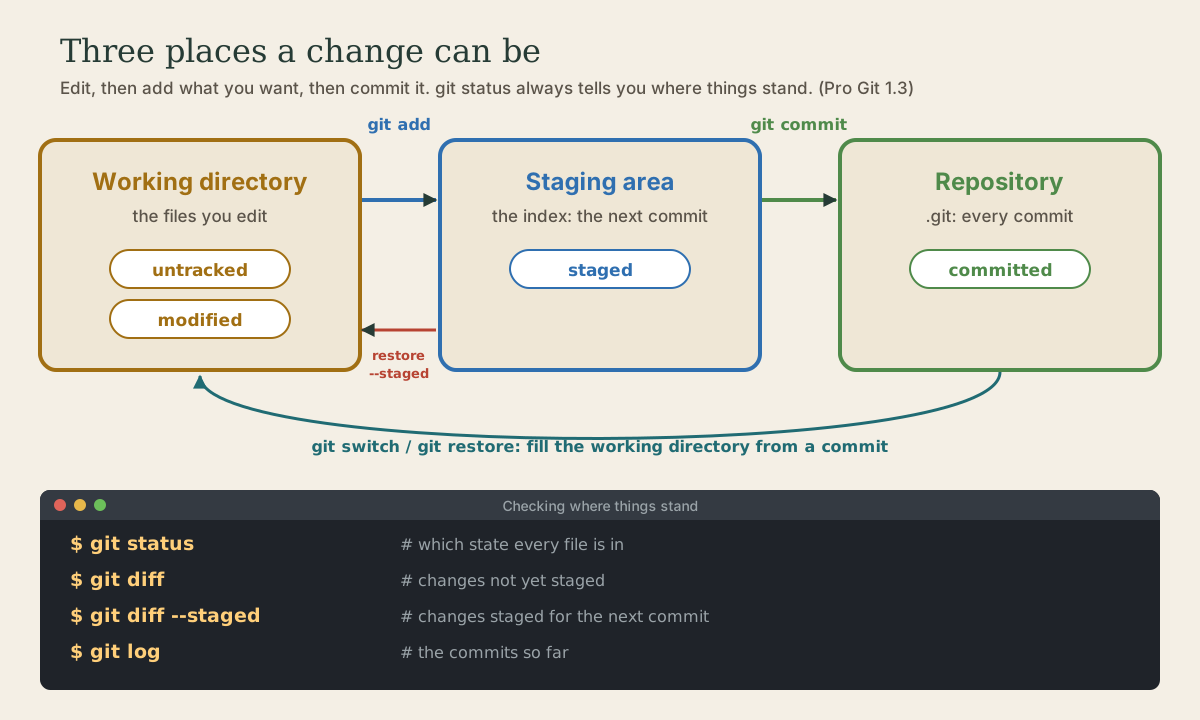
git status is the command you’ll run most. It says what branch you’re on, what’s changed, and, helpfully, what commands to use next 1.
The basic loop
Stage the files with git add, then check again 1:
me@linuxbox:~/garden$ git add README.md beds.txt
me@linuxbox:~/garden$ git status
On branch main

No commits yet

Changes to be committed:
  (use "git rm --cached <file>..." to unstage)
    new file:   README.md
    new file:   beds.txt
Commit them, with a message saying what this snapshot is 1:
me@linuxbox:~/garden$ git commit -m "Start the garden plan"
[main (root-commit) adc6083] Start the garden plan
 2 files changed, 3 insertions(+)
 create mode 100644 README.md
 create mode 100644 beds.txt
adc6083 is the start of the new commit’s ID. Without -m, git opens your editor for the message.
That’s the loop, over and over: edit, git add, git commit, with git status whenever you’re unsure.
Quick check
New files are untracked until you add them. git commit -a only picks up files git already tracks.
Seeing what changed
Add a line to beds.txt and look 1:
me@linuxbox:~/garden$ echo carrots >> beds.txt
me@linuxbox:~/garden$ git status
On branch main
Changes not staged for commit:
  (use "git add <file>..." to update what will be committed)
  (use "git restore <file>..." to discard changes in working directory)
    modified:   beds.txt

no changes added to commit (use "git add" and/or "git commit -a")
me@linuxbox:~/garden$ git diff
diff --git a/beds.txt b/beds.txt
index 9d086fb..b418f82 100644
--- a/beds.txt
+++ b/beds.txt
@@ -1,2 +1,3 @@
 tomatoes
 beans
+carrots
git diff shows changes you haven’t staged yet: lines starting with + were added, - removed. After git add, git diff shows nothing, and git diff --staged shows what’s staged for the next commit 1.
For a compact status, use git status -s 1:
me@linuxbox:~/garden$ git status -s
 M beds.txt
The two columns are the staging area and the working directory: M is modified but not staged, M is staged, ?? is untracked, A is a new file staged.
Quick check
git diff show with no arguments?git diff --staged shows what’s staged for the next commit.
History
me@linuxbox:~/garden$ git add beds.txt && git commit -m "Add carrots"
me@linuxbox:~/garden$ git log
commit 82d8b55...
Author: Me <me@example.com>
Date:   Mon Oct 5 09:20:00 2026 -0500

    Add carrots

commit adc608396be93380956acec8ccb105797b4a2e75
...
me@linuxbox:~/garden$ git log --oneline
82d8b55 Add carrots
adc6083 Start the garden plan
git log lists commits newest first, with author, date, and message; --oneline gives one line each 1. Press q to leave the pager.
Committing in one step
For files git already tracks, git commit -a stages every change and commits in one go 1:
me@linuxbox:~/garden$ echo peas >> beds.txt
me@linuxbox:~/garden$ git commit -am "Add peas"
[main c2ee056] Add peas
 1 file changed, 1 insertion(+)
It skips new files, which still need git add, and it commits every change, so use it when you know everything changed belongs together.
Inside .git
me@linuxbox:~/garden$ ls .git
COMMIT_EDITMSG  HEAD  config  description  hooks  index  info  logs  objects  refs
objects holds every snapshot, refs the branch names, HEAD which branch you’re on, index the staging area, and config this repository’s settings 1 2. Module 6 opens it up. Until then, never edit anything in .git by hand, and remember that deleting .git deletes the whole history, leaving only the current files.
Your turn
Exercises
- Make the
gardenrepository above and make three commits: the two files, carrots, and a newfence.txt. - Change two files, stage only one, and look at
git status,git diff, andgit diff --staged. Then commit just the staged one. - Try
git status -sat each step and read the two columns. - Put your
~/shell-coursefolder from the shell course under version control and make a first commit of all your scripts. (Hint:git add .stages everything in the current folder.) - Run your
git lgalias from the last lesson.
Answers
- The staged file appears under “Changes to be committed” and in
git diff --staged; the other appears under “Changes not staged” and ingit diff.git commit -m "..."commits only the staged one. - For example:
M(staged),M(modified, not staged),MM(staged, then modified again). cd ~/shell-course && git init && git add . && git commit -m "Shell course scripts". Rungit statusbefore committing to make sure nothing unexpected is included; the next module shows how to make git ignore files.- A one-line-per-commit graph, newest on top. It gets interesting with branches.
So
git init makes a repository. Then the loop is edit, git add to stage, git commit -m to save a snapshot, with git status to see where things stand, git diff (and --staged) to see changes, and git log to see history. commit -a skips the add for tracked files, and .git holds everything, so leave it alone.
Lesson complete
Nice work.
Sources for this lesson
- 1Scott Chacon, Ben Straub. Pro Git, 2nd edition. Apress; free online at git-scm.com. 2014. verifiedFree CC BY-NC-SA 3.0 book, maintained online. Ch. 1: version control; Git's 2005 origin when the Linux kernel lost free use of BitKeeper; snapshots, not differences (unchanged files stored once); nearly every operation local; integrity through 40-character SHA-1 checksums; the three states (modified, staged, committed) and three areas (working tree, staging area or index, .git directory); first-time setup with system/global/local config levels, user.name and user.email baked into commits, core.editor, git config --list --show-origin. Ch. 2: git init, status (and -s), add, diff and diff --staged, commit (-m, -a), .gitignore, log options, amending, undoing, remotes, tags, aliases. Ch. 3: branches as movable pointers, HEAD, merging and conflicts, remote branches, rebasing and its rule. Ch. 7: reset demystified, stashing, revision selection. Ch. 8: core.autocrlf true on Windows, input on Linux and macOS. Ch. 10: objects (blob, tree, commit) and references.
- 2Anish Athalye, Jon Gjengset, Jose Javier Gonzalez Ortiz. Version Control and Git (The Missing Semester of Your CS Education, 2026). MIT CSAIL. 2026. verifiedCC BY-NC-SA. Explains git from its data model up: a version control system tracks snapshots of a top-level directory with metadata; in git, files are blobs, directories are trees, and history is a directed acyclic graph of snapshots, each pointing to its parents; objects are content-addressed by hash and references give them human-readable names; the staging area chooses what goes into the next snapshot.