Reset, Revert, and the Reflog
git reset moves your branch back to an earlier commit, and its three modes decide what happens to the work you undid: --soft leaves it staged, --mixed (the default) leaves it in your files, and --hard throws it away. When to revert instead, because reset rewrites history. The reflog, git's record of everywhere HEAD has been, which brings back commits that seem lost, and ORIG_HEAD for undoing the last reset. Two recipes: squashing commits with reset --soft, and moving commits made on main to a new branch.
- 9 min
- 8 steps
- 3 questions
- Lesson 37 of 80
In this lesson
- Three areas, one more time
- What reset does
- The three modes
- Reset or revert?
- The reflog: getting it back
- Two recipes
- Your turn
- So
Picking up where you left off.
Three areas, one more time
Module 1 introduced git’s three areas, and reset only makes sense with them in mind. Pro Git calls them three trees 1:
- HEAD: the last commit on your current branch, and the parent of the next one.
- The index (the staging area): your proposed next commit.
- The working directory: the actual files you edit.
git add copies from your files to the index; git commit turns the index into a new commit and moves the branch to it. git reset runs that backward.
What reset does
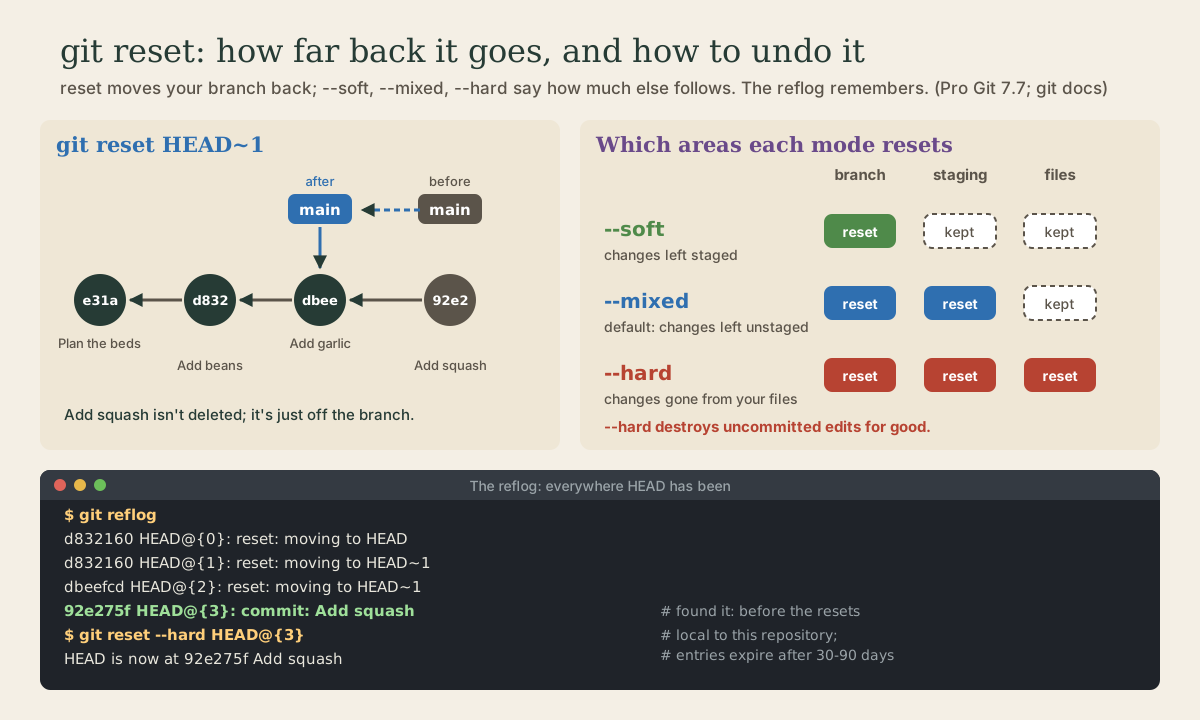
git reset <commit> moves the branch you’re on so it points at <commit> 1. Commits after that point are no longer on the branch. Here’s a garden repository with four commits:
me@linuxbox:~/garden$ git log --oneline
92e275f Add squash
dbeefcd Add garlic
d832160 Add beans
e31a769 Plan the beds
HEAD~1 means “one commit before HEAD” (module 2), so git reset HEAD~1 moves main back from 92e275f to dbeefcd. The Add squash commit isn’t deleted. Nothing points at it any more, but it’s still in the repository, and you’ll see below how to get it back.
The three modes
After moving the branch, reset can go on to reset the index, and then your files as well. The mode says how far it goes 1 2.
--soft moves the branch and stops. The undone commit’s changes are still in the index, staged:
me@linuxbox:~/garden$ git reset --soft HEAD~1
me@linuxbox:~/garden$ git status -s
M  beds.txt
me@linuxbox:~/garden$ git log --oneline
dbeefcd Add garlic
d832160 Add beans
e31a769 Plan the beds
The M in the first column means staged (module 1). It’s as if you’d run git add but not git commit, so you can change something and commit again.
--mixed is the default when you give no mode. It moves the branch and makes the index match it, so the changes are left in your files, unstaged 1. Going back one more commit:
me@linuxbox:~/garden$ git reset HEAD~1
Unstaged changes after reset:
M   beds.txt
me@linuxbox:~/garden$ git status -s
 M beds.txt
me@linuxbox:~/garden$ git diff
diff --git a/beds.txt b/beds.txt
index ff39cfb..99dea17 100644
--- a/beds.txt
+++ b/beds.txt
@@ -1,2 +1,4 @@
 # Garden beds
 beans
+garlic
+squash
Both undone commits’ changes are in the file, as if you’d never run git add or git commit on them.
--hard moves the branch, resets the index, and overwrites your files to match 2:
me@linuxbox:~/garden$ git reset --hard HEAD
HEAD is now at d832160 Add beans
me@linuxbox:~/garden$ git status -s
me@linuxbox:~/garden$ git log --oneline
d832160 Add beans
e31a769 Plan the beds
git reset --hard HEAD doesn’t move the branch at all; it just throws away every uncommitted change. The garlic and squash lines are gone from the file.
Pro Git singles out --hard as the one form of reset that’s dangerous, and one of very few commands where git destroys data 1. Committed work can be recovered, as you’re about to see. Uncommitted edits that --hard overwrites cannot. Before running it, git status and git diff to check what you’d lose, and commit or stash anything you might want (next lesson covers stash).
| Mode | Branch | Index | Your files | The undone work ends up |
|---|---|---|---|---|
--soft |
moved | kept | kept | staged |
--mixed (default) |
moved | reset | kept | in your files, unstaged |
--hard |
moved | reset | reset | gone |
Given a file name instead of a commit, git reset beds.txt only copies that file from HEAD into the index: it unstages it 1. That’s what older versions of git status suggested for unstaging; git restore --staged (module 2) does the same job and is clearer.
Quick check
--soft moves the branch back and touches nothing else, so the undone commit’s changes stay staged.
Reset or revert?
Both undo commits, in opposite ways:
git resetrewrites history: the branch moves back, and the commits drop off it.git revert(module 2) adds history: a new commit that does the opposite of an old one 3.
The rule is the same as for rebasing. If a commit is only on your computer, reset freely. If you’ve pushed it and anyone else might have it, revert. Resetting a shared branch means force-pushing, and everyone else’s copy then disagrees with yours.
Quick check
Others may already have the commit. Revert adds to history instead of rewriting it.
The reflog: getting it back
Every time HEAD moves, by a commit, a reset, a switch, a merge, or a rebase, git writes a line in the reflog, the reference log 4. After the resets above, it looks like this:
me@linuxbox:~/garden$ git reflog
d832160 HEAD@{0}: reset: moving to HEAD
d832160 HEAD@{1}: reset: moving to HEAD~1
dbeefcd HEAD@{2}: reset: moving to HEAD~1
92e275f HEAD@{3}: commit: Add squash
dbeefcd HEAD@{4}: commit: Add garlic
d832160 HEAD@{5}: commit: Add beans
e31a769 HEAD@{6}: commit (initial): Plan the beds
Newest first. HEAD@{3} means “where HEAD was three moves ago” 4, and that’s 92e275f Add squash, from before all the resets. Put main back there:
me@linuxbox:~/garden$ git reset --hard HEAD@{3}
HEAD is now at 92e275f Add squash
me@linuxbox:~/garden$ git log --oneline
92e275f Add squash
dbeefcd Add garlic
d832160 Add beans
e31a769 Plan the beds
All four commits are back. You could equally use the ID, git reset --hard 92e275f, or make a branch there with git branch rescue 92e275f to look before you leap.
For the last reset only, there’s a shortcut. Reset saves the previous tip of the branch as ORIG_HEAD 2, so the newest reset can be undone directly:
me@linuxbox:~/garden$ git reset --hard HEAD~2
HEAD is now at d832160 Add beans
me@linuxbox:~/garden$ git reset --hard ORIG_HEAD
HEAD is now at 92e275f Add squash
Two limits to know 4:
- The reflog is local. It records moves in your repository; it isn’t pushed, and a fresh clone starts with an empty one.
- Entries expire. By default, git’s housekeeping prunes reflog entries after 90 days, and after 30 days for commits no longer on any branch. So a commit lost to a reset has about a month.
Each branch has its own reflog too: git reflog main shows only the moves of main, and main@{one.week.ago} names where main pointed a week ago 4.
Quick check
git reset --hard HEAD~2 and lost two commits you wanted. How do you get them back?Committed work stays in the repository for weeks after it drops off a branch. The reflog tells you its ID.
Two recipes
Squash your last few commits into one. --soft keeps the changes staged, so recommitting folds them together 2:
me@linuxbox:~/garden$ git reset --soft HEAD~2
me@linuxbox:~/garden$ git commit -m "Add garlic and squash"
[main f8509eb] Add garlic and squash
 1 file changed, 2 insertions(+)
me@linuxbox:~/garden$ git log --oneline
f8509eb Add garlic and squash
d832160 Add beans
e31a769 Plan the beds
This does the same job as squashing in git rebase -i (module 3), with less ceremony when it’s the last few commits.
Committed to main when it should have been a branch. Make a branch where you are, so the commits keep a name, then move main back. The git docs give this recipe for three commits 2:
me@linuxbox:~/garden$ git branch fence-plan
me@linuxbox:~/garden$ git reset --hard HEAD~3
me@linuxbox:~/garden$ git switch fence-plan
main is back where it was, and the three commits live on fence-plan. Do this before you push main.
Your turn
Exercises
- In a practice repository, make four small commits. Run
git reset --soft HEAD~1and checkgit status -sandgit log --oneline. Then commit again. - Run
git reset HEAD~2(mixed). What doesgit status -sshow? Recommit the changes as one commit. - Make an uncommitted edit, then run
git reset --hard HEAD. Can you get the edit back? - Run
git reset --hard HEAD~3, then usegit reflogto find the commit you were on and get all three back. - Try
ORIG_HEAD: reset back two commits with--hard, then undo it in one command. - Make two commits on
mainthat should have been on a branch, and move them to one with the recipe above.
Answers
M beds.txt(staged, withMin the first column), and the log has lost its top commit.git commit -m "..."makes a new commit with a new ID.Min the second column: the changes from both commits are in your files, unstaged.git addthe files and commit once.- No. It was never committed, so it never reached the repository and the reflog has nothing to point to. That’s the case
--hardis dangerous for. - Look for the line just before the first
reset: moving to HEAD~3, the most recentcommit:entry, andgit reset --hardto that ID orHEAD@{n}. git reset --hard ORIG_HEAD.git branch new-name,git reset --hard HEAD~2,git switch new-name.git log --oneline --graph --allshowsmaintwo commits behind the new branch.
So
git reset <commit> moves your branch back. --soft leaves the undone changes staged, --mixed (the default) leaves them in your files, and --hard throws them away, which is the one way reset loses uncommitted work. Reset only commits nobody else has; for shared ones, git revert. Committed work isn’t easily lost: git reflog lists everywhere HEAD has been, git reset --hard HEAD@{n} goes back there, and ORIG_HEAD undoes the last reset.
Lesson complete
Nice work.
Sources for this lesson
- 1Scott Chacon, Ben Straub. Pro Git, 2nd edition. Apress; free online at git-scm.com. 2014. verifiedFree CC BY-NC-SA 3.0 book, maintained online. Ch. 1: version control; Git's 2005 origin when the Linux kernel lost free use of BitKeeper; snapshots, not differences (unchanged files stored once); nearly every operation local; integrity through 40-character SHA-1 checksums; the three states (modified, staged, committed) and three areas (working tree, staging area or index, .git directory); first-time setup with system/global/local config levels, user.name and user.email baked into commits, core.editor, git config --list --show-origin. Ch. 2: git init, status (and -s), add, diff and diff --staged, commit (-m, -a), .gitignore, log options, amending, undoing, remotes, tags, aliases. Ch. 3: branches as movable pointers, HEAD, merging and conflicts, remote branches, rebasing and its rule. Ch. 7: reset demystified, stashing, revision selection. Ch. 8: core.autocrlf true on Windows, input on Linux and macOS. Ch. 10: objects (blob, tree, commit) and references.
- 2git-reset documentation. Git project (git-scm.com). verifiedSets the current branch head to a commit; --soft leaves the index and working tree alone, --mixed (the default) resets the index but not the working tree, --hard also overwrites the working tree. Sets ORIG_HEAD to the previous tip. Examples: git reset --soft HEAD~5 then commit to combine commits; git branch topic/wip, git reset --hard HEAD~3, git switch topic/wip to move commits to a branch.
- 3git-revert documentation. Git project (git-scm.com). verifiedGiven existing commits, revert the changes they introduce by recording new commits; requires a clean working tree; --no-edit skips the message editor. Distinct from reset (which moves a branch) and restore (which changes files).
- 4git-reflog documentation. Git project (git-scm.com). verifiedReflogs record when branch tips and other references were updated in the local repository; HEAD@{2} means where HEAD was two moves ago, master@{one.week.ago} where master pointed a week ago. Expiry defaults: gc.reflogExpire 90 days, gc.reflogExpireUnreachable 30 days for entries not reachable from the current tip.