Stash and Cherry-pick
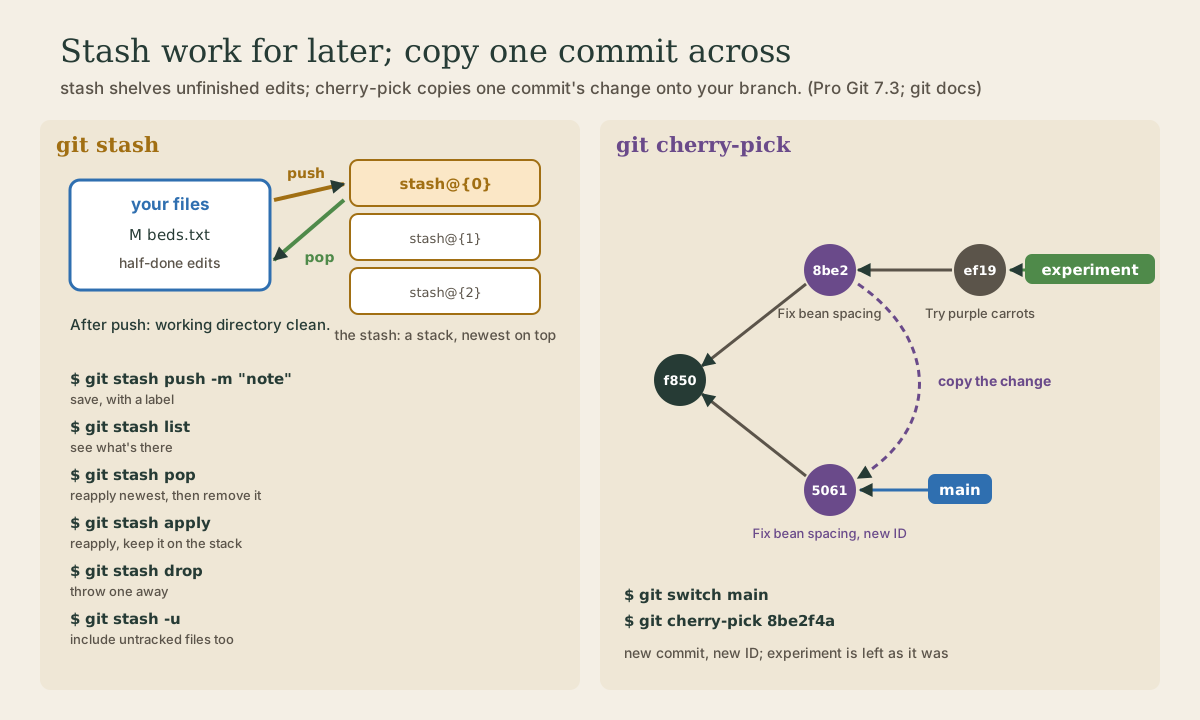
git stash shelves unfinished edits without a commit, leaving a clean working directory so you can switch branches or pull; pop or apply brings them back, list and show see what's there, and -u includes untracked files. git clean deletes untracked files, so preview it with -n first. git cherry-pick copies a single commit's change from another branch onto yours as a new commit, and stops for conflicts the way merge and rebase do.
- 9 min
- 8 steps
- 3 questions
- Lesson 38 of 80
In this lesson
- Stash: put work aside
- Getting it back
- What stash leaves behind
- Cleaning up untracked files
- Cherry-pick: copy one commit
- When a cherry-pick conflicts
- Your turn
- So
Picking up where you left off.
Stash: put work aside
You’re in the middle of something, files half-edited, and you need to switch branches, pull, or try something on a clean copy. You don’t want to commit half-done work. git stash saves your changes, both staged and unstaged edits to tracked files, onto a stack, and resets your working directory to the last commit 1:
me@linuxbox:~/garden$ git status -s
 M beds.txt
me@linuxbox:~/garden$ git stash push -m "rotation idea"
Saved working directory and index state On main: rotation idea
me@linuxbox:~/garden$ git status -s
me@linuxbox:~/garden$
Clean. Switch branches, pull, fix the other thing, and come back. Plain git stash does the same as git stash push, with an automatic label like WIP on main: f8509eb Add garlic and squash; -m gives it a label you’ll recognize later. (Older tutorials use git stash save, which push replaces 1.)
Quick check
stash saves your changes and cleans the working directory; git stash pop brings them back later.
Getting it back
The stash is a list, newest first. Each entry has a name: stash@{0} is the latest, stash@{1} the one before, and so on 2:
me@linuxbox:~/garden$ git stash list
stash@{0}: On main: rotation idea
me@linuxbox:~/garden$ git stash show -p
diff --git a/beds.txt b/beds.txt
index 99dea17..e6c35f7 100644
--- a/beds.txt
+++ b/beds.txt
@@ -2,3 +2,4 @@
 beans
 garlic
 squash
+half-done: rotate the beans
git stash show -p shows a stash as a diff before you use it. To bring it back, git stash pop reapplies it and then removes it from the list:
me@linuxbox:~/garden$ git stash pop
On branch main
Changes not staged for commit:
  (use "git add <file>..." to update what will be committed)
  (use "git restore <file>..." to discard changes in working directory)
    modified:   beds.txt

no changes added to commit (use "git add" and/or "git commit -a")
Dropped refs/stash@{0} (5b18bae622167b7631292d9628118f1c5d4a6903)
git stash applyreapplies but keeps the stash in the list, for using the same changes on more than one branch.git stash dropthen removes it.git stash pop stash@{2}(orapply) picks an older one.--indexrestores what was staged as staged; without it, everything comes back unstaged.git stash branch new-namemakes a new branch at the commit you stashed from and applies the stash there. Use it whenmainhas moved on and the stash no longer applies cleanly.
You can apply a stash on a different branch from the one you saved it on. If the changes clash with what’s there, you get ordinary merge conflicts. When pop hits a conflict, it keeps the stash, so nothing is lost: resolve the conflict, then git stash drop yourself 2.
Stashes are meant for minutes or hours, not weeks. A long-lived stash is easy to forget; if work is worth keeping, commit it on a branch.
Quick check
apply is handy when you want the same changes on more than one branch. If pop hits a conflict, it keeps the stash too.
What stash leaves behind
By default, stash only takes files git already tracks. New, untracked files stay where they are 1:
me@linuxbox:~/garden$ git status -s
 M beds.txt
?? todo.txt
me@linuxbox:~/garden$ git stash
Saved working directory and index state WIP on main: f8509eb Add garlic and squash
me@linuxbox:~/garden$ git status -s
?? todo.txt
Add -u (--include-untracked) to stash them too, and -a (--all) to include ignored files as well 1:
me@linuxbox:~/garden$ git stash -u
Saved working directory and index state WIP on main: f8509eb Add garlic and squash
me@linuxbox:~/garden$ git status -s
me@linuxbox:~/garden$
Cleaning up untracked files
To get rid of untracked files instead of saving them, there’s git clean. It deletes files that were never committed, so git can’t bring them back, and Pro Git warns there’s often no retrieving them 1. Always look first with -n (dry run), then do it with -f (force), which git requires by default 3:
me@linuxbox:~/garden$ git clean -n
Would remove todo.txt
me@linuxbox:~/garden$ git clean -f
Removing todo.txt
Add -d to remove untracked directories too, and -x to also remove files your .gitignore covers, such as build output 3. git clean -i asks about each file. If you’re not sure, git stash --all clears everything out but keeps a copy 1.
Cherry-pick: copy one commit
Sometimes you want just one commit from another branch, not the whole branch. Here the experiment branch has a useful fix and an experiment you don’t want on main:
me@linuxbox:~/garden$ git log --oneline main..experiment
ef19e9f Try purple carrots
8be2f4a Fix bean spacing
(main..experiment means “commits on experiment that aren’t on main” 1.) git cherry-pick takes the change a commit introduced and applies it to your current branch as a new commit 4:
me@linuxbox:~/garden$ git switch main
Switched to branch 'main'
me@linuxbox:~/garden$ git cherry-pick 8be2f4a
[main 506193c] Fix bean spacing
 Date: Mon Oct 5 09:06:00 2026 -0500
 1 file changed, 1 insertion(+)
 create mode 100644 spacing.txt
me@linuxbox:~/garden$ git log --oneline --graph --all --decorate
* 506193c (HEAD -> main) Fix bean spacing
| * ef19e9f (experiment) Try purple carrots
| * 8be2f4a Fix bean spacing
|/
* f8509eb Add garlic and squash
* d832160 Add beans
* e31a769 Plan the beds
The copy has the same message, author, and date as the original but a new ID, because its parent is different (module 3). experiment is unchanged. You can give several commits at once, and they’re applied in order 4.
Typical uses: rescuing one good commit from an abandoned branch, or bringing a fix from one branch to another without merging everything else. Since cherry-pick copies rather than moves, if you later merge the whole branch, history holds the same change twice, in two commits. Use it for single commits, not instead of merging.
When copying between branches other people use, such as backporting a fix to an older release branch, -x adds a line (cherry picked from commit ...) to the message. The git docs advise leaving it off when you pick from your own private branch, since nobody else can see that commit 4.
Quick check
Only the one commit’s change is copied. The other branch is untouched.
When a cherry-pick conflicts
Cherry-pick needs a clean working tree to start 4. If the change doesn’t apply cleanly, it stops with conflict markers, just like a merge:
me@linuxbox:~/garden$ git cherry-pick experiment
Auto-merging beds.txt
CONFLICT (content): Merge conflict in beds.txt
error: could not apply ef19e9f... Try purple carrots
hint: After resolving the conflicts, mark them with
hint: "git add/rm <pathspec>", then run
hint: "git cherry-pick --continue".
hint: You can instead skip this commit with "git cherry-pick --skip".
hint: To abort and get back to the state before "git cherry-pick",
hint: run "git cherry-pick --abort".
hint: Disable this message with "git config set advice.mergeConflict false"
Same routine as merging and rebasing (module 3): fix the file, git add it, and git cherry-pick --continue; or git cherry-pick --abort to put everything back 4. (git cherry-pick experiment picks the commit at the tip of that branch.)
Your turn
Exercises
- Edit a tracked file,
git stash push -m "test", checkgit status, thengit stash listandgit stash show -p. - Switch to another branch, make and commit a change there, switch back, and
git stash pop. - Create a new file and edit a tracked one. Run plain
git stash. Which change stayed behind? Get both stashed with-u. - Make a few junk untracked files. Preview with
git clean -n, then delete them withgit clean -f. - On a new branch, make two commits. Switch to
mainand cherry-pick only the first. Compare the IDs ingit log --oneline --graph --all. - Cause a cherry-pick conflict, read the message, and back out with
--abort.
Answers
git statussays the working tree is clean; the list showsstash@{0}: On <branch>: test, andshow -pshows your edit as a diff.- Your edit comes back, unstaged, and the stash is dropped from the list.
- The untracked file stayed: plain
git stashonly takes tracked files.git stash pop, thengit stash -utakes both. -nlistsWould remove ...for each file and deletes nothing;-fremoves them, and they’re gone for good.- The picked commit on
mainhas a new ID and the same message; the branch still has its original two commits. CONFLICT (content)and the hints about--continue,--skip, and--abort. After--abort,git statusis clean again.
So
git stash (or git stash push -m "label") shelves unfinished changes to tracked files and leaves your working directory clean; -u includes untracked files. git stash list and show -p show what’s there, pop brings the newest back and removes it, and apply brings it back and keeps it. git clean deletes untracked files for good, so run -n before -f. git cherry-pick <commit> copies one commit’s change onto your branch as a new commit; conflicts are settled with --continue or --abort, as in a merge.
Lesson complete
Nice work.
Sources for this lesson
- 1Scott Chacon, Ben Straub. Pro Git, 2nd edition. Apress; free online at git-scm.com. 2014. verifiedFree CC BY-NC-SA 3.0 book, maintained online. Ch. 1: version control; Git's 2005 origin when the Linux kernel lost free use of BitKeeper; snapshots, not differences (unchanged files stored once); nearly every operation local; integrity through 40-character SHA-1 checksums; the three states (modified, staged, committed) and three areas (working tree, staging area or index, .git directory); first-time setup with system/global/local config levels, user.name and user.email baked into commits, core.editor, git config --list --show-origin. Ch. 2: git init, status (and -s), add, diff and diff --staged, commit (-m, -a), .gitignore, log options, amending, undoing, remotes, tags, aliases. Ch. 3: branches as movable pointers, HEAD, merging and conflicts, remote branches, rebasing and its rule. Ch. 7: reset demystified, stashing, revision selection. Ch. 8: core.autocrlf true on Windows, input on Linux and macOS. Ch. 10: objects (blob, tree, commit) and references.
- 2git-stash documentation. Git project (git-scm.com). verifiedStashes away working-directory and index changes and reverts to HEAD. The latest stash is refs/stash; older ones are stash@{1}, stash@{2} in its reflog. pop removes and applies a stash, but keeps it if applying conflicts (drop it by hand after resolving); apply keeps it; --index restores staged changes; stash branch creates a branch at the stash's base commit.
- 3git-clean documentation. Git project (git-scm.com). verifiedRemoves untracked files from the working tree. Refuses without -f unless clean.requireForce is false; -n/--dry-run only shows what would be removed; -d also removes untracked directories; -x ignores the ignore rules so build products go too; -i is interactive.
- 4git-cherry-pick documentation. Git project (git-scm.com). verifiedApplies the change each given commit introduces, recording a new commit for each; requires a clean working tree. On conflict the branch stays at the last successful commit and conflict markers are written; --continue, --skip, --abort, --quit. -x appends '(cherry picked from commit ...)', advised against when picking from a private branch.