Installing and Configuring Git
Install git under WSL or on Linux with apt and check the version. Set your name and email, which go into every commit; make new repositories start on a branch called main; choose your editor; and set line-ending handling so files from Windows don't cause trouble. Where settings live (system, global, local), how to see them all, and a few aliases worth having.
- 4 min
- 7 steps
- 2 questions
- Lesson 26 of 80
In this lesson
- Installing git
- Who you are
- Three more settings
- Where settings live
- Aliases
- Your turn
- So
Picking up where you left off.
Installing git
Ubuntu, under WSL or on a Linux desktop, may already have git; if not, install it from the package manager:
me@linuxbox:~$ sudo apt update && sudo apt install git
me@linuxbox:~$ git --version
git version 2.43.0
Your version number depends on your distribution’s release; anything from the last few years teaches the same commands. (Git for Windows is a separate installation of the same program for Windows itself; under WSL, use the Linux one.)
Who you are
The first thing to do after installing git is set your name and email. Every commit you make records them as its author, permanently 1:
me@linuxbox:~$ git config --global user.name "Your Name"
me@linuxbox:~$ git config --global user.email you@example.com
--global means “for every repository I use on this machine,” so you do it once 1. Use the same email you’ll use on GitHub (module 4), so your commits link to your account. GitHub also offers a private “noreply” address if you’d rather not publish your real one.
Quick check
They’re baked into each commit and can’t be changed later without rewriting it.
Three more settings
Default branch name. A new repository starts with one branch. Git’s built-in default name is still master, and the documentation says it will change to main in Git 3.0; you choose with init.defaultBranch 2. GitHub and most projects use main:
me@linuxbox:~$ git config --global init.defaultBranch main
Editor. When git needs a longer message from you, it opens an editor 1. Pick the one you’re comfortable with:
me@linuxbox:~$ git config --global core.editor nano
(If you set EDITOR in your ~/.profile in the shell course, git uses that already.)
Line endings. Windows ends lines with two characters (carriage return and line feed, CRLF); Linux uses just a line feed (LF). Mixed endings make files look completely changed and break scripts. Pro Git’s advice is to set core.autocrlf to input on Linux, which turns any stray CRLF into LF when you commit and never adds CRLF; on Windows itself, the setting is true 1:
me@linuxbox:~$ git config --global core.autocrlf input
Where settings live
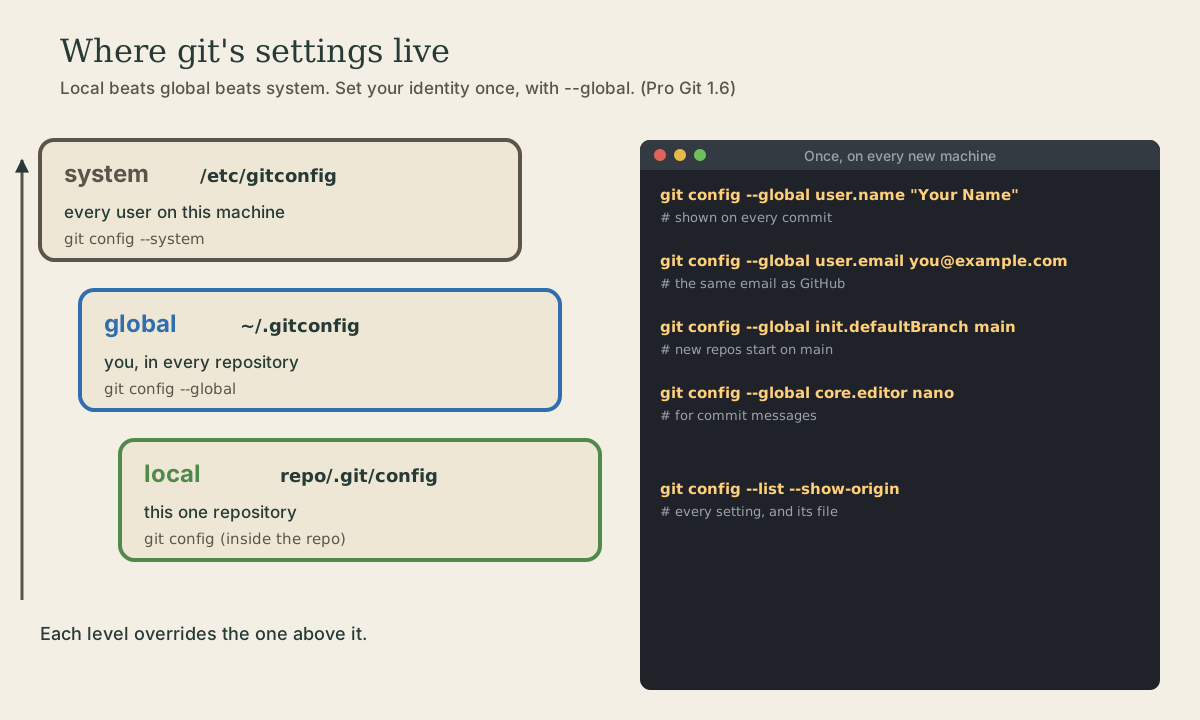
Git reads settings from three levels, each overriding the one before 1:
- System,
/etc/gitconfig: for every user on the machine (git config --system). - Global,
~/.gitconfig: for you, in all your repositories (git config --global). - Local,
.git/configinside one repository: just that repository (plaingit config, run inside it).
To see everything and which file each setting came from 1 3:
me@linuxbox:~$ git config --list --show-origin
file:/home/me/.gitconfig    user.name=Your Name
file:/home/me/.gitconfig    user.email=you@example.com
file:/home/me/.gitconfig    init.defaultbranch=main
...
me@linuxbox:~$ git config user.email          # just one setting
Your global settings are just a small text file; cat ~/.gitconfig shows it. Module 7 puts it in version control along with your other dotfiles.
Quick check
Local settings in .git/config override global ones for that repository only.
Aliases
Aliases are shortcuts for longer git commands 1:
me@linuxbox:~$ git config --global alias.st status
me@linuxbox:~$ git config --global alias.lg "log --oneline --graph --all"
Now git st is git status, and git lg draws your history as a compact graph, which you’ll use a lot once there are branches.
Your turn
Exercises
- Install git in your WSL Ubuntu and check its version.
- Set your name, email, default branch, editor, and
core.autocrlf input. - Run
git config --list --show-originand find each setting you made. Thencat ~/.gitconfig. - Add the
lgalias. (You’ll try it in the next lesson.) - Run
git help config | head -40, orman git-config. Every git command has its own man page.
Answers
- The five
git config --globallines above. -
All five come from
file:/home/<you>/.gitconfig, and the file looks like this, with each setting in its section:[user] name = Your Name email = you@example.com [init] defaultBranch = main [core] editor = nano autocrlf = input -
git help <command>opens the same pages asman git-<command>.
So
Install git with apt, then set, once, with --global: user.name and user.email (on every commit), init.defaultBranch main, core.editor, and core.autocrlf input. Settings live at system, global, and local levels, each overriding the last, and git config --list --show-origin shows them all.
Lesson complete
Nice work.
Sources for this lesson
- 1Scott Chacon, Ben Straub. Pro Git, 2nd edition. Apress; free online at git-scm.com. 2014. verifiedFree CC BY-NC-SA 3.0 book, maintained online. Ch. 1: version control; Git's 2005 origin when the Linux kernel lost free use of BitKeeper; snapshots, not differences (unchanged files stored once); nearly every operation local; integrity through 40-character SHA-1 checksums; the three states (modified, staged, committed) and three areas (working tree, staging area or index, .git directory); first-time setup with system/global/local config levels, user.name and user.email baked into commits, core.editor, git config --list --show-origin. Ch. 2: git init, status (and -s), add, diff and diff --staged, commit (-m, -a), .gitignore, log options, amending, undoing, remotes, tags, aliases. Ch. 3: branches as movable pointers, HEAD, merging and conflicts, remote branches, rebasing and its rule. Ch. 7: reset demystified, stashing, revision selection. Ch. 8: core.autocrlf true on Windows, input on Linux and macOS. Ch. 10: objects (blob, tree, commit) and references.
- 2git-init documentation. Git project (git-scm.com). verifiedgit init creates an empty repository, a .git directory with objects, refs/heads, refs/tags, and template files. The initial branch name falls back to master, but this will change to main when Git 3.0 is released; init.defaultBranch customizes it, and --initial-branch sets it for one repository.
- 3git-config documentation. Git project (git-scm.com). verifiedReference for reading and writing git settings at the --system, --global, --local, and --worktree levels, with --list and --show-origin, and for every configuration variable, including user.name, user.email, init.defaultBranch, core.editor, core.autocrlf, and alias.*.