Clone, Fetch, Pull, Push
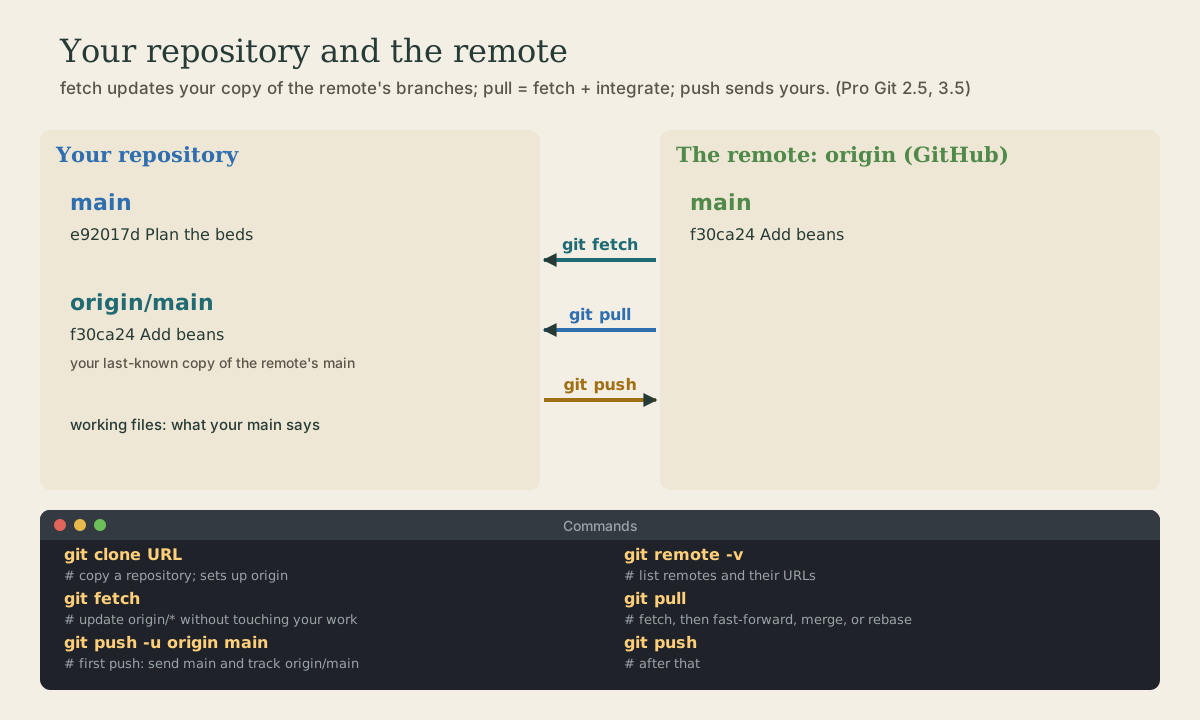
A remote is another copy of the repository, usually named origin. Clone copies one; fetch downloads new commits and moves your remote-tracking branches like origin/main without touching your work; pull fetches and then integrates (fast-forward, merge, or rebase, depending on version and settings); push sends your commits and is rejected if the remote has commits you don't. Upstream tracking with push -u, and why git status can be out of date.
- 5 min
- 6 steps
- 2 questions
- Lesson 34 of 80
In this lesson
- Remotes
- Clone
- Fetch and pull
- Push
- Your turn
- So
Picking up where you left off.
Remotes
A remote is another copy of your repository, somewhere else: on GitHub, on a server, or in another folder 1. Each has a short name. When you clone, git names the one you cloned from origin 1.
me@linuxbox:~/garden$ git remote -v
origin  git@github.com:you/garden.git (fetch)
origin  git@github.com:you/garden.git (push)
Your repository keeps remote-tracking branches such as origin/main: read-only bookmarks of where the remote’s branches were the last time you talked to it 1. Your own main and origin/main can differ, and that difference is what fetch, pull, and push sort out.
Clone
git clone copies a whole repository, every commit and branch, sets up origin, and checks out the default branch 1:
me@linuxbox:~$ git clone git@github.com:you/garden.git
Cloning into 'garden'...
Fetch and pull
git fetch downloads commits you don’t have and moves your origin/... branches to match the remote. It never touches your own branches or your files, so it’s always safe 1. Afterward, git status tells you where you stand:
me@linuxbox:~/garden$ git status
On branch main
Your branch is up to date with 'origin/main'.
me@linuxbox:~/garden$ git fetch
From github.com:you/garden
   e92017d..f30ca24  main       -> origin/main
me@linuxbox:~/garden$ git status
On branch main
Your branch is behind 'origin/main' by 1 commit, and can be fast-forwarded.
  (use "git pull" to update your local branch)
Notice the first git status said “up to date”: it compares with origin/main as of your last fetch, not with the remote right now.
git pull is a fetch followed by integrating origin/main into your branch 2. If only the remote has new commits, that’s a fast-forward:
me@linuxbox:~/garden$ git pull
Updating e92017d..f30ca24
Fast-forward
 beds.txt | 1 +
 1 file changed, 1 insertion(+)
If both you and the remote have new commits, the histories have diverged, and pull has to merge or rebase. Older versions of git merge automatically; current git’s documentation makes fast-forward-only the default, so pull stops and asks you to choose 2:
me@linuxbox:~/garden$ git pull --rebase       # replay my commits on top of theirs (module 3)
me@linuxbox:~/garden$ git pull --no-rebase    # merge, making a merge commit
Pick a default once so you’re not asked every time 2. For your own projects, rebasing keeps history straight:
me@linuxbox:~/garden$ git config --global pull.rebase true
Quick check
git fetch and git pull?fetch is always safe: it never changes your branches or files.
Push
git push sends your branch’s new commits to the remote and moves the remote’s branch to match 1. The first time, add -u (--set-upstream) so git remembers that your main goes with origin/main; after that, plain git push and git pull know where to go 3:
me@linuxbox:~/garden$ git push -u origin main
To github.com:you/garden.git
 * [new branch]      main -> main
branch 'main' set up to track 'origin/main'.
If the remote has commits you don’t have, the push is rejected 3:
me@linuxbox:~/garden$ git push
To github.com:you/garden.git
 ! [rejected]        main -> main (fetch first)
error: failed to push some refs to 'github.com:you/garden.git'
hint: Updates were rejected because the remote contains work that you do not
hint: have locally. ...
Pushing only ever moves a remote branch forward, so it can’t silently throw away someone else’s commits 3. The fix is to pull first (with --rebase, ideally), then push:
me@linuxbox:~/garden$ git pull --rebase
Successfully rebased and updated refs/heads/main.
me@linuxbox:~/garden$ git push
You’ll see advice to use git push --force to override a rejection. It replaces the remote branch with yours, discarding whatever’s there that you don’t have. If you ever truly need it, after rebasing your own branch that nobody else uses, use --force-with-lease, which refuses if the remote has changed since you last fetched 3.
Quick check
! [rejected] main -> main (fetch first). What do you do?Someone pushed work you don’t have. Force-pushing would throw their commits away.
Your turn
Practice with two clones, no account needed
A remote can be another folder. Make one to stand in for GitHub:
git init --bare ~/server.gitmakes an empty repository with no working files, the kind servers hold.- In your
gardenrepository:git remote add origin ~/server.gitandgit push -u origin main. git clone ~/server.git ~/garden-laptopmakes a second copy, like a second computer.- Commit a change in
garden-laptopand push it. Ingarden, rungit status, thengit fetch, thengit statusagain. What changed? - Commit different changes in both copies. Push from one, try to push from the other, read the rejection, then
git pull --rebaseand push.
Answers
- The first
git statusingardenstill says up to date; aftergit fetch, it says your branch is behindorigin/mainby 1 commit.git pullbrings it in. - The second push is rejected with
(fetch first). Aftergit pull --rebaseyour commit sits on top of the other one, andgit pushsucceeds.git log --oneline --graphshows a straight line.
So
A remote is another copy of the repository, usually origin, and origin/main is your last-known copy of its main. git clone copies one, git fetch safely updates origin/*, git pull fetches and integrates (set pull.rebase once), and git push -u sends your branch and sets up tracking. A rejected push means pull first; avoid --force, and if you must, use --force-with-lease.
Lesson complete
Nice work.
Sources for this lesson
- 1Scott Chacon, Ben Straub. Pro Git, 2nd edition. Apress; free online at git-scm.com. 2014. verifiedFree CC BY-NC-SA 3.0 book, maintained online. Ch. 1: version control; Git's 2005 origin when the Linux kernel lost free use of BitKeeper; snapshots, not differences (unchanged files stored once); nearly every operation local; integrity through 40-character SHA-1 checksums; the three states (modified, staged, committed) and three areas (working tree, staging area or index, .git directory); first-time setup with system/global/local config levels, user.name and user.email baked into commits, core.editor, git config --list --show-origin. Ch. 2: git init, status (and -s), add, diff and diff --staged, commit (-m, -a), .gitignore, log options, amending, undoing, remotes, tags, aliases. Ch. 3: branches as movable pointers, HEAD, merging and conflicts, remote branches, rebasing and its rule. Ch. 7: reset demystified, stashing, revision selection. Ch. 8: core.autocrlf true on Windows, input on Linux and macOS. Ch. 10: objects (blob, tree, commit) and references.
- 2git-pull documentation. Git project (git-scm.com). verifiedgit pull runs git fetch, then integrates the current branch's upstream into it. Four main ways to integrate: --ff-only, which fails if the local branch has diverged and which the current documentation names the default; --rebase; --no-rebase (merge); --squash. Set a preference with pull.rebase, pull.ff, or pull.squash. A conflicted merge or rebase can be backed out with git merge --abort or git rebase --abort.
- 3git-push documentation. Git project (git-scm.com). verifiedUpdates remote refs using local refs. -u/--set-upstream records the upstream for later argument-less pull and push. Usually push refuses to update a remote ref that is not an ancestor of the local ref (the must-fast-forward rule); --force overrides it, and --force-with-lease overrides it only if the remote ref still has the value your remote-tracking branch expects.