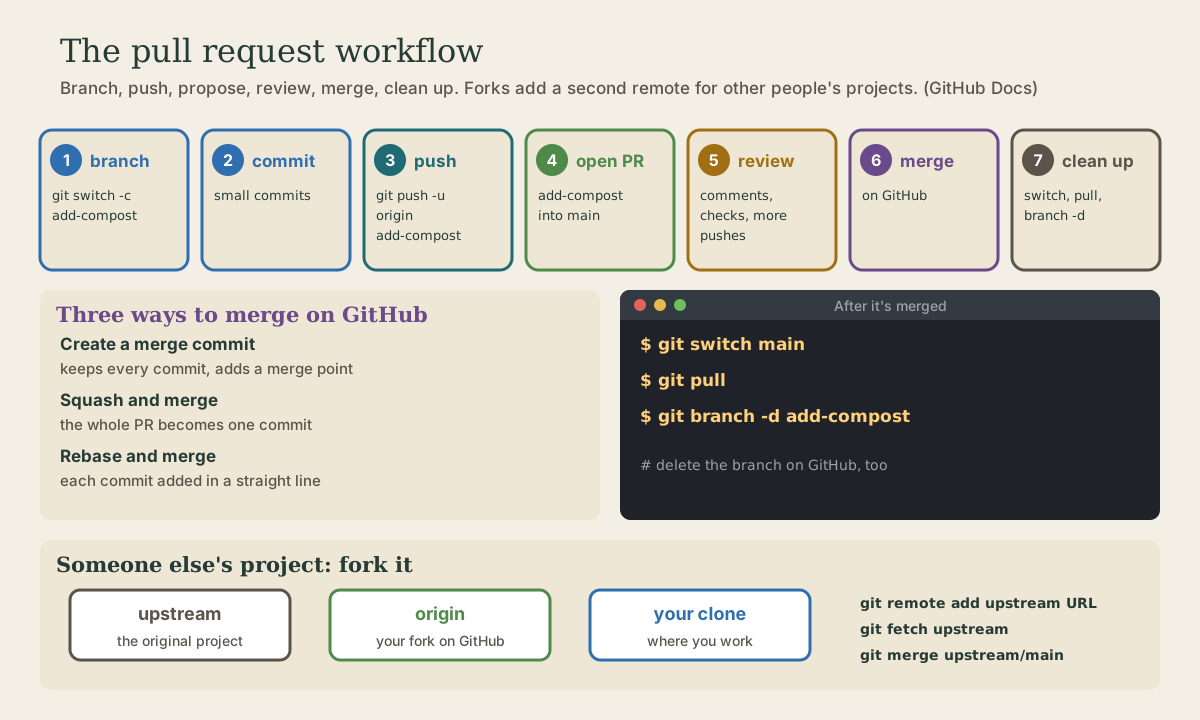
Pull Requests
A pull request proposes merging one branch into another and gathers the discussion, review, and automatic checks around it. The feature-branch workflow step by step: branch, commit, push the branch, open the pull request, review and update it, merge it with a merge commit, a squash, or a rebase, and clean up locally. Contributing to other people's projects through a fork, with origin and upstream remotes.
- 5 min
- 6 steps
- 2 questions
- Lesson 36 of 80
In this lesson
- What a pull request is
- The workflow
- Merging it
- Someone else’s project: forks
- Your turn
- So
Picking up where you left off.
What a pull request is
A pull request is a proposal to merge one branch into another, usually a feature branch into main. GitHub collects everything around that proposal in one place: the description, the commits, the changes line by line, comments and reviews, and the results of automatic checks 1. Nothing is merged until someone approves and clicks merge.
Even working alone, pull requests are useful: they give each change a page you can review in a browser before it lands on main, and a record of why.
The workflow
1. Branch from an up-to-date main 2:
me@linuxbox:~/garden$ git switch main && git pull
me@linuxbox:~/garden$ git switch -c add-compost
2. Commit your work, in small commits (module 2).
3. Push the branch to GitHub; -u sets up tracking so later pushes are just git push 2:
me@linuxbox:~/garden$ git push -u origin add-compost
4. Open the pull request. GitHub shows a banner offering to compare and open one for the branch you just pushed. Choose main as the base, write a title and a description of what and why, and create it 1.
5. Review and update. Reviewers comment on lines and suggest changes; automatic checks (tests, linters) run. To respond, just commit on the same branch and push: the pull request updates itself 1.
6. Merge on GitHub (below).
7. Clean up, on GitHub (the “Delete branch” button) and locally:
me@linuxbox:~/garden$ git switch main
me@linuxbox:~/garden$ git pull                      # bring in the merge
me@linuxbox:~/garden$ git branch -d add-compost
Quick check
A pull request follows its branch, so new pushes show up in it.
Merging it
GitHub offers three ways to merge a pull request 3:
- Create a merge commit: keeps every commit from the branch and adds a merge commit, like
git merge(module 3). - Squash and merge: combines all the branch’s commits into one commit on
main. Good when the branch has messy “WIP” and “fix typo” commits. - Rebase and merge: adds each commit onto
mainone after another, without a merge commit, for a straight history.
Repositories can limit which methods are allowed; pick one convention and stick to it. One catch with squash and rebase: the commits on main aren’t the same commits as your branch’s, so git branch -d may say the branch isn’t fully merged. Once you’ve checked it’s on main, delete it with -D.
Quick check
Handy when the branch has messy work-in-progress commits.
Someone else’s project: forks
You can’t push branches to a project you don’t belong to. Instead you fork it: GitHub makes your own copy of the repository under your account 4. Then:
- Clone your fork; it becomes
origin. -
Add the original as a second remote, conventionally called
upstream4:me@linuxbox:~/project$ git remote add upstream https://github.com/original-owner/project.git me@linuxbox:~/project$ git remote -v origin git@github.com:you/project.git (fetch) origin git@github.com:you/project.git (push) upstream https://github.com/original-owner/project.git (fetch) upstream https://github.com/original-owner/project.git (push) -
Branch, commit, and push to your fork (
origin), then open a pull request from your fork’s branch to the original repository. - Stay up to date with the original 4:
me@linuxbox:~/project$ git fetch upstream
me@linuxbox:~/project$ git switch main
me@linuxbox:~/project$ git merge upstream/main
me@linuxbox:~/project$ git push
Read a project’s CONTRIBUTING file before you start; most say how they want pull requests written.
Your turn
Exercises
- In your GitHub
gardenrepository, make a branch, commit two changes, push it, and open a pull request intomain. - Review your own pull request: read the “Files changed” tab and leave a comment on one line.
- Push one more commit to the branch and watch the pull request update.
- Merge it with “Squash and merge,” delete the branch on GitHub, then update and clean up locally.
- Look at the pull requests tab of any large open-source project on GitHub and read one merged pull request from start to finish.
Answers
- The new commit appears in the pull request’s commit list and the changes view, with no need to reopen anything.
- After
git switch mainandgit pull,git log --onelineshows one squashed commit.git branch -dmay refuse, because the squashed commit isn’t one of your branch’s commits; once you’ve confirmed the change is onmain,git branch -Ddeletes it. - You’ll see the description, review comments, follow-up commits, check results, and the final merge.
So
A pull request proposes merging a branch and gathers review and checks around it. Branch from an up-to-date main, commit, git push -u origin the branch, open the pull request, push fixes to the same branch, merge (merge commit, squash, or rebase), then switch to main, pull, and delete the branch. For other people’s projects, fork, add upstream, and keep in sync with git fetch upstream.
Lesson complete
Nice work.
Sources for this lesson
- 1Pull requests. GitHub Docs. verifiedPull requests are proposals to merge code changes into a project, GitHub's key collaboration feature for discussing and reviewing changes before merging. A pull request gathers the description, timeline, comments, reviews, commits, and checks; pushing to its branch updates it.
- 2Scott Chacon, Ben Straub. Pro Git, 2nd edition. Apress; free online at git-scm.com. 2014. verifiedFree CC BY-NC-SA 3.0 book, maintained online. Ch. 1: version control; Git's 2005 origin when the Linux kernel lost free use of BitKeeper; snapshots, not differences (unchanged files stored once); nearly every operation local; integrity through 40-character SHA-1 checksums; the three states (modified, staged, committed) and three areas (working tree, staging area or index, .git directory); first-time setup with system/global/local config levels, user.name and user.email baked into commits, core.editor, git config --list --show-origin. Ch. 2: git init, status (and -s), add, diff and diff --staged, commit (-m, -a), .gitignore, log options, amending, undoing, remotes, tags, aliases. Ch. 3: branches as movable pointers, HEAD, merging and conflicts, remote branches, rebasing and its rule. Ch. 7: reset demystified, stashing, revision selection. Ch. 8: core.autocrlf true on Windows, input on Linux and macOS. Ch. 10: objects (blob, tree, commit) and references.
- 3About pull request merges. GitHub Docs. verifiedThree strategies: merge commit (preserves every commit from the branch and adds an explicit merge point; the default button), squash and merge (combines all the pull request's commits into a single commit on the base branch), and rebase and merge (adds each commit onto the base branch without a merge commit, for linear history).
- 4Fork a repository. GitHub Docs. verifiedA fork lets you propose changes to a project without affecting the upstream repository. Clone your fork, configure the original as a remote named upstream (git remote add upstream URL, check with git remote -v), and sync your fork with the upstream repository regularly.