Ignoring Files and Reading History
Keep logs, build output, and secrets out of a repository with .gitignore: wildcards, folder patterns, anchored paths, and exceptions, plus a personal ignore file for every repository and git check-ignore to see which rule matched. Then the history tools: log with --oneline, --graph, -p, --stat, a path, -S, --since, --author, and --grep; show for one commit; and blame for who changed each line.
- 5 min
- 6 steps
- 2 questions
- Lesson 29 of 80
In this lesson
- .gitignore
- Reading history
- Searching history
- One commit, one line
- Your turn
- So
Picking up where you left off.
.gitignore
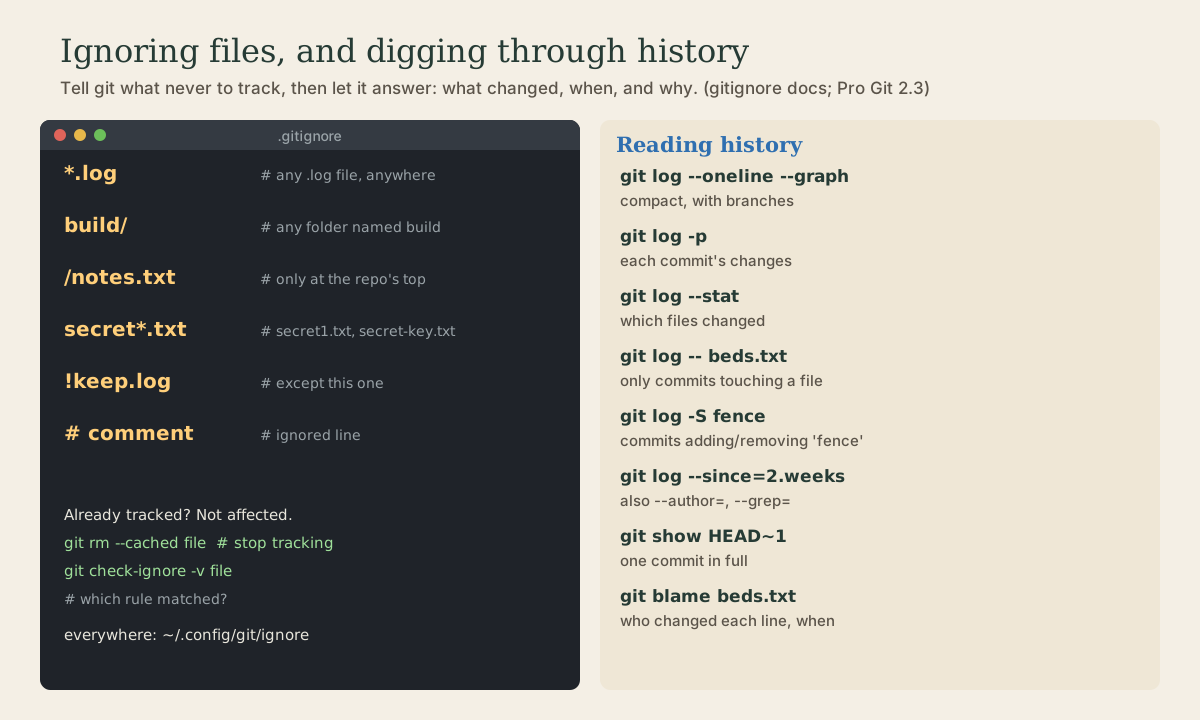
Some files should never be committed: logs, build output, editor backup files, downloaded dependencies, and above all secrets like passwords and keys. List patterns for them in a file named .gitignore at the top of the repository, and commit it, so the rules travel with the project 1 2.
# logs and editor leftovers
*.log
*~
*.swp

# build output, in any folder
build/

# only the notes.txt at the top level
/notes.txt

# local secrets, but keep the example file
.env
!.env.example
The rules 2:
#starts a comment; blank lines are ignored.- Wildcards work as in the shell:
*.log,secret*.txt,photo?.jpg. - A pattern ending in
/matches only directories:build/. - A pattern with a
/at the start or middle is relative to the folder the.gitignoreis in:/notes.txtmeans only the top-level one,docs/draft.mdonly that path. Without a slash, it matches at any depth. **matches across folders:logs/**/*.txt.- A leading
!makes an exception, re-including something an earlier pattern excluded.
Untracked files that match no longer show up in git status, and git add . skips them.
Ignore rules don’t affect files git already tracks 1. If you committed something you shouldn’t have, stop tracking it while keeping it on disk, then commit:
me@linuxbox:~/garden$ git rm --cached debug.log
me@linuxbox:~/garden$ git commit -m "Stop tracking debug.log"
If what you committed was a password or key, removing it doesn’t help: it’s still in history, and in every copy of the repository. Change the password or replace the key.
To see which rule ignores a file:
me@linuxbox:~/garden$ git check-ignore -v build/out.txt
.gitignore:7:build/ build/out.txt
Patterns for your machine and habits, in every repository, like your editor’s backup files, go in ~/.config/git/ignore, which git reads by default 2.
Quick check
*.log to .gitignore, but debug.log, committed last week, still shows changes. Why?--cached removes it from the repository but leaves the file on your disk.
Reading history
git log has many options; these are the ones worth knowing 1:
me@linuxbox:~/garden$ git log --oneline --graph       # compact; shows branches (module 3)
me@linuxbox:~/garden$ git log -p -2                   # the last two commits, with their changes
me@linuxbox:~/garden$ git log --stat                  # which files each commit touched
me@linuxbox:~/garden$ git log -- beds.txt             # only commits that changed beds.txt
--stat gives a quick summary:
me@linuxbox:~/garden$ git log --stat -1
commit 11bf5331f9afdf0c3eb7804dfbb149dc46d7e4a3
Author: Me <me@example.com>
Date:   Mon Oct 5 11:10:00 2026 -0500

    Add lettuce

 beds.txt | 1 +
 1 file changed, 1 insertion(+)
The -- before a path tells git that what follows is a file name, not a branch or option 1.
Searching history
git log -S wordfinds commits whose changes added or removed that text; Pro Git calls it the “pickaxe” 1.git log --grep=wordsearches commit messages.--since=2.weeks,--until=2026-09-01, and--author=namenarrow by date and person 1.
me@linuxbox:~/garden$ git log -S fence --oneline
3d80cdb Plan the fence
Quick check
-S searches the changes themselves; --grep searches commit messages.
One commit, one line
git show displays a single commit, its message and its changes. Name commits by ID, or relative to where you are: HEAD is the current commit, HEAD~1 the one before it, HEAD~3 three back 1.
me@linuxbox:~/garden$ git show --stat --oneline HEAD~1
3ce82ab Describe the beds in the README
 README.md | 2 ++
 1 file changed, 2 insertions(+)
git blame shows, for each line of a file, which commit last changed it, who, and when 1:
me@linuxbox:~/garden$ git blame beds.txt
^adc6083 (Me 2026-10-05 09:00:00 -0500 1) tomatoes
^adc6083 (Me 2026-10-05 09:00:00 -0500 2) beans
82d8b55c (Me 2026-10-05 09:20:00 -0500 3) carrots
c2ee0569 (Me 2026-10-05 10:00:00 -0500 4) peas
11bf5331 (Me 2026-10-05 11:10:00 -0500 5) lettuce
The ^ marks lines from the very first commit. Then git show 82d8b55c tells you why that line was added, which is where good commit messages pay off.
Your turn
Exercises
- Add a
.gitignoreto~/shell-coursethat ignores*.log,backup-test/, and*~. Check withgit statusandgit check-ignore -v. - Create
~/.config/git/ignorewith*.swpand*~(vim and editor leftovers). - In
garden, list only the commits that changedbeds.txt, one line each. - Use
git log -Sto find whencarrotsappeared, thengit showthat commit. - Use
git blameon a file, pick a line, and show the commit that last changed it.
Answers
- The three patterns on separate lines; then
touch test.log && git check-ignore -v test.logprints.gitignore:1:*.log test.log. Commit the.gitignoreitself. mkdir -p ~/.config/gitthen put the two patterns in~/.config/git/ignore. It applies to every repository, and isn’t committed anywhere (module 7 puts it in your dotfiles).git log --oneline -- beds.txt. Options go before the--; everything after it is a path.git log -S carrots --oneline, thengit show <id>.git blame file, thengit show <id>for the commit on the line you chose.
So
.gitignore keeps logs, build output, and secrets out of the repository, with wildcards, trailing / for folders, leading / for top-level paths, and ! for exceptions; it doesn’t affect files already tracked, so use git rm --cached for those. git log with --oneline, -p, --stat, a path, -S, and --grep answers most history questions, and git show and git blame zoom in.
Lesson complete
Nice work.
Sources for this lesson
- 1Scott Chacon, Ben Straub. Pro Git, 2nd edition. Apress; free online at git-scm.com. 2014. verifiedFree CC BY-NC-SA 3.0 book, maintained online. Ch. 1: version control; Git's 2005 origin when the Linux kernel lost free use of BitKeeper; snapshots, not differences (unchanged files stored once); nearly every operation local; integrity through 40-character SHA-1 checksums; the three states (modified, staged, committed) and three areas (working tree, staging area or index, .git directory); first-time setup with system/global/local config levels, user.name and user.email baked into commits, core.editor, git config --list --show-origin. Ch. 2: git init, status (and -s), add, diff and diff --staged, commit (-m, -a), .gitignore, log options, amending, undoing, remotes, tags, aliases. Ch. 3: branches as movable pointers, HEAD, merging and conflicts, remote branches, rebasing and its rule. Ch. 7: reset demystified, stashing, revision selection. Ch. 8: core.autocrlf true on Windows, input on Linux and macOS. Ch. 10: objects (blob, tree, commit) and references.
- 2gitignore documentation. Git project (git-scm.com). verifiedPatterns in .gitignore files, .git/info/exclude, and the file named by core.excludesFile (default $XDG_CONFIG_HOME/git/ignore, else ~/.config/git/ignore). Blank lines separate; # comments; ! negates a previous exclusion; a trailing / matches only directories; a / at the beginning or middle anchors the pattern to the .gitignore's directory; ** matches across directories. Files already tracked are not affected.