Staging and Committing Well
Good history is made of small commits, each one logical change, with messages that say what it does. Stage part of a file with git add -p, check for whitespace mistakes with git diff --check, write a summary line of about 50 characters in the imperative with a wrapped body, and move or delete tracked files with git mv and git rm.
- 5 min
- 7 steps
- 2 questions
- Lesson 28 of 80
In this lesson
- Small, logical commits
- Staging part of a file
- Writing the message
- Checking before you commit
- Moving and deleting files
- Your turn
- So
Picking up where you left off.
Small, logical commits
The history you build is something you’ll read later, to find when something changed, to undo one change without losing others, or to understand why. That works best when each commit holds one logical change: a new feature, a fix, a rearrangement, but not all three at once 1. If you’ve done several things since your last commit, commit them separately.
The staging area is what makes that possible: you choose exactly what goes into each commit.
Staging part of a file
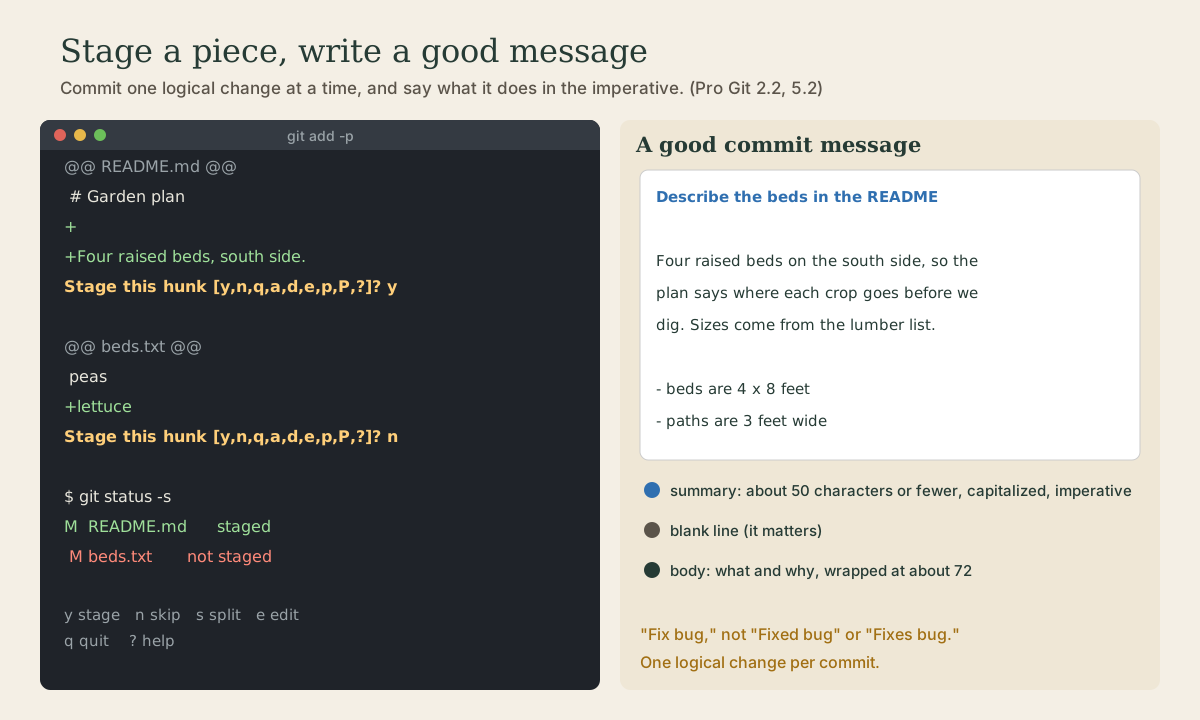
git add -p (“patch”) walks through your changes one hunk (a block of changed lines) at a time and asks about each 1:
me@linuxbox:~/garden$ git add -p
diff --git a/README.md b/README.md
@@ -1 +1,3 @@
 # Garden plan
+
+Four raised beds, south side.
(1/1) Stage this hunk [y,n,q,a,d,e,p,P,?]? y
diff --git a/beds.txt b/beds.txt
@@ -2,3 +2,4 @@ tomatoes
 beans
 carrots
 peas
+lettuce
(1/1) Stage this hunk [y,n,q,a,d,e,p,P,?]? n
me@linuxbox:~/garden$ git status -s
M  README.md
 M beds.txt
The answers you’ll use: y stage this hunk, n skip it, s split it into smaller hunks, e edit it by hand, q quit, and ? for the rest 1. Now git commit saves only the README change; the lettuce waits for its own commit.
git add -p is also a good review: you read every change before it’s committed. Many people use it instead of git add all the time.
Quick check
The staging area holds exactly what you choose, down to single lines with the s and e answers.
Writing the message
Pro Git’s guidelines, adapted from a widely used template 1:
- A summary line of about 50 characters or fewer, capitalized, with no period.
- Written in the imperative: “Fix bug,” not “Fixed bug” or “Fixes bug.” That matches the messages git itself writes, like “Merge branch…” and “Revert…”.
- A blank line, then, if it’s needed, a body wrapped at about 72 characters, saying what changed and why. Bullet points are fine.
Describe the beds in the README

Four raised beds on the south side, so the plan says where each crop
goes before we dig. Sizes come from the lumber list.

- beds are 4 x 8 feet
- paths are 3 feet wide
For a message with a body, leave off -m: git commit opens your editor with the staged changes listed as comments at the bottom, a last chance to check. A good test of the summary: does it finish the sentence “If applied, this commit will…”?
Quick check
Capitalized, imperative, short, and about one change.
Checking before you commit
Before committing, two quick checks 1:
me@linuxbox:~/garden$ git diff --staged          # exactly what will be committed
me@linuxbox:~/garden$ git diff --staged --check   # trailing spaces and other whitespace errors
--check flags stray spaces at line ends and similar problems that make later diffs noisy; plain git diff --check checks your unstaged changes instead 1.
Moving and deleting files
To delete a tracked file, git rm file removes it and stages the removal in one step. To rename or move one, git mv old new 1:
me@linuxbox:~/garden$ git mv fence.txt fence-plan.txt
me@linuxbox:~/garden$ git status -s
R  fence.txt -> fence-plan.txt
Git doesn’t actually record renames; it notices them, because the new file’s contents match the old one’s. So deleting and adding by hand works too, but git mv is one step instead of three 1.
Your turn
Exercises
- In your
gardenrepository, make two unrelated changes to the same file. Commit them as two separate commits withgit add -p. - Try the
sanswer on a hunk with two separate changed lines close together. What happens? - Write a commit with a body: run
git commitwithout-m, write a summary, a blank line, and two lines of explanation. Check it withgit log -1. - Add a line with trailing spaces and run
git diff --check. Then stage it and rungit diff --staged --check. - Rename a file with
git mv, commit, and look atgit log --stat -1.
Answers
- If the hunk has unchanged lines between the changes,
ssplits it into smaller hunks you can answer one by one. If the changes are touching, it can’t split, andelets you edit the hunk to pick lines. git log -1shows the summary and body separately;git log --onelineshows only the summary, which is why the summary must stand on its own.- Both print the file and line number with
trailing whitespace. - The stat line shows
fence.txt => fence-plan.txt, a rename.
So
Commit one logical change at a time, using git add -p to stage exactly the hunks that belong together. Write a short, capitalized, imperative summary line, a blank line, and a body that explains why. Check with git diff --staged and git diff --check, and use git mv and git rm for renames and deletions.
Lesson complete
Nice work.
Sources for this lesson
- 1Scott Chacon, Ben Straub. Pro Git, 2nd edition. Apress; free online at git-scm.com. 2014. verifiedFree CC BY-NC-SA 3.0 book, maintained online. Ch. 1: version control; Git's 2005 origin when the Linux kernel lost free use of BitKeeper; snapshots, not differences (unchanged files stored once); nearly every operation local; integrity through 40-character SHA-1 checksums; the three states (modified, staged, committed) and three areas (working tree, staging area or index, .git directory); first-time setup with system/global/local config levels, user.name and user.email baked into commits, core.editor, git config --list --show-origin. Ch. 2: git init, status (and -s), add, diff and diff --staged, commit (-m, -a), .gitignore, log options, amending, undoing, remotes, tags, aliases. Ch. 3: branches as movable pointers, HEAD, merging and conflicts, remote branches, rebasing and its rule. Ch. 7: reset demystified, stashing, revision selection. Ch. 8: core.autocrlf true on Windows, input on Linux and macOS. Ch. 10: objects (blob, tree, commit) and references.