Undoing Changes
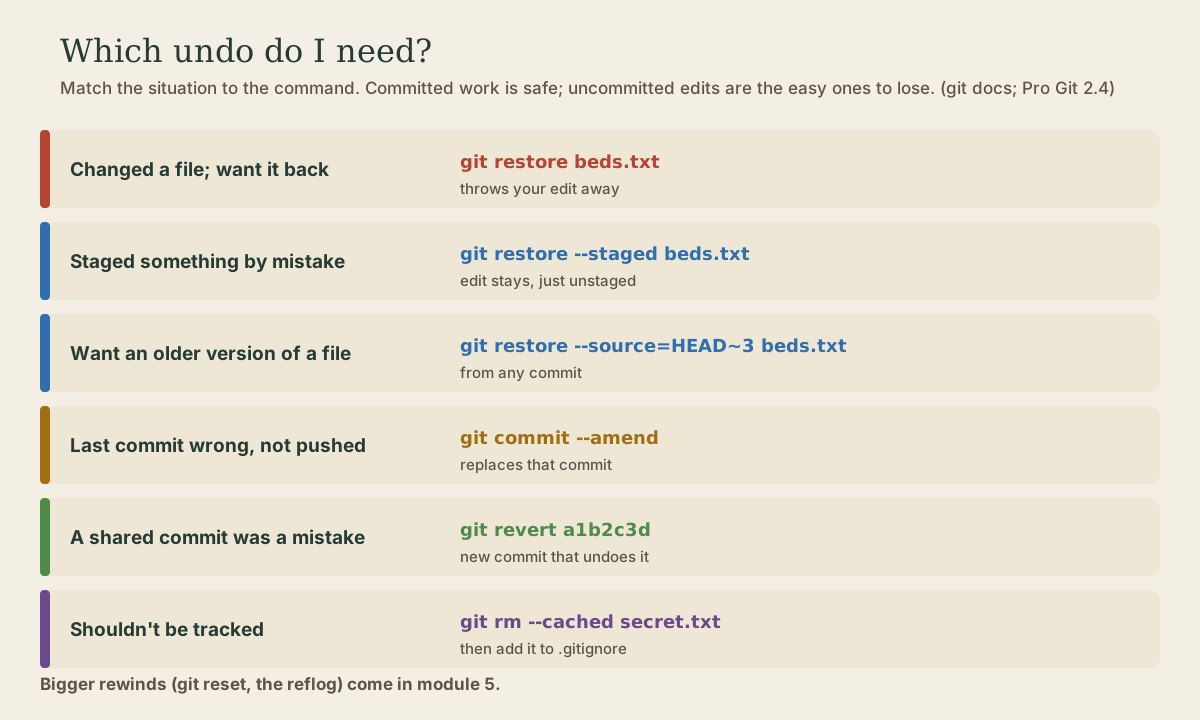
The everyday undos, matched to the situation: git restore to throw away an edit, git restore --staged to unstage, git restore --source to bring back an old version of a file, git commit --amend to fix the last commit before you push it, git revert to undo a commit that's already shared, and git rm --cached to stop tracking a file. Which of these can lose work, and why committed work is hard to lose.
- 5 min
- 9 steps
- 2 questions
- Lesson 30 of 80
In this lesson
- Throwing away an edit
- Unstaging
- An older version of a file
- Fixing the last commit
- Undoing a shared commit
- Stop tracking a file
- Committed work is hard to lose
- Your turn
- So
Picking up where you left off.
Throwing away an edit
You changed a file and want it back the way it was. git restore replaces your working copy with the staged version, or the last committed one if nothing’s staged 1:
me@linuxbox:~/garden$ echo oops >> beds.txt
me@linuxbox:~/garden$ git restore beds.txt
me@linuxbox:~/garden$ git status -s
me@linuxbox:~/garden$
This is one of the few git commands that can destroy work. An edit you never committed or staged isn’t stored anywhere else, so once it’s overwritten it’s gone 2. Run git diff first to see what you’d lose. git status even prints this command as a hint, so take a second before pasting it. git restore . does every file at once.
(Older guides use git checkout -- file for the same job. Git 2.23 split git checkout’s two jobs into git switch, for changing branches, and git restore, for restoring files 3.)
Quick check
Restoring overwrites your working copy. Edits that were never committed or staged aren’t stored anywhere else.
Unstaging
You git added something that doesn’t belong in the next commit. git restore --staged takes it back out of the staging area and leaves your edit alone 1:
me@linuxbox:~/garden$ git add beds.txt README.md
me@linuxbox:~/garden$ git restore --staged README.md
me@linuxbox:~/garden$ git status -s
M  beds.txt
 M README.md
Nothing is lost; README.md is just unstaged again.
An older version of a file
To bring back a file as it was in any earlier commit, add --source 1:
me@linuxbox:~/garden$ git restore --source=HEAD~3 beds.txt     # as it was three commits ago
me@linuxbox:~/garden$ git restore --source=adc6083 README.md   # as it was in that commit
It changes only your working copy; commit it if you want to keep the old version. (HEAD~3 means “three commits before the current one” 2.)
Fixing the last commit
Forgot a file, or made a typo in the message? git commit --amend replaces the last commit with a new one made from the staging area 2:
me@linuxbox:~/garden$ git commit -m "Plan the fence"
me@linuxbox:~/garden$ git add fence-posts.txt                # forgot this one
me@linuxbox:~/garden$ git commit --amend --no-edit           # same message, now with the file
me@linuxbox:~/garden$ git commit --amend -m "Plan the fence and posts"   # or reword it
Amending doesn’t edit the old commit; it makes a new commit with a new ID and drops the old one from your branch 2. That’s harmless for commits only you have. Only amend commits you haven’t pushed: if someone else already has the old commit, amending and force-pushing causes them real trouble 2.
Undoing a shared commit
To undo a commit that’s already been shared, don’t rewrite history; add to it. git revert creates a new commit that does the opposite of an earlier one 4:
me@linuxbox:~/garden$ git revert --no-edit HEAD
[main d758bab] Revert "Add lettuce"
 1 file changed, 1 deletion(-)
me@linuxbox:~/garden$ git log --oneline -3
d758bab Revert "Add lettuce"
11bf533 Add lettuce
3ce82ab Describe the beds in the README
The mistake and its reversal both stay in history, with a message saying so, and everyone’s copies stay consistent. Revert any commit by ID, not just the last one 4.
Quick check
revert doesn’t rewrite shared history, so other people’s copies stay consistent.
Stop tracking a file
To remove a file from the repository but keep it on disk, git rm --cached, then add it to .gitignore so it isn’t added again (last lesson) 2.
Committed work is hard to lose
Notice the pattern: the commands that can lose work act on uncommitted changes. Once something is committed, git keeps it, even after amending, and module 5 shows how to get back commits you thought you’d thrown away 2. So commit early and often, even messy work in progress; you can tidy it up later.
Your turn
Exercises
- Make a change to
beds.txt, look at it withgit diff, then throw it away withgit restore. - Stage two files, then unstage one with
git restore --staged. Check withgit status -s. - Bring back
beds.txtas it was in your very first commit, look at it, then return it to normal withgit restore beds.txt. (Why does that work?) - Make a commit, then amend it to add a forgotten file. Compare
git log --onelinebefore and after: did the ID change? - Revert one of your earlier commits, and read the message git writes.
Answers
git restore --source=<first-commit-id> beds.txtchanges only the working copy; the staging area still holds the current version, so a plaingit restore beds.txtcopies that back.- Yes: amending makes a new commit with a new ID.
Revert "<original summary>", with a body sayingThis reverts commit <full id>.
So
git restore throws away uncommitted edits (carefully), --staged unstages, and --source brings back any old version. git commit --amend fixes the last commit before you push it; git revert undoes a shared commit by adding a new one; git rm --cached stops tracking a file. Commit often: committed work is hard to lose.
Lesson complete
Nice work.
Sources for this lesson
- 1git-restore documentation. Git project (git-scm.com). verifiedRestores working-tree files from the index by default, or from HEAD with --staged (which restores the index, i.e. unstages); --staged --worktree does both; --source=<tree> restores from any commit.
- 2Scott Chacon, Ben Straub. Pro Git, 2nd edition. Apress; free online at git-scm.com. 2014. verifiedFree CC BY-NC-SA 3.0 book, maintained online. Ch. 1: version control; Git's 2005 origin when the Linux kernel lost free use of BitKeeper; snapshots, not differences (unchanged files stored once); nearly every operation local; integrity through 40-character SHA-1 checksums; the three states (modified, staged, committed) and three areas (working tree, staging area or index, .git directory); first-time setup with system/global/local config levels, user.name and user.email baked into commits, core.editor, git config --list --show-origin. Ch. 2: git init, status (and -s), add, diff and diff --staged, commit (-m, -a), .gitignore, log options, amending, undoing, remotes, tags, aliases. Ch. 3: branches as movable pointers, HEAD, merging and conflicts, remote branches, rebasing and its rule. Ch. 7: reset demystified, stashing, revision selection. Ch. 8: core.autocrlf true on Windows, input on Linux and macOS. Ch. 10: objects (blob, tree, commit) and references.
- 3Git 2.23 Release Notes. Git project. verifiedTwo new commands, git switch and git restore, split checking out a branch to work on from checking out paths out of the index or a tree, the two jobs git checkout had done.
- 4git-revert documentation. Git project (git-scm.com). verifiedGiven existing commits, revert the changes they introduce by recording new commits; requires a clean working tree; --no-edit skips the message editor. Distinct from reset (which moves a branch) and restore (which changes files).