Distributions and Releases
Linux on a desktop comes as a distribution: the kernel plus tools, a package manager, a desktop, an installer, and years of updates. How releases and long-term support work, using Ubuntu's two-year LTS cycle and five years of updates as the example; four good choices, Ubuntu 26.04 LTS, Linux Mint, Fedora, and Debian, and why this course uses Ubuntu LTS; what hardware you need; and the stepping stones from WSL to a full switch.
- 6 min
- 7 steps
- 2 questions
- Lesson 44 of 80
In this lesson
- What a distribution is
- Releases and support
- Four good choices
- What you need
- Ways in
- Your turn
- So
Picking up where you left off.
What a distribution is
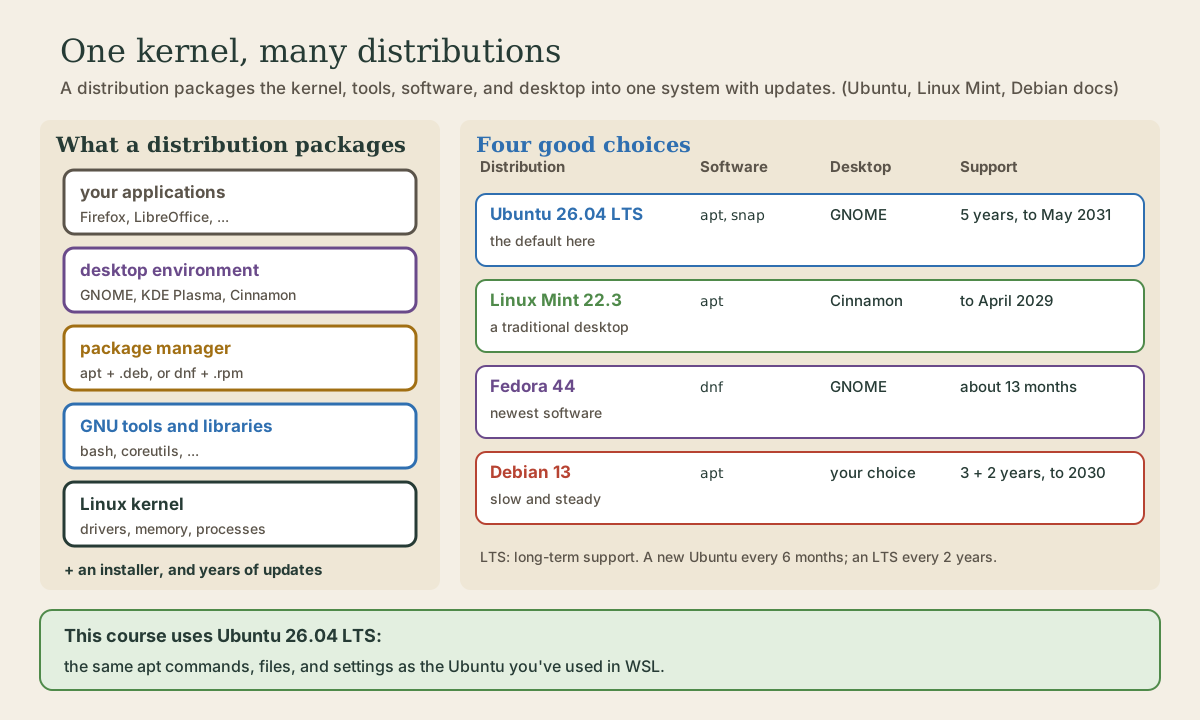
Strictly, Linux is only the kernel: the core program that runs the hardware, memory, and processes. Nobody installs a bare kernel. What you install is a distribution, or distro: the kernel plus a package manager, an init system (on most, systemd), GNU tools and libraries, documentation, networking utilities, a graphical desktop, and the applications on top 1. The distribution’s makers choose all those pieces, build them to work together, write an installer, and keep publishing updates.
That’s why “which Linux?” is really two questions: which distribution (where your software and updates come from), and which desktop environment (what the screen looks like). GNOME, KDE Plasma, and Cinnamon are the common desktops; most distributions offer more than one.
The commands from the Shell course work the same on all of them: bash, coreutils, permissions, pipes, scripts. The visible differences are the package manager (apt on Debian, Ubuntu, and Mint; dnf on Fedora), the desktop, and how often new versions arrive.
Releases and support
Distributions release new versions on a schedule, and each version gets security updates for a fixed time. Ubuntu is a good example 2:
- A new Ubuntu comes out every six months, numbered by year and month: 26.04 came out in April 2026, codenamed Resolute Raccoon.
- Interim releases (the October ones, and the April ones in odd years) get nine months of updates. They have the newest software but mean upgrading often.
- Every two years, the April release is an LTS, long-term support: five years of standard security updates. Ubuntu 26.04 LTS is covered until May 2031 2.
- Ubuntu Pro, free for personal use on up to five machines, extends an LTS to ten years of security updates, and covers the larger
universecollection of packages too 2.
Point releases like 26.04.1 are the same release with the updates so far rolled into a fresh installer; the current download is Ubuntu 26.04.1 LTS 3.
For a computer you just want to work, an LTS is the sensible choice: install once, update weekly, and move to the next LTS when you’re ready, every two to four years.
Quick check
Interim releases get nine months; LTS releases get five years, and up to fifteen with Ubuntu Pro.
Four good choices
There are hundreds of distributions. For a first everyday system, four stand out:
- Ubuntu 26.04 LTS, with the GNOME desktop and the Linux 7.0 kernel, installs software with
aptand snaps, and has five years of updates 3 2. It’s the most widely documented desktop Linux, and the one this course uses. - Linux Mint builds on Ubuntu LTS with its own Cinnamon desktop, a traditional layout with a menu and taskbar. Mint 22.3 is based on Ubuntu 24.04 and supported until April 2029 4. Nearly everything in this course applies to Mint too.
- Fedora ships newer software sooner. A new version comes roughly every six months and each is supported for at least about 13 months, so you upgrade about once a year; Fedora 44 came out in April 2026 5. Its package manager is
dnf. - Debian is the distribution Ubuntu is built from, known for being conservative and stable. Debian 13, trixie, came out in August 2025, with three years of full support and two more of long-term support, to 2030 6.
This course uses Ubuntu LTS for one practical reason: it’s what you’ve been using under WSL. The package names, file locations, apt commands, and the default ~/.bashrc you’ve already seen are the same on the desktop version. You can always try another distribution later; your skills and your dotfiles come with you.
Quick check
Mint, Fedora, and Debian are fine choices too; most of the course applies to them, with small differences in package commands.
What you need
Ubuntu Desktop 26.04 asks for a 2 GHz dual-core processor, 6 GB of memory, and 25 GB of disk space, plus a USB port for the installer 3. More memory helps with a web browser open, and an SSD makes everything faster than a spinning hard disk.
Ubuntu works on a wide range of PCs, and Canonical keeps a list of certified hardware that’s been tested with it 7. If yours isn’t on the list, the next lesson shows how to check it without installing anything. Two things to know in advance: computers with NVIDIA graphics work best with NVIDIA’s own driver, which the installer can add; and Apple’s M-series Macs aren’t supported by Ubuntu itself 7.
Ways in
There’s no need to jump all at once. A sensible path, each step a little more committed:
- WSL, which you already have: Linux commands and files, with Windows for everything else.
- A live USB stick (next lesson): a full Ubuntu desktop running from the stick, changing nothing.
- A spare computer: an old laptop with Ubuntu as its only system is the best practice ground, and later a home server (this course’s project).
- Alongside Windows on your main computer, choosing at startup (lesson 3).
- Linux only, keeping Windows around on another drive or in a virtual machine for anything that truly needs it.
Your turn
Exercises
- In WSL, run
cat /etc/os-release. Which Ubuntu version are you on, and is it an LTS? - On Ubuntu’s release cycle page, find when your WSL version’s standard security updates end.
- Look up your computer’s processor, memory, and storage in Windows (Settings, System, About). Does it meet Ubuntu 26.04’s requirements? Is the disk an SSD?
- Look at screenshots of GNOME (Ubuntu), Cinnamon (Mint), and KDE Plasma. Which would you rather use every day?
- Decide which step of “Ways in” you’ll take next, and on which computer.
Answers
- The
VERSIONline names the release, for example26.04.1 LTS (Resolute Raccoon)or a 24.04 LTS (Noble Numbat). An LTS has “LTS” in the name and an April (.04) version from an even year. - 24.04 LTS: May 2029. 26.04 LTS: May 2031.
- You need at least 6 GB of memory and 25 GB free. Task Manager’s Performance tab shows the disk type (SSD or HDD).
- Any of them is fine. The desktop is the easiest thing to change later, even on the same distribution.
So
A distribution is the Linux kernel plus the tools, package manager, desktop, installer, and updates around it. Releases come on a schedule with a fixed support period; Ubuntu LTS releases arrive every two years with five years of updates, and 26.04 LTS is covered to May 2031. Ubuntu LTS, Linux Mint, Fedora, and Debian are all good first choices; this course uses Ubuntu LTS because it matches your WSL setup. You need 6 GB of memory and 25 GB of disk, and you can move over in steps, from WSL to a live USB to a spare computer to a full switch.
Lesson complete
Nice work.
Sources for this lesson
- 1Linux distribution. Wikipedia. verifiedA distro includes the Linux kernel and, commonly, a package manager, an init system such as systemd, GNU tools and libraries, documentation, network utilities, and for desktops a display server, desktop environment, and applications.
- 2Ubuntu release cycle. Canonical. verifiedA new Ubuntu every six months, versioned by year and month; interim releases get 9 months of updates; LTS releases every two years get 5 years of standard security maintenance (26.04 LTS: released April 2026, to May 2031; 24.04 LTS to May 2029). Ubuntu Pro, free for personal use on up to five machines, adds Expanded Security Maintenance to 10 years including Universe; a paid Legacy add-on reaches 15.
- 3Download Ubuntu Desktop. Canonical. verifiedUbuntu 26.04.1 LTS: 5.9 GB image for Intel or AMD 64-bit; GNOME 50, Linux kernel 7.0. Requirements: 2 GHz dual-core processor, 6 GB system memory, 25 GB of free disk space, a USB port or DVD drive for the installer.
- 4Linux Mint: all versions. Linux Mint. verifiedCurrently supported releases: 22.3 Zena (and 22.2, 22.1, 22) on an Ubuntu Noble (24.04) base, LTS supported until April 2029, in Cinnamon, MATE, and Xfce editions; 21.x on Ubuntu Jammy to April 2027; LMDE 7 Gigi on Debian Trixie.
- 5Fedora Linux. Wikipedia. verifiedShort life cycle: version X is supported until one month after X+2 is released, with about six months between versions, so usually at least 13 months. Fedora 44 released 28 April 2026.
- 6Debian releases. Debian. verifiedStable is Debian 13 trixie, first released 9 August 2025 (13.7 on 12 September 2026); end of life 2028-08-09, end of LTS 2030-06-30. The life cycle is five years: three of full support, then two of LTS.
- 7Install Ubuntu Desktop (Ubuntu Desktop documentation). Canonical. verified26.04 LTS tutorial: back up, download the image, write it with Rufus on Windows (SELECT the image, START, ISO Image mode; GPT and UEFI (non CSM) if it won't boot), boot menu key F12 or Esc/F2/F10, Try or Install; Intel RST must be switched to AHCI; default vs extended selection; tick third-party software and media formats; disk setup: erase disk, alongside, or manual; encrypt with a passphrase (keep it safe); BitLocker blocks installing alongside; update with sudo apt update and upgrade afterward. Ubuntu works on a wide range of devices; certified hardware list; Apple Silicon only via the community Asahi project.