Disks, Partitions, and Filesystems
Linux has no drive letters: each file system is mounted somewhere in one directory tree. Disks and their partitions as devices (sda1, nvme0n1p2), listed by lsblk; what a typical Ubuntu disk holds; choosing ext4, exFAT, or NTFS; labels and UUIDs that stay put when device names change; preparing an external drive as an ext4 backup drive with parted and mkfs, double-checking the device every step; and why to unmount before unplugging, and when fsck comes in.
- 8 min
- 8 steps
- 3 questions
- Lesson 53 of 80
In this lesson
- One tree, no drive letters
- Devices and partitions
- Which file system
- Labels and UUIDs
- Preparing a backup drive
- Unmounting, and fsck
- Your turn
- So
Picking up where you left off.
One tree, no drive letters
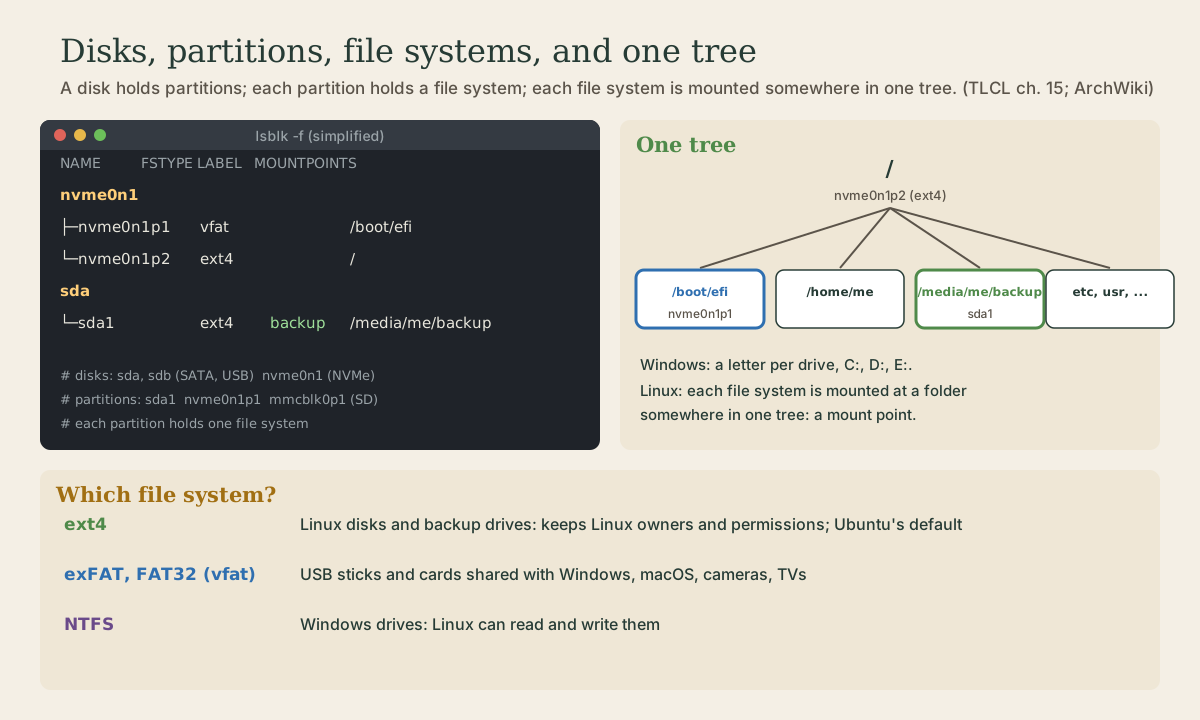
Windows gives each drive its own letter and its own tree: C:\, D:\. Linux has one directory tree, starting at /, and every disk’s file system is attached at some folder in it, a mount point 1. A USB drive doesn’t become E:; it appears as a folder like /media/me/backup. Attaching a file system to the tree is mounting it 1.
Devices and partitions
Each disk is a device file under /dev. The kernel treats SATA disks, USB drives, and similar devices alike, naming them sda, sdb, and so on, and their partitions sda1, sda2 1. NVMe SSDs, common in laptops, are nvme0n1, with partitions nvme0n1p1, nvme0n1p2; SD cards are mmcblk0 with mmcblk0p1 2.
A disk is divided into partitions by a partition table at its start. Current computers use GPT; older ones and many USB sticks use the older MBR (also called msdos) 2. Each partition holds one file system, the structure that turns raw blocks into files and folders.
lsblk lists them all, mounted or not 1 3. From TLCL, on a desktop with two disks and a DVD drive:
[me@linuxbox ~]$ lsblk
NAME   MAJ:MIN RM   SIZE RO TYPE MOUNTPOINTS
sda      8:0    0 111.8G  0 disk
├─sda1   8:1    0   976M  0 part /boot/efi
│                                /
└─sda3   8:3    0  14.9G  0 part [SWAP]
sdb      8:16   0 931.5G  0 disk
├─sdb1   8:17   0 922.2G  0 part /home
└─sdb2   8:18   0   9.3G  0 part
sr0     11:0    1  1024M  0 rom
Read it as a tree: disk sda holds partitions mounted at /boot/efi and /, plus swap; disk sdb holds /home. RM is 1 for removable devices 1. lsblk -f shows file system type, label, UUID, and free space instead 3. On Ubuntu you’ll also see many loop devices; those are snaps, each mounted as a small read-only file system.
A typical single-disk Ubuntu install has a small EFI system partition formatted vfat, mounted at /boot/efi, which holds the boot loader, and a large ext4 partition mounted at /, holding everything else 1.
Quick check
The p2 means partition 2 of NVMe disk nvme0n1. For sd disks the number is added directly: sda1.
Which file system
- ext4: the standard Linux file system and Ubuntu’s default. It keeps Linux owners and permissions, which matters for the system and for backups 1.
- exFAT and FAT32 (Linux calls FAT
vfat): for USB sticks and SD cards shared with Windows, Macs, and cameras 4. They don’t store Linux permissions, and the ArchWiki notes exFAT has no journal, so it’s for carrying files, not for keeping them safe 4. - NTFS: Windows’ file system. Linux reads and writes it, useful for a Windows partition or drive 1.
Labels and UUIDs
Device names come from the order the kernel detects hardware, so they can change: plug in another drive and yesterday’s sdb is today’s sdc 5. A file system carries two names of its own that don’t change:
- a UUID, a long unique ID made when it was formatted;
- a label, a short name you choose, like
backup.
me@garden-laptop:~$ lsblk -f
me@garden-laptop:~$ sudo blkid /dev/sda1
blkid prints a device’s type, label, and UUID 6. Anywhere you configure a drive, such as /etc/fstab in the next lesson, use LABEL= or UUID= rather than a /dev name 5.
Quick check
Plug in another USB drive and yesterday’s sdb may be today’s sdc.
Preparing a backup drive
The Shell course’s backup needs an ext4 drive: rsync --link-dest relies on Linux ownership and permissions, which Windows file systems don’t keep. Here’s how to turn an external drive into one. This erases the drive. TLCL’s warning applies to every step: use the device name your system shows, never one from an example, or you could format the wrong disk 1.
1. Find it, carefully. Run lsblk with the drive unplugged, plug it in, and run it again; the new entry is your drive. Check its size matches 1. In what follows it’s sdX; substitute the real name.
2. Unmount it, since the desktop has probably mounted it: sudo umount /dev/sdX1 (one per mounted partition).
3. Make a fresh partition table and one partition, with parted 1 7:
me@garden-laptop:~$ sudo parted /dev/sdX
(parted) mklabel gpt
(parted) mkpart backup ext4 0% 100%
(parted) print
(parted) quit
mklabel gpt writes a new, empty GPT partition table; mkpart makes one partition, here named backup, from 0% to 100% of the drive; print shows the result before you leave 7. Changes happen as you type each command, and parted takes the whole disk, /dev/sdX, not a partition 1 7.
4. Make the file system, with the label backup 1 8:
me@garden-laptop:~$ sudo mkfs -t ext4 -L backup /dev/sdX1
TLCL’s run of the same command on a 120 GB partition 1:
mke2fs 1.46.5 (30-Dec-2021)
Creating filesystem with 29296640 4k blocks and 7331840 inodes
Filesystem UUID: 3365d135-d8d9-4b93-a57a-ec3567c8548a
Superblock backups stored on blocks:
    32768, 98304, 163840, 229376, 294912, 819200, 884736, 1605632,
    2654208, 4096000, 7962624, 11239424, 20480000, 23887872
Allocating group tables: done
Writing inode tables: done
Creating journal (131072 blocks): done
Writing superblocks and filesystem accounting information: done
By default ext4 sets aside 5% of the space for root, to keep the system working when a disk fills up 8. On a drive used only for backups, -m 1 keeps that to 1%.
The Disks app on the Ubuntu desktop does all of this with buttons, under the menu for the drive and then the gear for the partition. It’s the same steps, and the same need to pick the right drive.
5. Unplug and replug. The desktop mounts it at /media/<you>/backup, named after the label 1. The new file system’s top folder belongs to root, because mkfs ran as root 8; make it yours once with sudo chown $USER: /media/$USER/backup.
Quick check
mkfs erases whatever device you name. The wrong letter means formatting the wrong drive.
Unmounting, and fsck
Linux holds data waiting to be written in memory, to keep things fast. Unmounting writes it all out; pulling a drive without unmounting can lose data or damage the file system 1. Use Eject in the file manager, or:
me@garden-laptop:~$ sudo umount /media/me/backup
If it refuses because the drive is busy, something is still using it: open files, or a terminal whose current directory is on the drive. cd elsewhere and try again 1 9.
If a file system was damaged, say by a power cut, fsck checks and repairs it, run on an unmounted file system 1:
me@garden-laptop:~$ sudo fsck /dev/sdX1
A healthy one reports clean 1. You’ll rarely need it by hand: the system checks file systems at boot, and corruption is rare without failing hardware 1.
Your turn
Exercises
On your Ubuntu system (or a live USB):
lsblkandlsblk -f. Which disk holds/? Is it NVMe or SATA? What file system is/boot/efi?lsblk | grep -v loophides the snaps’ loop devices. How many were there?- Run
lsblk, plug in a USB stick, run it again. What’s its name, and where did the desktop mount it? sudo blkidon that stick’s partition. What’s its type and label?- With a drive you can erase (an old stick or external disk), prepare it as an ext4 drive labelled
backup, then replug it and checklsblk -f. - Open a terminal in the drive’s folder and try to unmount it. Then
cdaway and unmount it properly.
Answers
- A laptop usually shows
nvme0n1, with/on a partition likenvme0n1p2;/boot/efiisvfat. - One per installed snap revision, often a dozen or more on a desktop.
- Usually
sdaorsdb, with its partition mounted under/media/<you>/<label>. - A new stick is usually
TYPE="vfat"or"exfat". lsblk -fshowsext4andbackup, mounted at/media/<you>/backup.- It refuses as busy while your terminal is inside it, and unmounts after
cd ~.
So
Linux has one directory tree; every file system is mounted at a folder in it. Disks appear as sda, nvme0n1, and so on, partitions as sda1 or nvme0n1p1, and lsblk (or lsblk -f) lists them all. Use ext4 for Linux and backups, exFAT or FAT for sticks shared with other devices, NTFS for Windows drives. Device names can change, so identify file systems by label or UUID. To prepare a backup drive, find it with lsblk before and after plugging it in, parted a GPT table and one partition, mkfs -t ext4 -L backup, and chown its top folder. Unmount before unplugging; fsck repairs unmounted file systems.
Lesson complete
Nice work.
Sources for this lesson
- 1William Shotts. The Linux Command Line, Seventh Internet Edition (25.12A). LinuxCommand.org (print edition by No Starch Press). 2026. verifiedFree CC BY-NC-ND 3.0 book, release 25.12A of July 18, 2026. Part 1, Learning the Shell: the shell and terminal emulators, prompts ($ vs. # for the superuser), command history (most distributions keep the last 1,000 commands), Shift-Ctrl-C/V for copy and paste; navigation and the directory tree; exploring the system (ls options and the long listing, file, less, the guided tour of /, symbolic links); manipulating files (wildcards and character classes, mkdir, cp, mv, rm, ln; no undelete, test wildcards with ls first); working with commands (four kinds of commands, type, which, help, --help, man and its sections, apropos, whatis, info, alias); redirection; expansion and quoting; Readline keyboard tricks, completion, history search; permissions; processes. Later parts cover the environment, vi, packages, storage, networking, find, archiving, regular expressions, text processing, and shell scripting.
- 2Partitioning. ArchWiki. verifiedPartition tables: GUID Partition Table (GPT) and the older Master Boot Record (MBR); block device names such as /dev/sda, /dev/nvme0n1 with partitions /dev/nvme0n1p1, and /dev/mmcblk0p1 for SD and eMMC.
- 3lsblk(8) manual page. man7.org (Linux man-pages). verifiedLists block devices; -f/--fs shows NAME, FSTYPE, FSVER, LABEL, UUID, FSAVAIL, FSUSE%, MOUNTPOINTS; -e excludes devices by major number (RAM disks excluded by default).
- 4File systems. ArchWiki. verifiedTable of file systems and their tools: ext4 (e2fsprogs), exFAT (exfatprogs, commonly used for USB flash drives and SD cards), FAT, NTFS, and others; exFAT, ext2, and HFS provide neither journaling nor atomicity and are for temporary or legacy use.
- 5fstab(5) manual page. man7.org (Linux man-pages). verifiedSix fields: device (LABEL= or UUID= recommended, since device names are often a coincidence of hardware detection order and can change), mount point, type, options (defaults, noauto, user, ro/rw; comma-separated), dump, fsck pass (1 for root, 2 for others, 0 for no check); spaces escaped as \040; on systemd systems run systemctl daemon-reload after modifying fstab.
- 6blkid(8) manual page. man7.org (Linux man-pages). verifiedLocates and prints block device attributes: file system type, LABEL, UUID, and partition identifiers.
- 7GNU Parted User Manual. Free Software Foundation. verifiedInteractive commands modify the disk immediately; mklabel label-type (gpt, msdos, ...) creates a new, empty partition table; mkpart [part-type name fs-type] start end creates a partition without a file system (e.g. mklabel gpt, mkpart P1 ext3 1MiB 8MiB); units include % of the device; print shows the table.
- 8mke2fs(8) manual page. man7.org (Linux man-pages). verifiedCreates ext2/3/4 file systems (also as mkfs.ext4); -L sets a volume label of up to 16 bytes; -m sets the percentage reserved for the super-user, default 5%; the root directory's owner defaults to the user running mke2fs (root_owner extended option).
- 9umount(8) manual page. man7.org (Linux man-pages). verifiedDetaches file systems; a file system can't be unmounted while busy, for example with open files or a process whose working directory is on it.