Mounting Drives and /etc/fstab
Seeing what's mounted with findmnt and mount, and mounting and unmounting by hand at a mount point you create. Why the desktop's automatic mounts under /media only happen while you're logged in, and how /etc/fstab mounts a drive at boot, in the same place every time: its six fields, LABEL and UUID, defaults, noauto, nofail, x-systemd.device-timeout, and the fsck order. Testing a change safely with findmnt --verify before rebooting, the .mount units systemd makes from it, and moving the nightly backup to /mnt/backup.
- 6 min
- 10 steps
- 2 questions
- Lesson 54 of 80
In this lesson
- What’s mounted now
- Mounting by hand
- Why the desktop’s mounts aren’t enough
- The six fields
- The options that matter
- Setting up the backup drive
- fstab and systemd
- Pointing the backup at it
- Your turn
- So
Picking up where you left off.
What’s mounted now
me@garden-laptop:~$ findmnt
me@garden-laptop:~$ findmnt /media/me/backup
me@garden-laptop:~$ mount | grep ^/dev
findmnt shows every mounted file system as a tree, with its source device, type, and options 1; give it a path to ask about one. The older mount with no arguments prints a flat list in the form device on mount_point type type (options). On Ubuntu it’s cluttered with snaps’ loop devices, so TLCL suggests mount | grep ^/dev for just the real disks 2. TLCL’s example after plugging in a USB stick:
/dev/sdc on /media/me/C911-C314 type vfat (rw,nosuid,nodev,relatime,
uid=1000,gid=1000,fmask=0022,dmask=0022,codepage=437,iocharset=iso8859-1,
shortname=mixed,showexec,utf8,flush,errors=remount-ro)
The desktop mounted it at /media/me/ under a folder named after its label (or, with no label, its ID), and set it up so user 1000, you, owns the files 2.
Mounting by hand
Any empty folder can be a mount point 2. The convention is a folder under /mnt for things you mount yourself:
me@garden-laptop:~$ sudo mkdir /mnt/backup
me@garden-laptop:~$ sudo mount /dev/sdX1 /mnt/backup
me@garden-laptop:~$ ls /mnt/backup
me@garden-laptop:~$ sudo umount /mnt/backup
mount works out the file system type itself; -t ext4 names it explicitly 3 2. Mounting on a folder that has files in it hides them until you unmount; they’re not lost 2.
Why the desktop’s mounts aren’t enough
The automatic mounts under /media/<you>/ happen when you’re logged in to the desktop and plug something in. On a computer nobody’s logged in to, such as the home server this course ends with, or for last module’s backup timer running with lingering, nothing mounts the drive, and the backup script rightly refuses to run without it. And the folder name depends on the label, so a different drive or a re-format moves it.
The answer is /etc/fstab, the file system table: a list of what to mount at boot, and where 4 2.
The six fields
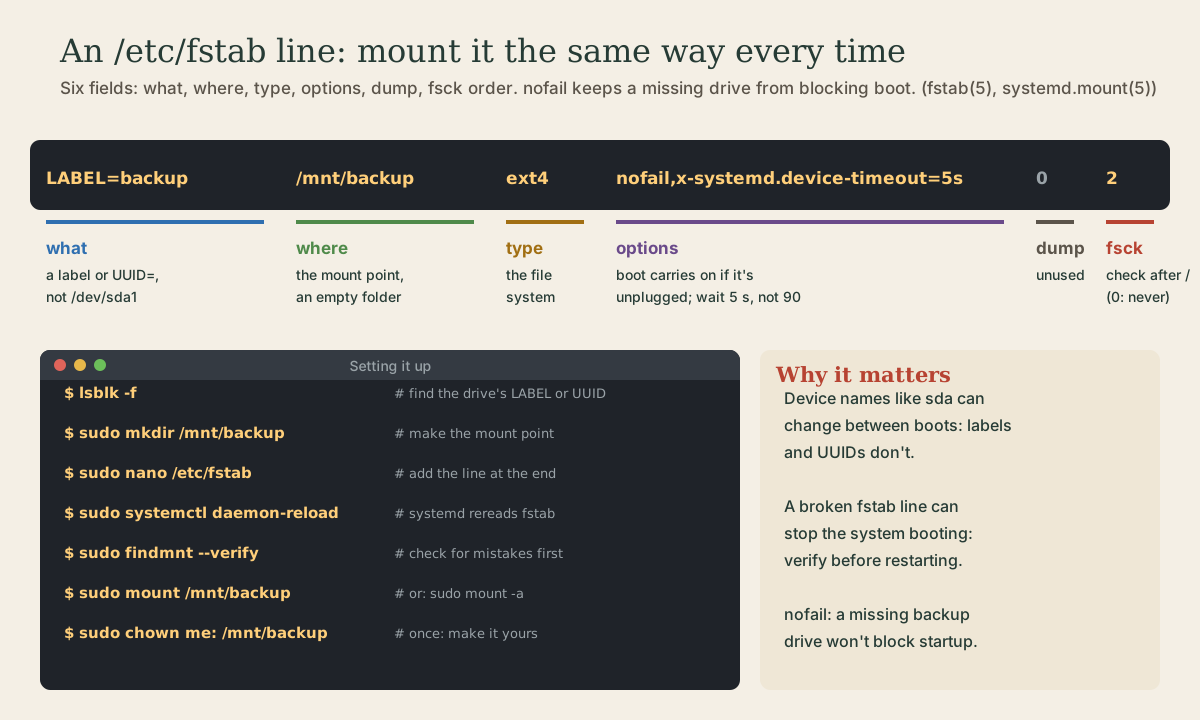
Each line describes one file system, with six fields separated by spaces 4 2:
# <what>        <where>        <type>  <options>                             <dump> <fsck>
LABEL=backup    /mnt/backup    ext4    nofail,x-systemd.device-timeout=5s    0      2
- What to mount. A device, but better a
LABEL=orUUID=, since device names “are often a coincidence of hardware detection order” and change when disks come and go 4. - Where: the mount point.
- Type:
ext4,vfat,exfat,ntfs, and so on. - Options, comma-separated;
defaultsif nothing special 4. - Dump: an old backup tool’s setting; use
0. - fsck order:
1for the root file system,2for others to be checked at boot,0for never 4.
cat /etc/fstab on your system shows lines like this for / and /boot/efi, by UUID, written by the installer.
The options that matter
defaults: the usual settings, read-write and mounted at boot 4.noauto: listed, but not mounted at boot;sudo mount /mnt/backupmounts it when you want, sincemountfills in the rest from fstab 4 5.nofail: boot doesn’t wait for this mount or fail without it 5. Essential for anything removable.x-systemd.device-timeout=5s: how long to wait for the device to appear. A missing drive otherwise holds up boot for 90 seconds, so the ArchWiki recommends pairing it withnofail5 6.ro: read-only. Useful for a Windows partition you only want to read 4.
If a label or mount point contains a space, write it as \040 4; easier to choose names without spaces.
Quick check
Pair it with x-systemd.device-timeout so boot doesn’t wait the default 90 seconds for a missing drive.
Setting up the backup drive
With the ext4 drive labelled backup from the last lesson:
me@garden-laptop:~$ lsblk -f
me@garden-laptop:~$ sudo mkdir -p /mnt/backup
me@garden-laptop:~$ sudo nano /etc/fstab
Add one line at the end, as above:
LABEL=backup /mnt/backup ext4 nofail,x-systemd.device-timeout=5s 0 2
Then, before rebooting, check your work. A broken line in fstab can stop the system booting normally, which is a bad time to find a typo:
me@garden-laptop:~$ sudo systemctl daemon-reload
me@garden-laptop:~$ sudo findmnt --verify
me@garden-laptop:~$ sudo mount /mnt/backup
me@garden-laptop:~$ findmnt /mnt/backup
daemon-reload: systemd turns fstab into units, so after changing it, the manual recommends this 4.findmnt --verifychecks that fstab parses and that its entries make sense 1.mount /mnt/backupmounts it using the fstab line;sudo mount -amounts everything in fstab that isn’t already mounted (exceptnoautolines) 3.
Last, make the drive’s top folder yours, once: sudo chown $USER: /mnt/backup.
Quick check
A mistake found now is a typo to fix; found at boot, it can leave the system unable to start normally.
fstab and systemd
systemd reads fstab and makes a mount unit for each line, named after the mount point: /mnt/backup becomes mnt-backup.mount 5. So the tools from module 3 work on it:
me@garden-laptop:~$ systemctl status mnt-backup.mount
me@garden-laptop:~$ journalctl -b -u mnt-backup.mount
If the drive wasn’t there at boot, that’s where it says so.
Pointing the backup at it
Last module’s backup service used /media/%u/backup. Edit ~/.config/systemd/user/snapshot-backup.service so the line reads:
ExecStart=%h/.local/bin/snapshot-backup /mnt/backup
then systemctl --user daemon-reload, and test with systemctl --user start snapshot-backup.service. Now the backup has a fixed place to go, whether or not anyone’s logged in.
Your turn
Exercises
cat /etc/fstab. Which file systems does it list, and how are they identified?findmnt /andfindmnt /boot/efi. Which devices are they?- Mount a USB stick by hand at
/mnt/stick(unmount the desktop’s mount first), list it, and unmount it. - Add the
backupdrive to fstab as above. Runfindmnt --verify, mount it, and checksystemctl status mnt-backup.mount. - Reboot with the drive unplugged. Does boot wait? Plug it in and run
sudo mount /mnt/backup. - Update the backup service’s
ExecStartand run the backup once.
Answers
- Usually
/and/boot/efibyUUID=, plus perhaps a swap file. findmntprintsTARGET SOURCE FSTYPE OPTIONS, for example/on/dev/nvme0n1p2withext4.findmnt --verifyends with a summary of errors and warnings; zero errors means fstab parses.statusthen showsactive (mounted).- With
nofailand a 5-second timeout, boot carries on almost as usual, and the mount unit shows as inactive until you mount it.
So
findmnt (or mount | grep ^/dev) shows what’s mounted; sudo mount and sudo umount attach and detach file systems by hand at any empty folder. The desktop’s /media mounts only happen for a logged-in user, so a drive that must always be there belongs in /etc/fstab: what (LABEL= or UUID=), where, type, options, dump, and fsck order. Use nofail and x-systemd.device-timeout=5s for removable drives. After editing, daemon-reload, findmnt --verify, and mount it before rebooting. Each line becomes a systemd mount unit, like mnt-backup.mount.
Lesson complete
Nice work.
Sources for this lesson
- 1findmnt(8) manual page. man7.org (Linux man-pages). verifiedLists mounted file systems as a tree with TARGET, SOURCE, FSTYPE, OPTIONS, or finds one by device or mount point; -x/--verify checks /etc/fstab for parsability and usability.
- 2William Shotts. The Linux Command Line, Seventh Internet Edition (25.12A). LinuxCommand.org (print edition by No Starch Press). 2026. verifiedFree CC BY-NC-ND 3.0 book, release 25.12A of July 18, 2026. Part 1, Learning the Shell: the shell and terminal emulators, prompts ($ vs. # for the superuser), command history (most distributions keep the last 1,000 commands), Shift-Ctrl-C/V for copy and paste; navigation and the directory tree; exploring the system (ls options and the long listing, file, less, the guided tour of /, symbolic links); manipulating files (wildcards and character classes, mkdir, cp, mv, rm, ln; no undelete, test wildcards with ls first); working with commands (four kinds of commands, type, which, help, --help, man and its sections, apropos, whatis, info, alias); redirection; expansion and quoting; Readline keyboard tricks, completion, history search; permissions; processes. Later parts cover the environment, vi, packages, storage, networking, find, archiving, regular expressions, text processing, and shell scripting.
- 3mount(8) manual page. man7.org (Linux man-pages). verifiedmount attaches a file system to the tree; with only a device or mount point, looks the rest up in fstab; -t type (guessed if omitted); -a mounts everything in fstab except noauto lines (modern systemd systems mount at boot through units instead).
- 4fstab(5) manual page. man7.org (Linux man-pages). verifiedSix fields: device (LABEL= or UUID= recommended, since device names are often a coincidence of hardware detection order and can change), mount point, type, options (defaults, noauto, user, ro/rw; comma-separated), dump, fsck pass (1 for root, 2 for others, 0 for no check); spaces escaped as \040; on systemd systems run systemctl daemon-reload after modifying fstab.
- 5systemd.mount(5) manual page. man7.org (Linux man-pages). verifiedMount units are named after their mount point (/home/lennart is home-lennart.mount) and are generated from /etc/fstab. fstab options: noauto (not mounted at boot unless pulled in), nofail (only wanted, not required, so boot continues regardless), x-systemd.automount, x-systemd.device-timeout= (how long to wait for the device).
- 6fstab. ArchWiki. verifiedIdentifying file systems by label or UUID; external devices that may be absent with nofail, best combined with x-systemd.device-timeout because the default device timeout is 90 seconds; escaping spaces as \040; automounting with x-systemd.automount.