Long Sessions with tmux
If an SSH connection drops, the shell and whatever it was running go with it. tmux keeps sessions running on the server: start a named session, detach with Ctrl-b d, list and reattach later from anywhere. Windows like tabs, panes that split the screen, scrollback, and a small ~/.tmux.conf for your dotfiles. A worked example: a long copy on the server that survives closing the laptop.
- 5 min
- 8 steps
- 2 questions
- Lesson 58 of 80
In this lesson
- The problem
- The prefix key
- Sessions: detach and attach
- Windows and panes
- A worked example
- A ~/.tmux.conf
- Your turn
- So
Picking up where you left off.
The problem
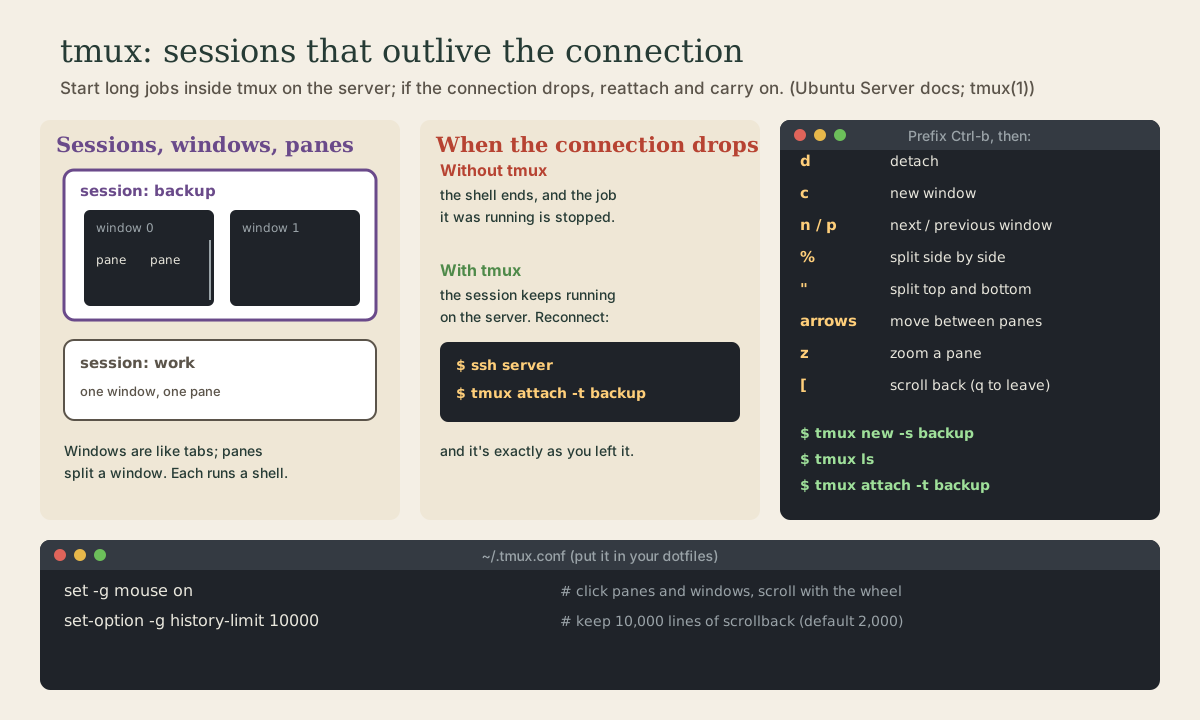
Start a big copy or an upgrade on the server over SSH, and then the Wi-Fi drops or the laptop sleeps. The connection ends, the shell on the server ends with it, and so does whatever it was running 1. A terminal multiplexer fixes this: it runs your shells on the server, independently of the connection, so you can disconnect and later reattach to exactly where you were 2 1.
tmux is the usual one, and it’s installed on Ubuntu Server already; on the desktop, sudo apt install tmux 2. It’s useful locally too, for splitting one terminal into several 3.
Sessions: detach and attach
A session is a workspace that keeps running whether or not anyone’s looking at it, kept alive by a tmux server process on the machine 2 4:
me@garden-server:~$ tmux new -s backup
starts one named backup, and you’re inside it: a shell, with a status bar along the bottom. Run things as usual. Then:
- Ctrl-b d detaches: you’re back at your ordinary shell, and the session carries on in the background 2. You can log out, or lose the connection; it doesn’t matter.
tmux lslists sessions 2.tmux attach -t backup(ortmux a -t backup) reattaches; plaintmux attachtakes the most recent 2.tmux kill-session -t backupends one, or typeexitin its last shell 2.
Quick check
Detaching leaves the session, and the rsync, running on the server. exit would end that shell and the window with it.
Windows and panes
Inside a session, windows are like browser tabs, each a full screen with its own shell 2:
- Ctrl-b c creates a window; Ctrl-b n and Ctrl-b p go to the next and previous; Ctrl-b 0 to 9 jump by number; Ctrl-b , renames one; Ctrl-b w lists them to pick from 2.
Panes split one window into several shells side by side 2:
- Ctrl-b % splits side by side; Ctrl-b “ splits top and bottom.
- Ctrl-b and an arrow key moves between panes; Ctrl-b z zooms one to full size and back 3.
- Ctrl-b x closes a pane, ending its shell 2.
A typical layout on the server: the job running in one pane, journalctl -f or htop watching in another.
Scrolling back works differently in tmux, since it manages the screen itself: Ctrl-b [ enters scroll mode, then arrows or Page Up and Page Down, and q to leave 2.
Quick check
Ctrl-b then ” splits top and bottom instead; Ctrl-b and an arrow key moves between panes.
A worked example
Copying a photo collection to the server, which will take an hour:
me@garden-laptop:~$ ssh server
me@garden-server:~$ tmux new -s copy
me@garden-server:~$ rsync -av /mnt/backup/photos/ ~/photos/
Press Ctrl-b d, then exit, and close the laptop. Next morning:
me@garden-laptop:~$ ssh server
me@garden-server:~$ tmux attach -t copy
and there’s the rsync, finished, with its full output above the prompt.
A ~/.tmux.conf
tmux reads ~/.tmux.conf at start 2. Two settings from Ubuntu’s documentation are worth having:
# Click to choose panes and windows, drag borders, scroll with the wheel
set -g mouse on
# Keep 10,000 lines of scrollback instead of 2,000
set-option -g history-limit 10000
After changing it, reload it inside tmux with Ctrl-b : and then source-file ~/.tmux.conf, which keeps your sessions running 2. Add it to your dotfiles (as tmux.conf, with a line in install.sh’s LINKS) so every machine gets it.
Ubuntu’s documentation also mentions Mosh, a replacement for the SSH connection itself that survives changing networks and sleep, if your connection is often flaky 2. tmux is enough most of the time.
Your turn
Exercises
- Install tmux and start
tmux new -s practice. Runtop, detach with Ctrl-b d, and runtmux ls. - Reattach. Is
topstill running? - Create a second window, switch between them, and rename one.
- Split a window both ways, move between the panes, and zoom one.
- Scroll back through some long output (try
dmesgorjournalctl -b) with Ctrl-b [. - Over SSH to another machine, start a session, run
sleep 600; echo done, detach, disconnect, reconnect, and reattach. - Add a
tmux.confto your dotfiles repository and link it withinstall.sh.
Answers
tmux lsshowspractice: 1 windows (created ...).- Yes: detaching doesn’t stop anything.
- Ctrl-b c, Ctrl-b n and p, Ctrl-b , to rename. The status bar shows the window names.
- After reattaching, the sleep is still counting down, or
doneis printed. - Add
"tmux.conf:.tmux.conf"toLINKS, run./install.sh, then commit and push.
So
tmux keeps shells running on the server whether or not you’re connected. tmux new -s name starts a session, Ctrl-b d detaches, tmux ls lists, and tmux attach -t name reattaches. Inside, Ctrl-b c makes windows (n and p to move), Ctrl-b % and ” split panes (arrows to move, z to zoom), and Ctrl-b [ scrolls back. Start anything long-running on another machine inside tmux, and put a ~/.tmux.conf with mouse support and more history in your dotfiles.
Lesson complete
Nice work.
Sources for this lesson
- 1OpenSSH server (Ubuntu Server documentation). Canonical. verifiedOpenSSH replaces insecure tools like telnet; sudo apt install openssh-server; configuration in /etc/ssh/sshd_config or snippets in /etc/ssh/sshd_config.d/, included at the top so they override (first value wins); check with sudo sshd -t before sudo systemctl restart ssh.service; a mistake can lock you out; ed25519 keys recommended; ssh-copy-id to install a key; chmod go-w ~/.ssh/authorized_keys; sudo journalctl -fu ssh.service to troubleshoot; ssh-import-id gh:user imports keys from GitHub; terminal multiplexers keep sessions through disconnects.
- 2Terminal multiplexers (Ubuntu Server documentation). Canonical. verifiedtmux, preinstalled on Ubuntu Server: prefix Ctrl+b then a key; d detaches; tmux new-session -s name, tmux ls, tmux attach-session -t name (tmux a -t name), kill-session; windows c, n, p, 0-9, comma to rename, w to list; panes % (side by side) and " (top and bottom), o or arrows to move, x to close; scrollback Ctrl+b [ and q, default 2000 lines; ~/.tmux.conf examples set -g mouse on and set-option -g history-limit 10000, reload with source-file; Mosh for flaky connections.
- 3Anish Athalye, Jon Gjengset, Jose Javier Gonzalez Ortiz. Command-line Environment (The Missing Semester of Your CS Education, 2026). MIT CSAIL. 2026. verifiedCC BY-NC-SA. How shell programs communicate: arguments, streams, environment variables, return codes, and signals; scripts with #!/usr/bin/env bash, $1 and [[ -f $1 ]], exit codes, errors to >&2; trap with a cleanup function to remove temporary files on exit; signals, job control with Ctrl-Z, bg, fg, and nohup; terminal multiplexers and SSH.
- 4tmux(1) manual page. OpenBSD manual pages. verifiedTerminal multiplexer: sessions, windows, and panes, managed by a server that keeps running when clients detach; default prefix C-b; configuration in ~/.tmux.conf.