Reading Logs with journalctl
On a systemd system, the kernel, every service, and every program systemd runs log to one place, the journal, kept across reboots in /var/log/journal. journalctl reads it: by boot (-b, -b -1, --list-boots), by unit (-u), by priority (-p err), by time (--since, --until), live (-f), the kernel (-k), the newest (-e, -n, -r), with explanations (-x). Who can read it, how much disk it uses, and a worked example of tracking down why something failed.
- 6 min
- 12 steps
- 2 questions
- Lesson 51 of 80
In this lesson
- One log for everything
- Who can read it
- This boot and the last
- One service
- Only the problems
- By time
- As it happens
- More useful options
- A worked example
- How much space it takes
- Your turn
- So
Picking up where you left off.
One log for everything
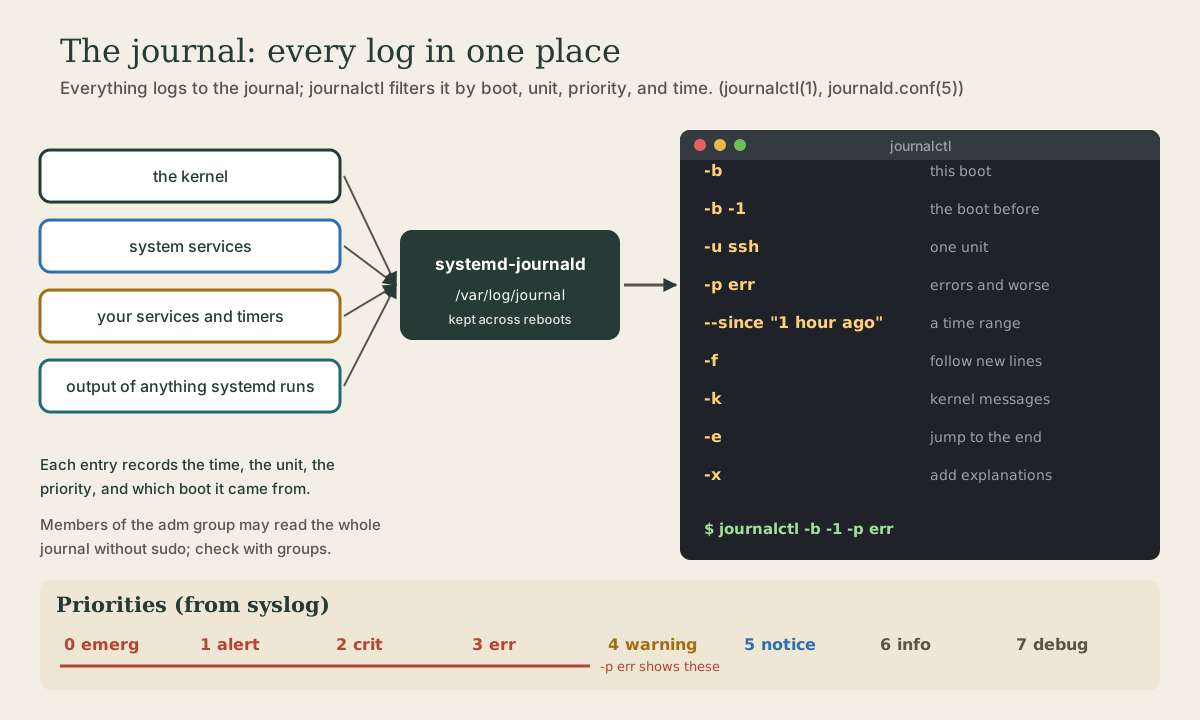
Windows has the Event Viewer; Linux used to have a folder of separate text files. On systemd systems there’s the journal: the kernel, every service, and the output of every program systemd starts all go to one service, systemd-journald, which stores them with the time, the unit, the priority, and the boot they came from 1 2.
By default it’s kept on disk under /var/log/journal, so logs survive reboots 3. That matters most when something went wrong and you had to restart.
journalctl reads it. With no options it shows everything, oldest first, in a pager 1. The pager is less: Space for the next page, G for the end, / to search, q to quit.
Who can read it
Your own user services’ logs are always readable by you. The system journal is readable by root and by members of the groups adm, systemd-journal, and wheel 1. Check with groups: if adm is listed, journalctl works without sudo; otherwise use sudo journalctl.
This boot and the last
me@garden-laptop:~$ journalctl -b
me@garden-laptop:~$ journalctl -b -1
me@garden-laptop:~$ journalctl --list-boots
-b limits it to the current boot; -b -1 to the one before, -b -2 the one before that 1. --list-boots shows a numbered table of the boots in the journal with their first and last times 1. After a crash or freeze, the previous boot is where the clues are.
Quick check
-b -1 is the previous boot, -p err limits it to errors and worse. The journal survives reboots, which is what makes this possible.
One service
me@garden-laptop:~$ journalctl -u ssh
me@garden-laptop:~$ journalctl -b -u cups
-u shows one unit’s messages 1. The few lines at the bottom of systemctl status are the same thing, cut short; journalctl -u gives the whole story.
Only the problems
Every message has a priority, the standard syslog levels from 0 (emerg) to 7 (debug): emerg, alert, crit, err, warning, notice, info, debug 1. -p shows that level and everything more serious:
me@garden-laptop:~$ journalctl -b -p err
me@garden-laptop:~$ journalctl -b -1 -p warning
-p err is levels 0 to 3 1. Some errors on every boot are normal, from hardware or features you don’t use. What you’re looking for is what’s new or what lines up with the trouble.
By time
me@garden-laptop:~$ journalctl --since today
me@garden-laptop:~$ journalctl --since "1 hour ago"
me@garden-laptop:~$ journalctl --since "2026-10-05 14:00" --until "2026-10-05 14:30"
--since and --until take a date and time like 2026-10-05 14:00, the words yesterday, today, and now, or a relative time like "1 hour ago" 1.
As it happens
me@garden-laptop:~$ journalctl -f
me@garden-laptop:~$ journalctl -f -u ssh
-f follows the journal, printing new lines as they arrive until Ctrl-C 1. Start it in one terminal, then reproduce the problem in another, plugging in the device or trying the connection, and watch what gets logged. The manual’s own example is following a web server, journalctl -f -u apache 1.
Quick check
-f follows the journal until Ctrl-C; -u narrows it to one unit.
More useful options
-k: only kernel messages (hardware, drivers, USB devices), for this boot unless you say otherwise 1.journalctl -k -b -1is the previous boot’s kernel log.-e: open the pager at the end, the newest messages 1.-n 50: just the last 50 lines;-r: newest first 1.-x: add explanation text to messages where the journal’s catalog has one 1.--user: your own user services’ logs (lesson 3).
They combine: journalctl -b -1 -p err -u ssh is errors from SSH during the previous boot.
A worked example
Say the printer stopped working.
- Is the service healthy?
systemctl status cups. If it’s failed, the last lines may already say why. - What did it log?
journalctl -b -u cups -ejumps to its newest messages this boot. - Did the hardware show up?
journalctl -f -k, then unplug and replug the USB cable: the kernel logs the device arriving, or doesn’t. - Anything else complaining?
journalctl -b -p err --since "10 minutes ago".
Copy the exact error message into a web search with your Ubuntu version. Exact messages find answers; descriptions like “printer broken” don’t.
How much space it takes
me@garden-laptop:~$ journalctl --disk-usage
me@garden-laptop:~$ sudo journalctl --vacuum-time=4weeks
--disk-usage shows the total size of the journal files; --vacuum-time deletes archived ones older than the time given 1. journald limits its own size by default, to at most 10% of the file system and never more than 4 GB, so this is rarely needed; the limits can be changed in /etc/systemd/journald.conf 3.
Some programs still write their own text logs under /var/log, such as dpkg.log and the unattended-upgrades folder from the last module. ls /var/log shows what’s there, and less or tail -f reads them.
Your turn
Exercises
groups: can you read the system journal withoutsudo?journalctl --list-boots. How many boots does the journal remember?journalctl -b -p err. What errors did this boot log? Pick one and look it up.journalctl -b -1 -p warning | tail: the end of the previous boot, warnings and worse.- Run
journalctl -f -kand plug in a USB stick. What did the kernel log? Ctrl-C to stop. journalctl -u cron --since today(or-u systemd-journald): what has it done today?journalctl --disk-usage.
Answers
- If
adm(orsystemd-journal) appears in the list, yes. - Common harmless ones mention firmware, Bluetooth, or ACPI. Worry about errors that appear only since the trouble started.
- Lines about a new USB device, its maker and model, a new disk such as
sdb, and its partitions. - For
cron, lines like(root) CMD (...)for each job it ran.
So
The journal collects every log, from the kernel, services, and programs systemd runs, in /var/log/journal, kept across reboots. journalctl reads it, and its filters combine: -b this boot, -b -1 the last, -u name one unit, -p err errors and worse, --since and --until for a time range, -f to follow live, -k for the kernel, -e to jump to the end. Members of adm can read it without sudo. Start with systemctl status, then the unit’s journal, then the kernel, and search for exact error messages.
Lesson complete
Nice work.
Sources for this lesson
- 1journalctl(1) manual page. man7.org (Linux man-pages). verifiedWith no arguments shows all logs; -b [ID][±offset] a given boot, --list-boots; -u unit; -p priority, syslog levels emerg (0) to debug (7), a single level shows that and more important; -S/--since and -U/--until with dates, yesterday/today/now, or relative times; -f follow; -k kernel messages; -e jump to end; -n lines; -r reverse; -x catalog explanations; --disk-usage; --vacuum-size/time/files. Members of systemd-journal, adm, and wheel can read all journal files. Examples: journalctl -k -b -1; journalctl -f -u apache.
- 2systemd/Journal. ArchWiki. verifiedsystemd's logging system; journalctl filtering by boot, unit, priority, and time; journal size limits.
- 3journald.conf(5) manual page. man7.org (Linux man-pages). verifiedStorage= volatile, persistent, auto, none; persistent stores under /var/log/journal and is the default; SystemMaxUse= defaults to 10% of the file system, SystemKeepFree= to 15%, each capped at 4G.