Timers and Your Own Services
Write your own systemd units: a user service that runs the Shell course's snapshot-backup script, and a timer that starts it every night at 2:30. Type=oneshot, the %h and %u specifiers, OnCalendar expressions and checking them with systemd-analyze calendar, Persistent=true to catch up after the computer was off, enable --now and list-timers, testing by starting the service and reading its journal, lingering so it runs while you're logged out, and how timers compare with cron.
- 7 min
- 10 steps
- 3 questions
- Lesson 52 of 80
In this lesson
- Why a timer
- The service
- The timer
- Calendar expressions
- Turning it on
- Testing it
- While you’re logged out
- System timers
- Your turn
- So
Picking up where you left off.
Why a timer
The Shell course ended with a nightly backup run by cron, from a crontab line. systemd timers do the same job, and add a few things cron can’t 1:
- Catching up. If the computer was off or asleep at 2:30, cron skips that night. A timer with
Persistent=trueruns as soon as the computer is back 2. - Logging. Everything the job prints goes to the journal, with no
>> backup.log 2>&1to remember 1. - Testing. The job is an ordinary service: start it by hand any time, check its status, read its log 1.
The price is two small files instead of one line 1. Ubuntu itself uses timers: the daily apt-daily and apt-daily-upgrade runs from last module are timers 3.
The service
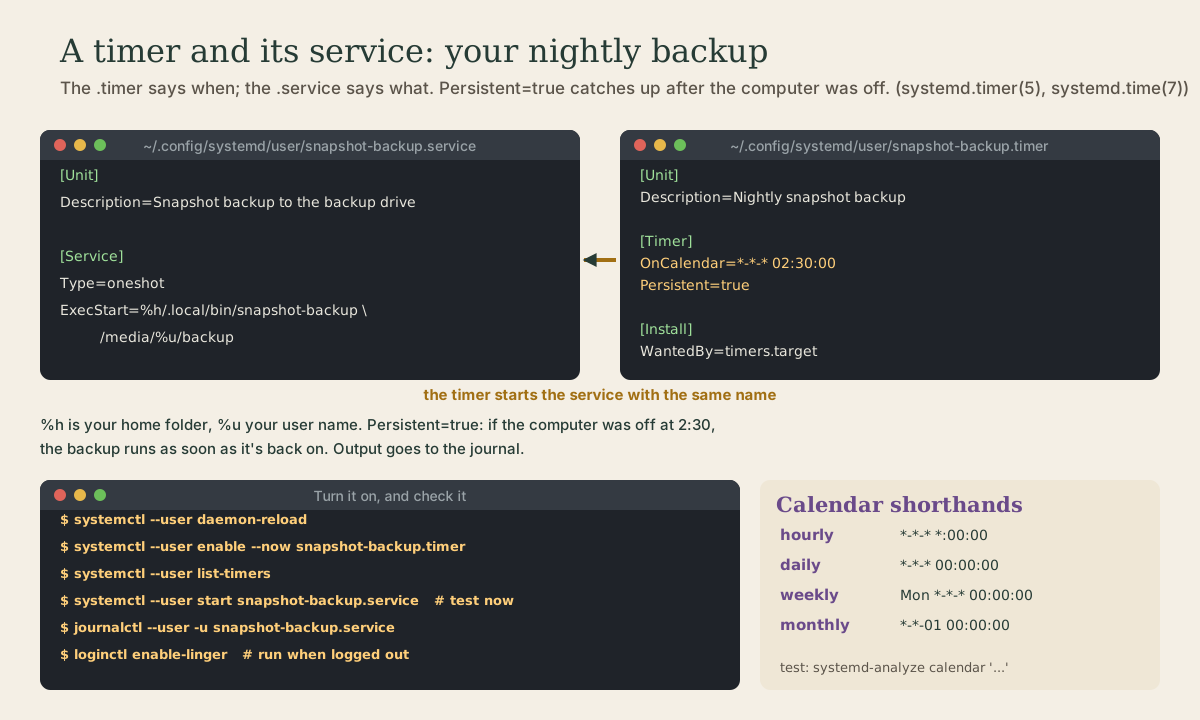
A timer starts a service, so write the service first. This one is a user unit, run by your own user manager without sudo; user units you write go in ~/.config/systemd/user/ 4. Create ~/.config/systemd/user/snapshot-backup.service:
[Unit]
Description=Snapshot backup to the backup drive

[Service]
Type=oneshot
ExecStart=%h/.local/bin/snapshot-backup /media/%u/backup
Type=oneshotis for a job that runs and finishes, rather than a program that keeps running; systemd treats the service as done when the command exits 5.ExecStart=is the command, with a full path.%hstands for your home folder and%ufor your user name, so the file works for any user 6.- No
[Install]section: the timer is what gets enabled 1.
The timer
Now ~/.config/systemd/user/snapshot-backup.timer, with the same name apart from the ending, since a timer starts the service with its own name by default 2:
[Unit]
Description=Nightly snapshot backup

[Timer]
OnCalendar=*-*-* 02:30:00
Persistent=true

[Install]
WantedBy=timers.target
OnCalendar=sets a wall-clock time, like a crontab line 2.*-*-* 02:30:00is any year, month, and day at 2:30.Persistent=truestores when the timer last fired; when the timer starts up again (after boot or after you log in), it runs the service straight away if a run was missed in the meantime 2.WantedBy=timers.targetin[Install]is whatenablehooks into, so the timer starts automatically.timers.targetexists in the user manager as well as the system one 7.
Quick check
systemd stores when the timer last fired and catches up on a missed run. cron simply skips it.
Calendar expressions
The full form is DayOfWeek Year-Month-Day Hour:Minute:Second, with * for “any” and leading parts optional 8. Some examples:
| Expression | Means |
|---|---|
*-*-* 02:30:00 |
every day at 2:30 |
Mon..Fri *-*-* 07:00 |
weekdays at 7:00 |
Sat *-*-* 09:00 |
Saturdays at 9:00 |
*-*-01 03:00 |
the first of each month at 3:00 |
daily |
*-*-* 00:00:00, midnight |
weekly |
Mon *-*-* 00:00:00 |
hourly, daily, weekly, monthly, and yearly are shorthands for those forms 8. Don’t guess; check with systemd-analyze calendar, which prints the normalized form and when it would next fire. The manual’s example finds the next leap days 9:
$ systemd-analyze calendar --iterations=5 '*-2-29 0:0:0'
  Original form: *-2-29 0:0:0
Normalized form: *-02-29 00:00:00
    Next elapse: Sat 2020-02-29 00:00:00 UTC
       From now: 11 months 15 days left
       Iter. #2: Thu 2024-02-29 00:00:00 UTC
       From now: 4 years 11 months left
...
Quick check
It prints the normalized form and the next time it would elapse; --iterations=5 shows the next five.
Turning it on
me@garden-laptop:~$ systemctl --user daemon-reload
me@garden-laptop:~$ systemctl --user enable --now snapshot-backup.timer
me@garden-laptop:~$ systemctl --user list-timers
daemon-reload makes the user manager read the new files; enable --now sets the timer to start at login and starts it now; list-timers shows each timer with its NEXT and LAST run times and the unit it ACTIVATES 1. Run systemctl list-timers without --user to see the system’s own, apt-daily among them.
Testing it
Don’t wait until 2:30. The job is a service, so start it now:
me@garden-laptop:~$ systemctl --user start snapshot-backup.service
me@garden-laptop:~$ systemctl --user status snapshot-backup.service
me@garden-laptop:~$ journalctl --user -u snapshot-backup.service
With Type=oneshot, start waits until the backup finishes. The journal then holds everything the script printed, and its exit status: a failure shows in status as failed, and in systemctl --user list-units --failed 5. If the drive isn’t plugged in, the script’s own check stops it and says so, and that message is in the journal too.
Once it works, remove the old line with crontab -e, so the backup doesn’t run twice.
While you’re logged out
A user timer runs in your user manager, which by default exists only while you’re logged in 1. To keep it running from boot, logged in or not, turn on lingering 10 4:
me@garden-laptop:~$ loginctl enable-linger
One catch for this particular job: a USB drive shows up under /media/<you>/ because your desktop mounts it when you’re logged in. With nobody logged in, it isn’t mounted, and the script will (correctly) refuse to run. The fix is to have the system mount the drive itself, at a fixed place, which is part of next module.
Quick check
User timers run in your user manager, which by default exists only during a login session.
System timers
For jobs that need root, such as backing up /etc or the whole system, the same two files go in /etc/systemd/system/ and are managed with sudo systemctl, without --user 6. Everything else is identical. Prefer user units for your own files: they run as you, so a mistake can’t damage the rest of the system.
Your turn
Exercises
systemctl list-timers: which system timers exist, and when doesapt-daily-upgrade.timerrun next?- Check these with
systemd-analyze calendar:Sat 09:00,*-*-01 03:00,Mon..Fri 07:00. Try--iterations=3. - Create the snapshot-backup service and timer for your Shell course script (or for a harmless test script that runs
dateanddf -h ~). - Start the service by hand and read its journal. Then enable the timer and check
list-timers. - Turn on lingering, and remove the matching crontab line if you had one.
- Would you want a timer to run last module’s
update-allroutine every Saturday, unattended? Why or why not?
Answers
apt-daily.timerandapt-daily-upgrade.timer, and others for jobs such as rotating logs and cleaning temporary files, each with NEXT and LAST.Sat *-*-* 09:00:00,*-*-01 03:00:00, andMon..Fri *-*-* 07:00:00, each with its next elapse.- The journal shows the script’s lines;
statusshowsinactive (dead)withstatus=0/SUCCESSafter a successful run. apt upgradeneeds root and wants a “yes”; unattended package changes are whatunattended-upgradesis for, with its careful defaults. Better to leaveupdate-allas a weekly habit you watch.
So
A systemd timer is a .timer unit that starts a .service of the same name. Put your own in ~/.config/systemd/user/; use Type=oneshot and a full path in ExecStart= (with %h and %u), and OnCalendar= plus Persistent=true in the timer so missed runs catch up. Check expressions with systemd-analyze calendar, turn it on with systemctl --user daemon-reload and enable --now, see it in list-timers, test it by starting the service, and read the result with journalctl --user -u. loginctl enable-linger keeps it running while you’re logged out.
Lesson complete
Nice work.
Sources for this lesson
- 1systemd/Timers. ArchWiki. verifiedTimers as a cron replacement: realtime (OnCalendar) and monotonic timers; each .timer has a matching .service with no [Install] section; WantedBy=timers.target; systemctl list-timers columns NEXT, LEFT, LAST, PASSED, UNIT, ACTIVATES. Benefits: jobs can be started independently, run in their own environment, and log to the journal. Caveats: two files instead of a crontab line, no MAILTO, and user timers run only during a login session unless lingering is enabled.
- 2systemd.timer(5) manual page. man7.org (Linux man-pages). verifiedOnCalendar= defines wall-clock timers with calendar event expressions; Persistent=true stores when the service was last triggered and triggers it immediately on activation if a run was missed while inactive (OnCalendar only, default false); RandomizedDelaySec=; Unit= defaults to the service with the same name as the timer.
- 3Automatic updates (Ubuntu Server documentation). Canonical. verifiedunattended-upgrades, installed by default, applies security updates automatically, once a day by default. /etc/apt/apt.conf.d/20auto-upgrades (Update-Package-Lists and Unattended-Upgrade, in days; 0 disables), /etc/apt/apt.conf.d/50unattended-upgrades (Allowed-Origins: release and -security plus ESM; -updates commented out; added repositories aren't included automatically; Automatic-Reboot default false), logs in /var/log/unattended-upgrades; triggered by apt-daily.timer and apt-daily-upgrade.timer, catching up after boot if missed; /var/run/reboot-required; needrestart restarts affected services automatically since 24.04, except a list such as the display manager.
- 4systemd/User. ArchWiki. verifiedThe systemd user instance manages user services; user units in /usr/lib/systemd/user, ~/.local/share/systemd/user, /etc/systemd/user, and ~/.config/systemd/user (where the user puts their own); controlled with systemctl --user; loginctl enable-linger starts the user instance at boot and keeps it running without a session.
- 5systemd.service(5) manual page. man7.org (Linux man-pages). verifiedType= simple, exec, forking, oneshot, dbus, notify, notify-reload, idle; with oneshot the manager considers the unit up after the main process exits; ExecStart= is the command to run.
- 6systemd.unit(5) manual page. man7.org (Linux man-pages). verifiedUnit types (.service, .socket, .device, .mount, .automount, .swap, .target, .path, .timer, .slice, .scope); system search path including /etc/systemd/system and /usr/lib/systemd/system, user search path including ~/.config/systemd/user; INI-style files with [Unit] and [Install]; specifiers such as %h (home directory) and %u (user name).
- 7systemd.special(7) manual page. man7.org (Linux man-pages). verifiedSpecial units; the user service manager has default.target and, with definitions similar to their system counterparts, timers.target, sockets.target, paths.target, and others.
- 8systemd.time(7) manual page. man7.org (Linux man-pages). verifiedTime spans (2h 30min), timestamps, and calendar events of the form DayOfWeek Year-Month-Day Hour:Minute:Second; shorthands minutely, hourly (*-*-* *:00:00), daily (*-*-* 00:00:00), monthly (*-*-01 00:00:00), weekly (Mon *-*-* 00:00:00), yearly, quarterly, semiannually; normalized examples.
- 9systemd-analyze(1) manual page. man7.org (Linux man-pages). verifiedsystemd-analyze shows boot time; blame lists units by initialization time, with the caveat that one may only be waiting for another (example shows systemd-networkd-wait-online.service near the top); calendar prints the normalized form and next elapse of a calendar expression, with --iterations (example: next leap days).
- 10loginctl(1) manual page. man7.org (Linux man-pages). verifiedenable-linger / disable-linger: with lingering, a user manager is spawned for the user at boot and kept after logout, so users who aren't logged in can run long-running services; with no argument, applies to the calling user.