Keeping the System Updated
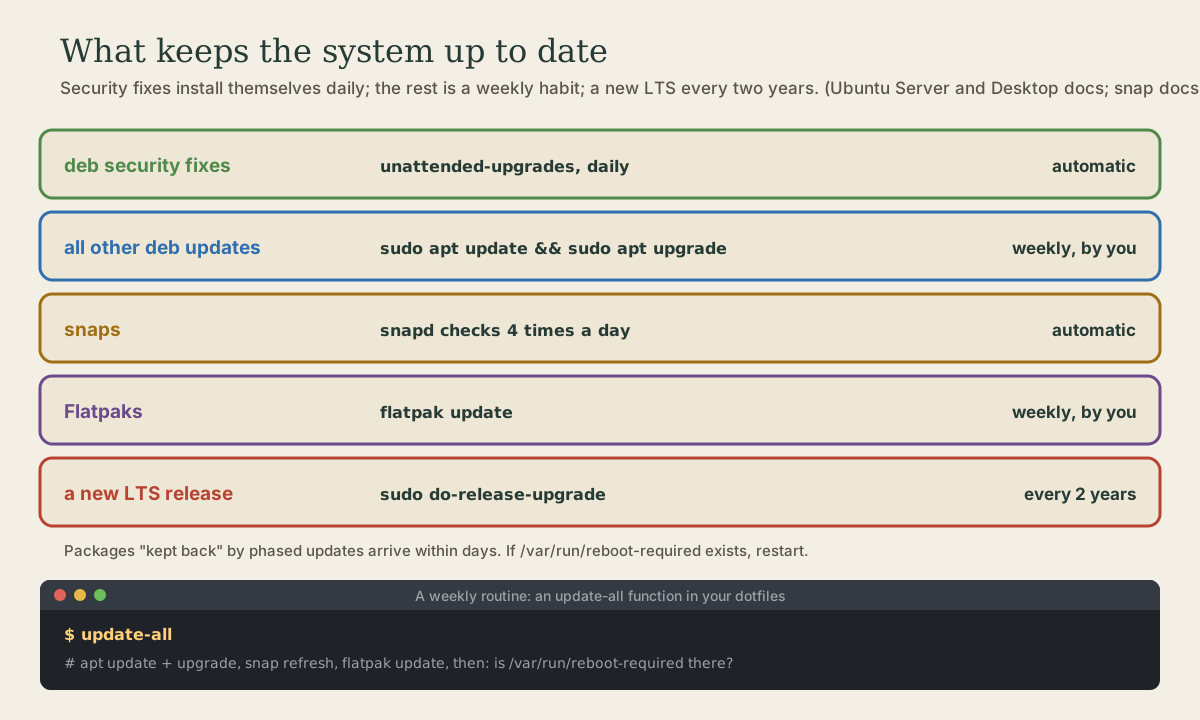
What updates itself and what doesn't. unattended-upgrades installs security fixes daily, its settings and logs, and when it reboots; phased updates and packages kept back; needrestart and /var/run/reboot-required; snaps refreshing themselves and Flatpaks updated by hand; a weekly update routine as an alias in your dotfiles; and moving to a new LTS every two years with do-release-upgrade, after the first point release, with backups and third-party repositories in mind. Ubuntu Pro for ten years of updates.
- 7 min
- 7 steps
- 3 questions
- Lesson 49 of 80
In this lesson
- What updates itself
- How unattended-upgrades works
- Kept back, and reboots
- A weekly routine
- A new release every two years
- Your turn
- So
Picking up where you left off.
What updates itself
Three kinds of software, three update stories:
- Security fixes for debs install themselves. The
unattended-upgradespackage, installed by default, runs once a day and applies security updates without asking 1 2. - Snaps refresh themselves, checking four times a day 3.
- Everything else waits for you: non-security deb updates, and Flatpaks 2 4.
On the desktop, the Software Updater app pops up when updates are waiting and installs them with a click. From the terminal, it’s the pair you know:
me@garden-laptop:~$ sudo apt update
me@garden-laptop:~$ sudo apt upgrade
Quick check
Other deb updates and Flatpaks wait for you, which is what a weekly routine is for.
How unattended-upgrades works
It does the equivalent of apt update and apt upgrade, limited to the sources it’s allowed to use 1. The pieces 1:
-
/etc/apt/apt.conf.d/20auto-upgradesturns it on and sets how often, in days:APT::Periodic::Update-Package-Lists "1"; APT::Periodic::Unattended-Upgrade "1";Setting both to
"0"turns it off. -
/etc/apt/apt.conf.d/50unattended-upgradessays what to install. ItsAllowed-Originslist includes the release and its-securitypocket (and Ubuntu Pro’s security pockets if you have them); the-updatesline is commented out with//. Uncomment it to have all regular updates installed automatically too. - Two systemd timers,
apt-daily.timerandapt-daily-upgrade.timer, run it at a random time each day. If the computer was off then, it runs soon after the next start, which is why apt is sometimes busy just after you log in. (Timers are next module.) - Logs go in
/var/log/unattended-upgrades/.
Adding a third-party repository does not make unattended-upgrades install from it; it needs to be added to Allowed-Origins by name 1.
It won’t restart the computer on its own unless you set Unattended-Upgrade::Automatic-Reboot "true"; in 50unattended-upgrades; the default is false 1. For a desktop that’s right. For a home server that should keep itself patched, it’s worth turning on, with a time set for the reboot.
Kept back, and reboots
Two messages you’ll meet:
“Packages have been kept back.” Ubuntu releases many updates in phases: a random subset of machines gets an update first, and only if no problems turn up does it go to everyone 5. Until your machine’s turn, apt upgrade holds that package back. You don’t need to do anything; it arrives within days 5. (apt policy package shows the details.)
Restarts. Most updates take effect without a reboot. When a shared library is updated, programs already running keep the old copy in memory until they restart; Ubuntu’s needrestart restarts the affected services automatically, apart from a few it leaves alone, such as the login screen 1. A new kernel needs a full reboot. Updates that need one create the file /var/run/reboot-required 1:
me@garden-laptop:~$ [ -f /var/run/reboot-required ] && echo "restart needed"
Quick check
Phasing gives each update to a random subset of machines first, so problems are caught before everyone has them.
A weekly routine
Put it in your dotfiles (Git course, module 7), so every machine has it. In bash_aliases:
# Update debs, then snaps and Flatpaks if present, then say if a restart is needed
update-all() {
    sudo apt update && sudo apt upgrade || return
    if command -v snap >/dev/null; then sudo snap refresh; fi
    if command -v flatpak >/dev/null; then flatpak update; fi
    if [ -f /var/run/reboot-required ]; then echo "Restart needed."; fi
}
A function rather than an alias, since it’s several steps (Shell course, module 8). || return stops if apt fails, and command -v skips snap or flatpak on a machine without them, such as WSL, so the same dotfiles work everywhere. Run update-all once a week, read what apt proposes before saying yes, and restart if asked. Commit it and pull it on your other machines.
A new release every two years
Your updates stay within your release: 26.04 stays 26.04. Every two years there’s a new LTS, and moving to it is a release upgrade 6:
- LTS to LTS, one at a time. From 24.04 you go to 26.04; from 22.04 you’d stop at 24.04 first 6.
- Offered after the first point release, like 26.04.1, usually several months after the April release, once early problems are fixed 6.
- It takes up to an hour and is interactive 6.
To prepare: plug in a laptop, check there’s several gigabytes of free space, back up your files, and install all current updates and restart 6. Then either the Software Updater offers the new release, or 6:
me@garden-laptop:~$ sudo do-release-upgrade
It shows what it will install and remove, and warns if you have packages from PPAs or third-party repositories; those are a common cause of trouble, and they may be disabled during the upgrade, so check them afterward in Software & Updates, Other Software 6 7. At the end it offers to remove obsolete packages, then restarts.
There’s no hurry: 24.04 LTS has security updates until May 2029, and 26.04 until May 2031 8.
Ubuntu Pro, free for personal use on up to five machines, adds Expanded Security Maintenance: ten years of security updates instead of five, covering the community universe packages too 8. On the desktop, turn it on in the Security Center app 2. It’s worth having on any machine you’ll keep for years.
Quick check
The wait lets early bugs be fixed first. Upgrades go one LTS at a time.
Your turn
Exercises
cat /etc/apt/apt.conf.d/20auto-upgrades. Are automatic updates on?- Look at the
Allowed-Originssection of/etc/apt/apt.conf.d/50unattended-upgrades. Which pockets are allowed? ls /var/log/unattended-upgrades/and read the newest log. What did it install recently?- Add the
update-allfunction to your dotfiles’bash_aliases, commit, push, and run it. snap refresh --timeandapt policyon one package fromapt list --upgradable.- Find your WSL Ubuntu’s release with
lsb_release -a, and look up when its standard updates end.
Answers
- Both lines
"1": daily package list updates and daily unattended upgrades. - The release itself and
-security(plus the ESM pockets);-updates,-proposed, and-backportscommented out with//. - Lines like
Packages that will be upgraded:followed by package names, andAll upgrades installed. - Under WSL, the
command -vtests skip snap or flatpak if they aren’t installed, so the function still runs apt. apt policyshows the installed version, the candidate, and where each comes from; a phased update shows a phasing percentage.
So
Security updates for debs install themselves daily through unattended-upgrades (settings in 20auto-upgrades and 50unattended-upgrades, logs in /var/log/unattended-upgrades/), and snaps refresh themselves; other deb updates and Flatpaks are yours to run, weekly, with apt update, apt upgrade, snap refresh, and flatpak update, which fit nicely in a dotfiles function. “Kept back” packages are phased updates and arrive on their own; /var/run/reboot-required says when to restart. Every two years, after the first point release, do-release-upgrade moves you to the next LTS, one at a time, after a backup.
Lesson complete
Nice work.
Sources for this lesson
- 1Automatic updates (Ubuntu Server documentation). Canonical. verifiedunattended-upgrades, installed by default, applies security updates automatically, once a day by default. /etc/apt/apt.conf.d/20auto-upgrades (Update-Package-Lists and Unattended-Upgrade, in days; 0 disables), /etc/apt/apt.conf.d/50unattended-upgrades (Allowed-Origins: release and -security plus ESM; -updates commented out; added repositories aren't included automatically; Automatic-Reboot default false), logs in /var/log/unattended-upgrades; triggered by apt-daily.timer and apt-daily-upgrade.timer, catching up after boot if missed; /var/run/reboot-required; needrestart restarts affected services automatically since 24.04, except a list such as the display manager.
- 2Snap and deb packages (Ubuntu Desktop documentation). Canonical. verifiedThe App Center shows snaps by default. Snaps: sandboxed (classic snaps aren't, reviewed manually), versions independent of the Ubuntu release, updated automatically, permissions in Settings > Apps, a base snap such as core26 plus bundled libraries, so larger. Debs: tied to the release, security updates installed automatically, other updates via Software Updater, full access, many small dependencies, smaller. If an app is available both ways, Ubuntu generally recommends the snap, especially from third-party developers. Ubuntu Pro can be enabled in the Security Center, free on up to 5 machines.
- 3Manage updates (snap documentation). Canonical. verifiedSnaps update automatically; snapd checks for updates four times a day by default (snap refresh --time shows timer, last, next). snap refresh --hold[=duration] postpones updates for some or all snaps; --unhold removes it; system options refresh.timer, refresh.hold (up to 90 days), refresh.metered, refresh.retain.
- 4Using Flatpak (Flatpak documentation). Flatpak. verifiedThree-part IDs like org.gimp.GIMP; system-wide by default, --user per user; flatpak remotes, remote-add, search, install flathub ID, run, update (apps and runtimes), list --app, uninstall, uninstall --unused for runtimes no longer used, repair, permission-reset, history. Apps may need a runtime, installed first.
- 5About apt upgrade and phased updates (Ubuntu Server documentation). Canonical. verifiedapt upgrade may report packages kept back because of phased updates: an update first goes to a random subset of machines (decided on the client from the machine ID, package, and version) and to everyone once no problems are found; it's safe to ignore and the update arrives automatically; apt policy shows phasing details.
- 6Upgrade Ubuntu Desktop (Ubuntu Desktop documentation). Canonical. verifiedSequential upgrades only, LTS to next LTS; upgrades to a new LTS become available after its first point release (such as 26.04.1), several months after release; up to an hour and interactive. Prepare: power, free disk space, back up, fully update and restart. Start from Software Updater or sudo do-release-upgrade; PPAs and third-party packages trigger a Foreign Packages prompt and may be disabled; remove obsolete packages; restart; re-check third-party repositories in Software & Updates > Other Software.
- 7Third party repository usage (Ubuntu Server documentation). Canonical. verifiedUbuntu doesn't recommend third-party software: APT repositories run code that isn't sandboxed and give no security boundary between publishers, so the system is only as secure as the weakest publisher; third-party packages can conflict with official ones, and are the most common cause of release-upgrade failures.
- 8Ubuntu release cycle. Canonical. verifiedA new Ubuntu every six months, versioned by year and month; interim releases get 9 months of updates; LTS releases every two years get 5 years of standard security maintenance (26.04 LTS: released April 2026, to May 2031; 24.04 LTS to May 2029). Ubuntu Pro, free for personal use on up to five machines, adds Expanded Security Maintenance to 10 years including Universe; a paid Legacy add-on reaches 15.