nano: Quick Edits
nano is the friendly terminal editor installed on Ubuntu: open a file, type, Ctrl-O to save, Ctrl-X to quit. Read the help bar (^ is Ctrl, M- is Alt), search and replace, cut and paste lines, undo, jump to a line, and note that nano 8 moved search to Ctrl-F. Make it the editor other programs open, and set line numbers and sane tabs in ~/.nanorc.
- 4 min
- 6 steps
- 2 questions
- Lesson 19 of 80
In this lesson
- Opening, editing, saving
- The help bar
- Making nano your editor
- A .nanorc
- Your turn
- So
Picking up where you left off.
Opening, editing, saving
nano is a small, friendly editor that runs in the terminal, and it’s installed on Ubuntu out of the box 1. Open a file by name; if it doesn’t exist, nano creates it when you save:
me@linuxbox:~$ nano ~/.bash_aliases
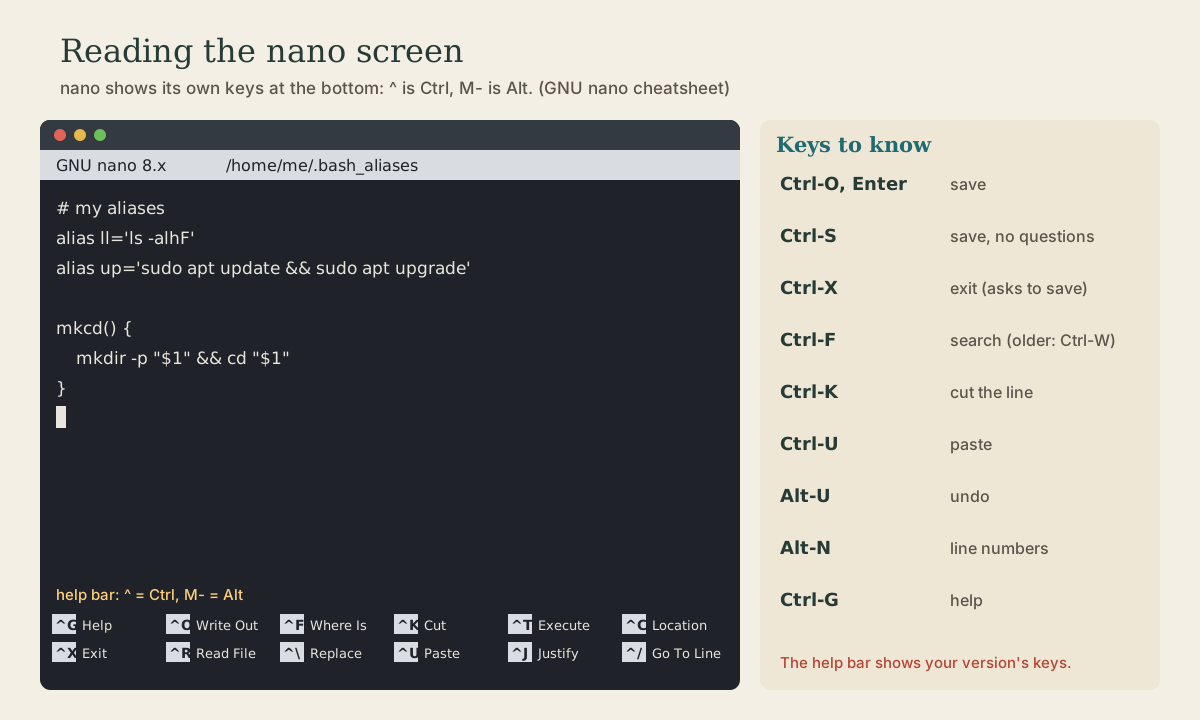
Then just type. Arrow keys move the cursor, Backspace and Delete delete. To save, press Ctrl-O (“write Out”), check the file name it offers, and press Enter. To quit, Ctrl-X; if there are unsaved changes, nano asks whether to save them 2. Ctrl-S also saves, without asking 2.
To edit a system file, use sudoedit /etc/hosts (module 3); it opens your editor as you and saves the result as root.
The help bar
The two lines at the bottom of the screen are nano’s help bar. ^ means Ctrl, and M- means Alt (or press and release Esc first) 2. So ^X Exit is Ctrl-X, and M-U Undo is Alt-U. Ctrl-G opens the full help.
The keys you’ll use most 2:
| Keys | Does |
|---|---|
| Ctrl-O, Enter / Ctrl-S | Save |
| Ctrl-X | Exit |
| Ctrl-F, then Alt-F for the next match | Search forward |
| Alt-R | Search and replace |
| Ctrl-K | Cut the current line (repeat to cut several) |
| Alt-6 | Copy the current line |
| Ctrl-U | Paste |
| Alt-U, Alt-E | Undo, redo |
| Alt-G | Go to a line number |
| Alt-N | Show or hide line numbers |
| Ctrl-A, Ctrl-E | Start, end of the line |
| Alt-A | Start selecting text (then cut or copy the selection) |
A version note. nano 8.0, released in May 2024, moved search to Ctrl-F (and backward search to Ctrl-B). Older versions, still common on long-term-support systems, search with Ctrl-W, “Where Is” 3. nano --version tells you which you have, and the help bar always shows the right keys for your copy.
Quick check
^X Exit mean?^ is Ctrl. M- (like M-U) means hold Alt (or press Esc first).
Making nano your editor
Many programs open “your editor” for you: sudoedit, crontab -e, git commit, and others. They look at the VISUAL and EDITOR environment variables 1. Put these in ~/.profile (module 5):
export EDITOR=nano
export VISUAL=nano
On Debian and Ubuntu, sudo update-alternatives --config editor also sets the system-wide default for programs that don’t check those variables.
Quick check
Programs that need an editor read VISUAL or EDITOR. On Debian and Ubuntu, sudo update-alternatives --config editor sets the system default too.
A .nanorc
nano reads settings from ~/.nanorc 2. A sensible start:
## line numbers down the left
set linenumbers
## new lines keep the previous line's indent
set autoindent
## Tab inserts four spaces
set tabsize 4
set tabstospaces
## click to move the cursor
set mouse
Comments go on their own lines, starting with #.
Syntax highlighting for shell scripts, config files, and many languages comes switched on in Ubuntu’s system-wide settings.
Your turn
Exercises
- Create
~/shell-course/shopping.txtin nano with five items, save it, and quit. - Reopen it, move the third line to the top with cut and paste, undo that, then save without changes and quit.
- Use search and replace to change every “milk” to “oat milk.”
- Check your nano version, then create a
~/.nanorcwith line numbers turned on. Reopen the file to see them. - Add
export EDITOR=nanoandexport VISUAL=nanoto~/.profileand load it withsource ~/.profile.
Answers
nano ~/shell-course/shopping.txt, type, Ctrl-O Enter, Ctrl-X.- On line 3, Ctrl-K cuts it; move to line 1 and Ctrl-U pastes it; Alt-U undoes each step. If you undo back to the original, Ctrl-X exits without asking.
- Alt-R, type
milk, Enter, typeoat milk, Enter, thenAfor “All.” nano --version;echo "set linenumbers" >> ~/.nanorc.nano ~/.profile, add the two lines at the end, save, thensource ~/.profileandecho $EDITOR.
So
nano is the quick way to edit a file in the terminal: type, Ctrl-O to save, Ctrl-X to leave. The help bar shows the keys (^ is Ctrl, M- is Alt), search is Ctrl-F in nano 8 and Ctrl-W before that, and EDITOR and ~/.nanorc make it yours.
Lesson complete
Nice work.
Sources for this lesson
- 1William Shotts. The Linux Command Line, Seventh Internet Edition (25.12A). LinuxCommand.org (print edition by No Starch Press). 2026. verifiedFree CC BY-NC-ND 3.0 book, release 25.12A of July 18, 2026. Part 1, Learning the Shell: the shell and terminal emulators, prompts ($ vs. # for the superuser), command history (most distributions keep the last 1,000 commands), Shift-Ctrl-C/V for copy and paste; navigation and the directory tree; exploring the system (ls options and the long listing, file, less, the guided tour of /, symbolic links); manipulating files (wildcards and character classes, mkdir, cp, mv, rm, ln; no undelete, test wildcards with ls first); working with commands (four kinds of commands, type, which, help, --help, man and its sections, apropos, whatis, info, alias); redirection; expansion and quoting; Readline keyboard tricks, completion, history search; permissions; processes. Later parts cover the environment, vi, packages, storage, networking, find, archiving, regular expressions, text processing, and shell scripting.
- 2Cheatsheet for GNU nano. GNU nano project. verifiedCurrent nano keystrokes. File handling: Ctrl+S save, Ctrl+O save as, Ctrl+R insert a file, Ctrl+X close and exit. Editing: Ctrl+K cut line, Alt+6 copy line, Ctrl+U paste, Alt+U undo, Alt+E redo, Alt+3 comment. Search: Ctrl+F forward, Ctrl+B backward, Alt+F/Alt+B next, Alt+R replace. Moving: Ctrl+A/Ctrl+E line start/end, Alt+G go to line, Ctrl+Y/Ctrl+V page. Alt+N line numbers, Alt+A set mark, Ctrl+G help. Settings live in ~/.nanorc.
- 3GNU nano News. GNU nano project. verifiedGNU nano 8.0 'Grus grus' (May 1, 2024): ^F is bound by default to starting a forward search and ^B to a backward search, with M-F and M-B repeating it; the old bindings can be restored; --modernbindings gives ^Q quit, ^C copy, ^V paste, ^Z undo. Latest version 9.2 (July 31, 2026).