Creating, Copying, Moving, Linking, and Deleting
mkdir and touch to create; cp with -r, -i, -a, and -u to copy; mv to move and rename; rm and rmdir to delete, with no trash and no undo. Wildcards (*, ?, [abc], [[:digit:]]) to work on many files at once, and the habit of testing a wildcard with ls before rm. Hard links and symbolic links, and a practice playground to try it all.
- 7 min
- 8 steps
- 3 questions
- Lesson 6 of 80
In this lesson
- Making things
- Copying
- Moving and renaming
- Deleting for good
- Wildcards
- Links
- Your turn: a playground
- So
Picking up where you left off.
Making things
mkdir makes directories, one or several at once 1:
me@linuxbox:~$ mkdir projects
me@linuxbox:~$ mkdir drafts finished archive
me@linuxbox:~$ mkdir -p garden/2027/seeds     # -p makes the missing parents too
touch creates an empty file if it doesn’t exist (and updates the time on one that does):
me@linuxbox:~$ touch notes.txt
You’ll make real files with editors and redirection soon; touch is for quick test files.
Copying
cp copies 1:
me@linuxbox:~$ cp notes.txt notes-backup.txt         # file to new file
me@linuxbox:~$ cp notes.txt drafts/                  # file into a folder
me@linuxbox:~$ cp a.txt b.txt c.txt drafts/          # several files into a folder
me@linuxbox:~$ cp -r garden garden-backup            # a whole folder
The options worth knowing 1:
| Option | Does |
|---|---|
-r |
Copy directories and everything inside them (required for folders) |
-a |
Archive: like -r, but keep owners, permissions, and times |
-i |
Ask before overwriting. Without it, cp silently overwrites |
-u |
Only copy files that are new or newer than the ones already there |
-v |
Say what it’s doing |
That silent overwrite is the trap: cp draft.txt final.txt replaces final.txt without a word if it already exists 1.
Quick check
Without -r (or -a), cp skips directories. -a also keeps the original owners, permissions, and times.
Moving and renaming
mv moves and renames, and they’re the same operation 1 2:
me@linuxbox:~$ mv notes.txt garden-notes.txt     # rename
me@linuxbox:~$ mv garden-notes.txt garden/       # move into a folder
me@linuxbox:~$ mv drafts finished/               # move a whole folder (no -r needed)
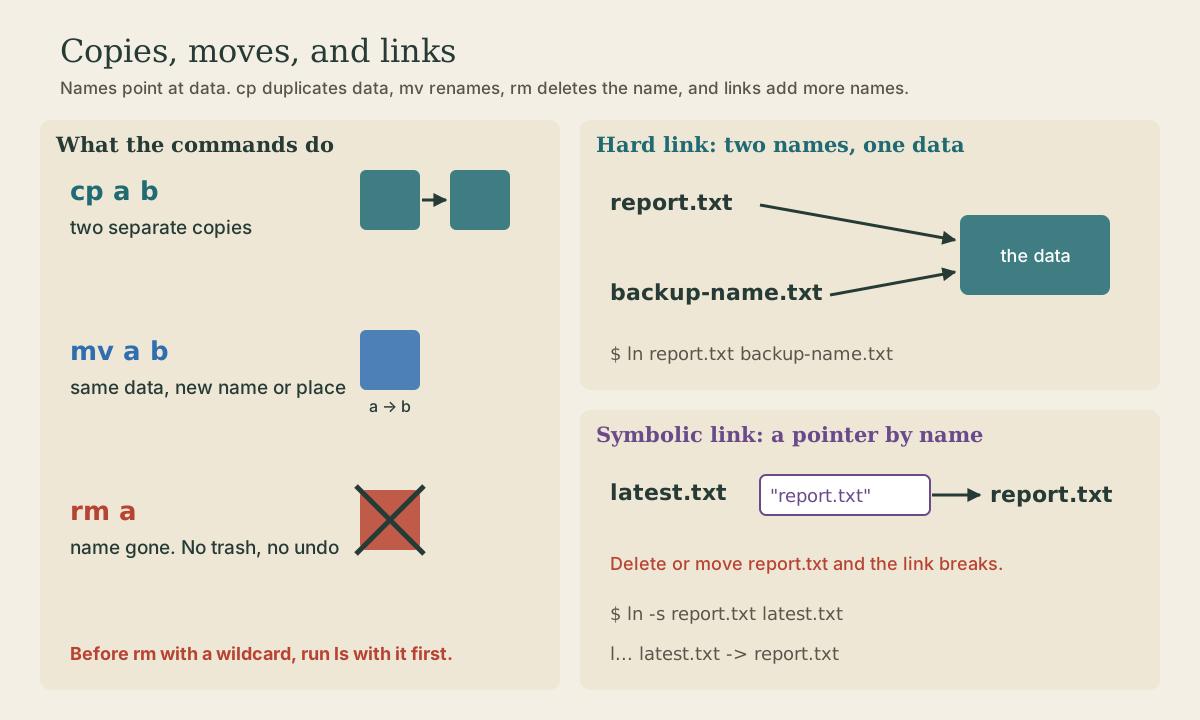
On the same disk, mv doesn’t copy any data; it just changes the name and where it’s listed, so moving a 40 GB folder is instant. Across disks it copies, then deletes the original 2. Like cp, it overwrites silently unless you add -i 1.
Deleting for good
rm removes files; rm -r removes a directory and everything in it; rmdir removes only an empty directory 1 3.
me@linuxbox:~$ rm old-notes.txt
me@linuxbox:~$ rm -r garden-backup
There is no trash and no undelete 1. The file’s name is gone the moment you press Enter. (The bytes may linger on the disk until something overwrites them, which matters for privacy, not for getting your file back 3.) Habits that save you:
rm -iasks about each file;rm -Iasks once before removing more than three files or anything recursive 3.- Test a wildcard with
lsfirst, then press up-arrow and changelstorm1. - Be most careful with
rm -rf:-f(force) never asks and ignores errors 1. Read the line twice before pressing Enter.
The classic disaster: you mean rm *.html and type rm * .html. The stray space makes two arguments, * (every file here) and .html, so rm deletes everything and then complains that .html doesn’t exist 1.
Quick check
rm *.bak but typed rm * .bak. What happens?The space split it into two arguments: * (everything) and .bak. Test wildcards with ls first, then swap ls for rm.
Wildcards
Wildcards let one command name many files. The shell expands them into the matching names before the command runs 1:
| Wildcard | Matches |
|---|---|
* |
Any characters, including none |
? |
Exactly one character |
[abc] |
One character from the set |
[!abc] |
One character not in the set |
[[:digit:]], [[:upper:]], [[:lower:]], [[:alpha:]] |
One character of that class |
Examples 1:
| Pattern | Matches |
|---|---|
*.txt |
everything ending in .txt |
g* |
everything starting with g |
Data??? |
Data plus exactly three characters |
[abc]* |
names starting with a, b, or c |
BACKUP.[0-9][0-9][0-9] |
BACKUP. and three digits |
[[:upper:]]* |
names starting with a capital |
me@linuxbox:~$ ls photos/IMG_2026*.jpg          # check first
me@linuxbox:~$ mv photos/IMG_2026*.jpg photos/2026/
Wildcards don’t match hidden dot-files unless the pattern starts with a dot.
Links
A file’s name isn’t the file. The data lives on disk, and a directory just holds names that point to it. Links add more names 1 4:
- A hard link (
ln target newname) is another name for the very same file; the two are indistinguishable. Delete one and the data stays until its last name is gone. That’s what the link count inls -lcounts. Hard links can’t point to directories or reach across disks 1 4. - A symbolic link (
ln -s target newname) is a tiny file that holds a path. Programs that open it are sent to the target, like a Windows shortcut. It can point at a directory or another disk, but if the target is moved or deleted, the link breaks and points at nothing 1 4.
me@linuxbox:~$ ln -s ~/garden/2027/seeds seeds
me@linuxbox:~$ ls -l seeds
lrwxrwxrwx 1 me me 25 Oct  5 08:10 seeds -> /home/me/garden/2027/seeds
me@linuxbox:~$ cd seeds        # takes you into the real folder
Symbolic links are what you’ll use: shortcuts to deep folders, and the way Linux keeps several versions of something with one stable name. Your system is full of them (ls -l /bin) 1.
Quick check
A hard link is different: the data survives until its last name is removed.
Your turn: a playground
Build a playground and wreck it
Do this in your course folder, ~/shell-course.
- Make a folder
playgroundwith two subfolders,dir1anddir2, in one command. - Copy
/etc/passwdintoplayground, then rename the copyfun. - Move
funintodir1, then copy it intodir2. Runls -lon both. - Make a hard link
fun-hardtodir1/funinsidedir1. What’s the link count onfunnow? Runls -li dir1and compare the first column (the inode number) of the two. - In
playground, make a symbolic linkfun-sympointing todir1/fun. Read it withhead -n 2 fun-sym. - Delete
dir1/fun. What happens tofun-hard? Tofun-sym? - Remove the whole
playgroundfolder with one command.
Answers
mkdir -p playground/dir1 playground/dir2(ormkdir -p playground/{dir1,dir2}; braces come in module 5).cp /etc/passwd playground/thencd playgroundandmv passwd fun.mv fun dir1/thencp dir1/fun dir2/. Two separate files with their own sizes and times.ln dir1/fun dir1/fun-hard. The link count goes from 1 to 2, andls -lishows both names with the same inode number: one file, two names.ln -s dir1/fun fun-sym.ls -lshowsfun-sym -> dir1/fun, andheadreads straight through it.fun-hardstill works: the data has another name, so it isn’t freed.fun-symis broken:lsshows it in red, andhead fun-symsays “No such file or directory,” because the name it points to is gone.cd ..thenrm -r playground. (Check withls playgroundfirst.)
So
mkdir, touch, cp, and mv make, copy, and move things, and both cp and mv overwrite silently unless you add -i. rm is permanent, so test wildcards with ls first. Wildcards are expanded by the shell before the command runs. Hard links are extra names for the same data; symbolic links are pointers by path that break when the target moves.
Lesson complete
Nice work.
Sources for this lesson
- 1William Shotts. The Linux Command Line, Seventh Internet Edition (25.12A). LinuxCommand.org (print edition by No Starch Press). 2026. verifiedFree CC BY-NC-ND 3.0 book, release 25.12A of July 18, 2026. Part 1, Learning the Shell: the shell and terminal emulators, prompts ($ vs. # for the superuser), command history (most distributions keep the last 1,000 commands), Shift-Ctrl-C/V for copy and paste; navigation and the directory tree; exploring the system (ls options and the long listing, file, less, the guided tour of /, symbolic links); manipulating files (wildcards and character classes, mkdir, cp, mv, rm, ln; no undelete, test wildcards with ls first); working with commands (four kinds of commands, type, which, help, --help, man and its sections, apropos, whatis, info, alias); redirection; expansion and quoting; Readline keyboard tricks, completion, history search; permissions; processes. Later parts cover the environment, vi, packages, storage, networking, find, archiving, regular expressions, text processing, and shell scripting.
- 2mv: Move (rename) files (GNU Coreutils manual, 11.4). GNU Project, Free Software Foundation. verifiedmv moves or renames files or directories. To move a file it ordinarily simply renames it; if the destination is on a different file system, it falls back on copying as if by cp -a and then removes the original, cleaning up a partial copy if the copy fails.
- 3rm: Remove files or directories (GNU Coreutils manual, 11.5). GNU Project, Free Software Foundation. verifiedrm removes each given file; directories need -r. -i prompts for each file; -I (--interactive=once) prompts once before removing more than three files or recursively; -f ignores nonexistent files and never prompts. Warning: after rm it is usually possible to recover a file's contents from the disk; use shred for more assurance.
- 4ln: Make links between files (GNU Coreutils manual, 12.2). GNU Project, Free Software Foundation. verifiedln makes hard links by default and symbolic (soft) links with -s. A hard link is another name for an existing file, indistinguishable from the original; most systems forbid hard links to directories, and hard links cannot cross file system boundaries. A symbolic link is a special file that refers to another file by name; the kernel follows it for most operations.