Paths and the Directory Tree
Linux has one directory tree rooted at /, with no drive letters; other disks are mounted into it. A tour of the standard directories (/etc, /home, /usr, /var, /tmp, /dev, /proc). Absolute and relative paths, ., .., ~, and cd -; pwd, cd, and ls; hidden dot-files; case-sensitive names, optional extensions, and why to keep spaces out of file names.
- 6 min
- 7 steps
- 3 questions
- Lesson 4 of 80
In this lesson
- One tree, no drive letters
- Where am I, and what’s here?
- Absolute and relative paths
- A tour of the tree
- File names on Linux
- Your turn
- So
Picking up where you left off.
One tree, no drive letters
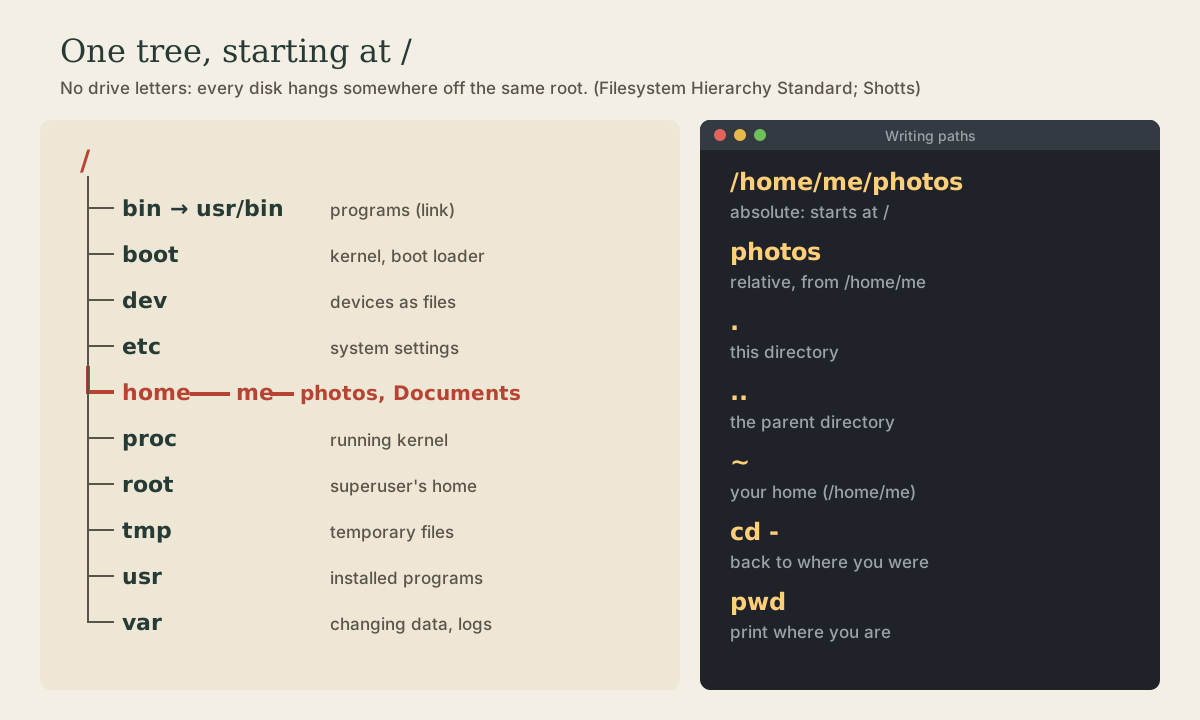
Windows gives every disk a letter: C:\, D:\. Linux has a single tree. Everything starts at the root directory, written /, and every file on every disk sits somewhere beneath it 1 2. A second disk or a USB stick isn’t a new letter; it’s attached, or mounted, at a folder in the same tree, such as /media/me/USBSTICK 1 3.
Paths are written with forward slashes: /home/me/photos, not \. Under WSL, your Windows C: drive is just one more mounted directory, /mnt/c 4.
Where am I, and what’s here?
Three commands do almost all your moving around 1 2:
me@linuxbox:~$ pwd
/home/me
me@linuxbox:~$ ls
Desktop  Documents  Downloads  photos
me@linuxbox:~$ cd photos
me@linuxbox:~/photos$ pwd
/home/me/photos
pwd, print working directory: where you are.ls: what’s here. Give it a path to look elsewhere:ls /etc.cd: change directory.
You start each session in your home directory, /home/<you>. It’s the one place an ordinary user can write freely 1.
Absolute and relative paths
An absolute path starts with / and spells out the route from the root: /home/me/photos. It means the same thing no matter where you are.
A relative path doesn’t start with /; it’s followed from your current directory. From /home/me, the path photos means /home/me/photos 2.
| Path | Means |
|---|---|
. |
this directory |
.. |
the parent directory, one level up |
~ |
your home directory |
~bob |
bob’s home directory |
And some cd shortcuts 1:
me@linuxbox:~/photos$ cd ..        # up one level, to /home/me
me@linuxbox:~$ cd /etc             # anywhere, by absolute path
me@linuxbox:/etc$ cd -             # back to where you just were
/home/me
me@linuxbox:~$ cd                  # no argument: home
Everything after # on a line is a comment: the shell ignores it. You’ll see comments in examples throughout this course.
Quick check
/photos is an absolute path: a folder named photos directly under the root, which doesn’t exist.
A tour of the tree
The Filesystem Hierarchy Standard says what goes where, so every distribution looks broadly alike 3. The directories worth knowing now 1 3:
| Directory | Holds |
|---|---|
/etc |
System-wide configuration, nearly all plain text: /etc/passwd (user accounts), /etc/fstab (disks to mount), /etc/hostname |
/home |
One folder per user |
/root |
The superuser’s home |
/usr |
Installed programs and their files: /usr/bin (programs), /usr/lib (libraries), /usr/share (shared data and docs), /usr/local (things you install yourself) |
/bin, /sbin, /lib |
On modern systems, just links into /usr |
/var |
Data that changes: logs in /var/log, caches, mail, databases |
/tmp |
Temporary files; some systems empty it at every boot |
/boot |
The Linux kernel and the boot loader |
/dev |
Devices as files: disks, terminals, /dev/null |
/proc, /sys |
Not real files on disk: windows into the running kernel. cat /proc/cpuinfo describes your processor |
/media, /mnt |
Where removable and manually attached disks are mounted |
/opt |
Optional, often commercial, software |
“Everything is a file” is an old Unix idea, and /dev and /proc are where you see it most plainly: a disk, a terminal, and the kernel’s view of your CPU all show up as names in the tree 1.
Quick check
Almost everything in /etc is plain text you can read with less, and edit (carefully) as root.
File names on Linux
Four rules that trip up people coming from Windows 1:
- Names starting with a dot are hidden.
lsskips them;ls -ashows them. Your home directory is full of them:.bashrc,.profile,.config/. That’s where programs keep your settings. - Names are case-sensitive.
File1andfile1are different files, andCD Documentsis “command not found.” - Extensions are optional. Linux decides what a file is by its contents, not its name, though many programs still look at the extension.
filetells you what something really is (next lesson). - Avoid spaces and most punctuation in names you create. Stick to letters, digits,
.,-, and_:tax-2026.pdf,garden_notes.txt. Every space is something you’ll have to quote later.
Quick check
Programs keep their settings in hidden dot-files and dot-folders in your home directory.
Your turn
Exercises
- Starting from your home directory, use
cdwith relative paths only to get to/usr/share/doc, then back home in one command. - From
/usr/share/doc, what doescd ../../bindo? Check withpwd. - Run
ls -a ~and count the hidden entries. Thenls -a /and compare. - Read the first line of
/etc/passwdwithhead -n 1 /etc/passwd. Whose account is it, and what’s their home directory? - Run
ls /dev. Find something that looks like a disk and something that looks like a terminal.
Answers
- From
/home/me:cd ../../usr/share/doc. Back home:cd(orcd ~). - Up two levels to
/usr, then intobin: you’re in/usr/bin. - Your home has several, such as
.bashrc,.profile,.bash_history, and.cache. In/,ls -ashows only.and..as extras. root:x:0:0:root:/root:/bin/bash: the root account, home/root, shell/bin/bash. The fields are separated by colons;man 5 passwdexplains them.- Disks look like
sda,sdb,nvme0n1(under WSL,sda,sdb, …); terminals aretty1,tty2, … and thepts/folder.
So
Linux keeps everything in one tree under /. Absolute paths start at the root; relative paths start where you are, with ., .., and ~ as shortcuts. Settings live in /etc, your files in /home, programs in /usr, changing data in /var, and names are case-sensitive, extension-optional, and best kept free of spaces.
Lesson complete
Nice work.
Sources for this lesson
- 1William Shotts. The Linux Command Line, Seventh Internet Edition (25.12A). LinuxCommand.org (print edition by No Starch Press). 2026. verifiedFree CC BY-NC-ND 3.0 book, release 25.12A of July 18, 2026. Part 1, Learning the Shell: the shell and terminal emulators, prompts ($ vs. # for the superuser), command history (most distributions keep the last 1,000 commands), Shift-Ctrl-C/V for copy and paste; navigation and the directory tree; exploring the system (ls options and the long listing, file, less, the guided tour of /, symbolic links); manipulating files (wildcards and character classes, mkdir, cp, mv, rm, ln; no undelete, test wildcards with ls first); working with commands (four kinds of commands, type, which, help, --help, man and its sections, apropos, whatis, info, alias); redirection; expansion and quoting; Readline keyboard tricks, completion, history search; permissions; processes. Later parts cover the environment, vi, packages, storage, networking, find, archiving, regular expressions, text processing, and shell scripting.
- 2Anish Athalye, Jon Gjengset, Jose Javier Gonzalez Ortiz. Course Overview + Introduction to the Shell (The Missing Semester of Your CS Education, 2026). MIT CSAIL. 2026. verifiedCC BY-NC-SA lecture notes. The shell is a textual interface for running programs and wiring them together; a terminal is the visual interface to it. Bash is the most widely used shell (zsh and fish are popular alternatives); on Windows use WSL or a Linux VM. The shell splits a command at whitespace: first word the program, the rest arguments; quote or backslash-escape spaces. man and --help, plus tldr for examples; cd is a shell builtin; Tab completion; pwd and $PWD; absolute vs. relative paths, . and ..; $PATH lists the directories searched for programs, which shows the one found. Basic tools cat, sort, uniq, head, tail, grep.
- 3Filesystem Hierarchy Standard, Version 3.0. The Linux Foundation. 2015. verifiedDefines the directories under the root: /bin, /boot, /dev, /etc (host-specific system configuration), /home, /lib, /media, /mnt, /opt, /root, /run (run-time variable data), /sbin, /srv, /tmp; the /usr hierarchy (shareable, read-only data: bin, lib, local, sbin, share); the /var hierarchy (variable data: cache, lib, log, spool, tmp); and the virtual /proc and /sys.
- 4Working across Windows and Linux file systems. Microsoft Learn. verifiedAvoid working across operating systems with your files; for speed, store files used by Linux tools in the WSL file system (/home/<user>/Project), not /mnt/c. Windows drives appear in WSL as mounts such as /mnt/c. explorer.exe . opens the current Linux directory in File Explorer, and \\wsl$ shows all distributions' file systems. Case sensitivity differs between the systems. Linux tools can be run from Windows with wsl <command>, and Windows tools from Linux.