Getting Help and Typing Less
Four kinds of commands (programs, builtins, functions, aliases) and how type and which tell them apart. Where help lives: help for builtins, --help, man pages and their sections, apropos and whatis, and tldr for examples. Then the keys that make the shell fast: Tab completion, history and Ctrl-R search, !!, and Readline's cursor and cut-and-paste keys.
- 6 min
- 8 steps
- 3 questions
- Lesson 3 of 80
In this lesson
- Four kinds of commands
- Asking for help
- Man pages
- Tab completion
- History
- Moving and editing on the line
- Your turn
- So
Picking up where you left off.
Four kinds of commands
A command can be one of four things 1:
- A program: a file on disk, like
/usr/bin/ls. Most commands are these. - A shell builtin: part of bash itself, like
cd,echo, andtype. - A shell function: a little script loaded into the shell.
- An alias: a nickname you or your distribution defined for another command.
type tells you which 1:
me@linuxbox:~$ type type
type is a shell builtin
me@linuxbox:~$ type ls
ls is aliased to `ls --color=auto'
me@linuxbox:~$ type cp
cp is /usr/bin/cp
which finds only programs: it searches the folders listed in $PATH and prints the first match 1 2. That’s why which cd comes back empty: cd isn’t a file, it’s built into the shell 2. The kind matters for help, because builtins and programs document themselves differently.
Quick check
which cd find nothing?Use type cd instead: it reports builtins, aliases, and functions as well as programs.
Asking for help
helpdocuments bash’s builtins:help cd1.--helpmakes most programs print a usage summary:mkdir --help. Not every program supports it, but trying does no harm 1.manshows the manual page:man ls1 2.tldrshows a handful of common examples instead of every option 2. Ubuntu packages it:sudo apt install tldr, then trytldr tar. (If it says it has no pages yet, runtldr --updateonce.)
When you’re stuck, tldr for the common case, --help for a quick reminder, man for the full truth.
Man pages
man displays the page in a pager called less, so these keys work 1:
| Key | Does |
|---|---|
| Space, b | Page down, page back |
/word then Enter |
Search forward; n for the next hit |
g, G |
Top, bottom |
q |
Quit |
A man page gives the name, a synopsis of the syntax, a description, and every option. It’s a reference, not a tutorial, so pages rarely include examples 1. In the synopsis, things in [brackets] are optional and ... means “can repeat.”
The manual is divided into sections 1. You’ll mostly use:
- 1, user commands (
ls,grep) - 5, file formats (
/etc/passwd) - 8, system administration commands (
mount)
When a name exists in more than one section, give the number: man passwd shows the command, man 5 passwd the format of the file.
Two ways to search the manual itself 1:
me@linuxbox:~$ whatis ls
ls (1)               - list directory contents
me@linuxbox:~$ apropos partition
whatis prints a page’s one-line description. apropos (same as man -k) lists every page whose description matches a word, which is how you find a command you don’t know the name of yet.
Quick check
man shows pages with the less pager, so these keys work in less, too.
Tab completion
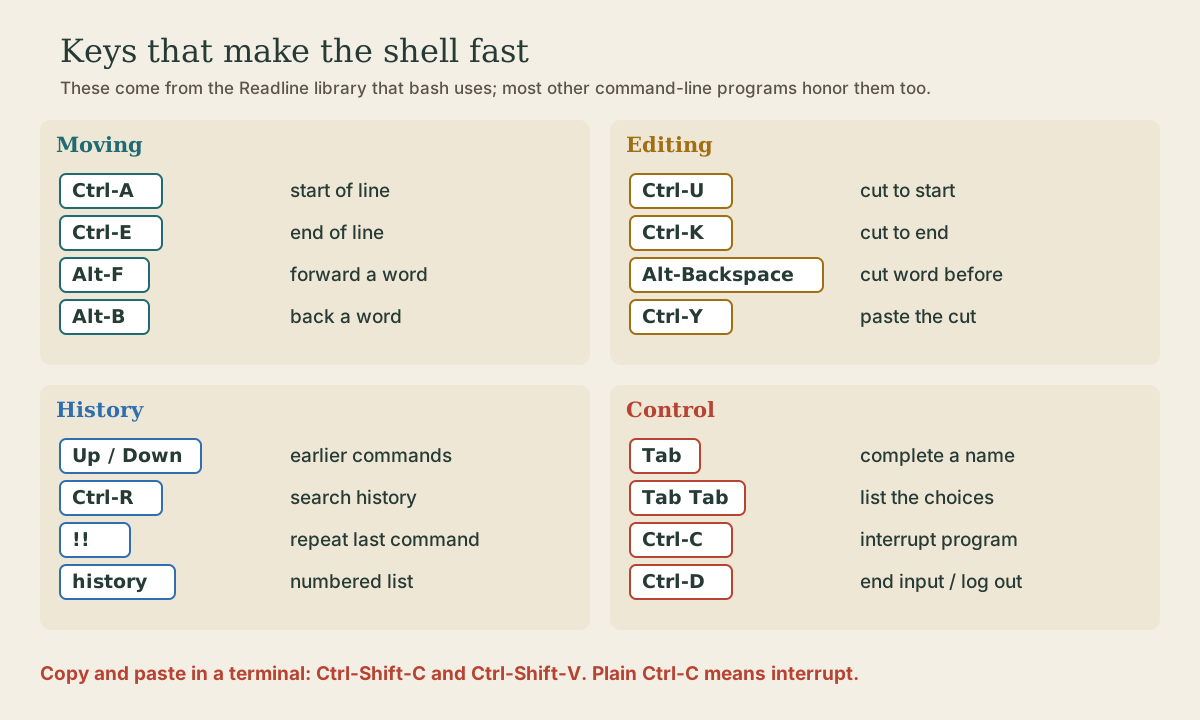
Press Tab while typing a command or a file name and bash finishes it, as far as it can without guessing 1 2. If several names match, press Tab twice to list them, type another letter or two, and Tab again.
me@linuxbox:~$ cd Doc<Tab>
me@linuxbox:~$ cd Documents/
Tab completion is the single biggest speed-up, and it prevents typos: if Tab won’t complete a path, the path you’re typing doesn’t exist.
History
Bash keeps your past commands, the last 1,000 on most distributions 1:
- Up / Down arrows step through them.
historylists them with numbers.history | grep rsyncfinds old ones (|is a pipe, coming in module 4).- Ctrl-R searches backward as you type: press it, type
rsync, and the most recent matching command appears. Ctrl-R again for older matches, Enter to run it, or an arrow key to edit it first 1. !!repeats the last command. The classic use:sudo !!after a command fails with “Permission denied” 1.
Quick check
Ctrl-R again steps to older matches; Enter runs it; the arrow keys let you edit it first.
Moving and editing on the line
These keys come from Readline, the line-editing library bash uses, and many other command-line programs honor them too 1:
- Ctrl-A / Ctrl-E: jump to the start / end of the line.
- Alt-F / Alt-B: forward / back one word.
- Ctrl-U / Ctrl-K: cut from the cursor to the start / end of the line.
- Alt-Backspace: cut the word before the cursor.
- Ctrl-Y: paste back (“yank”) what you cut.
- Ctrl-L: clear the screen (same as
clear).
If Alt doesn’t work in your terminal, press and release Esc first, then the letter 1.
Your turn
Exercises
- Use
typeonecho,ls,pwd, andll. Which are builtins, which are programs, and which are aliases on your system? - Find the man page section that describes the format of
/etc/fstab, and open it. - You want to compress files but don’t remember any command for it. Use
aproposto find candidates. - Type
echo this is a long line with a typo at the start, then without the arrow keys jump to the start, and cut everything to the end. Paste it back. - Run three different commands, then use Ctrl-R to find and rerun the first one.
Answers
- On Ubuntu:
echoandpwdare builtins (they also exist as programs in/usr/bin, but the builtin wins;type -a echoshows both);lsis an alias forls --color=auto;llis an alias forls -alFin Ubuntu’s default.bashrc. man 5 fstab.whatis fstabshows the section number.apropos compresslists gzip, bzip2, xz, zip, and others.tardoesn’t show up because its description says “archiving utility”: search wider,apropos archive.- Ctrl-A, then Ctrl-K to cut, then Ctrl-Y to paste.
- Ctrl-R, a few letters of the first command, Enter.
So
Ask the shell what a command is with type, ask the command how to use it with --help, man, or tldr, and let Tab and history do your typing. These habits make every later lesson faster.
Lesson complete
Nice work.
Sources for this lesson
- 1William Shotts. The Linux Command Line, Seventh Internet Edition (25.12A). LinuxCommand.org (print edition by No Starch Press). 2026. verifiedFree CC BY-NC-ND 3.0 book, release 25.12A of July 18, 2026. Part 1, Learning the Shell: the shell and terminal emulators, prompts ($ vs. # for the superuser), command history (most distributions keep the last 1,000 commands), Shift-Ctrl-C/V for copy and paste; navigation and the directory tree; exploring the system (ls options and the long listing, file, less, the guided tour of /, symbolic links); manipulating files (wildcards and character classes, mkdir, cp, mv, rm, ln; no undelete, test wildcards with ls first); working with commands (four kinds of commands, type, which, help, --help, man and its sections, apropos, whatis, info, alias); redirection; expansion and quoting; Readline keyboard tricks, completion, history search; permissions; processes. Later parts cover the environment, vi, packages, storage, networking, find, archiving, regular expressions, text processing, and shell scripting.
- 2Anish Athalye, Jon Gjengset, Jose Javier Gonzalez Ortiz. Course Overview + Introduction to the Shell (The Missing Semester of Your CS Education, 2026). MIT CSAIL. 2026. verifiedCC BY-NC-SA lecture notes. The shell is a textual interface for running programs and wiring them together; a terminal is the visual interface to it. Bash is the most widely used shell (zsh and fish are popular alternatives); on Windows use WSL or a Linux VM. The shell splits a command at whitespace: first word the program, the rest arguments; quote or backslash-escape spaces. man and --help, plus tldr for examples; cd is a shell builtin; Tab completion; pwd and $PWD; absolute vs. relative paths, . and ..; $PATH lists the directories searched for programs, which shows the one found. Basic tools cat, sort, uniq, head, tail, grep.