The Terminal, the Shell, and the Prompt
The shell is a program that reads commands and runs other programs; the terminal is the window it lives in. Bash is the standard shell on Linux. Read the prompt (user, host, working directory, $ or #), split a command into the program, options, and arguments, quote spaces, run a first handful of commands, and learn why Ctrl-C doesn't copy in a terminal.
- 6 min
- 7 steps
- 3 questions
- Lesson 1 of 80
In this lesson
- Two programs, not one
- Reading the prompt
- The shape of a command
- First commands
- Keys that work differently here
- Your turn
- So
Picking up where you left off.
Two programs, not one
When people say “the command line,” they mean the shell: a program that takes the commands you type and passes them to the operating system to carry out 1. On almost every Linux system the shell is bash, the GNU Project’s “Bourne Again SHell,” an enhanced replacement for sh, the original Unix shell written by Steve Bourne 1.
The window you type into is a different program, a terminal emulator. It draws text and passes your keystrokes to the shell. GNOME’s is called Terminal (gnome-terminal), KDE’s is Konsole; on most Linux desktops Ctrl-Alt-T opens one 1 2. On Windows, Windows Terminal can host PowerShell, the old cmd, or a Linux shell under WSL, which is the next lesson.
Other shells exist. zsh (the default on Macs) and fish add conveniences, but bash is the one installed everywhere and the one scripts and install instructions assume, so it’s the one to learn first. The ideas carry straight over 2.
Why bother, when there’s a mouse? Because a graphical program can only do what its buttons offer. The shell lets you combine small programs into new tools, repeat work exactly, and automate it. It’s also the only interface on most servers, and the language of nearly every “how to install this” page 2.
Quick check
You can run different shells (bash, zsh, fish) in the same terminal, or the same shell in different terminals.
Reading the prompt
Open a terminal and you’ll see something like:
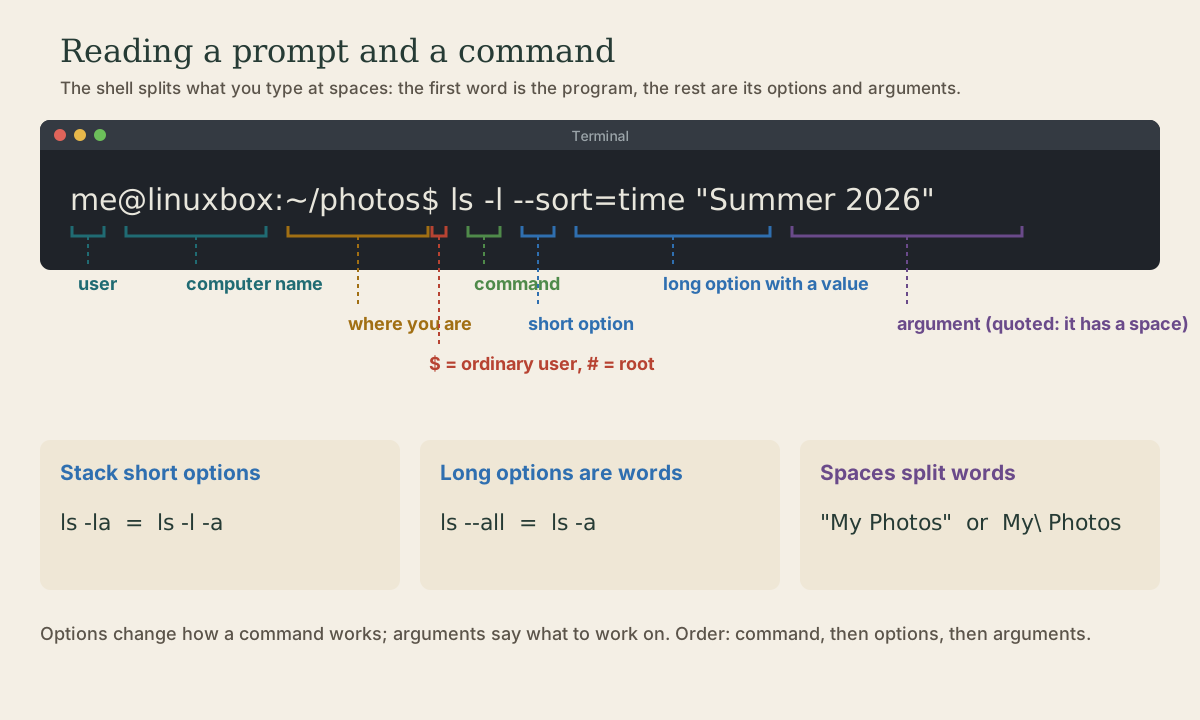
me@linuxbox:~$
That’s the prompt, the shell saying it’s ready 1. Reading left to right:
me: your user name.linuxbox: the computer’s name (its hostname).~: the current working directory, the folder you’re “in.”~is shorthand for your home directory,/home/me.$: you’re an ordinary user. If it ends in#, the shell is running as root, the superuser, who can change anything on the system 1 2.
Distributions dress the prompt differently (Fedora shows [me@linuxbox ~]$), but the pieces are the same. You’ll customize it in a later module.
Quick check
Be deliberate at a # prompt. Day to day you work as an ordinary user and borrow root’s power with sudo for single commands.
The shape of a command
Type something nonsensical and press Enter:
me@linuxbox:~$ kaekfjaeifj
kaekfjaeifj: command not found
The shell couldn’t find a program by that name and gives you another prompt 1. Nothing breaks.
A real command has three kinds of parts:
me@linuxbox:~$ ls -l --sort=time Documents
- The command: the first word,
ls, is the program to run. - Options change how it behaves. Short options are one dash and a letter (
-l), and can be stacked:ls -laisls -l -a. Long options are two dashes and a word (--all), sometimes with a value (--sort=time). - Arguments say what to work on: here, the
Documentsfolder.
The shell splits the line at spaces before the program sees it: the first word is the program, the rest are handed to it as separate arguments 2. That’s why a name with a space in it needs protecting, either with quotes or by escaping the space with a backslash 2:
me@linuxbox:~$ ls "My Photos"
me@linuxbox:~$ ls My\ Photos
Without them, ls My Photos looks for two things, My and Photos, and complains about both.
Quick check
The shell splits at whitespace before cp ever sees the line. Write “My Photos” or My\ Photos to keep it one word.
First commands
Try each of these. None of them changes anything 1 2.
me@linuxbox:~$ date
Sun Oct  4 21:05:12 CDT 2026
me@linuxbox:~$ echo hello world
hello world
me@linuxbox:~$ whoami
me
me@linuxbox:~$ uptime
 21:05:20 up 3 days,  4:41,  1 user,  load average: 0.08, 0.12, 0.10
me@linuxbox:~$ df -h
Filesystem      Size  Used Avail Use% Mounted on
/dev/sda2       234G   61G  161G  28% /
me@linuxbox:~$ free -h
               total        used        free      shared  buff/cache   available
Mem:            15Gi       4.1Gi       6.3Gi       312Mi       5.2Gi        11Gi
date: the date and time.echo: prints its arguments back. Handy for checking what the shell did to your words.whoami: your user name.uptime: how long since boot, and how busy the machine has been.df -h: free disk space,-hfor human-readable sizes like 161G.free -h: memory in use.
Your numbers will differ. To leave, type exit or press Ctrl-D on an empty line 1.
Keys that work differently here
Press the up arrow: your last command comes back, ready to edit with the left and right arrows. Most distributions remember your last 1,000 commands 1.
Ctrl-C does not copy in a terminal. It’s far older than Windows and means interrupt: stop the program that’s running. Copy and paste are Ctrl-Shift-C and Ctrl-Shift-V 1. (Windows Terminal will also copy selected text with Ctrl-C, but get used to Ctrl-Shift; it works everywhere.)
Try it: run ping 8.8.8.8, a program that runs until stopped, then press Ctrl-C.
Playback is optional. If the player is unavailable, open the video at its source.
Your turn
Exercises
- Run
echo $SHELL. What does it print, and what does that tell you? - Run
echo one two three(with extra spaces), thenecho "one two three". Why are the outputs different? - Run
ls -laandls -l -a. Are the outputs the same? - Without running it, how many arguments does
touch my file.txtpass totouch? What would it create?
Answers
- Something like
/bin/bashor/usr/bin/bash: the path of your login shell. If it says/usr/bin/zsh, you’re running zsh, which handles everything in this module the same way. - Unquoted, the shell splits the line into words and throws away the extra spaces, so
echogets three arguments and prints them with single spaces. Quoted, it’s one argument, spaces and all. - Yes. Short options stack.
- Two:
myandfile.txt.touchwould create two empty files with those names. To make one file, writetouch "my file.txt", or better, avoid spaces in names you’ll type often:my-file.txt.
So
The shell reads what you type, splits it into words at the spaces, runs the first word as a program, and hands it the rest as options and arguments. The prompt tells you who you are, where you are, and whether you’re root. Next: getting a real Linux shell on a Windows PC.
Lesson complete
Nice work.
Sources for this lesson
- 1William Shotts. The Linux Command Line, Seventh Internet Edition (25.12A). LinuxCommand.org (print edition by No Starch Press). 2026. verifiedFree CC BY-NC-ND 3.0 book, release 25.12A of July 18, 2026. Part 1, Learning the Shell: the shell and terminal emulators, prompts ($ vs. # for the superuser), command history (most distributions keep the last 1,000 commands), Shift-Ctrl-C/V for copy and paste; navigation and the directory tree; exploring the system (ls options and the long listing, file, less, the guided tour of /, symbolic links); manipulating files (wildcards and character classes, mkdir, cp, mv, rm, ln; no undelete, test wildcards with ls first); working with commands (four kinds of commands, type, which, help, --help, man and its sections, apropos, whatis, info, alias); redirection; expansion and quoting; Readline keyboard tricks, completion, history search; permissions; processes. Later parts cover the environment, vi, packages, storage, networking, find, archiving, regular expressions, text processing, and shell scripting.
- 2Anish Athalye, Jon Gjengset, Jose Javier Gonzalez Ortiz. Course Overview + Introduction to the Shell (The Missing Semester of Your CS Education, 2026). MIT CSAIL. 2026. verifiedCC BY-NC-SA lecture notes. The shell is a textual interface for running programs and wiring them together; a terminal is the visual interface to it. Bash is the most widely used shell (zsh and fish are popular alternatives); on Windows use WSL or a Linux VM. The shell splits a command at whitespace: first word the program, the rest arguments; quote or backslash-escape spaces. man and --help, plus tldr for examples; cd is a shell builtin; Tab completion; pwd and $PWD; absolute vs. relative paths, . and ..; $PATH lists the directories searched for programs, which shows the one found. Basic tools cat, sort, uniq, head, tail, grep.