Startup Files and the Prompt
Login and non-login shells, and which startup files each reads: /etc/profile, ~/.profile, /etc/bash.bashrc, and ~/.bashrc. Where to put PATH and EDITOR versus aliases, functions, and the prompt; applying changes with source; a tour of Ubuntu's default ~/.bashrc; history settings; and building your own prompt with PS1 escape codes and colors.
- 6 min
- 7 steps
- 3 questions
- Lesson 15 of 80
In this lesson
- Two kinds of shell
- What goes where
- Applying changes
- A tour of Ubuntu’s ~/.bashrc
- Your own prompt
- Your turn
- So
Picking up where you left off.
Two kinds of shell
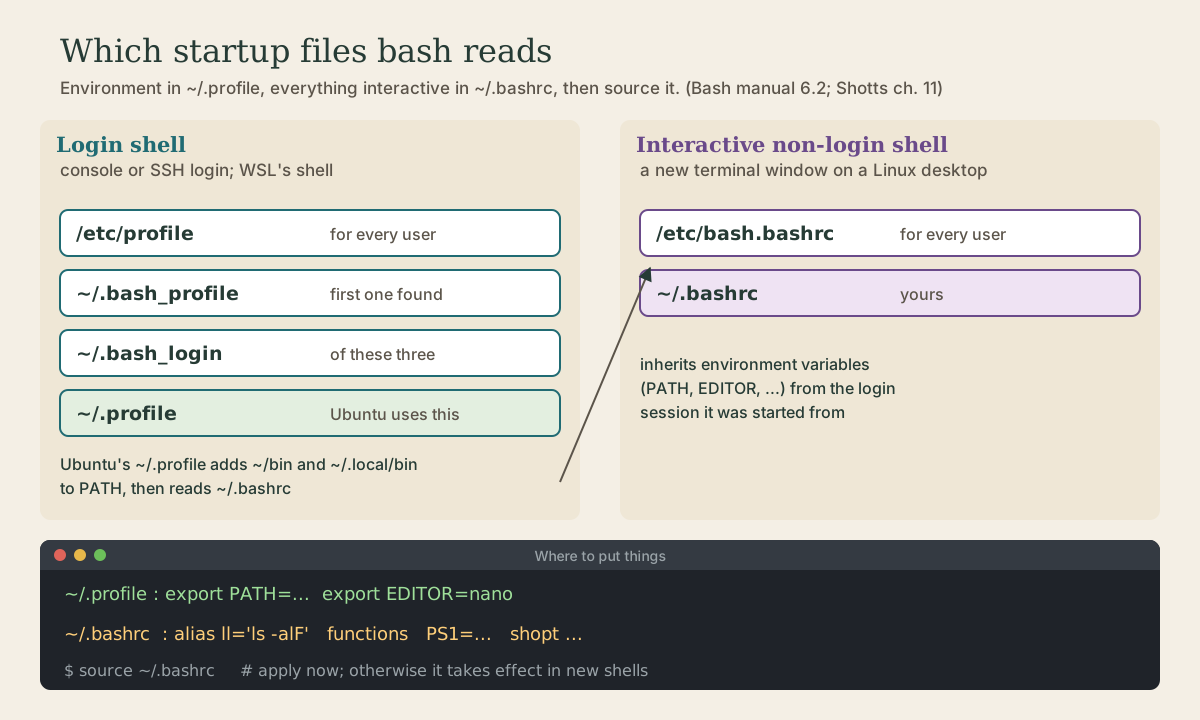
When bash starts, it reads startup files: little scripts that set up your environment. Which ones depends on the kind of shell 1 2:
- A login shell is one you logged in to: a text console, an SSH session, or the shell WSL opens for you. It reads
/etc/profile, then the first one it finds of~/.bash_profile,~/.bash_login, and~/.profile2. - An interactive non-login shell is one started inside a session you’re already logged in to, like a new terminal window on a Linux desktop. It reads
/etc/bash.bashrcand~/.bashrc, and inherits environment variables from the session that started it 1 2.
Files under /etc apply to everyone; files in your home are yours to edit. Ubuntu gives each user a ~/.profile (no .bash_profile), and that .profile reads ~/.bashrc, so in practice both kinds of shell end up reading ~/.bashrc 1.
What goes where
~/.profile: environment variables, which every program inherits.PATHadditions andexport EDITOR=nanobelong here 1.~/.bashrc: things for interactive use: aliases, functions, the prompt, history settings, shell options 1.
The reason for the split: environment variables need setting once per login and are inherited from there, while aliases and functions aren’t inherited, so every new shell has to read them.
Back up a startup file before editing it: cp ~/.bashrc ~/.bashrc.orig. A mistake in it shows up as errors every time a terminal opens, and the backup gets you out.
Quick check
export EDITOR=nano?Environment variables are inherited by everything started from your login. Aliases and the prompt go in ~/.bashrc.
Applying changes
Startup files run when a shell starts. After editing one, either open a new terminal or load it into the current shell with source 1:
me@linuxbox:~$ nano ~/.bashrc
me@linuxbox:~$ source ~/.bashrc         # or the short form: . ~/.bashrc
source runs a file’s commands in your current shell, rather than in a new one, which is why it can change your aliases and variables.
Quick check
Startup files are read when a shell starts. source reads one into the shell you’re already in.
A tour of Ubuntu’s ~/.bashrc
Open yours with less ~/.bashrc. Highlights of Ubuntu’s default:
HISTCONTROL=ignoreboth      # don't save duplicates or lines starting with a space
shopt -s histappend         # add to the history file instead of overwriting it
HISTSIZE=1000               # commands kept in memory
HISTFILESIZE=2000           # commands kept in ~/.bash_history
shopt -s checkwinsize       # keep line wrapping right when the window resizes

alias ll='ls -alF'
alias la='ls -A'
alias l='ls -CF'

if [ -f ~/.bash_aliases ]; then
    . ~/.bash_aliases
fi
The last part matters: Ubuntu’s .bashrc reads ~/.bash_aliases if it exists. That’s the tidy place for your own aliases and functions; create the file and leave .bashrc itself alone. A leading space keeps a command out of history (that’s what ignoreboth includes), handy for commands with a password in them. HISTSIZE=10000 is a common, worthwhile change 2.
Your own prompt
The prompt is the variable PS1. Backslash codes in it are replaced each time the prompt is drawn 1:
| Code | Shows |
|---|---|
\u |
user name |
\h |
host name |
\w |
current directory (~ for home) |
\W |
just the last part of the directory |
\t, \A |
time, 24-hour (with and without seconds) |
\$ |
$, or # for root |
\n |
a new line |
\[ ... \] |
wraps codes that print nothing, like colors |
Try one out in the current shell (it lasts until you close it) 1:
me@linuxbox:~$ PS1='\A \w\$ '
09:41 ~$ cd /etc
09:41 /etc$
Colors are escape sequences such as \e[1;32m (bright green) and \e[0m (back to normal). Wrap each in \[ and \] so bash knows they take no space on screen; otherwise long lines wrap wrongly 1:
PS1='\[\e[1;32m\]\u@\h\[\e[0m\]:\[\e[1;34m\]\w\[\e[0m\]\$ '
That’s roughly Ubuntu’s default: a green user@host, a blue directory. When you’ve got one you like, add the PS1= line to the end of ~/.bashrc.
Quick check
\u is the user, \h the host, \W just the last part of the directory, $ a $ (or # for root).
Your turn
Exercises
- Back up your
.bashrc, then create~/.bash_aliaseswith two aliases of your own and amkcdfunction. Load it withsource ~/.bashrcand test them. - Add
export EDITOR=nanoto~/.profile. How do you make it take effect? - Raise your history to 10,000 commands in memory and 20,000 in the file.
- Design a prompt that shows the time and just the last part of the directory, then make it permanent.
- Find out whether your current shell is a login shell: run
shopt login_shell.
Answers
cp ~/.bashrc ~/.bashrc.orig, then put lines likealias up='sudo apt update && sudo apt upgrade'andmkcd() { mkdir -p "$1" && cd "$1"; }in~/.bash_aliases, thensource ~/.bashrc.- Log out and back in (close and reopen WSL), or
source ~/.profilein the current shell. New programs started from that shell then seeEDITOR. - In
~/.bashrc, change the lines toHISTSIZE=10000andHISTFILESIZE=20000, thensource ~/.bashrc. PS1='\A \W\$ ', then add that line to the end of~/.bashrc.login_shell onin a WSL window or SSH session;offin a new desktop terminal window.
So
Login shells read /etc/profile and ~/.profile; interactive shells read ~/.bashrc, and on Ubuntu .profile reads .bashrc too. Put environment variables and PATH in ~/.profile, and aliases, functions, history settings, and the prompt in ~/.bashrc (or ~/.bash_aliases), then source the file to apply it.
Lesson complete
Nice work.
Sources for this lesson
- 1William Shotts. The Linux Command Line, Seventh Internet Edition (25.12A). LinuxCommand.org (print edition by No Starch Press). 2026. verifiedFree CC BY-NC-ND 3.0 book, release 25.12A of July 18, 2026. Part 1, Learning the Shell: the shell and terminal emulators, prompts ($ vs. # for the superuser), command history (most distributions keep the last 1,000 commands), Shift-Ctrl-C/V for copy and paste; navigation and the directory tree; exploring the system (ls options and the long listing, file, less, the guided tour of /, symbolic links); manipulating files (wildcards and character classes, mkdir, cp, mv, rm, ln; no undelete, test wildcards with ls first); working with commands (four kinds of commands, type, which, help, --help, man and its sections, apropos, whatis, info, alias); redirection; expansion and quoting; Readline keyboard tricks, completion, history search; permissions; processes. Later parts cover the environment, vi, packages, storage, networking, find, archiving, regular expressions, text processing, and shell scripting.
- 2Chet Ramey, Brian Fox. Bash Reference Manual, Edition 5.3. GNU Project, Free Software Foundation. 2025. verifiedThe reference for Bash 5.3 (May 18, 2025). Redirections (3.6) are processed left to right and order matters: ls > dirlist 2>&1 sends both streams to dirlist, while ls 2>&1 > dirlist sends only standard output there. With set -o noclobber, > fails on an existing regular file and >| overrides it. &> word is equivalent to > word 2>&1 and &>> word to >> word 2>&1. Here documents (<<word, with <<- stripping leading tabs; quoting word disables expansion) and here strings (<<<). Expansions (3.5) happen in a fixed order: brace; tilde, parameter, arithmetic, and command substitution left to right; word splitting; filename expansion; quote removal last. Startup files (6.2): an interactive login shell reads /etc/profile then the first of ~/.bash_profile, ~/.bash_login, ~/.profile; an interactive non-login shell reads ~/.bashrc. HISTCONTROL (ignorespace, ignoredups, ignoreboth), HISTSIZE, HISTFILESIZE; set -x traces expanded commands; shell functions and variables, export.