Variables, PATH, and Aliases
Shell variables versus environment variables, and how export passes a value to the programs you start. The common environment variables (HOME, USER, PATH, EDITOR, LANG). How the shell finds a command: aliases, functions, builtins, then PATH from left to right; why your own scripts need ./ and how to put a personal bin folder on PATH. Aliases for shortcuts and functions for anything that takes arguments.
- 7 min
- 8 steps
- 3 questions
- Lesson 14 of 80
In this lesson
- Shell variables and environment variables
- Variables you’ll see everywhere
- How the shell finds a command
- Your own commands on PATH
- Aliases
- Functions
- Your turn
- So
Picking up where you left off.
Shell variables and environment variables
You create a variable by writing a name, =, and a value, with no spaces around the = 1 2:
me@linuxbox:~$ project=garden-plan
me@linuxbox:~$ echo "$project"
garden-plan
me@linuxbox:~$ project = garden-plan
project: command not found
With spaces, bash reads project as a command name. Use quotes when the value has spaces: title="Spring garden".
There are two kinds of variables 1:
- A shell variable exists only in the current shell.
- An environment variable is also copied to every program the shell starts.
export turns one into the other 1:
me@linuxbox:~$ color=blue
me@linuxbox:~$ bash -c 'echo "color is $color"'
color is
me@linuxbox:~$ export color
me@linuxbox:~$ bash -c 'echo "color is $color"'
color is blue
Programs get their settings this way: the editor to open, your language, where your home is. To set a variable for one command only, put it in front: LANG=C sort names.txt.
printenv lists the environment; set lists everything, shell variables and functions included 1. unset name removes a variable.
Quick check
color=blue and then run bash -c 'echo $color'. Why does it print nothing?export color, or write color=blue bash -c ‘…’ to set it just for that command.
Variables you’ll see everywhere
| Variable | Holds |
|---|---|
HOME |
Your home directory |
USER |
Your user name |
PWD, OLDPWD |
The current and previous directory (cd - uses OLDPWD) |
PATH |
Where to look for commands |
SHELL |
Your login shell |
EDITOR |
The text editor programs should open for you |
PAGER |
The pager, usually less |
LANG |
Your language and character set, e.g. en_US.UTF-8 |
PS1 |
Your prompt (next lesson) |
These are from the list in Shotts’ book 1. Not every system sets all of them.
How the shell finds a command
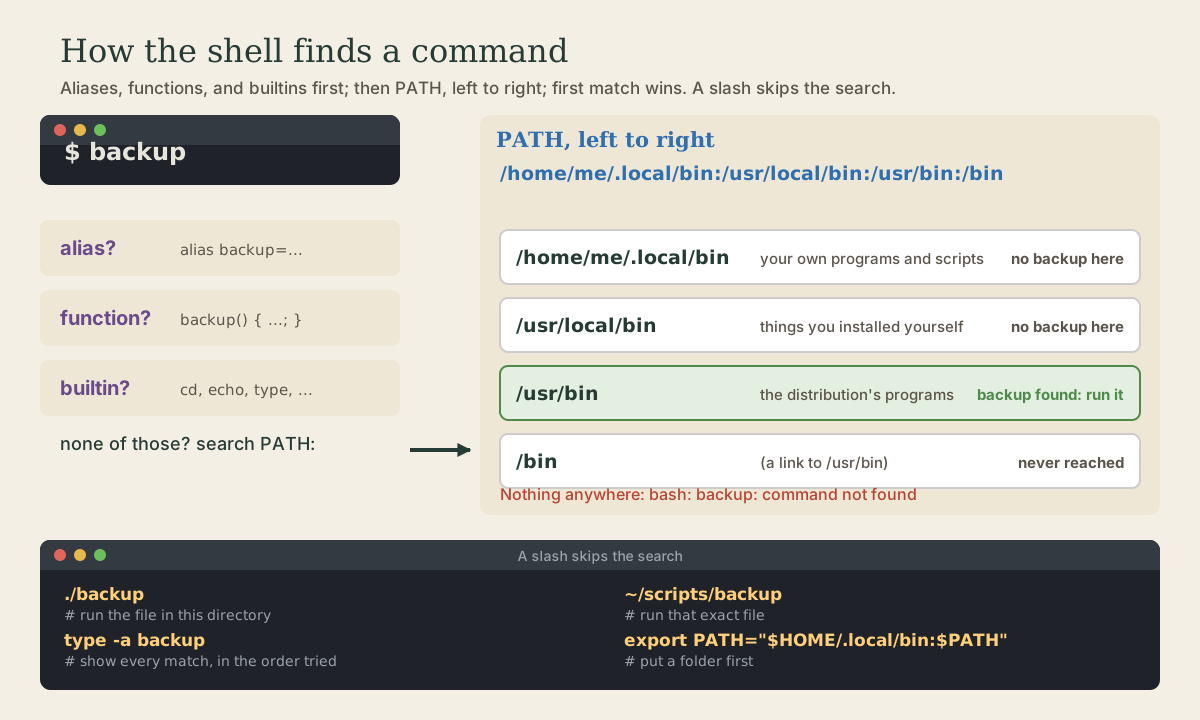
When you type a command name, bash checks, in order 1 2:
- Is it an alias?
- Is it a shell function?
- Is it a builtin, like
cdorecho? - Otherwise, search the directories in
PATH, left to right, and run the first matching file that’s executable 3.
me@linuxbox:~$ echo "$PATH"
/home/me/.local/bin:/usr/local/sbin:/usr/local/bin:/usr/sbin:/usr/bin:/sbin:/bin
me@linuxbox:~$ echo "$PATH" | tr ':' '\n'      # one per line, easier to read
The first match wins. If two folders both contain a python3, the earlier one in PATH is the one you get. type -a name shows every match in the order they’d be tried, and which name shows the first program file 1.
Quick check
hello.sh say command not found?Run it as ./hello.sh (from home), or move it into a folder on PATH such as ~/.local/bin.
Your own commands on PATH
A name with a slash in it skips the search: ./hello.sh means “the file hello.sh in this folder,” and /usr/bin/ls means that exact file 3. That’s why a script in your current folder must be run as ./hello.sh. The current folder is deliberately not on PATH, so a file named ls lying in some folder can’t hijack your ls.
To make your own scripts runnable from anywhere, keep them in a folder that is on PATH. Ubuntu already puts ~/.local/bin and ~/bin on it, if they exist when you log in 1:
me@linuxbox:~$ mkdir -p ~/.local/bin
me@linuxbox:~$ mv ~/hello.sh ~/.local/bin/hello
me@linuxbox:~$ hello                      # works from anywhere (after a new login)
On other systems, or for another folder, add it yourself in your startup file (next lesson) 1:
export PATH="$HOME/.local/bin:$PATH" # first, so your versions win
Put new folders before $PATH to take priority, or after ("$PATH:$HOME/tools") to be a fallback. Never replace it outright: PATH=~/tools on its own would hide every system command until you open a new shell.
Aliases
An alias is a shortcut for the start of a command 1:
me@linuxbox:~$ alias ll='ls -alF'
me@linuxbox:~$ alias update='sudo apt update && sudo apt upgrade'
me@linuxbox:~$ alias rm='rm -I'
me@linuxbox:~$ alias                  # list them
me@linuxbox:~$ unalias update
Ubuntu’s default .bashrc already defines ll, la, and l, and makes ls and grep colorize. To run the real command and skip an alias, put a backslash in front: \ls.
Aliases typed at the prompt vanish when the shell closes; next lesson puts them in ~/.bashrc so they last.
Functions
An alias can only paste text at the front of a command. When you need arguments in the middle, or several steps, write a function 1 2:
mkcd() {
    mkdir -p "$1" && cd "$1"
}
me@linuxbox:~$ mkcd projects/shed-plans
me@linuxbox:~/projects/shed-plans$
$1 is the function’s first argument, $2 the second, and "$@" all of them. A function runs inside your current shell, which is why cd in a function moves you, while cd in a script would only move the script. You’ll write many more in the scripting module.
Quick check
mkcd photos that makes a folder and moves into it. Alias or function?mkcd() { mkdir -p “$1” && cd “$1”; } Aliases only paste text at the front of a command.
Your turn
Exercises
- Set a variable
garden="raised beds"and print it in a sentence. Then show thatbash -c 'echo $garden'doesn’t see it until you export it. - Print your
PATHone folder per line. Which folder comes first? - Run
type -a echo ls cd. Explain each answer. - Make
~/.local/bin, put a two-line script there (#!/bin/bashandecho "hi from my bin"), make it executable, and run it by name. (If it’s “not found,” log out and back in, or close and reopen WSL.) - Write a function
bakthat copies a file to the same name plus.bak. Test it on a scratch file.
Answers
echo "My garden has $garden". Afterexport garden,bash -c 'echo $garden'printsraised beds.echo "$PATH" | tr ':' '\n'. On Ubuntu, usually~/.local/binonce it exists, otherwise/usr/local/sbin.echois a shell builtin and also a program/usr/bin/echo(the builtin wins);lsis an alias and also/usr/bin/ls;cdis only a builtin.mkdir -p ~/.local/bin, create~/.local/bin/sayhiwith those two lines,chmod +x ~/.local/bin/sayhi, thensayhi. Ubuntu’s~/.profileadds the folder toPATHonly if it existed at login, which is why a fresh login may be needed the first time.bak() { cp -- "$1" "$1.bak"; }. The--tellscpthat nothing after it is an option, which protects you from a file name starting with-.
So
Variables are name=value with no spaces; export makes them environment variables that programs inherit. The shell looks up a command as an alias, then a function, then a builtin, then in PATH, left to right, first match wins; a name with a slash skips the search. Keep your own scripts in ~/.local/bin, use aliases for shortcuts, and use functions when you need arguments.
Lesson complete
Nice work.
Sources for this lesson
- 1William Shotts. The Linux Command Line, Seventh Internet Edition (25.12A). LinuxCommand.org (print edition by No Starch Press). 2026. verifiedFree CC BY-NC-ND 3.0 book, release 25.12A of July 18, 2026. Part 1, Learning the Shell: the shell and terminal emulators, prompts ($ vs. # for the superuser), command history (most distributions keep the last 1,000 commands), Shift-Ctrl-C/V for copy and paste; navigation and the directory tree; exploring the system (ls options and the long listing, file, less, the guided tour of /, symbolic links); manipulating files (wildcards and character classes, mkdir, cp, mv, rm, ln; no undelete, test wildcards with ls first); working with commands (four kinds of commands, type, which, help, --help, man and its sections, apropos, whatis, info, alias); redirection; expansion and quoting; Readline keyboard tricks, completion, history search; permissions; processes. Later parts cover the environment, vi, packages, storage, networking, find, archiving, regular expressions, text processing, and shell scripting.
- 2Chet Ramey, Brian Fox. Bash Reference Manual, Edition 5.3. GNU Project, Free Software Foundation. 2025. verifiedThe reference for Bash 5.3 (May 18, 2025). Redirections (3.6) are processed left to right and order matters: ls > dirlist 2>&1 sends both streams to dirlist, while ls 2>&1 > dirlist sends only standard output there. With set -o noclobber, > fails on an existing regular file and >| overrides it. &> word is equivalent to > word 2>&1 and &>> word to >> word 2>&1. Here documents (<<word, with <<- stripping leading tabs; quoting word disables expansion) and here strings (<<<). Expansions (3.5) happen in a fixed order: brace; tilde, parameter, arithmetic, and command substitution left to right; word splitting; filename expansion; quote removal last. Startup files (6.2): an interactive login shell reads /etc/profile then the first of ~/.bash_profile, ~/.bash_login, ~/.profile; an interactive non-login shell reads ~/.bashrc. HISTCONTROL (ignorespace, ignoredups, ignoreboth), HISTSIZE, HISTFILESIZE; set -x traces expanded commands; shell functions and variables, export.
- 3Anish Athalye, Jon Gjengset, Jose Javier Gonzalez Ortiz. Course Overview + Introduction to the Shell (The Missing Semester of Your CS Education, 2026). MIT CSAIL. 2026. verifiedCC BY-NC-SA lecture notes. The shell is a textual interface for running programs and wiring them together; a terminal is the visual interface to it. Bash is the most widely used shell (zsh and fish are popular alternatives); on Windows use WSL or a Linux VM. The shell splits a command at whitespace: first word the program, the rest arguments; quote or backslash-escape spaces. man and --help, plus tldr for examples; cd is a shell builtin; Tab completion; pwd and $PWD; absolute vs. relative paths, . and ..; $PATH lists the directories searched for programs, which shows the one found. Basic tools cat, sort, uniq, head, tail, grep.