Root and sudo
Root can do anything, which is why you don't work as root. Ubuntu locks the root account and grants power one command at a time through sudo, with your own password and a short grace period; since Ubuntu 25.10 that sudo is sudo-rs. su versus sudo, sudo -i and sudo -l, editing system files with sudoedit, the redirection trap and the tee fix, and adding users and giving them sudo.
- 7 min
- 8 steps
- 3 questions
- Lesson 9 of 80
In this lesson
- The superuser
- How sudo works
- su, the older way
- The redirection trap
- Editing system files
- Users and the sudo group
- Your turn
- So
Picking up where you left off.
The superuser
One account, root (user ID 0), skips every permission check: it can read, change, or delete any file and change any setting 1. That’s what system administration needs, and it’s exactly why you shouldn’t work as root day to day. A typo or a malicious program running as root can damage the whole system; running as an ordinary user, the damage stops at your own files 1.
Unix has always separated users from administrators and handed out root’s power only when it’s needed. Windows’ habit of letting everyone run as administrator gives malware free rein; running Linux as root all the time throws away the main thing that protects it 1.
How sudo works
Ubuntu locks the root account: it has a password hash that matches nothing, so nobody can log in as root 2. Instead you put sudo (“superuser do”) in front of one command at a time 2 1:
me@linuxbox:~$ apt update
E: Could not open lock file /var/lib/apt/lists/lock - open (13: Permission denied)
me@linuxbox:~$ sudo apt update
[sudo: authenticate] Password:
- sudo asks for your own password, not root’s 2 1.
- It checks the rules in
/etc/sudoersto see whether you’re allowed to run that command 1. On Ubuntu, members of the sudo group may run anything 2. - After you authenticate it trusts you for a few minutes (5 in the classic sudo’s default settings), so a string of sudo commands asks only once 3 1.
- Every use is logged, so there’s a record of who did what as root 2.
From Ubuntu 25.10 on, the sudo command is sudo-rs, a rewrite in the Rust language; it works the same way for ordinary use 2.
Useful forms 1:
me@linuxbox:~$ sudo -l              # what am I allowed to run?
me@linuxbox:~$ sudo -i              # a full root shell (prompt ends in #); exit to leave
me@linuxbox:~$ sudo -u sam ls ~sam   # run as some other user
Use sudo -i sparingly, for a burst of admin work, and exit as soon as you’re done.
Quick check
Root has no usable password on Ubuntu. sudo checks that you are you, then checks that you’re allowed.
su, the older way
su (“substitute user”) starts a shell as another user, by default root, and asks for that user’s password 1. su - gives you root’s full login environment. Since Ubuntu’s root has no password, plain su doesn’t work there, and modern distributions have moved to sudo 1 2. You’ll still see su - in older guides and on Fedora or Debian systems where a root password was set.
The redirection trap
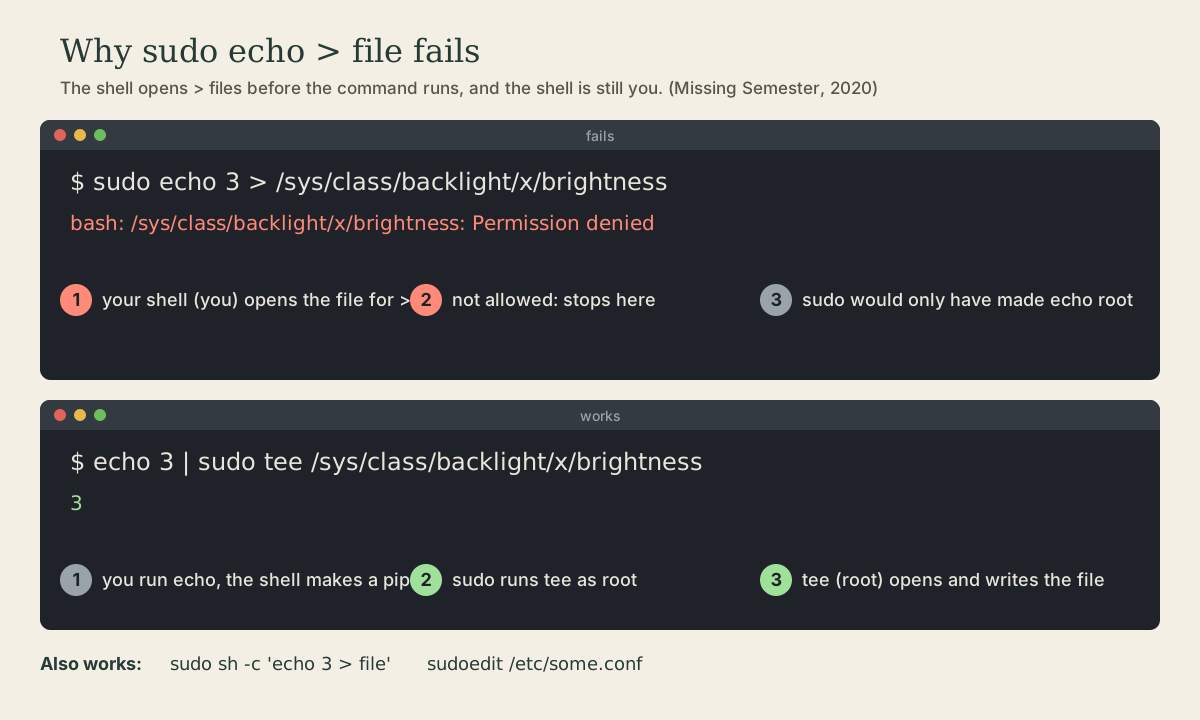
This looks right and fails 4:
me@linuxbox:~$ sudo echo "Welcome to linuxbox" > /etc/motd
bash: /etc/motd: Permission denied
The > isn’t part of echo’s command. Redirection is done by your shell, which reads the whole line first, opens /etc/motd for writing, and only then starts sudo echo .... Your shell is running as you, so opening the file fails before sudo ever runs 4. The same goes for | and <: the shell does them, not the program.
The fix is to give root’s power to the program that opens the file 4:
me@linuxbox:~$ echo "Welcome to linuxbox" | sudo tee /etc/motd
me@linuxbox:~$ echo "one more line" | sudo tee -a /etc/motd     # -a appends
tee copies its input to a file (and to the screen); run with sudo, it’s the one opening the file, as root. Add > /dev/null if you don’t want the echo on screen.
Quick check
sudo echo hello > /etc/motd fail with Permission denied?Use echo hello | sudo tee /etc/motd, or edit the file with sudoedit.
Editing system files
To change a file in /etc, don’t run your editor as root. Use sudoedit (same as sudo -e) 5:
me@linuxbox:~$ sudoedit /etc/hosts
sudoedit copies the file somewhere you can write, opens your editor as you, and copies the result back as root when you save. Your editor, its plugins, and its settings never run as root 5. The editor it uses comes from the EDITOR variable (module 5); nano is the friendly default.
The sudo rules themselves, /etc/sudoers, are edited only with sudo visudo, which locks the file and refuses to save it with a syntax error 6. A broken sudoers file can lock you out of sudo entirely.
Users and the sudo group
Ubuntu’s own tools for accounts 2:
me@linuxbox:~$ sudo adduser sam               # new user, asks for a password and details
me@linuxbox:~$ sudo usermod -aG sudo sam      # give sam full sudo rights
me@linuxbox:~$ sudo passwd -l sam             # lock sam's password
me@linuxbox:~$ sudo deluser sam               # remove the account (the home folder stays)
me@linuxbox:~$ passwd                          # change your own password
The first account created when Ubuntu is installed (or the one you made when setting up WSL) is already in the sudo group 2.
Quick check
Members of the sudo group may run any command as root. -a appends, so sam keeps her other groups.
Your turn
Exercises
- Run
sudo -l. What does it say you may run? - Run
sudo whoami, thenwhoami. Runsudo -i, thenwhoamiandpwd, thenexit. - Try
sudo echo test > /etc/test-file. Read the error, then do it correctly withtee. Check withcat, then remove it withsudo rm /etc/test-file. - Run
ls -l /etc/sudoers. Can you read it? Can you with sudo? - Create a test user
practice, add it to a new groupcrew, check withid practice, then delete both (sudo deluser practice,sudo delgroup crew).
Answers
- On your first account:
(ALL : ALL) ALL, meaning any command as any user. sudo whoamiprintsroot; plainwhoamiprints your name. In thesudo -ishell,whoamiisrootandpwdis/root, and the prompt ends in#.- The first fails with Permission denied (your shell can’t open the file).
echo test | sudo tee /etc/test-fileworks. - It’s
-r--r----- root root: no access for you.sudo cat /etc/sudoersworks, but edit it only withsudo visudo. sudo adduser practice(answer the prompts),sudo addgroup crew,sudo adduser practice crew, thenid practicelistscrew.sudo deluser practiceandsudo delgroup crewclean up;sudo rm -r /home/practiceremoves the leftover home folder.
So
Work as an ordinary user and borrow root’s power one command at a time with sudo, which asks for your own password and trusts you for a few minutes. Remember that redirection happens in your shell, so write root-owned files with sudo tee or sudoedit, and manage users with adduser, usermod -aG, and passwd.
Lesson complete
Nice work.
Sources for this lesson
- 1William Shotts. The Linux Command Line, Seventh Internet Edition (25.12A). LinuxCommand.org (print edition by No Starch Press). 2026. verifiedFree CC BY-NC-ND 3.0 book, release 25.12A of July 18, 2026. Part 1, Learning the Shell: the shell and terminal emulators, prompts ($ vs. # for the superuser), command history (most distributions keep the last 1,000 commands), Shift-Ctrl-C/V for copy and paste; navigation and the directory tree; exploring the system (ls options and the long listing, file, less, the guided tour of /, symbolic links); manipulating files (wildcards and character classes, mkdir, cp, mv, rm, ln; no undelete, test wildcards with ls first); working with commands (four kinds of commands, type, which, help, --help, man and its sections, apropos, whatis, info, alias); redirection; expansion and quoting; Readline keyboard tricks, completion, history search; permissions; processes. Later parts cover the environment, vi, packages, storage, networking, find, archiving, regular expressions, text processing, and shell scripting.
- 2User management (Ubuntu Server documentation). Canonical. verifiedUbuntu disables the root account by giving it a password hash that matches nothing; sudo lets an authorized user elevate privileges with their own password, providing accountability. From Ubuntu 25.10 sudo is provided by sudo-rs (Rust), with the original sudo kept as sudo.ws through 26.04 LTS; most use is unchanged. sudo passwd enables root, sudo passwd -l root disables it. The installer's first user is in group sudo, which /etc/sudoers authorizes; add others to that group for full sudo. Local users in /etc/passwd and groups in /etc/group; UID 0-99 preinstalled system users, 100-999 dynamic system users, 1000 and up regular users. adduser, deluser (home folder kept), passwd -l/-u, addgroup, adduser user group.
- 3Todd C. Miller. Sudoers Manual. sudo.ws. verifiedThe sudoers policy and file format. After authenticating, a user may use sudo without a password for a short time, 5 minutes unless changed with the timestamp_timeout option; env_reset and related options control which environment variables pass through.
- 4Anish Athalye, Jon Gjengset, Jose Javier Gonzalez Ortiz. Course Overview + The Shell (The Missing Semester of Your CS Education, 2020). MIT CSAIL. 2020. verifiedCC BY-NC-SA. Explains ls -l permission bits (directory x is 'search' permission), streams and redirection (<, >, >>, |), root and sudo, and why sudo echo 3 > brightness fails: operations like |, >, and < are done by the shell, not the program, and the shell runs as you, so the shell's attempt to open the file is denied; echo 3 | sudo tee brightness works because tee, running as root, opens the file. Exercises: write a script with a shebang, chmod it executable, and run it.
- 5Todd C. Miller. Sudo Manual (sudo, sudoedit). sudo.ws. verifiedsudo executes a command as another user, by default root, under the security policy; -l lists allowed commands, -i runs a login shell, -u picks the user. sudoedit (sudo -e) makes temporary copies of the files owned by the invoking user, runs the editor named by SUDO_EDITOR, VISUAL, or EDITOR as that user, then copies changed files back to their original locations.
- 6Todd C. Miller. Visudo Manual. sudo.ws. verifiedvisudo edits the sudoers file safely: it locks the file against simultaneous edits, performs validity checks, and will not save changes with a syntax error, offering to re-edit with the cursor on the bad line.