Jobs and Signals
Run a command in the background with &, pause the foreground job with Ctrl-Z, and move jobs between foreground and background with fg and bg. Signals are how processes are told to stop: INT from Ctrl-C, TERM from kill, KILL as a last resort, HUP when the terminal closes, and TSTP from Ctrl-Z. kill, killall, and pkill; nohup to survive closing the terminal; nice and renice for priority; and shutting down cleanly.
- 6 min
- 8 steps
- 3 questions
- Lesson 17 of 80
In this lesson
- Background jobs
- Signals
- kill, killall, and pkill
- Surviving a closed terminal
- Priority: nice and renice
- Shutting down
- Your turn
- So
Picking up where you left off.
Background jobs
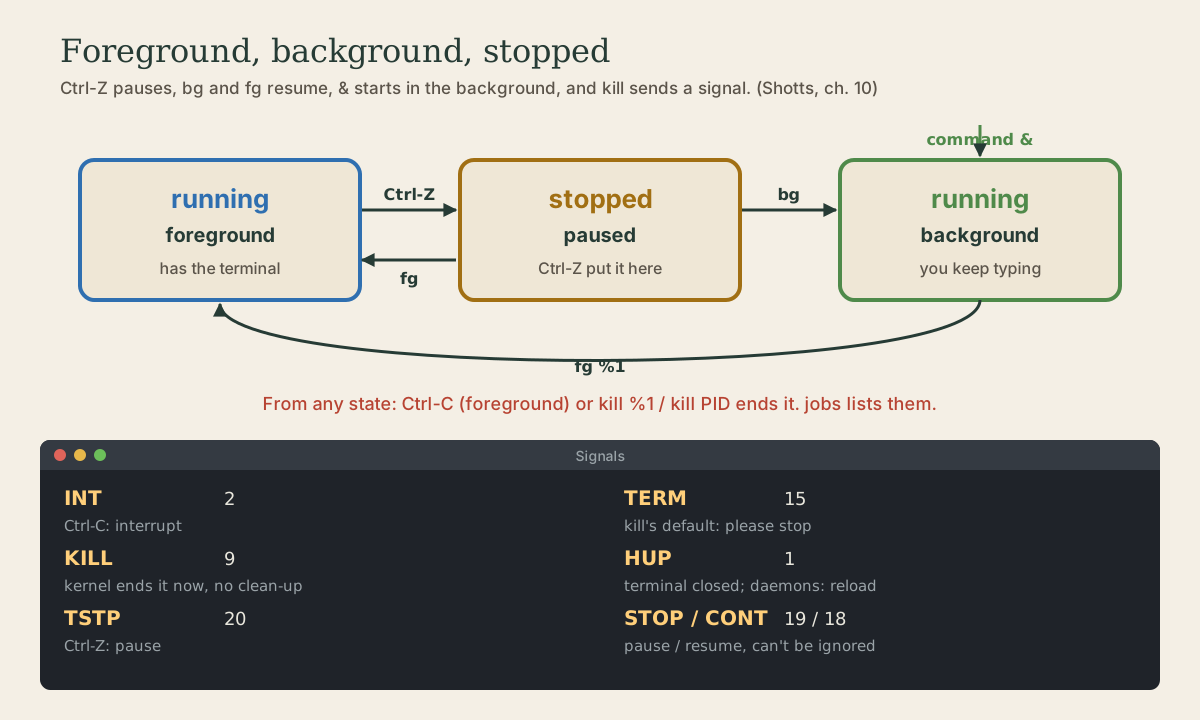
Normally a command runs in the foreground: it has the terminal, and you wait for the prompt to come back. Put & at the end and it runs in the background, and you get the prompt back at once 1:
me@linuxbox:~$ sleep 600 &
[1] 2381
me@linuxbox:~$ jobs
[1]+  Running                 sleep 600 &
The shell prints a job number in brackets and the process ID. jobs lists the jobs started from this shell 1.
Three keys and commands move jobs around 1:
- Ctrl-Z pauses (stops) the foreground job and gives you the prompt.
bgresumes a stopped job in the background.fgbrings a job to the foreground. Pick one with its job number:fg %1.
me@linuxbox:~$ rsync -a ~/photos /mnt/backup/      # oops, this will take a while
^Z
[1]+  Stopped                 rsync -a ~/photos /mnt/backup/
me@linuxbox:~$ bg
[1]+ rsync -a ~/photos /mnt/backup/ &
me@linuxbox:~$                                       # prompt back; rsync carries on
A background job still prints to your terminal, which can be messy; redirect its output to a file when you start it: long-job > job.log 2>&1 &. And a background job that tries to read from the keyboard is stopped until you bring it to the foreground 1.
Quick check
Ctrl-C would end it. Ctrl-Z pauses; bg lets it carry on behind your prompt.
Signals
How do you tell a program to stop? You send it a signal, a small message the kernel delivers. Ctrl-C and Ctrl-Z are signals; so is everything kill sends 1. A program can catch most signals and react, for example by saving its work before quitting.
The signals worth knowing 1:
| Signal | Number | Sent by | Means |
|---|---|---|---|
INT |
2 | Ctrl-C | Interrupt; usually ends the program |
TERM |
15 | kill (default) |
Please terminate |
KILL |
9 | kill -9 |
The kernel ends it immediately; it can’t be caught or ignored |
HUP |
1 | closing the terminal | Hang up; daemons often reload their settings on HUP |
TSTP |
20 | Ctrl-Z | Pause from the terminal; can be ignored |
STOP, CONT |
19, 18 | kill -STOP, fg/bg |
Pause and resume; STOP can’t be ignored |
kill -l lists them all.
Quick check
TERM lets a program save and clean up. KILL is carried out by the kernel and the program gets no chance to.
kill, killall, and pkill
kill sends a signal to a process ID or a job number 1:
me@linuxbox:~$ kill 2381          # TERM: please stop
me@linuxbox:~$ kill %1            # the same, by job number
me@linuxbox:~$ kill -9 2381       # KILL: last resort
me@linuxbox:~$ kill -HUP 812      # signals by name or number
Always try plain kill first. kill -9 gives the program no chance to save, clean up temporary files, or finish writing, so it’s for programs that ignore TERM 1.
To signal programs by name 1:
me@linuxbox:~$ killall firefox        # every process named exactly firefox
me@linuxbox:~$ pkill -f backup.sh     # every process whose command line contains backup.sh
me@linuxbox:~$ pgrep -a python        # see what pkill would match, first
You can signal only your own processes; other users’ need sudo 1. In top and htop, k sends a signal too.
Surviving a closed terminal
Closing a terminal sends HUP to the jobs running in it, and most programs quit on HUP 1. To keep a long job alive after you close the window, start it with nohup, which makes it ignore HUP 1:
me@linuxbox:~$ nohup ./big-backup.sh > backup.log 2>&1 &
(Without your own redirection, nohup saves the output to nohup.out.) For anything you’ll want to come back to and watch, a terminal multiplexer like tmux is better: it keeps whole sessions alive and lets you reattach, even over SSH. The Linux course covers it.
Quick check
nohup command & keeps it running and saves its output to nohup.out.
Priority: nice and renice
Each process has a niceness from -20 (greediest) to 19 (most polite); the default is 0. A nicer process gets the CPU only after less nice ones. Ordinary users can only make their own processes nicer; only root can raise priority 1:
me@linuxbox:~$ nice -n 19 tar czf archive.tar.gz ~/photos    # start it polite
me@linuxbox:~$ renice -n 19 -p 2381                          # make a running one polite
Niceness 19 means “only when nothing else wants the CPU”: perfect for big compressions and video conversions while you keep working 1.
Shutting down
Shutting down stops every process in order and makes sure everything is written to disk 1:
me@linuxbox:~$ sudo shutdown -h now       # power off
me@linuxbox:~$ sudo reboot                # restart
Under WSL, there’s nothing to power off: close the window, or from PowerShell run wsl --shutdown to stop all distributions.
Your turn
Exercises
- Start
sleep 1000 &twice. List the jobs, bring the first to the foreground, pause it with Ctrl-Z, and send it back to the background. - Kill both sleeps: one with
kill %N, one withkilland its PID. - Start
sleep 1000, then in another tab, end it withpkill sleep. What did the first tab print? - Run
yes > /dev/null &(a program that burns a whole CPU core), watch it intop, renice it to 19, and kill it. - Which signal does
killsend if you don’t name one? Check withman kill.
Answers
jobsshows[1]and[2];fg %1, Ctrl-Z, thenbg %1.kill %2; for the other,jobs -lshows its PID, thenkill <PID>.Terminated. pkill sent TERM.- In
topit sits near 100% CPU;renice -n 19 -p <PID>changes itsNIcolumn to 19;kill %1(orkill <PID>) ends it. - TERM (15).
So
& starts a job in the background; Ctrl-Z pauses the foreground one, and bg and fg move jobs between the two. Programs are stopped with signals: Ctrl-C sends INT, kill sends TERM, and kill -9 sends KILL only as a last resort. nohup survives a closed terminal, and nice keeps big jobs out of your way.
Lesson complete
Nice work.
Sources for this lesson
- 1William Shotts. The Linux Command Line, Seventh Internet Edition (25.12A). LinuxCommand.org (print edition by No Starch Press). 2026. verifiedFree CC BY-NC-ND 3.0 book, release 25.12A of July 18, 2026. Part 1, Learning the Shell: the shell and terminal emulators, prompts ($ vs. # for the superuser), command history (most distributions keep the last 1,000 commands), Shift-Ctrl-C/V for copy and paste; navigation and the directory tree; exploring the system (ls options and the long listing, file, less, the guided tour of /, symbolic links); manipulating files (wildcards and character classes, mkdir, cp, mv, rm, ln; no undelete, test wildcards with ls first); working with commands (four kinds of commands, type, which, help, --help, man and its sections, apropos, whatis, info, alias); redirection; expansion and quoting; Readline keyboard tricks, completion, history search; permissions; processes. Later parts cover the environment, vi, packages, storage, networking, find, archiving, regular expressions, text processing, and shell scripting.