Finding and Searching: find and grep
grep prints lines that match a pattern: -i, -v, -n, -c, -l, -r, -w, and -E. Regular expressions: anchors, the dot, brackets and character classes, repetition, and alternation. find walks a directory tree and tests every file by name, type, size, age, and owner, combines tests, and acts on matches with -exec or xargs, safely even with spaces in names. locate for fast name searches.
- 6 min
- 7 steps
- 3 questions
- Lesson 12 of 80
In this lesson
- grep
- Regular expressions
- find
- Acting on what you find
- locate
- Your turn
- So
Picking up where you left off.
grep
grep reads text and prints the lines that match a pattern 1 2:
me@linuxbox:~$ grep bash /etc/passwd
root:x:0:0:root:/root:/bin/bash
me:x:1000:1000:Me,,,:/home/me:/bin/bash
me@linuxbox:~$ ls /usr/bin | grep zip
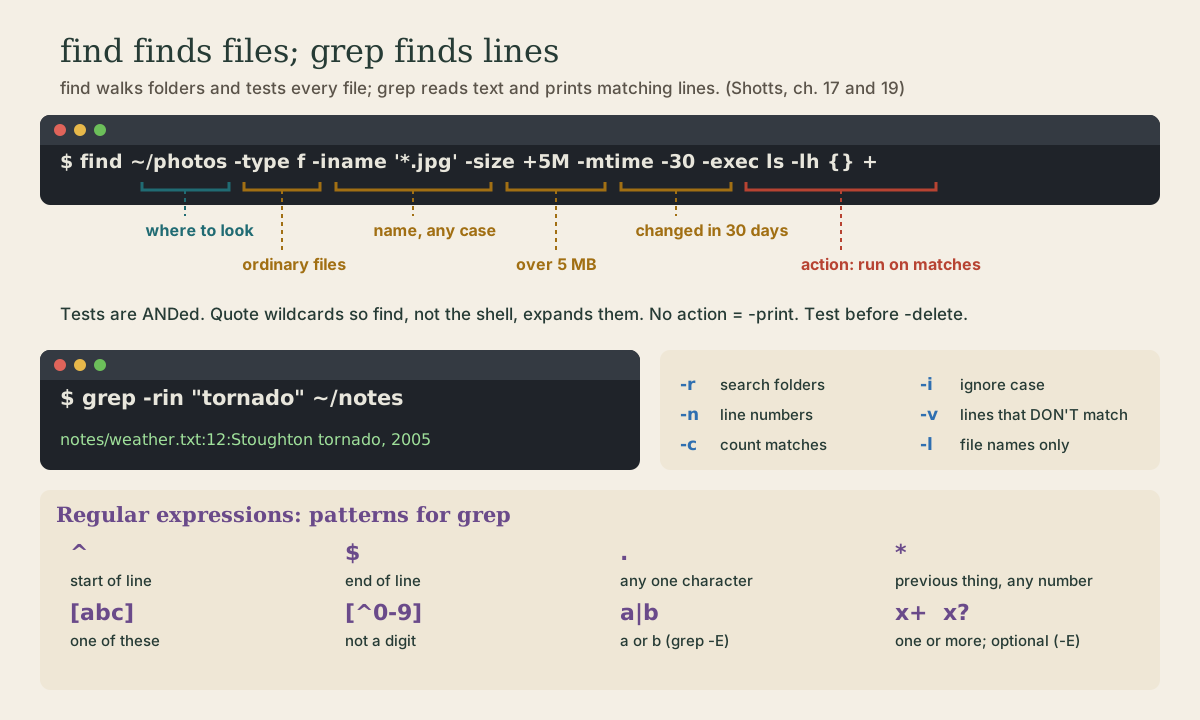
The options worth knowing 1:
| Option | Does |
|---|---|
-i |
Ignore upper and lower case |
-v |
Invert: lines that don’t match |
-n |
Show line numbers |
-c |
Count matching lines |
-l |
Just the names of files that match |
-r |
Search a whole directory tree |
-w |
Match whole words only |
-E |
Extended regular expressions (below) |
-q |
Print nothing; just report success or failure (for scripts) |
me@linuxbox:~$ grep -rin "furnace" ~/notes       # every mention, any case, with file and line
me@linuxbox:~$ grep -c error /var/log/dpkg.log    # how many lines mention error
me@linuxbox:~$ grep -rl TODO ~/projects           # which files still have a TODO
Regular expressions
The pattern grep takes is a regular expression, a small language for describing text 1 2. Most characters match themselves; a few are special:
| Pattern | Matches |
|---|---|
^ |
the start of a line |
$ |
the end of a line |
. |
any single character |
* |
the thing before it, repeated zero or more times |
[abc] |
one of these characters |
[^abc] |
one character not in the set |
[0-9], [[:digit:]], [[:upper:]] |
ranges and character classes |
With grep -E (extended expressions), you also get 1:
a|b: a or bx+: one or more of xx?: zero or one x (optional)x{3}: exactly three of x( ): grouping
Examples:
me@linuxbox:~$ grep -v '^#' /etc/ssh/ssh_config | grep -v '^$'   # settings without comments or blanks
me@linuxbox:~$ grep -E '^(root|me):' /etc/passwd                 # lines starting with root: or me:
me@linuxbox:~$ grep -E '[0-9]{3}-[0-9]{4}' contacts.txt          # phone-number-shaped text
me@linuxbox:~$ grep '\.jpg$' filelist.txt                        # ends in .jpg (\. is a literal dot)
Always put patterns in single quotes. Characters like *, ?, [, and $ mean something to the shell too, and quotes keep the shell’s hands off so grep gets the pattern intact 1.
Quick check
grep -v '^#' settings.conf show?^ anchors to the start of the line; -v inverts the match. Add | grep -v ‘^$’ to drop blank lines too.
find
find searches a directory tree for files by their properties: name, type, size, age, owner, permissions. It walks every folder under the starting point 1:
me@linuxbox:~$ find ~ -name '*.pdf'                       # every PDF in your home
me@linuxbox:~$ find ~ -iname '*.jpg' -size +5M            # JPEGs over 5 MB, any case
me@linuxbox:~$ find ~/projects -type d -name node_modules # directories with this name
me@linuxbox:~$ find /var/log -mtime -1 2> /dev/null       # changed in the last day
me@linuxbox:~$ find ~ -type f -empty                      # empty files
The common tests 1:
| Test | Matches |
|---|---|
-name 'pat', -iname 'pat' |
name matches a wildcard pattern (-iname ignores case) |
-type f, -type d, -type l |
ordinary file, directory, symbolic link |
-size +5M, -size -10k |
bigger than 5 MB, smaller than 10 KB |
-mtime -7, -mtime +365 |
modified less than 7 days ago, more than a year ago |
-newer file |
modified more recently than file |
-user me, -group family |
owned by |
-perm 777 |
exactly these permissions |
-empty |
empty file or folder |
Several tests in a row must all be true. For “or,” use -o, and group with escaped parentheses: find ~ \( -name '*.jpg' -o -name '*.png' \) 1. ! negates: find ~ -type f ! -name '*.txt'.
Quote the wildcard: find ~ -name '*.pdf'. Unquoted, the shell may expand *.pdf against the current folder before find ever sees it 1.
Quick check
Quote the wildcard so find gets it, and send only errors (2>) to /dev/null. The last option throws away the results instead.
Acting on what you find
By default find prints the names. It can also act on them 1:
me@linuxbox:~$ find ~ -name '*.bak' -delete                       # delete them
me@linuxbox:~$ find ~ -name '*.bak' -exec ls -l {} +              # run a command on them
me@linuxbox:~$ find ~ -name '*.bak' -ok rm {} \;                  # ask before each one
In -exec, {} stands for the found names. Ending with + passes many names to one run of the command; ending with \; runs it once per file 1.
Run any -delete or -exec rm search without the action first and read the list 1.
xargs turns lines of input into arguments for a command, the other way to act on a list 1:
me@linuxbox:~$ find ~/photos -iname '*.jpg' -print0 | xargs -0 ls -lh
Names with spaces would be split apart by plain xargs. -print0 and xargs -0 separate names with an invisible null character instead, so every name arrives whole 1.
Quick check
find ... -print0 | xargs -0 instead of plain find ... | xargs?Plain xargs splits at spaces, so ‘My Photos.jpg’ would become two arguments.
locate
locate searches a database of path names instead of walking the disk, so it’s nearly instant. The database is rebuilt daily, so very new files won’t show up until it updates; sudo updatedb rebuilds it now 1. On Ubuntu, install it with sudo apt install plocate.
me@linuxbox:~$ locate fstab
Your turn
Exercises
- Show the settings in
/etc/adduser.confwithout comment lines or blank lines. - How many accounts in
/etc/passwdcan’t log in (their shell ends innologin)? - Find every file in
/etcmodified in the last 7 days, without permission errors. - Make a test folder with
mkdir -p hunt/{a,b,c}andtouch hunt/a/one.txt hunt/b/"two words.txt" hunt/c/three.log. Then find all the.txtfiles and list them withls -lthroughxargs, so the name with a space works. - Find files larger than 100 MB anywhere in your home directory.
Answers
grep -v '^#' /etc/adduser.conf | grep -v '^$', or in one go withgrep -Ev '^(#|$)' /etc/adduser.conf.grep -c 'nologin$' /etc/passwd.find /etc -type f -mtime -7 2> /dev/null.find hunt -name '*.txt' -print0 | xargs -0 ls -l. Without-print0and-0,lswould complain abouthunt/b/twoandwords.txtseparately.find ~ -type f -size +100M. Under WSL, look in~and maybe/mnt/c/Users/<you>/Downloads.
So
grep finds lines that match a pattern, and regular expressions (^, $, ., *, brackets, and with -E, |, +, and ?) describe the pattern. find walks a tree and tests every file by name, type, size, age, or owner, then prints, deletes, or runs a command on the matches. Quote patterns, and preview before you delete.
Lesson complete
Nice work.
Sources for this lesson
- 1William Shotts. The Linux Command Line, Seventh Internet Edition (25.12A). LinuxCommand.org (print edition by No Starch Press). 2026. verifiedFree CC BY-NC-ND 3.0 book, release 25.12A of July 18, 2026. Part 1, Learning the Shell: the shell and terminal emulators, prompts ($ vs. # for the superuser), command history (most distributions keep the last 1,000 commands), Shift-Ctrl-C/V for copy and paste; navigation and the directory tree; exploring the system (ls options and the long listing, file, less, the guided tour of /, symbolic links); manipulating files (wildcards and character classes, mkdir, cp, mv, rm, ln; no undelete, test wildcards with ls first); working with commands (four kinds of commands, type, which, help, --help, man and its sections, apropos, whatis, info, alias); redirection; expansion and quoting; Readline keyboard tricks, completion, history search; permissions; processes. Later parts cover the environment, vi, packages, storage, networking, find, archiving, regular expressions, text processing, and shell scripting.
- 2Anish Athalye, Jon Gjengset, Jose Javier Gonzalez Ortiz. Data Wrangling (The Missing Semester of Your CS Education, 2020). MIT CSAIL. 2020. verifiedCC BY-NC-SA. Builds a log-analysis pipeline step by step (journalctl | grep | sed | sort | uniq -c | sort -nk1,1 | tail), saving intermediate output to a file while developing and paging with less. grep and regular expressions, sed substitutions with capture groups, sort -n for numeric order, uniq -c to count consecutive duplicates, awk for columns, paste to join lines.