Standard Input, Output, and Error
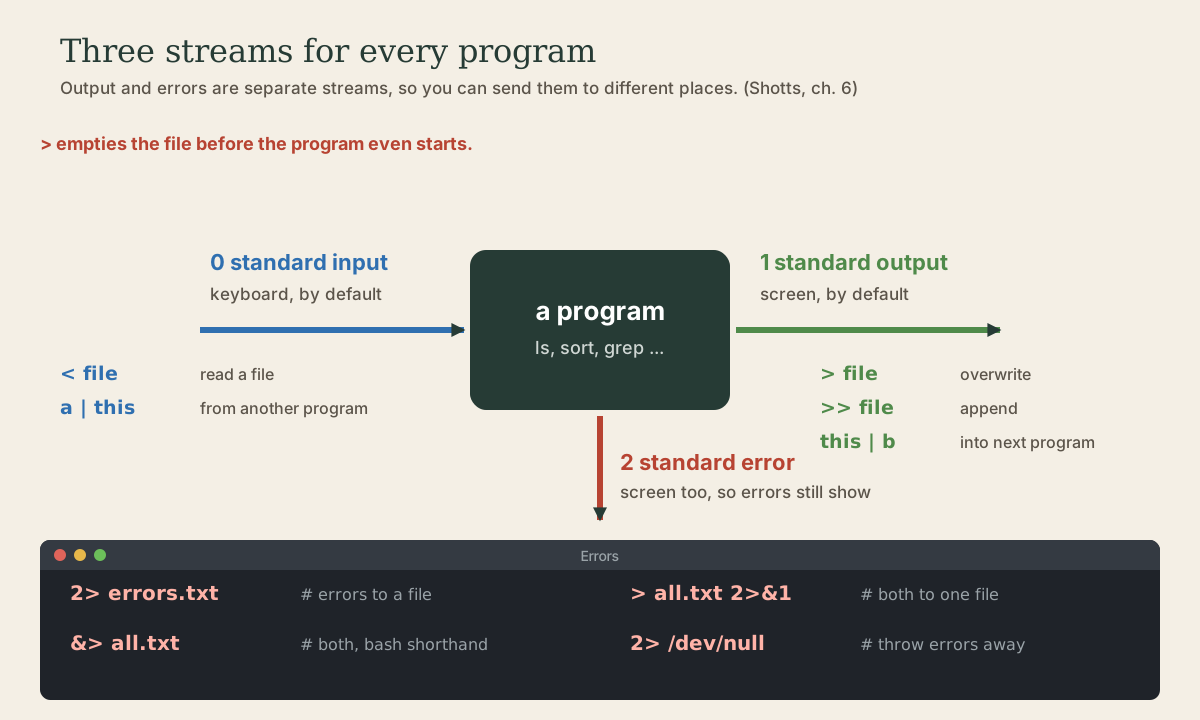
Every program has three streams: standard input (0), standard output (1), and standard error (2). Send output to files with > and >>, errors with 2>, both with 2>&1 or &>, and unwanted output to /dev/null; feed files in with <, and whole blocks of text with here documents. Why > empties a file before the command runs, and why the order of 2>&1 matters.
- 6 min
- 9 steps
- 3 questions
- Lesson 10 of 80
In this lesson
- Two kinds of output
- Output to a file
- Errors to a file
- Throwing output away
- Input from a file
- Here documents
- Grouping commands
- Your turn
- So
Picking up where you left off.
Two kinds of output
A program usually produces two kinds of output: its results, and messages about how it’s getting on, especially errors. They go to two different places 1:
- Standard output (stdout) for results.
- Standard error (stderr) for errors and status messages.
Programs also read from standard input (stdin). By default, input comes from the keyboard and both outputs go to your screen, which is why they look like one stream 1 2.
Internally the shell numbers them as file descriptors: 0 for input, 1 for output, 2 for error 1. Redirection changes where each one points.
Quick check
ls /nope > out.txt. The error shows on screen and out.txt is empty. Why?Use 2> to catch errors, or &> to catch both.
Output to a file
> sends standard output to a file instead of the screen 1 2:
me@linuxbox:~$ ls -l /usr/bin > programs.txt
me@linuxbox:~$ less programs.txt
Two things to know about >:
- It empties the file first, before the command even runs. If the command produces nothing, or fails, you’re left with an empty file 1.
> fileon its own, with no command, is a quick way to empty a file or create a blank one. - It overwrites silently. A reader of Shotts’ book, working as root in
/usr/bin, typedls > lessto “see what happens”: it replaced thelessprogram with a text listing 1.>points at a file;|, next lesson, points at a program.
>> appends instead, creating the file if it doesn’t exist 1:
me@linuxbox:~$ date >> worklog.txt
me@linuxbox:~$ echo "replaced the furnace filter" >> worklog.txt
Bash can refuse to overwrite with > if you turn on set -o noclobber; then >| forces it 3. Some people put that in their startup file.
Quick check
ls > less in /usr/bin?writes to a file; | feeds a program. Mixing them up silently destroys files.
Errors to a file
Redirect standard error with its number, 2> 1:
me@linuxbox:~$ ls -l /bin/usr 2> errors.txt
To catch both streams in one file, there are two ways 1:
me@linuxbox:~$ ls -l /bin/usr > all.txt 2>&1     # the classic way
me@linuxbox:~$ ls -l /bin/usr &> all.txt         # bash's shorthand
me@linuxbox:~$ ls -l /bin/usr &>> all.txt        # shorthand, appending
2>&1 means “send stream 2 wherever stream 1 is going right now.” Redirections are applied left to right, so the order matters: > all.txt 2>&1 points output at the file, then errors at the same place. Written the other way, 2>&1 > all.txt, errors are pointed at the screen (where output was at that moment), and only then does output move to the file 1 3.
Quick check
Redirections are applied left to right: first point stdout at the file, then point stderr wherever stdout now goes. In the other order, stderr is pointed at the screen before stdout moves.
Throwing output away
/dev/null is a special file that swallows anything written to it 1. Use it to silence what you don’t want:
me@linuxbox:~$ find / -name "*.conf" 2> /dev/null    # hide the "Permission denied" noise
me@linuxbox:~$ some-noisy-command > /dev/null         # keep only the errors
me@linuxbox:~$ some-command &> /dev/null              # silence everything
The first is something you’ll type constantly: searching the whole system as an ordinary user produces a wall of permission errors, and 2> /dev/null leaves just the results.
Input from a file
< feeds a file to a program’s standard input 1 2:
me@linuxbox:~$ wc -l < /etc/passwd
34
Many programs take a file name anyway, so < matters most for programs that only read standard input. Notice the difference, though: wc -l /etc/passwd prints the name too; wc -l < /etc/passwd prints just the number, because wc never saw a file name.
cat with no arguments copies standard input to standard output, so cat > note.txt, then typing a few lines and pressing Ctrl-D, makes a quick file. Ctrl-D means “end of input” 1.
Here documents
A here document feeds several lines of text, written right in the command, to standard input. Everything up to a line holding only the end marker is the input 1 3:
me@linuxbox:~$ cat > grocery.txt << EOF
oats
apples
coffee
EOF
You’ll use these in scripts to write out config files and messages. A here string, <<<, feeds a single line: wc -w <<< "how many words here" 3.
Grouping commands
To send the output of several commands to one place, group them in braces. The spaces and the final semicolon are required 1:
me@linuxbox:~$ { date; uptime; df -h /; } > status.txt
Your turn
Exercises
- Save a long listing of
/etctoetc.txt, then append a long listing of/usr/shareto the same file. How many lines does it have? - Run
ls /etc /nonexistent > out.txt. What appears on screen, and what’s in the file? Now catch both inboth.txt. - Search the whole system for files named
hosts, showing only results, no errors. - Use a here document to create
todo.txtwith three lines, then count its lines withwc -l < todo.txt. - Turn on
noclobber, tryecho hi > todo.txt, read the error, then turn it off withset +o noclobber.
Answers
ls -l /etc > etc.txt, thenls -l /usr/share >> etc.txt, thenwc -l etc.txt.- The error for
/nonexistentappears on screen; the listing of/etcis in the file.ls /etc /nonexistent &> both.txt(or> both.txt 2>&1) catches both. find / -name hosts 2> /dev/null. Expect/etc/hostsand a few others.cat > todo.txt << EOF, three lines,EOF; thenwc -l < todo.txtprints3.- With noclobber on:
bash: todo.txt: cannot overwrite existing file.echo hi >| todo.txtwould force it.
So
Programs read standard input and write two streams, output and errors. > and >> send output to a file (and > empties it first), 2> sends errors, > file 2>&1 or &> sends both, /dev/null discards, and < and here documents supply input. The shell does all of this before the program runs.
Lesson complete
Nice work.
Sources for this lesson
- 1William Shotts. The Linux Command Line, Seventh Internet Edition (25.12A). LinuxCommand.org (print edition by No Starch Press). 2026. verifiedFree CC BY-NC-ND 3.0 book, release 25.12A of July 18, 2026. Part 1, Learning the Shell: the shell and terminal emulators, prompts ($ vs. # for the superuser), command history (most distributions keep the last 1,000 commands), Shift-Ctrl-C/V for copy and paste; navigation and the directory tree; exploring the system (ls options and the long listing, file, less, the guided tour of /, symbolic links); manipulating files (wildcards and character classes, mkdir, cp, mv, rm, ln; no undelete, test wildcards with ls first); working with commands (four kinds of commands, type, which, help, --help, man and its sections, apropos, whatis, info, alias); redirection; expansion and quoting; Readline keyboard tricks, completion, history search; permissions; processes. Later parts cover the environment, vi, packages, storage, networking, find, archiving, regular expressions, text processing, and shell scripting.
- 2Anish Athalye, Jon Gjengset, Jose Javier Gonzalez Ortiz. Course Overview + The Shell (The Missing Semester of Your CS Education, 2020). MIT CSAIL. 2020. verifiedCC BY-NC-SA. Explains ls -l permission bits (directory x is 'search' permission), streams and redirection (<, >, >>, |), root and sudo, and why sudo echo 3 > brightness fails: operations like |, >, and < are done by the shell, not the program, and the shell runs as you, so the shell's attempt to open the file is denied; echo 3 | sudo tee brightness works because tee, running as root, opens the file. Exercises: write a script with a shebang, chmod it executable, and run it.
- 3Chet Ramey, Brian Fox. Bash Reference Manual, Edition 5.3. GNU Project, Free Software Foundation. 2025. verifiedThe reference for Bash 5.3 (May 18, 2025). Redirections (3.6) are processed left to right and order matters: ls > dirlist 2>&1 sends both streams to dirlist, while ls 2>&1 > dirlist sends only standard output there. With set -o noclobber, > fails on an existing regular file and >| overrides it. &> word is equivalent to > word 2>&1 and &>> word to >> word 2>&1. Here documents (<<word, with <<- stripping leading tabs; quoting word disables expansion) and here strings (<<<). Expansions (3.5) happen in a fixed order: brace; tilde, parameter, arithmetic, and command substitution left to right; word splitting; filename expansion; quote removal last. Startup files (6.2): an interactive login shell reads /etc/profile then the first of ~/.bash_profile, ~/.bash_login, ~/.profile; an interactive non-login shell reads ~/.bashrc. HISTCONTROL (ignorespace, ignoredups, ignoreboth), HISTSIZE, HISTFILESIZE; set -x traces expanded commands; shell functions and variables, export.