Decisions and Loops
if, elif, and else branch on a command's exit status. Tests with [[ ]] for files, strings, regular expressions, and numbers, and (( )) for arithmetic. case for matching patterns. for loops over words, files, and ranges; while read for reading a file line by line; until; break and continue. Looping over files safely, including names with spaces and folders with no matches.
- 7 min
- 8 steps
- 3 questions
- Lesson 22 of 80
In this lesson
- if, elif, else
- Tests with [[ ]]
- case
- for loops
- Looping over files
- while and until
- Your turn
- So
Picking up where you left off.
if, elif, else
if runs a command and branches on its exit status: 0 means “then,” anything else means “else” (module 6) 1:
if grep -q "^$USER:" /etc/passwd; then
    echo "you're a local user"
elif [[ -n "${SUDO_USER-}" ]]; then
    echo "running under sudo"
else
    echo "who are you?"
fi
then must start the block; fi (“if” backwards) ends it. Put then on the same line after a semicolon, as Google’s style guide does 2.
Quick check
if actually check?[[ ]] is itself a command that succeeds or fails, which is why it works with if.
Tests with [[ ]]
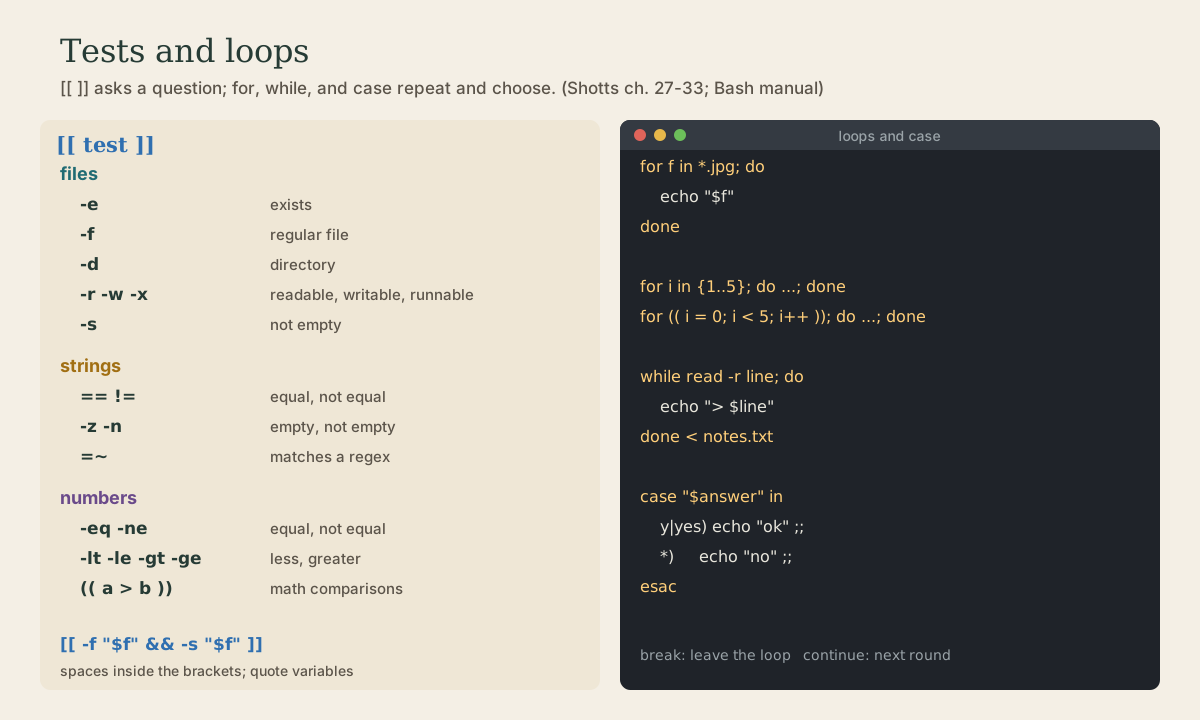
Most conditions are written with [[ ... ]], bash’s test command. It succeeds or fails, so it works with if, &&, and || 1 3. Spaces inside the brackets are required.
| Test | True when |
|---|---|
-e path |
it exists |
-f path |
it’s a regular file |
-d path |
it’s a directory |
-r, -w, -x path |
you can read, write, run it |
-s path |
it exists and isn’t empty |
a -nt b |
a is newer than b |
"$s" == "text" |
strings equal (!= for not equal) |
"$s" == *.jpg |
string matches a wildcard pattern (unquoted right side) |
"$s" =~ ^[0-9]+$ |
string matches a regular expression |
-z "$s", -n "$s" |
string is empty, not empty |
"$a" -lt "$b" |
numbers: -eq -ne -lt -le -gt -ge |
Combine with && and ||, and negate with ! 1:
if [[ -f "$file" && ! -s "$file" ]]; then
    echo "$file exists but is empty"
fi
The older single-bracket form, [ ... ] (the same as the test command), works everywhere sh does but trips over empty variables and unquoted words. In bash scripts, Google’s guide prefers [[ ]] 2.
For arithmetic, (( )) reads like math and needs no $ on variable names 1 3:
count=$(ls | wc -l)
if (( count > 100 )); then
    echo "that's a lot of files"
fi
case
case matches one value against several wildcard patterns, top to bottom, and runs the first that matches 1:
read -rp "Continue? [y/N] " answer
case "$answer" in
    y|Y|yes)  echo "continuing" ;;
    n|N|no|"") echo "stopping"; exit 0 ;;
    *)        echo "please answer y or n" >&2; exit 1 ;;
esac
| separates alternatives, *) catches everything else, and ;; ends each branch. It’s cleaner than a long chain of elifs, and it’s how scripts handle options and file types:
case "$file" in
    *.tar.gz|*.tgz) tar -xzf "$file" ;;
    *.zip)          unzip "$file" ;;
    *)              echo "don't know how to unpack $file" >&2 ;;
esac
for loops
for runs its body once for each word in a list 1:
for name in alex sam kids; do
    echo "making a folder for $name"
    mkdir -p "/srv/household/$name"
done

for i in {1..5}; do echo "round $i"; done          # a range (brace expansion)

for (( i = 1; i <= 10; i += 3 )); do echo "$i"; done  # C style: 1 4 7 10
Looping over files
Let the shell’s wildcards produce the list, not ls. Each match arrives as one word, spaces and all, as long as you quote "$f" inside the loop 1:
for f in ~/photos/*.jpg; do
    echo "resizing $f"
    # convert "$f" -resize 50% "${f%.jpg}-small.jpg"
done
${f%.jpg} removes .jpg from the end of the value (# would remove from the start); these are bash’s string-trimming expansions 3.
If nothing matches, the pattern is left as the literal text ~/photos/*.jpg and the loop runs once on a file that doesn’t exist. Two fixes: check [[ -e "$f" ]] || continue at the top of the loop, or set shopt -s nullglob so an unmatched pattern expands to nothing 3.
Never write for f in $(ls): ls output is split at every space, so Summer 2026.jpg becomes two files 2. For whole trees, use find (module 4) and read its output in a while loop.
Quick check
for f in *.jpg in a folder with no JPEGs. What does f become?An unmatched wildcard is left as-is by default. nullglob makes it expand to nothing, so the loop runs zero times.
while and until
while repeats as long as a command succeeds; until repeats until it does 1:
until ping -c1 -W1 router > /dev/null 2>&1; do
    echo "waiting for the network..."
    sleep 5
done
The most useful while reads a file line by line 1:
while read -r line; do
    echo "> $line"
done < notes.txt

find ~/photos -name '*.jpg' -print0 | while IFS= read -r -d '' f; do
    echo "found: $f"
done
-r stops read from treating backslashes as escapes, and IFS= keeps leading spaces. The second form pairs with find -print0 to survive any file name (module 4).
break leaves a loop early; continue skips to the next round 1.
Quick check
for over $(cat file) splits at every space, not every line.
Your turn
Exercises
- Write
filetypethat takes one path and prints “directory,” “empty file,” “file,” or “doesn’t exist.” - Write
countdownthat counts down from 10 to 1, one per second (sleep 1), then prints “liftoff.” - Write
lowercasethat renames every*.JPGin the current folder to*.jpg. Test it in a scratch folder first. - Write
todothat reads~/todo.txtline by line and prints each line numbered, skipping blank lines. - Add a
casetofiletype: if it’s a file, also say “image” for.jpg/.png, “document” for.pdf/.odt, or “other.”
Answers
-
Using
$1, the first argument (next lesson covers arguments):#!/bin/bash set -euo pipefail path="${1:?usage: filetype PATH}" if [[ -d "$path" ]]; then echo "directory" elif [[ -f "$path" && ! -s "$path" ]]; then echo "empty file" elif [[ -f "$path" ]]; then echo "file" else echo "doesn't exist" fi -
for (( i = 10; i >= 1; i-- )); do echo "$i"; sleep 1; done; echo "liftoff". -
Run it in a scratch folder first:
#!/bin/bash set -euo pipefail shopt -s nullglob for f in *.JPG; do mv -i -- "$f" "${f%.JPG}.jpg" done -
For example:
#!/bin/bash
set -euo pipefail
n=0
while read -r line; do
    [[ -z "$line" ]] && continue
    n=$(( n + 1 ))
    printf '%2d. %s\n' "$n" "$line"
done < "$HOME/todo.txt"
(Note
n=$(( n + 1 ))rather than(( n++ )): underset -e,(( n++ ))“fails” when n is 0, because the expression’s value is 0.) -
Inside the
filebranch:case "$path" in *.jpg|*.png) echo image ;; *.pdf|*.odt) echo document ;; *) echo other ;; esac.
So
if branches on exit status, and [[ ]] asks the questions: files, strings, patterns, numbers. case picks among patterns. for loops over words, ranges, and wildcard matches (never $(ls)); while read -r walks a file line by line; break and continue steer. Quote "$f" everywhere, and plan for no matches.
Lesson complete
Nice work.
Sources for this lesson
- 1William Shotts. The Linux Command Line, Seventh Internet Edition (25.12A). LinuxCommand.org (print edition by No Starch Press). 2026. verifiedFree CC BY-NC-ND 3.0 book, release 25.12A of July 18, 2026. Part 1, Learning the Shell: the shell and terminal emulators, prompts ($ vs. # for the superuser), command history (most distributions keep the last 1,000 commands), Shift-Ctrl-C/V for copy and paste; navigation and the directory tree; exploring the system (ls options and the long listing, file, less, the guided tour of /, symbolic links); manipulating files (wildcards and character classes, mkdir, cp, mv, rm, ln; no undelete, test wildcards with ls first); working with commands (four kinds of commands, type, which, help, --help, man and its sections, apropos, whatis, info, alias); redirection; expansion and quoting; Readline keyboard tricks, completion, history search; permissions; processes. Later parts cover the environment, vi, packages, storage, networking, find, archiving, regular expressions, text processing, and shell scripting.
- 2Shell Style Guide. Google. verifiedBash is the only shell allowed for executables, which start with #!/bin/bash; executables on PATH need no extension, libraries take .sh and aren't executable. Every file starts with a comment describing it; functions get header comments. Error messages go to STDERR. Quote variables and prefer "${var}"; use "$@" for arguments; prefer [[ ]] over [ ] and $( ) over backticks; use local in functions; constants readonly and capitalized; put the program in a main function called last with main "$@". Scripts over about 100 lines, or with non-straightforward control flow, should be rewritten in a more structured language.
- 3Chet Ramey, Brian Fox. Bash Reference Manual, Edition 5.3. GNU Project, Free Software Foundation. 2025. verifiedThe reference for Bash 5.3 (May 18, 2025). Redirections (3.6) are processed left to right and order matters: ls > dirlist 2>&1 sends both streams to dirlist, while ls 2>&1 > dirlist sends only standard output there. With set -o noclobber, > fails on an existing regular file and >| overrides it. &> word is equivalent to > word 2>&1 and &>> word to >> word 2>&1. Here documents (<<word, with <<- stripping leading tabs; quoting word disables expansion) and here strings (<<<). Expansions (3.5) happen in a fixed order: brace; tilde, parameter, arithmetic, and command substitution left to right; word splitting; filename expansion; quote removal last. Startup files (6.2): an interactive login shell reads /etc/profile then the first of ~/.bash_profile, ~/.bash_login, ~/.profile; an interactive non-login shell reads ~/.bashrc. HISTCONTROL (ignorespace, ignoredups, ignoreboth), HISTSIZE, HISTFILESIZE; set -x traces expanded commands; shell functions and variables, export.