Project: a Snapshot Backup Script
Put the whole course together in a real tool: a script that copies your important folders to a backup drive as dated snapshots, using rsync's --link-dest so unchanged files are hard links and every snapshot costs only the space of what changed. Options with getopts, safety checks, arrays, a dry run, pruning old snapshots, logging, testing it safely, restoring a file, and running it every night with cron.
- 10 min
- 8 steps
- 2 questions
- Lesson 24 of 80
In this lesson
- The idea
- The script
- How it works
- Test it safely
- A real backup drive
- Run it every night with cron
- Your turn
- So
Picking up where you left off.
The idea
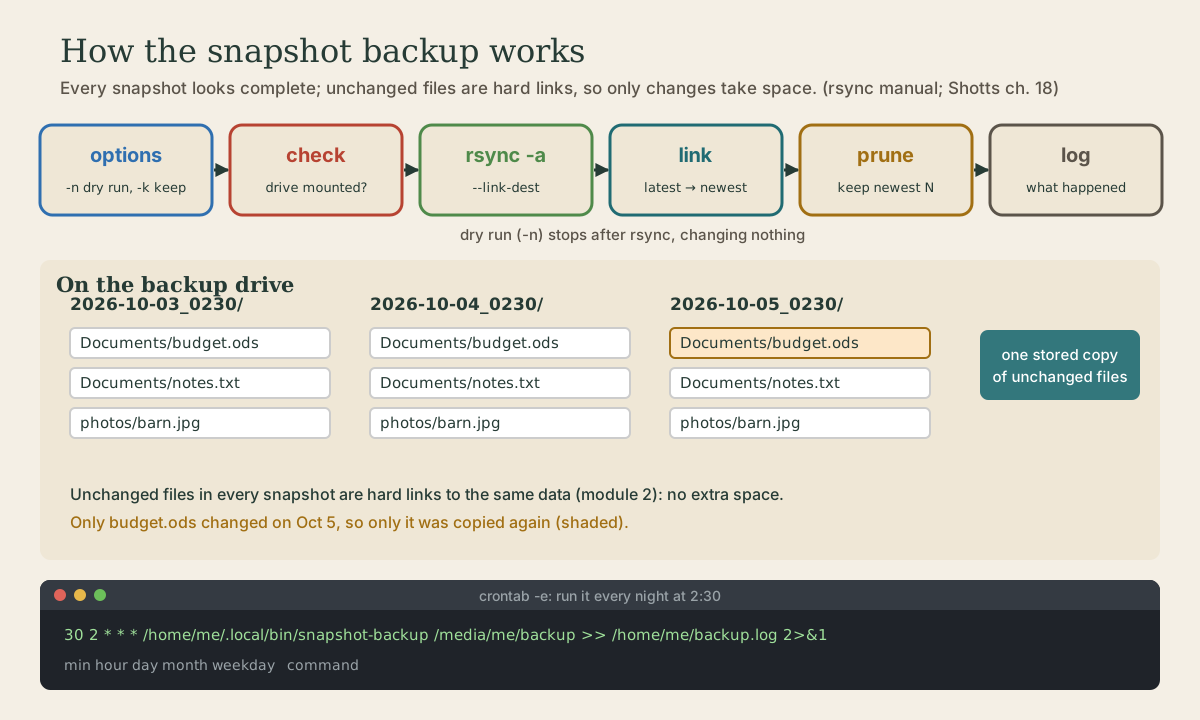
You’ll build snapshot-backup, a script that copies the folders you care about to a backup drive. Each run makes a new folder named for the date and time, a snapshot, that looks like a complete copy. But it isn’t stored as one: files that haven’t changed since the last snapshot are hard links (module 2) to the copies already on the drive, so each new snapshot takes only the space of what changed 1.
The trick is one rsync option. rsync copies files efficiently, sending only what’s different 2. Its --link-dest=DIR option compares each file with the same file in DIR, and if it’s identical, makes a hard link to it instead of copying 1.
What you get: browse to any snapshot and every file is there as it was that day; delete an old snapshot and nothing is lost from the others, because a hard-linked file’s data stays until its last name is gone.
Quick check
A hard link is another name for the same data (module 2), so an unchanged file is stored once no matter how many snapshots show it.
The script
#!/bin/bash
#
# snapshot-backup: copy chosen folders to a backup drive as dated snapshots.
# Unchanged files become hard links into the previous snapshot, so every
# snapshot looks complete but only changed files take up new space.
#
# Usage: snapshot-backup [-n] [-k COUNT] DESTINATION
#   -n        dry run: list what would be copied, change nothing
#   -k COUNT  keep this many snapshots (default 14)

set -euo pipefail

readonly SOURCES=("$HOME/Documents" "$HOME/photos" "$HOME/shell-course")

usage() {
    echo "Usage: $(basename "$0") [-n] [-k COUNT] DESTINATION" >&2
    exit 2
}

die() {
    echo "$(basename "$0"): $*" >&2
    exit 1
}

log() {
    echo "$(date '+%F %T') $*"
}

main() {
    local dry_run=false keep=14 opt
    while getopts ":nk:" opt; do
        case "$opt" in
            n) dry_run=true ;;
            k) keep="$OPTARG" ;;
            *) usage ;;
        esac
    done
    shift $((OPTIND - 1))
    [[ $# -eq 1 ]] || usage

    [[ -d "$1" ]] || die "$1 not found. Is the backup drive mounted?"
    local dest
    dest="$(realpath -- "$1")"
    [[ "$keep" =~ ^[1-9][0-9]*$ ]] || die "-k needs a whole number of snapshots"

    local snapshot latest
    snapshot="$dest/$(date +%F_%H%M)"
    latest="$dest/latest"

    local rsync_opts=(-a --delete)
    if [[ -d "$latest" ]]; then
        rsync_opts+=(--link-dest="$latest")
    fi
    if [[ "$dry_run" == true ]]; then
        rsync_opts+=(--dry-run --itemize-changes)
    fi

    local sources=() src
    for src in "${SOURCES[@]}"; do
        if [[ -d "$src" ]]; then
            sources+=("$src")
        else
            log "skipping $src: not found"
        fi
    done
    [[ ${#sources[@]} -gt 0 ]] || die "nothing to back up"

    log "snapshot $snapshot starting"
    rsync "${rsync_opts[@]}" "${sources[@]}" "$snapshot/"

    if [[ "$dry_run" == true ]]; then
        log "dry run finished; nothing was changed"
        return 0
    fi

    ln -sfn "$(basename "$snapshot")" "$latest"

    find "$dest" -mindepth 1 -maxdepth 1 -type d -name '20*' | sort | head -n -"$keep" |
        while read -r old; do
            log "removing old snapshot $old"
            rm -rf -- "$old"
        done

    log "snapshot $snapshot done"
}

main "$@"
Save it as ~/.local/bin/snapshot-backup, run chmod +x on it, and check it with shellcheck; it passes cleanly 3. Change SOURCES to the folders you actually want.
How it works
The layout follows the style guide: comment block with usage, set -euo pipefail, a constant, small helper functions, all the logic in main, and main "$@" at the bottom 4. Errors go to stderr with a nonzero status; usage errors exit 2.
Options. getopts ":nk:" accepts -n (dry run) and -k COUNT (how many snapshots to keep). After the loop, exactly one argument must remain: the destination.
Safety checks before anything happens. The destination must exist, so if the backup drive isn’t plugged in, the script stops instead of filling up your main disk. -k must be a positive whole number. realpath turns the destination into an absolute path; that matters because rsync treats a relative --link-dest path as relative to the destination folder, not to where you ran the command 1. (An early test of this script with snapshot-backup drive failed for exactly that reason.)
Options as an array. rsync_opts starts as -a --delete and grows: --link-dest only if a previous snapshot exists, --dry-run --itemize-changes only for -n. Building options in an array keeps every one a separate, correctly quoted word.
-a(archive) copies folders recursively and keeps permissions, times, owners, and symbolic links 1.--deleteremoves files from the destination that no longer exist in the source, so a snapshot matches the source exactly 1. In a fresh snapshot folder there’s nothing to delete; it’s there so re-running in the same minute stays accurate.--dry-runmakes rsync go through the motions without changing anything, and--itemize-changeslists each file it would transfer and why 1.
Sources. Missing folders are skipped with a log line rather than killing the run. The sources are passed without trailing slashes, so each becomes a folder inside the snapshot: snapshot/Documents, snapshot/photos 1 2.
The latest link. After a real run, ln -sfn points the symbolic link latest at the new snapshot. It stores just the folder name, so the link keeps working if the drive is mounted somewhere else next time. The next run uses latest as its --link-dest.
Pruning. Snapshot folders are named like 2026-10-05_0230, so sorting them by name sorts them by date. head -n -"$keep" prints every line except the last keep, which are the newest, and the while loop deletes those older ones.
Test it safely
Never point a new backup script at real data first.
-
Make a test destination in your Linux home and do a dry run:
me@linuxbox:~$ mkdir -p ~/backup-test
me@linuxbox:~$ snapshot-backup -n ~/backup-test
rsync lists what it would copy. Nothing is written 1.
-
Do two real runs a minute or more apart, then compare:
me@linuxbox:~$ snapshot-backup ~/backup-test me@linuxbox:~$ snapshot-backup ~/backup-test me@linuxbox:~$ ls -l ~/backup-test me@linuxbox:~$ du -sh ~/backup-test/2*ducounts hard-linked data once, the first time it meets it, so the second snapshot shows only a small size even though it looks complete. -
Check that a file is shared:
ls -li ~/backup-test/*/Documents/somefileshows the same inode number in both snapshots, with a link count of 2. -
Restore a file by copying it back:
cp -a ~/backup-test/2026-10-04_0230/Documents/budget.ods ~/Documents/.
Quick check
rsync’s --dry-run shows exactly what would happen without changing anything.
A real backup drive
For real backups, use an external drive formatted for Linux (ext4). --link-dest links only files whose permissions and ownership match exactly, and drives formatted for Windows (NTFS, exFAT) or mounted with generic ownership can stop files from linking, so every snapshot becomes a full copy 1. On a Linux desktop, a plugged-in drive appears under /media/<you>/<drive name>; give it a short label like backup.
Under WSL, your Windows drives appear under /mnt (module 1) 5, but they’re Windows file systems, so treat WSL as a place to practice with ~/backup-test. Set up the real thing after you’ve switched.
Run it every night with cron
cron runs commands on a schedule. Edit your own schedule with crontab -e; each line is five time fields and a command 6:
# min hour day month weekday  command
30 2 * * * /home/me/.local/bin/snapshot-backup /media/me/backup >> /home/me/backup.log 2>&1
Fields are minute (0-59), hour (0-23), day of month, month, and day of week (0 or 7 is Sunday); * means “every” 6. So this runs at 2:30 every morning. Cron runs jobs with a bare environment, little more than SHELL, HOME, and LOGNAME, not your login setup, so use full paths, and send both output streams to a log so you can check on it: tail ~/backup.log 6.
One cron trap: a % in a crontab line means “new line” to cron, so a command like date +%F must be written date +\%F there 6. Keeping the logic in a script, as here, sidesteps it.
The machine has to be on, and the drive plugged in, at 2:30. If the drive is missing, the script’s first check stops it and the log says why.
Your turn
Project steps
- Install the script, set
SOURCESto your own folders, and runshellcheckon it. - Do the dry run and two real runs into
~/backup-test. Compare thedu -shof each snapshot. - Change one file in a source folder, run again, and use
ls -lito show that the changed file got a new inode while an unchanged one kept the old one. - Run with
-k 2and confirm only the two newest snapshots remain. - Add a
-voption that, when given, passes--verboseto rsync. (Hint: add it torsync_opts.) - Write the crontab line you’ll use once you have a Linux machine and an ext4 drive.
Notes on the steps
- The first snapshot is about the size of your source folders; the second is tiny, because almost everything is hard-linked.
- Unchanged: same inode in both snapshots, link count 2 or more. Changed: different inode, link count 1.
snapshot-backup -k 2 ~/backup-test; the log shows “removing old snapshot” for each older one.- Add
vto the getopts string (":nk:v"), alocal verbose=false, a branchv) verbose=true ;;, and after the otherifs:if [[ "$verbose" == true ]]; then rsync_opts+=(--verbose); fi. - For example, nightly at 1:15:
15 1 * * * /home/<you>/.local/bin/snapshot-backup /media/<you>/backup >> /home/<you>/backup.log 2>&1.
So
You’ve built a real backup tool from pieces of every module: paths and links, permissions, redirection and pipelines, quoting and arrays, exit statuses, functions and getopts, and set -euo pipefail. rsync’s --link-dest makes daily snapshots cheap, a dry run and a test folder make it safe to try, and cron makes it automatic. That’s the shell course; next come Linux itself and git.
Lesson complete
Nice work.
Sources for this lesson
- 1rsync(1) manual page. The rsync project (Samba). verified-a (archive) equals -rlptgoD: recursion plus preserving links, permissions, times, group, owner, and devices (not hard links, ACLs, or xattrs). --delete removes files on the receiving side that don't exist on the sending side, for directories being synchronized. -n/--dry-run performs a trial run that changes nothing, best with -v or -i/--itemize-changes. --link-dest=DIR is like --copy-dest but hard-links unchanged files from DIR; files must match in all preserved attributes to be linked, so mount options or drives with generic ownership can prevent linking; a relative DIR is relative to the destination directory. A trailing slash on a source copies its contents instead of the directory itself.
- 2William Shotts. The Linux Command Line, Seventh Internet Edition (25.12A). LinuxCommand.org (print edition by No Starch Press). 2026. verifiedFree CC BY-NC-ND 3.0 book, release 25.12A of July 18, 2026. Part 1, Learning the Shell: the shell and terminal emulators, prompts ($ vs. # for the superuser), command history (most distributions keep the last 1,000 commands), Shift-Ctrl-C/V for copy and paste; navigation and the directory tree; exploring the system (ls options and the long listing, file, less, the guided tour of /, symbolic links); manipulating files (wildcards and character classes, mkdir, cp, mv, rm, ln; no undelete, test wildcards with ls first); working with commands (four kinds of commands, type, which, help, --help, man and its sections, apropos, whatis, info, alias); redirection; expansion and quoting; Readline keyboard tricks, completion, history search; permissions; processes. Later parts cover the environment, vi, packages, storage, networking, find, archiving, regular expressions, text processing, and shell scripting.
- 3Vidar Holen. ShellCheck: finds bugs in your shell scripts. shellcheck.net. verifiedA static analysis tool for sh and bash scripts that flags quoting problems, misused tests, unreachable or wrong logic, and portability issues, each with a numbered explanation (for example SC2086, double-quote to prevent word splitting). Installable with apt, dnf, brew, or pip (shellcheck-py), or usable in the browser. Version 0.11.0 checked the course's backup script clean on 2026-10-05.
- 4Shell Style Guide. Google. verifiedBash is the only shell allowed for executables, which start with #!/bin/bash; executables on PATH need no extension, libraries take .sh and aren't executable. Every file starts with a comment describing it; functions get header comments. Error messages go to STDERR. Quote variables and prefer "${var}"; use "$@" for arguments; prefer [[ ]] over [ ] and $( ) over backticks; use local in functions; constants readonly and capitalized; put the program in a main function called last with main "$@". Scripts over about 100 lines, or with non-straightforward control flow, should be rewritten in a more structured language.
- 5Working across Windows and Linux file systems. Microsoft Learn. verifiedAvoid working across operating systems with your files; for speed, store files used by Linux tools in the WSL file system (/home/<user>/Project), not /mnt/c. Windows drives appear in WSL as mounts such as /mnt/c. explorer.exe . opens the current Linux directory in File Explorer, and \\wsl$ shows all distributions' file systems. Case sensitivity differs between the systems. Linux tools can be run from Windows with wsl <command>, and Windows tools from Linux.
- 6crontab(5): tables for driving cron (Debian cron package). Debian. verifiedEach line is five time and date fields (minute 0-59, hour 0-23, day of month, month, day of week 0-7 with 0 or 7 Sunday) and a command; * means first-last; ranges, lists, and step values allowed. cron sets SHELL to /usr/bin/sh and LOGNAME and HOME from the owner's passwd entry. Unescaped % in the command becomes a newline, with the rest sent as standard input. Edit your own table with crontab -e.