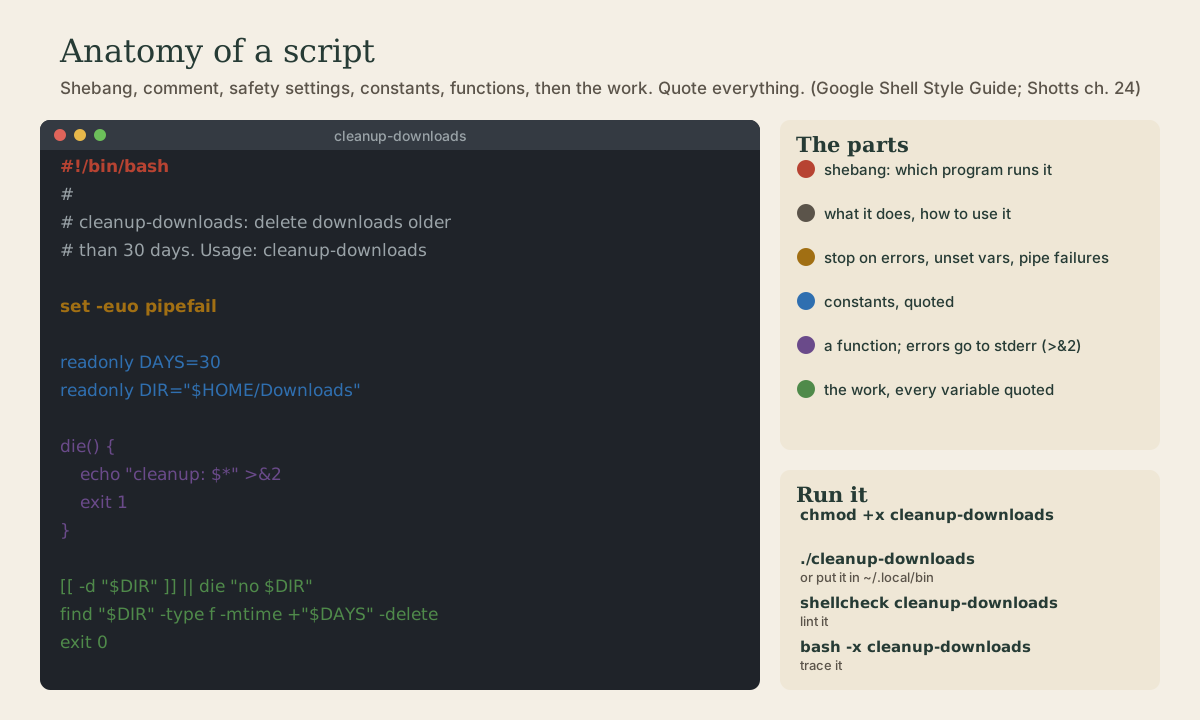
Your First Script
A script is a file of commands. The shebang line, making it executable, and where to keep it so it runs by name. Variables, constants, quoting, printf, reading input, sending errors to standard error, and exit codes. set -euo pipefail and what it does and doesn't catch. Checking scripts with ShellCheck and tracing them with bash -x, and when a script has outgrown bash.
- 7 min
- 8 steps
- 3 questions
- Lesson 21 of 80
In this lesson
- A file of commands
- Variables and constants
- Talking to the user
- Safety settings
- Checking and debugging
- When to stop using bash
- Your turn
- So
Picking up where you left off.
A file of commands
A shell script is just a text file of commands, run one after another, as if you’d typed them 1. Anything you can type at the prompt can go in a script, and a script can use variables, decisions, and loops like any programming language 2.
Make a folder for practice and create hello:
me@linuxbox:~$ mkdir -p ~/shell-course/scripts && cd ~/shell-course/scripts
me@linuxbox:~/shell-course/scripts$ nano hello
#!/bin/bash
# hello: greet the user and show some facts about this machine.

echo "Hello, $USER."
echo "Today is $(date +%A), and this is $(hostname)."
echo "You have $(ls ~ | wc -l) items in your home folder."
Three steps make it a program 1:
- The shebang. The first line,
#!/bin/bash, tells the system which program runs the file. Google’s style guide asks every executable script to start with exactly this line 3. (You’ll also see#!/usr/bin/env bash, which finds bash onPATH; it’s common for portability.) - Make it executable:
chmod +x hello(module 3). - Run it with a path:
./hello. Or move it to~/.local/binand run it from anywhere by name (module 5).
me@linuxbox:~/shell-course/scripts$ chmod +x hello
me@linuxbox:~/shell-course/scripts$ ./hello
Hello, me.
Today is Monday, and this is linuxbox.
You have 9 items in your home folder.
Lines starting with # are comments. Start every script with a comment saying what it does and how to use it 3. Scripts that you run by name don’t need a .sh extension; libraries you source do 3.
Quick check
#!/bin/bash do?It’s called the shebang. The file still needs chmod +x to be runnable.
Variables and constants
Variables work exactly as at the prompt (module 5): name=value, no spaces, and quote every expansion: "$name" 3 1. Use "${name}" with braces when the name runs into other text.
Values that shouldn’t change are constants; mark them readonly and write them in capitals 3:
readonly BACKUP_DIR="$HOME/backups"
readonly KEEP_DAYS=30
Inside functions, declare variables local so they don’t leak into the rest of the script (lesson 3) 3.
Talking to the user
Printing. echo is fine for plain text. For anything with formatting, use printf, which takes a format string like other languages 4:
printf '%-12s %6.1f GB\n' "photos" 41.27
Reading input. read puts a line from standard input into a variable; -p shows a prompt, and -r keeps backslashes as typed 1:
read -rp "Delete old downloads? [y/N] " answer
Errors go to standard error, not standard output 3. That way they show up on screen even when the script’s output is redirected to a file, and they don’t pollute data piped onward. A small function keeps it tidy:
die() {
    echo "$(basename "$0"): $*" >&2
    exit 1
}
>&2 sends echo’s output to stream 2 (module 4). $0 is the script’s own name.
Exit status. exit 0 for success, exit 1 (or another nonzero number) for failure, so &&, ||, and if work on your script like any command (module 6) 1. A script that reaches its end exits with the status of its last command.
Quick check
Pair it with a nonzero exit status so callers and && chains know it failed.
Safety settings
By default, bash keeps going after a command fails, happily expands misspelled variables to nothing, and ignores failures in the middle of pipelines. In a script that deletes or moves files, that’s dangerous. Put this right after the comment block 4:
set -euo pipefail
-e: exit as soon as a command fails.-u: treat an unset variable as an error instead of expanding it to nothing. A typo likerm -rf "$BACKUPDIR/"*(for$BACKUP_DIR) would otherwise becomerm -rf /*.-o pipefail: a pipeline fails if any part of it fails (module 6).
-e has blind spots by design: a failing command doesn’t stop the script if it’s the condition of an if or while, part of an && or || list (except the last command), or inverted with ! 4. That’s what lets you write [[ -d "$dir" ]] || die "...". Treat set -e as a safety net, not a substitute for checking the things that matter.
Quick check
set -euo pipefail near the top of a script?It isn’t perfect (commands tested by if, &&, and || don’t trigger -e), but it stops most runaway scripts.
Checking and debugging
ShellCheck reads a script and points out bugs: unquoted variables, wrong test syntax, misspellings, commands that won’t do what you think, each with a code like SC2086 you can look up 5. Install it with sudo apt install shellcheck, run shellcheck hello, and fix what it reports. Make it a habit before you run anything that changes files.
To watch a script run, trace it 4 1:
me@linuxbox:~/shell-course/scripts$ bash -x ./hello
+ echo 'Hello, me.'
Hello, me.
++ date +%A
...
Each + line is a command after expansion. You can also put set -x and set +x around just the part you’re debugging.
When to stop using bash
Shell scripts are perfect for gluing commands together. They get awkward as they grow: Google’s rule is that once a script passes about 100 lines, or its logic gets complicated, it should be rewritten in a more structured language, such as Python 3. Keep scripts short and focused.
Your turn
Exercises
- Write
helloas above, make it executable, run it, then move it into~/.local/binand run it by name. - Write
diskcheck: print how full your root file system is (df -h /) and the five biggest folders in your home (du -sh ~/* | sort -rh | head -5), with a heading before each. - Add
set -euo pipefailtodiskcheck, then add a lineecho "$UNDEFINED". What happens? Remove it. - Write
askthat reads your name withread -rp, then greets you; if the name is empty, print an error to stderr and exit 1. Test with./ask; echo $?. - Install ShellCheck and run it on all three scripts. Fix anything it reports.
Answers
mv hello ~/.local/bin/thenhello. (Log in again if~/.local/bindidn’t exist before.)-
For example:
#!/bin/bash # diskcheck: show disk use and the biggest folders in my home. set -euo pipefail echo "== Root file system" df -h / echo echo "== Biggest folders in $HOME" du -sh "$HOME"/* 2> /dev/null | sort -rh | head -5 -
The script stops with
UNDEFINED: unbound variableand a nonzero exit status. That’s-udoing its job. -
For example:
#!/bin/bash # ask: greet someone by name. set -euo pipefail read -rp "Your name? " name if [[ -z "$name" ]]; then echo "ask: no name given" >&2 exit 1 fi echo "Hello, $name!" -
Common finds: missing quotes (SC2086),
$( )output that will be split (SC2046), andcdwithout a check (SC2164: writecd dir || exit).
So
A script is a file of commands with a #!/bin/bash shebang, made executable with chmod +x and kept in ~/.local/bin. Quote variables, mark constants readonly, send errors to stderr with >&2, and exit nonzero on failure. Start with set -euo pipefail, check with ShellCheck, trace with bash -x, and switch languages when a script outgrows about 100 lines.
Lesson complete
Nice work.
Sources for this lesson
- 1William Shotts. The Linux Command Line, Seventh Internet Edition (25.12A). LinuxCommand.org (print edition by No Starch Press). 2026. verifiedFree CC BY-NC-ND 3.0 book, release 25.12A of July 18, 2026. Part 1, Learning the Shell: the shell and terminal emulators, prompts ($ vs. # for the superuser), command history (most distributions keep the last 1,000 commands), Shift-Ctrl-C/V for copy and paste; navigation and the directory tree; exploring the system (ls options and the long listing, file, less, the guided tour of /, symbolic links); manipulating files (wildcards and character classes, mkdir, cp, mv, rm, ln; no undelete, test wildcards with ls first); working with commands (four kinds of commands, type, which, help, --help, man and its sections, apropos, whatis, info, alias); redirection; expansion and quoting; Readline keyboard tricks, completion, history search; permissions; processes. Later parts cover the environment, vi, packages, storage, networking, find, archiving, regular expressions, text processing, and shell scripting.
- 2Anish Athalye, Jon Gjengset, Jose Javier Gonzalez Ortiz. Course Overview + Introduction to the Shell (The Missing Semester of Your CS Education, 2026). MIT CSAIL. 2026. verifiedCC BY-NC-SA lecture notes. The shell is a textual interface for running programs and wiring them together; a terminal is the visual interface to it. Bash is the most widely used shell (zsh and fish are popular alternatives); on Windows use WSL or a Linux VM. The shell splits a command at whitespace: first word the program, the rest arguments; quote or backslash-escape spaces. man and --help, plus tldr for examples; cd is a shell builtin; Tab completion; pwd and $PWD; absolute vs. relative paths, . and ..; $PATH lists the directories searched for programs, which shows the one found. Basic tools cat, sort, uniq, head, tail, grep.
- 3Shell Style Guide. Google. verifiedBash is the only shell allowed for executables, which start with #!/bin/bash; executables on PATH need no extension, libraries take .sh and aren't executable. Every file starts with a comment describing it; functions get header comments. Error messages go to STDERR. Quote variables and prefer "${var}"; use "$@" for arguments; prefer [[ ]] over [ ] and $( ) over backticks; use local in functions; constants readonly and capitalized; put the program in a main function called last with main "$@". Scripts over about 100 lines, or with non-straightforward control flow, should be rewritten in a more structured language.
- 4Chet Ramey, Brian Fox. Bash Reference Manual, Edition 5.3. GNU Project, Free Software Foundation. 2025. verifiedThe reference for Bash 5.3 (May 18, 2025). Redirections (3.6) are processed left to right and order matters: ls > dirlist 2>&1 sends both streams to dirlist, while ls 2>&1 > dirlist sends only standard output there. With set -o noclobber, > fails on an existing regular file and >| overrides it. &> word is equivalent to > word 2>&1 and &>> word to >> word 2>&1. Here documents (<<word, with <<- stripping leading tabs; quoting word disables expansion) and here strings (<<<). Expansions (3.5) happen in a fixed order: brace; tilde, parameter, arithmetic, and command substitution left to right; word splitting; filename expansion; quote removal last. Startup files (6.2): an interactive login shell reads /etc/profile then the first of ~/.bash_profile, ~/.bash_login, ~/.profile; an interactive non-login shell reads ~/.bashrc. HISTCONTROL (ignorespace, ignoredups, ignoreboth), HISTSIZE, HISTFILESIZE; set -x traces expanded commands; shell functions and variables, export.
- 5Vidar Holen. ShellCheck: finds bugs in your shell scripts. shellcheck.net. verifiedA static analysis tool for sh and bash scripts that flags quoting problems, misused tests, unreachable or wrong logic, and portability issues, each with a numbered explanation (for example SC2086, double-quote to prevent word splitting). Installable with apt, dnf, brew, or pip (shellcheck-py), or usable in the browser. Version 0.11.0 checked the course's backup script clean on 2026-10-05.